

Object Storage
Object Storage is an S3-compatible file store. You create buckets, generate access keys (credential pairs for S3 clients), and upload and download files with any standard S3 tool: aws s3, s3cmd, mc, rclone, or an SDK in your code.
Before you begin
Section titled “Before you begin”- Your provider offers object storage. If Object storage is missing from the sidebar’s Services group, contact your provider.
- Enough credit balance for the bucket plan’s price, where plans are priced.
Where to find it
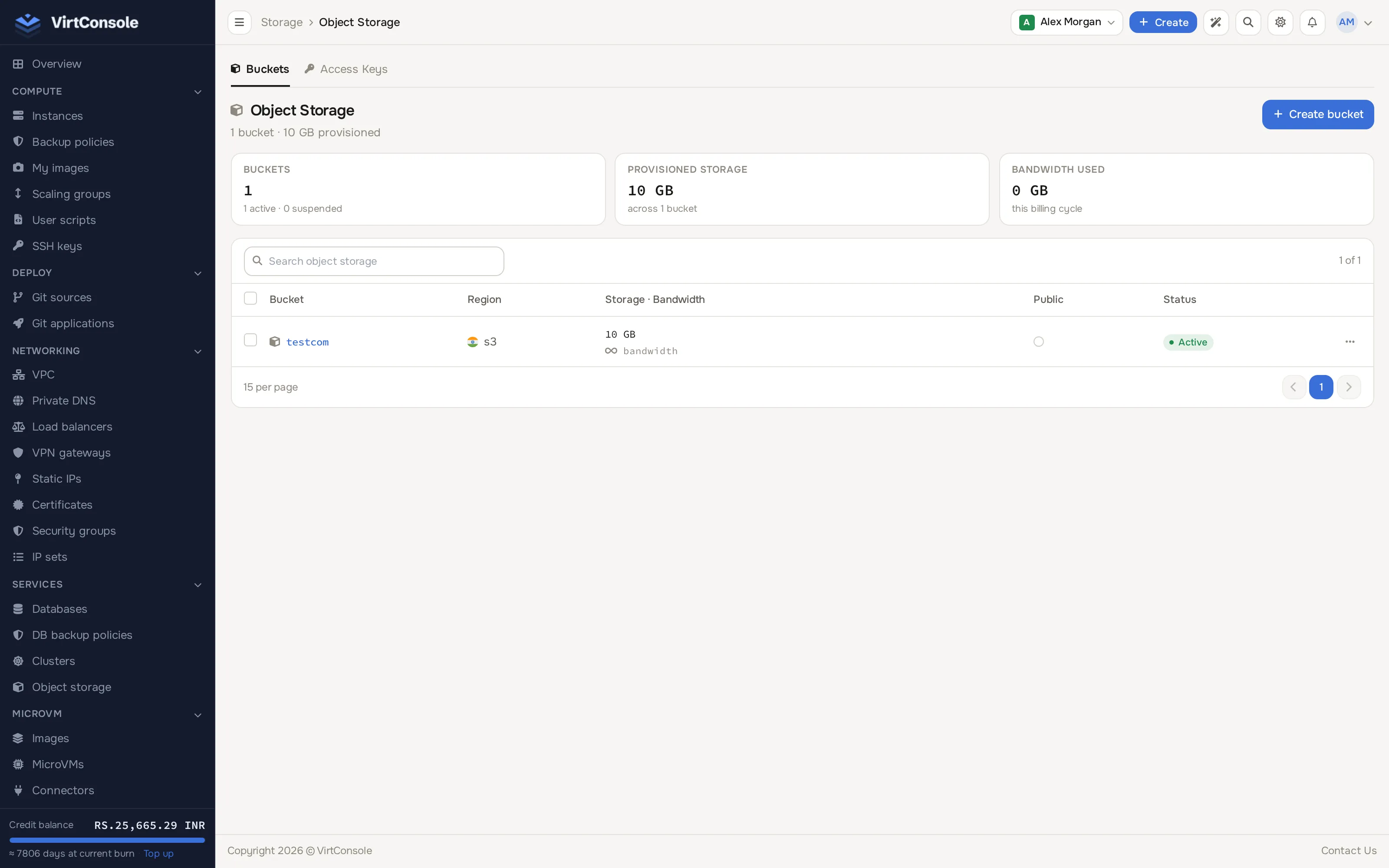
Section titled “Where to find it”Click Object storage in the sidebar’s Services group. The page has two tabs: Buckets and Access Keys.
The Object Storage page.
Create a bucket
Section titled “Create a bucket”-
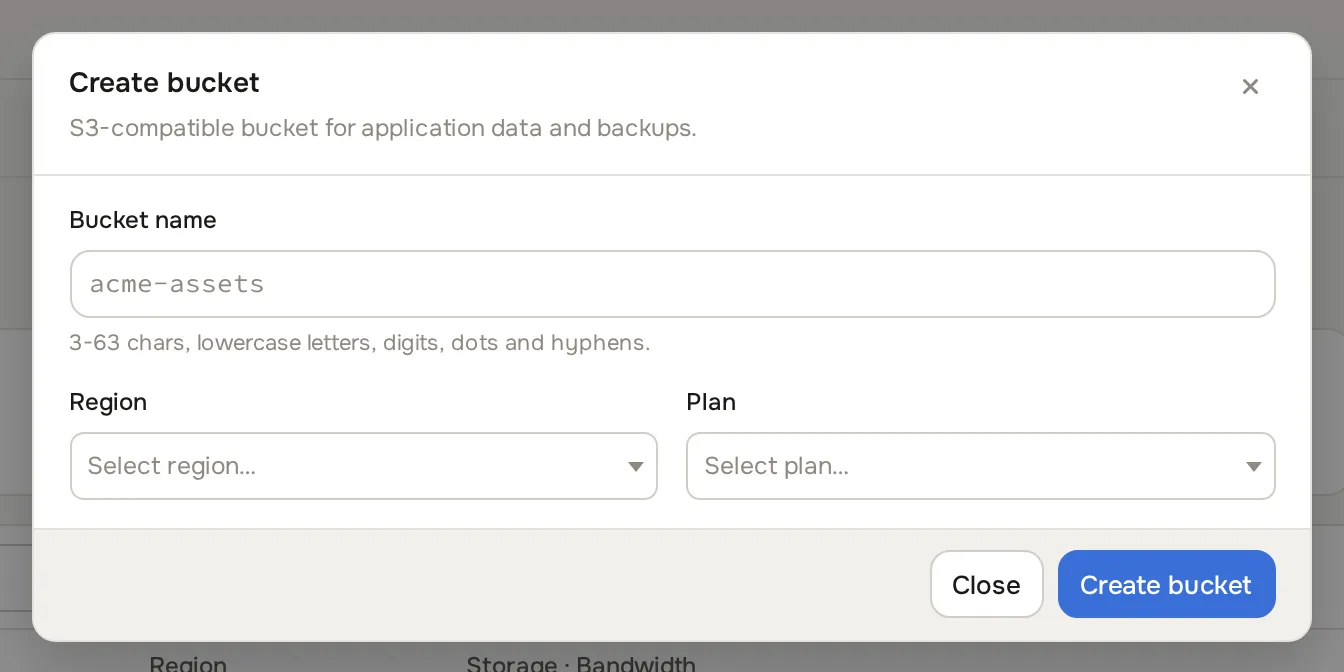
On the Buckets tab, click Create bucket. The create dialog opens.
-
Fill in:
Fields
| Field | What to enter |
|---|---|
| Bucket name | 3-63 characters: lowercase letters, digits, dots and hyphens. Must be unique on the storage cluster. |
| Region | The storage cluster to create the bucket on. |
| Plan | Sets the storage quota and bandwidth quota, shown as `quota GB |
- Click Create bucket.
Manage files in the browser
Section titled “Manage files in the browser”Click a bucket to open it. From there you can upload files, create folders, download objects, delete files and folders, and generate a public URL for an object (where the bucket’s access setting allows public reads). The bucket page also shows storage used and bandwidth used against your plan’s quotas.
Access keys and the S3 endpoint
Section titled “Access keys and the S3 endpoint”An access key is a pair: an access key ID plus a secret access key. That is the username and password any S3 client expects.
- On the Access Keys tab, click Generate key.
- Name the key and save. The secret is shown once; store it safely.
- Attach the key to a bucket: open the bucket, go to Access Keys, pick the key and a Permission (
Read Only,Write OnlyorRead & Write), and click Attach Key.
The bucket page header shows the S3 endpoint for the cluster. The Bucket Credentials card on the bucket page can also reveal the bucket’s own root access and secret key; treat them as secrets.
Point your client at the endpoint shown on the bucket page with the key’s credentials. Anything that works against AWS S3 works here. Example with the AWS CLI:
aws configure --profile mystore# Access key ID and secret from the panel; region can be any placeholderaws --profile mystore --endpoint-url https://s3.example.com s3 ls s3://my-bucketRevoke a key by deleting it from the access keys list, or detach it from a single bucket on the bucket page.
Delete a bucket
Section titled “Delete a bucket”Empty the bucket first (delete all objects), then delete it from the bucket list or page. A bucket over its bandwidth quota may be suspended until the next billing period, depending on your provider’s settings.
Common problems
Section titled “Common problems”- The Create bucket button fails. No plan is available, or you hit your account’s bucket quota. Contact your provider.
- My client gets signature or connection errors. Check the endpoint URL exactly as shown on the bucket page (including
https), and that the key is attached to the bucket. - Uploads stopped working. The bucket hit its storage or bandwidth quota. Check usage on the bucket page, delete objects, or ask your provider about a bigger plan.