

AI Assistant
The AI Assistant is a chat panel built into the platform. Instead of clicking through forms, a customer or an admin describes what they want in plain language, and the assistant performs the action, asking for missing details and confirming before any change is made. The panel does not ship a model: it talks to a large language model (LLM) provider that you configure.
What it is
Section titled “What it is”The assistant has two scopes:
- Customer scope: works inside one customer’s account. It can inspect that customer’s resources and create, edit and destroy them.
- Admin scope: also covers platform-wide configuration, for staff admins who prefer chat over the admin panel.
In both scopes the assistant respects the same permissions, ownership and limits as the rest of the panel: an admin tool requires the permission of its panel equivalent. A few shared read tools do not yet check a per-tool view permission for admins. It cannot do anything the person chatting with it could not do on their own. Tool calls that modify data always pause for confirmation.
Adding cloud credit through the assistant is idempotent per conversation: repeating the request answers that the credit was already posted and adds nothing. Tool errors no longer include database details.
Before you begin
Section titled “Before you begin”- An account with an LLM provider (a hosted API or a self-hosted, OpenAI-compatible endpoint), and its API key.
Enable and configure the assistant
Section titled “Enable and configure the assistant”In the admin panel go to System > Settings and open the AI Assistant tab.
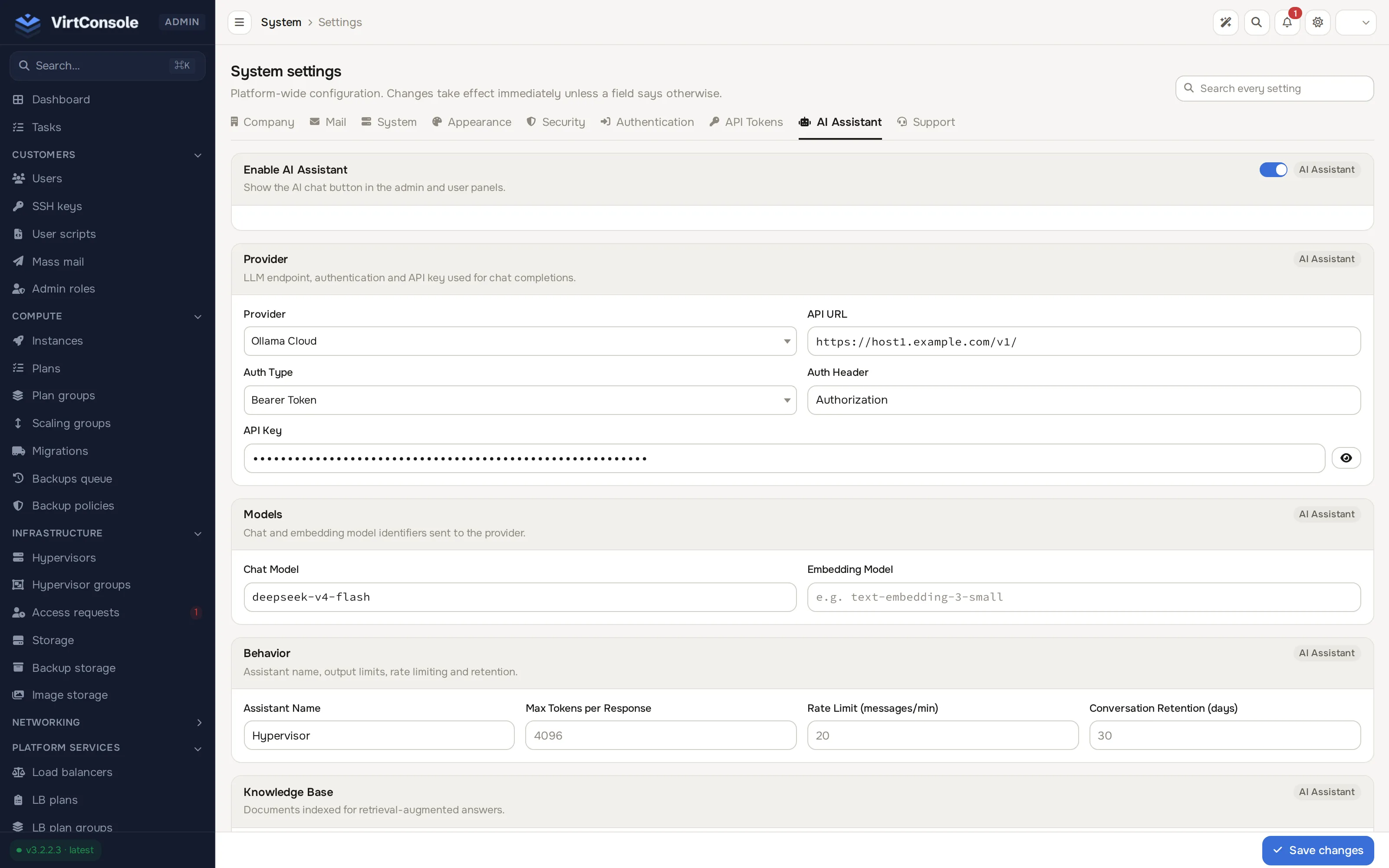
Enable AI Assistant
Section titled “Enable AI Assistant”Turn on Enable AI Assistant to show the chat button in the admin and user panels. With it off, the assistant is hidden everywhere.
Provider
Section titled “Provider”| Field | What to enter |
|---|---|
| Provider | The provider preset to start from. The dropdown lists the presets the panel ships. |
| API URL | The provider’s endpoint. Presets fill this in; change it for a self-hosted endpoint. |
| Auth Type | Bearer Token, API Key Header or No Auth. |
| Auth Header | The header that carries the key, when the auth type is a header. |
| API Key | The provider key. Stored encrypted; leave it masked on save to keep the current value. |
Models
Section titled “Models”Set the Chat Model identifier used for replies and the Embedding Model used to index the knowledge base. Larger models answer better and cost more per token.
Behavior
Section titled “Behavior”| Setting | What it does |
|---|---|
| Assistant Name | The name shown in the chat panel. |
| Max Tokens per Response | Caps reply length. |
| Rate Limit (messages/min) | Caps how fast one user can drive the assistant. |
| Conversation Retention (days) | How long transcripts are kept before a scheduled job removes them. |
Knowledge base
Section titled “Knowledge base”The Knowledge Base block indexes documents for retrieval-augmented answers, so the assistant can answer questions like “what is your refund window?” using your wording. Add a document by URL, pick its audience, and click Add:
- Visible to: Admins only: only the admin assistant may use the content.
- Visible to: All users: the user-facing assistant may quote it back to customers. Choose this only for content every customer may read.
The block shows how many chunks are indexed and when. After adding, removing or changing audience, click Re-index Knowledge Base; audience changes take effect only after re-indexing. Keep the knowledge base short and structured: every entry costs tokens on every message.
Review conversations
Section titled “Review conversations”Each admin can revisit their own past chats. Open the assistant, then click the list icon at the top left of the panel header to toggle the Recent conversations sidebar. Click a past conversation to reload it, or + New to start a fresh one. This sidebar only ever shows the signed-in admin’s own conversations; there is no separate page to browse every admin’s or customer’s AI transcripts. To see what the assistant did on a specific customer’s account, impersonate that customer and check their dashboard’s recent activity, which records tool actions the same way it records the customer’s own actions.
Support ticket triage
Section titled “Support ticket triage”The assistant also powers ticket triage: when enabled, it pre-analyses new support tickets and files its findings as an internal note. Configure it under System > Settings on the Support tab. See Support tickets.
Common problems
Section titled “Common problems”- The chat button is missing. Enable AI Assistant is off in System > Settings, or the signed-in account lacks the permission to use it.
- The assistant answers that it cannot reach the provider. The provider endpoint is unreachable from the management server, or the key is wrong. Check outbound network access and the API URL and API Key.
- Replies are slow or the provider bill climbs. Trim the knowledge base, lower the Chat Model tier, or tighten the Rate Limit and Max Tokens per Response.
- A customer saw admin-only content quoted back. The document’s audience was All users, or an audience change was not followed by Re-index Knowledge Base. Fix the audience and re-index.