

Instance networking
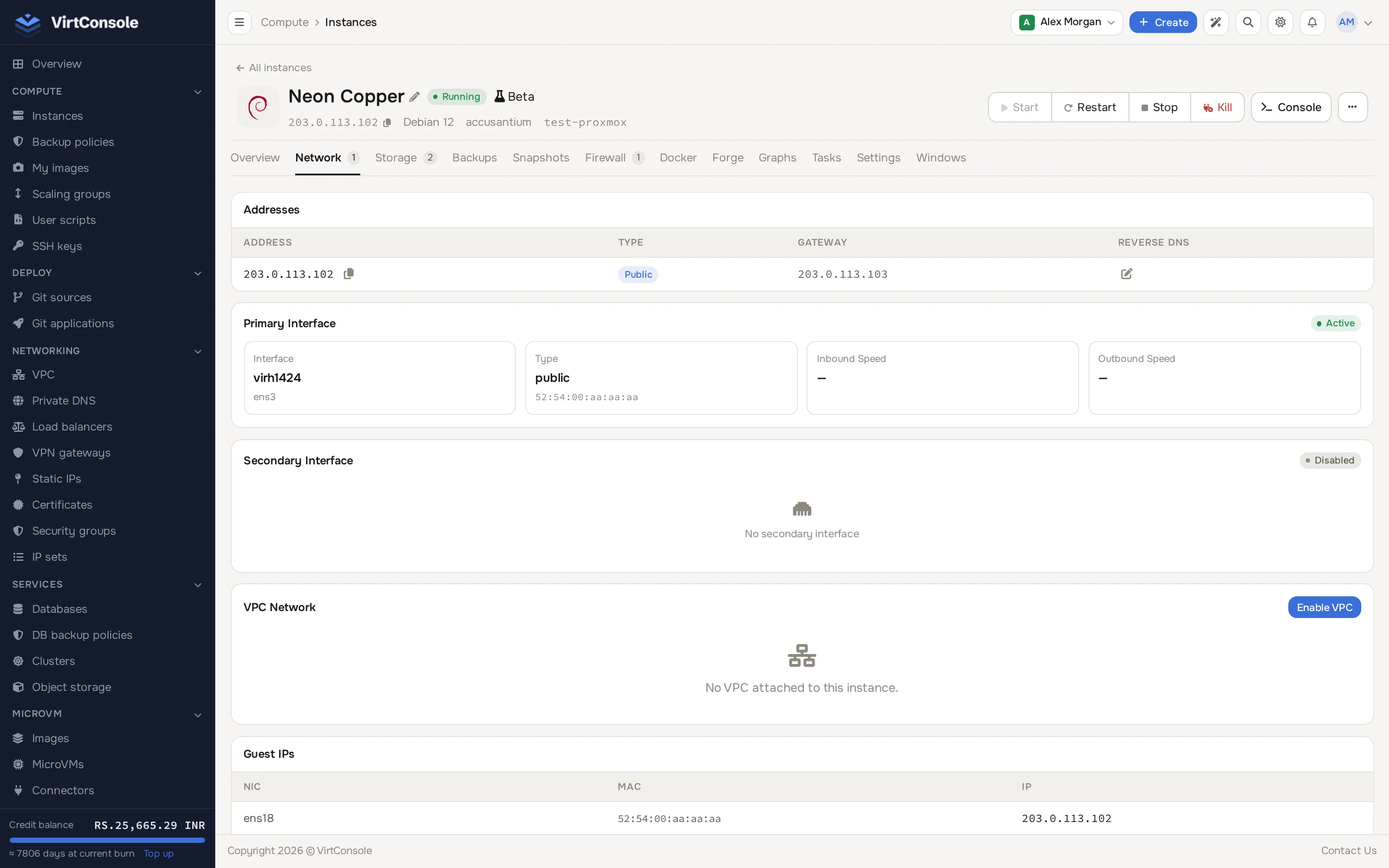
The Network tab of the manage page shows every IP address an instance holds: its public IPs, private IPs, and VPC addresses if it sits inside a private network.
Where to find it
Section titled “Where to find it”Open the instance manage page (Compute > Instances > Manage) and click Network in the tab bar.
The Network tab of an instance.
Public IP addresses
Section titled “Public IP addresses”The Addresses card lists every IP attached to the instance in a table:
| Column | What it shows |
|---|---|
| Address | The IP address, with a copy button. IPv4 and any IPv6 addresses from your plan appear here. |
| Type | Public or Private. |
| Gateway | The default gateway for that address’s subnet. |
| Reverse DNS | The PTR record for the address, with an edit control. |
Below it, the Primary Interface card (badged Active or Disabled) shows the interface name, its type and MAC address, and its inbound/outbound speed.
Set reverse DNS (PTR)
Section titled “Set reverse DNS (PTR)”Reverse DNS maps an IP back to a hostname, for example 203.0.113.10 answering with vm-12.example.com. Mail servers need this for reputation.
- In the Reverse DNS column, click the edit pencil next to the IP.
- Type the hostname, for example
vm-12.example.com. - Click the green check button.
The hostname should itself resolve to the same IP, or many networks will still reject your mail. Depending on how your provider configured the DNS zone, the change either applies immediately or is queued as a request that your provider approves first; you get a message telling you which.
IPv6 subnets
Section titled “IPv6 subnets”If your plan includes IPv6, your instance may receive individual IPv6 addresses or a whole /64 subnet routed to it. Allocated IPv6 addresses appear in the same Addresses table. The number of IPv6 addresses and subnets is fixed by your plan (or set at create time from a Self-Provisioning pack). To get more, change plan or contact your provider.
Add or remove public IPs
Section titled “Add or remove public IPs”The IP allocation that comes with a plan is fixed. To change it, switch to a plan with more IPs (Cloud Service: click Change plan under Quick actions on the Overview tab) or ask your provider. Reserved Static IPs you own can be assigned when you create the instance; see Static IPs.
Private interface
Section titled “Private interface”If your provider offers private networking, a Secondary Interface card (badged Active or Disabled) lists the private interface of the instance. With none configured, it shows “No secondary interface”.
VPC networking
Section titled “VPC networking”If the instance is in a location with VPC enabled, the VPC Network card manages its private network membership. With no VPC attached, the card shows “No VPC attached to this instance.” and an Enable VPC button in the card header.
- Enable VPC: attaches the instance to one of your VPCs and a subnet inside it. Pick from the dropdowns and confirm.
- Add IP: gives the instance an extra VPC IP, either auto-assigned or a specific free address from the subnet.
- Set Primary: on a non-primary row in the VPC IP Addresses table, promotes that IP to be the primary private address.
- The red delete button removes a VPC IP. The last remaining IP cannot be removed; use Disable VPC to detach the instance from the VPC entirely.
When the VPC has a NAT gateway, an Internet Bandwidth (via NAT Gateway) card shows how much outbound traffic the instance has used through it.
Guest IPs
Section titled “Guest IPs”The Guest IPs card lists the addresses the OS inside the instance has actually configured, as reported by its tools. Use it to check whether the OS picked up what the panel assigned. This card only works on platforms that report guest state; it hides itself where unsupported.
Enable the public interface
Section titled “Enable the public interface”A Cloud Service instance deployed into a private-only setup shows an Enable button in the Primary Interface card header. Click it to attach a public NIC and receive public IPs.
Common problems
Section titled “Common problems”- My rDNS change did not take effect. The DNS zone requires provider approval; your change was queued as a request. If it stays pending, contact your provider.
- The VPC dropdown is empty. VPC is not enabled in this location, or you have no VPC there. Create one under Networking > VPC, or contact your provider.
- An added VPC IP does not work inside the OS. Cloud-init configures networking automatically on first boot; on older installs you may need to restart the instance or configure the address by hand.
- The instance has no internet after moving to a private subnet. Attach a NAT gateway on the VPC page, or enable the public interface.