

Scaling groups
A scaling group is an autoscaling set of identical virtual machines. The customer defines one template (an instance plan, an image, networking, cloud-init) and one or more scaling policies (rules like “if average CPU across the group stays above 80 %, add one instance”). The panel then watches CPU or memory across the group and adds or removes VMs to keep the metric inside the customer’s target band.
The classic use case is a stateless web tier behind a load balancer: traffic rises, the group adds workers; traffic drops, the group removes them. Each VM in a group is billed like any other hourly instance through Cloud Service; the group itself is free.
Where to find it
Section titled “Where to find it”The admin view is Compute > Scaling groups.
Enable autoscaling in a region
Section titled “Enable autoscaling in a region”This is the only operator-level setup the feature needs.
- Go to Infrastructure > Hypervisor groups and open the group.
- In the Instance Images & Autoscaling card, switch Enable Autoscaling on.
- Save.
Customers only see the region in the create wizard’s location dropdown when the toggle is on and the region has hypervisor capacity.
The admin list
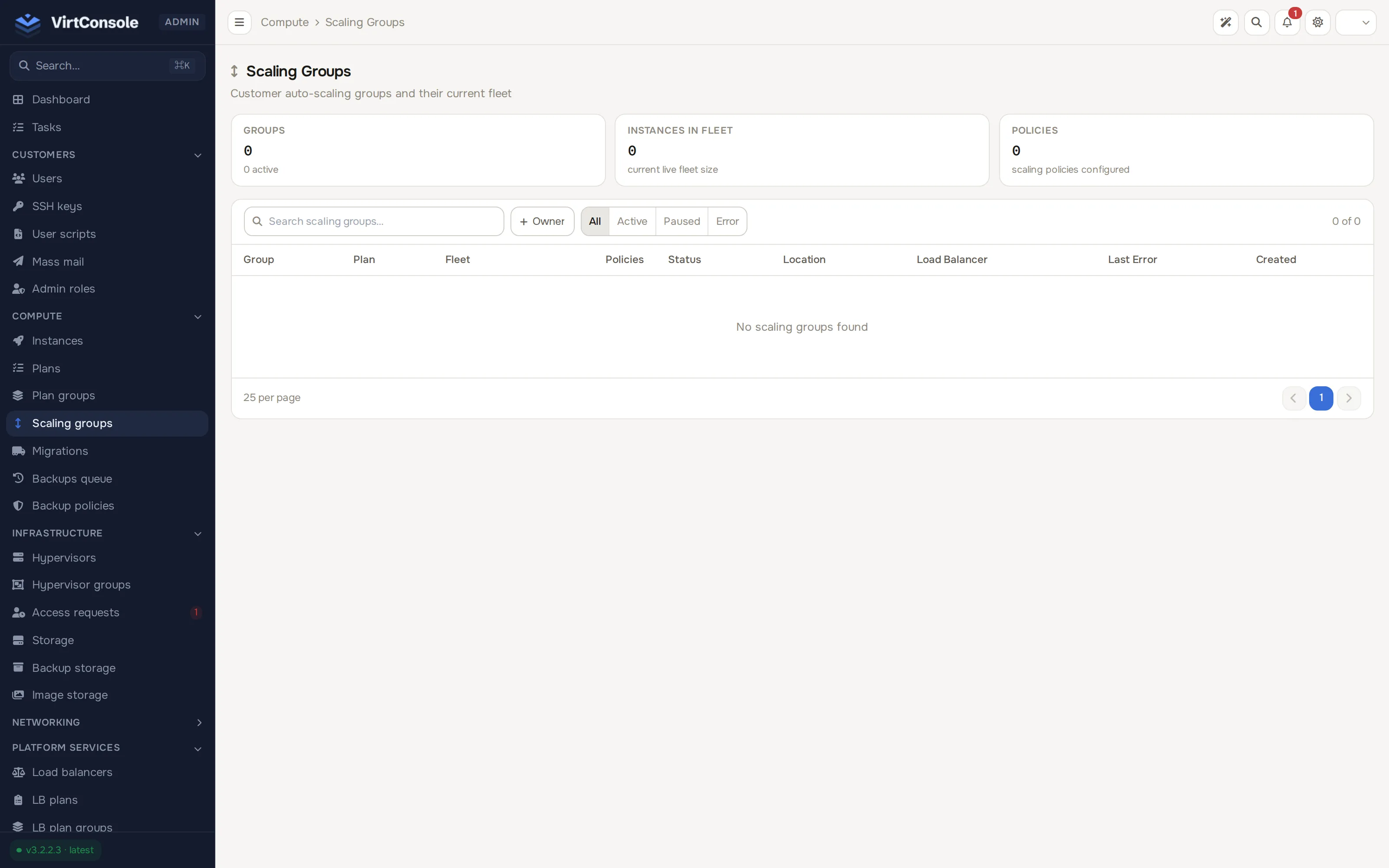
Section titled “The admin list”Compute > Scaling groups is a read-only, cross-customer view for support. Three tiles at the top show the total Groups (with how many are active), Instances in fleet and Policies configured across all customers. Each row shows:
| Column | What it shows |
|---|---|
| Group | Group name and short ID. |
| Plan | The instance plan every VM in the group uses. |
| Fleet | Current instance count, with the min - max bounds in parentheses. |
| Policies | How many scaling policies are configured. |
| Status | active, paused or error. |
| Location | The region the VMs deploy into. |
| Load Balancer | The attached load balancer, if any. |
| Last Error | The most recent activity error, when one exists. |
| Created | When the group was created. |
Filter by search text, owner, or status (All, Active, Paused, Error).
There are no edit actions on this page. To operate a group (pause it, change its bounds, destroy it), open the customer under Customers > Users and click Impersonate, then work in their panel under Compute > Scaling groups. The customer-facing flow is documented in Scaling groups (user guide).
How evaluation works
Section titled “How evaluation works”- Every few seconds the panel walks the active groups. For each policy whose interval has elapsed, it averages the metric (CPU or memory) across all running VMs over the policy’s evaluation window.
- Above the scale-up threshold, and past the scale-up cooldown, it adds the step count of VMs, capped at the group’s max.
- Below the scale-down threshold, and past the scale-down cooldown, it removes the step count, floored at the group’s min.
- Cooldowns prevent flapping: after a scale-up the group cannot scale up again until the cooldown expires, even if the metric stays hot.
When the group has a load balancer attached, new VMs register as targets automatically and take traffic once their health check passes; VMs leaving the group are deregistered before they are destroyed, so in-flight requests complete.
Common problems
Section titled “Common problems”- A customer does not see the region in the wizard. Autoscaling is not enabled on that hypervisor group, or the region has no free hypervisor capacity. Check Infrastructure > Hypervisors.
- Instances are not being created. The group must be
active(notpaused), the customer needs enough credit for the new VMs, and a private VPC subnet needs a working NAT gateway so the new VMs can fetch packages during cloud-init. - Scale-up never triggers. No enabled policy, the average metric never crossed the threshold across the window, or the cooldown has not elapsed. The group’s activity log (customer panel) names the refusal reason.
- “No hypervisors available” in the activity log. Every hypervisor in the region is at capacity. Add compute, or have the customer pick a smaller plan.