

Team members and roles
Team management lets you give colleagues their own login to your account. Each team member shares your resources (instances, VPCs, buckets and so on) but signs in with their own email and password, and a role decides what they are allowed to do.
Where to find it
Section titled “Where to find it”In the sidebar’s Organisation group, click Team members for people, and Roles for the permission sets you assign them.
The team members list shows each person, role, 2FA status, last active time and status.
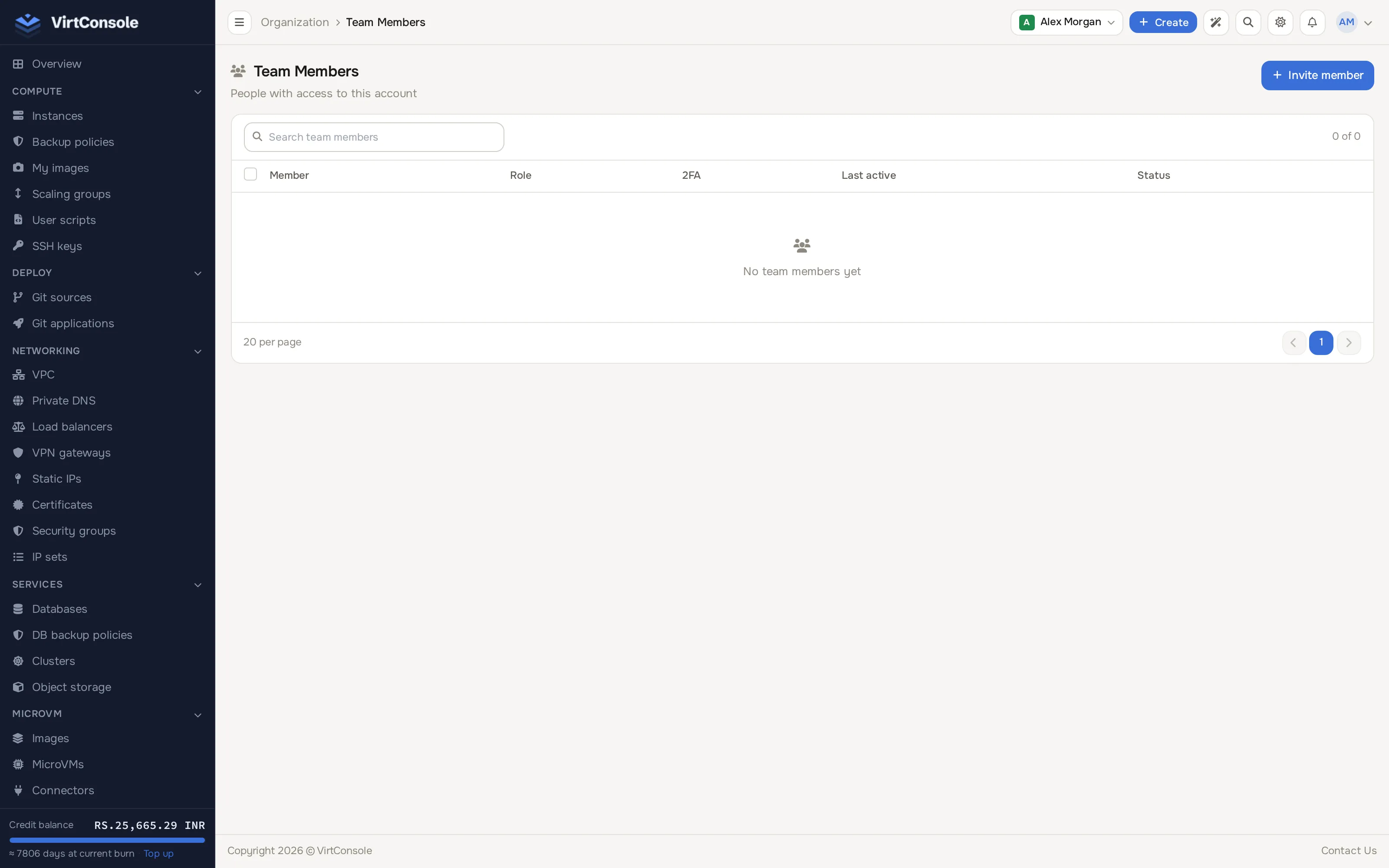
Invite a member
Section titled “Invite a member”-
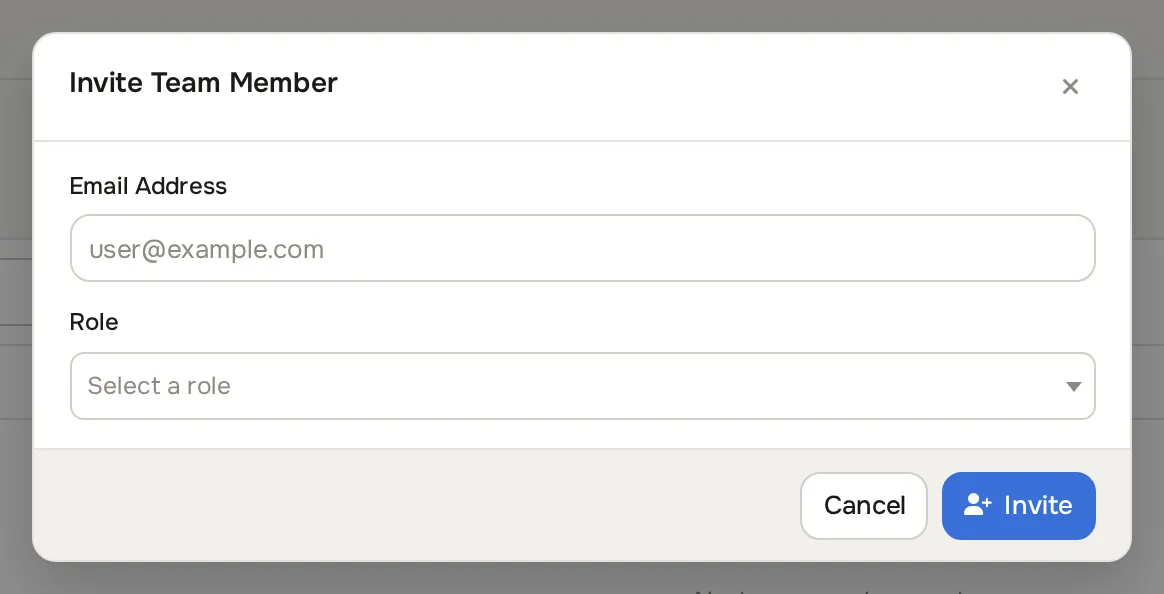
Click Team members, then Invite member. The Invite Team Member dialog opens.
-
Enter their Email Address and pick a Role.
-
Click Invite.
They receive an email invitation. Until they accept, their invitation shows as pending; use the resend button if the email went missing. To change someone’s access later, edit their role from the member row. Remove takes their access away without touching your resources.
A role is a named list of permissions. Permissions are grouped by area: instances, VPCs, load balancers, security groups and IP sets, Kubernetes, databases, object storage, images, static IPs, certificates, autoscaling, billing, SSH keys, user scripts, projects, monitoring and alerts, support, team management, and API tokens. Each area offers view, manage and delete level permissions.
Create a role
Section titled “Create a role”- Click Roles, then Create role.
- Enter a Name and optional description.
- Tick the permissions the role grants, for example
instances.viewfor read-only access or the full instance set for an operator. - Click Create Role.
The roles list.
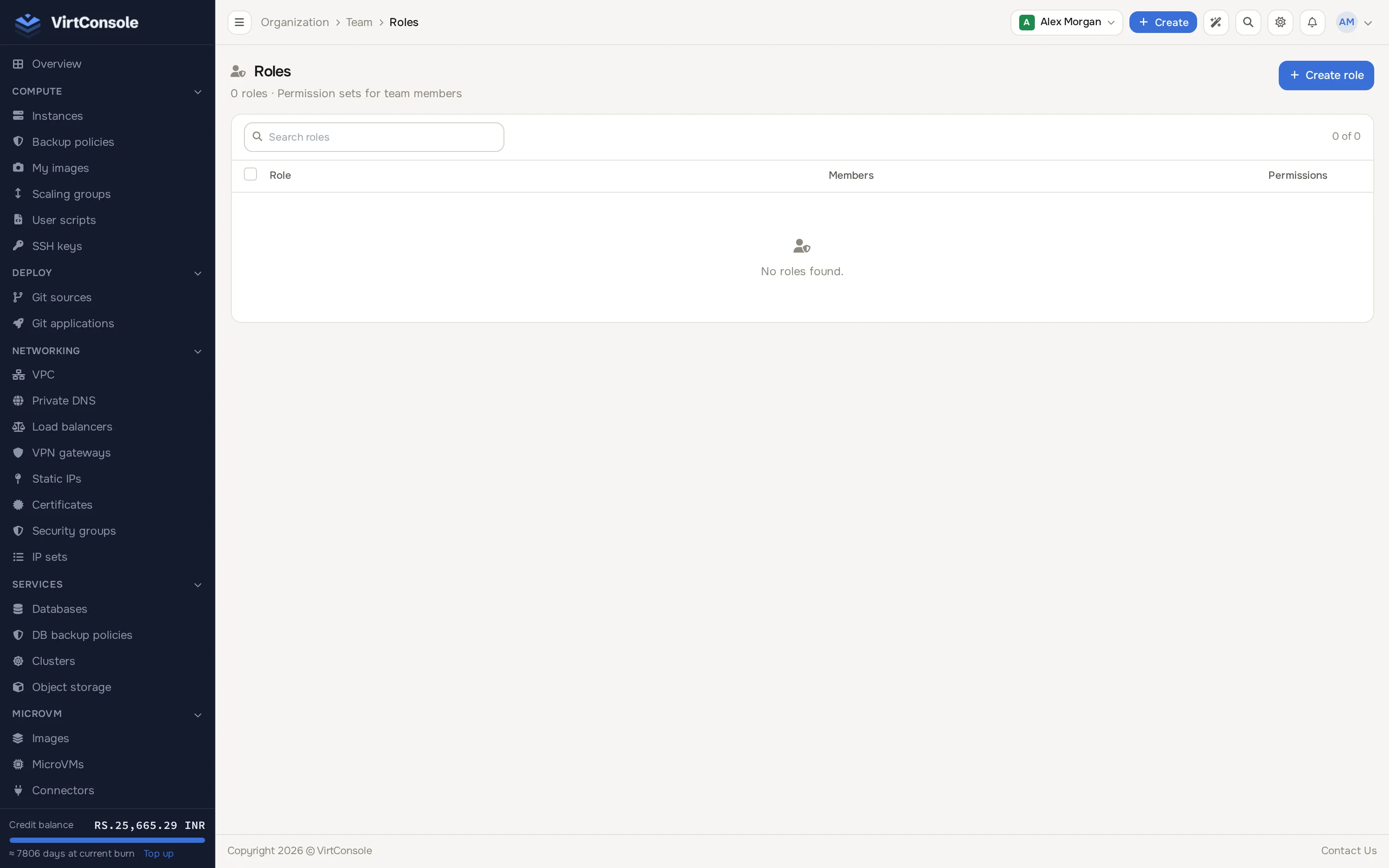
Edit a role later from its row. Deleting a role that members still hold removes those permissions from them.
What team members see
Section titled “What team members see”A member’s sidebar only shows the sections their role permits. A banner at the top of their panel tells them they are a team member on your account. Billing pages are hidden unless their role includes billing permissions, so your balance and invoices stay private from members who do not need them.
Common problems
Section titled “Common problems”- The invitation email never arrived. Check spam, then use the resend button on the member row. If it still fails, contact your provider.
- A member’s sidebar is nearly empty. Their role grants no view permissions. Edit the role and add at least the
viewpermission for each area they need. - The invitation link says it is invalid or expired. The link is signed and single-use; it stops working once accepted. Resend the invitation from the member row.