

Billing and credits
If your provider uses the built-in billing, your account holds a prepaid credit balance. Running resources (instances, volumes, load balancers, databases and other metered resources) are metered against that balance every 2 minutes. Top up the balance with a card or wallet, and everything else happens on its own.
If your provider bills you through an external store or billing portal instead, there is no in-panel balance; your invoices live with your provider and this page does not apply.
Where to find it
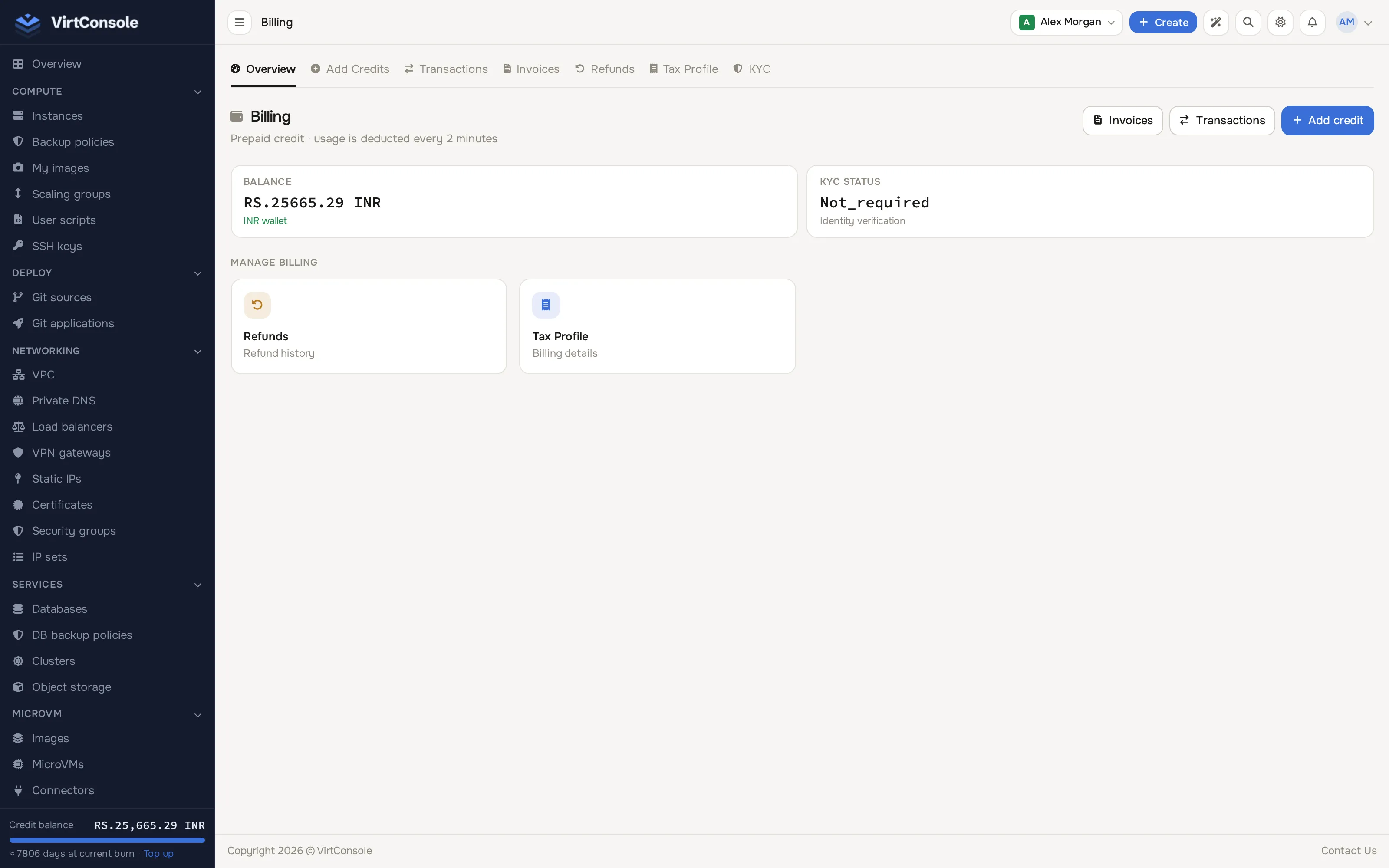
Section titled “Where to find it”Click Billing in the sidebar (it sits on its own, below the main navigation groups). A row of tabs sits above every billing page: Overview, Add Credits, Transactions, Invoices, Refunds, Tax Profile and KYC.
Overview
Section titled “Overview”The overview shows your current balance and KYC (identity verification) status, plus shortcuts to Invoices, Transactions, Add credit, Refunds and Tax Profile.
Add credits
Section titled “Add credits”-
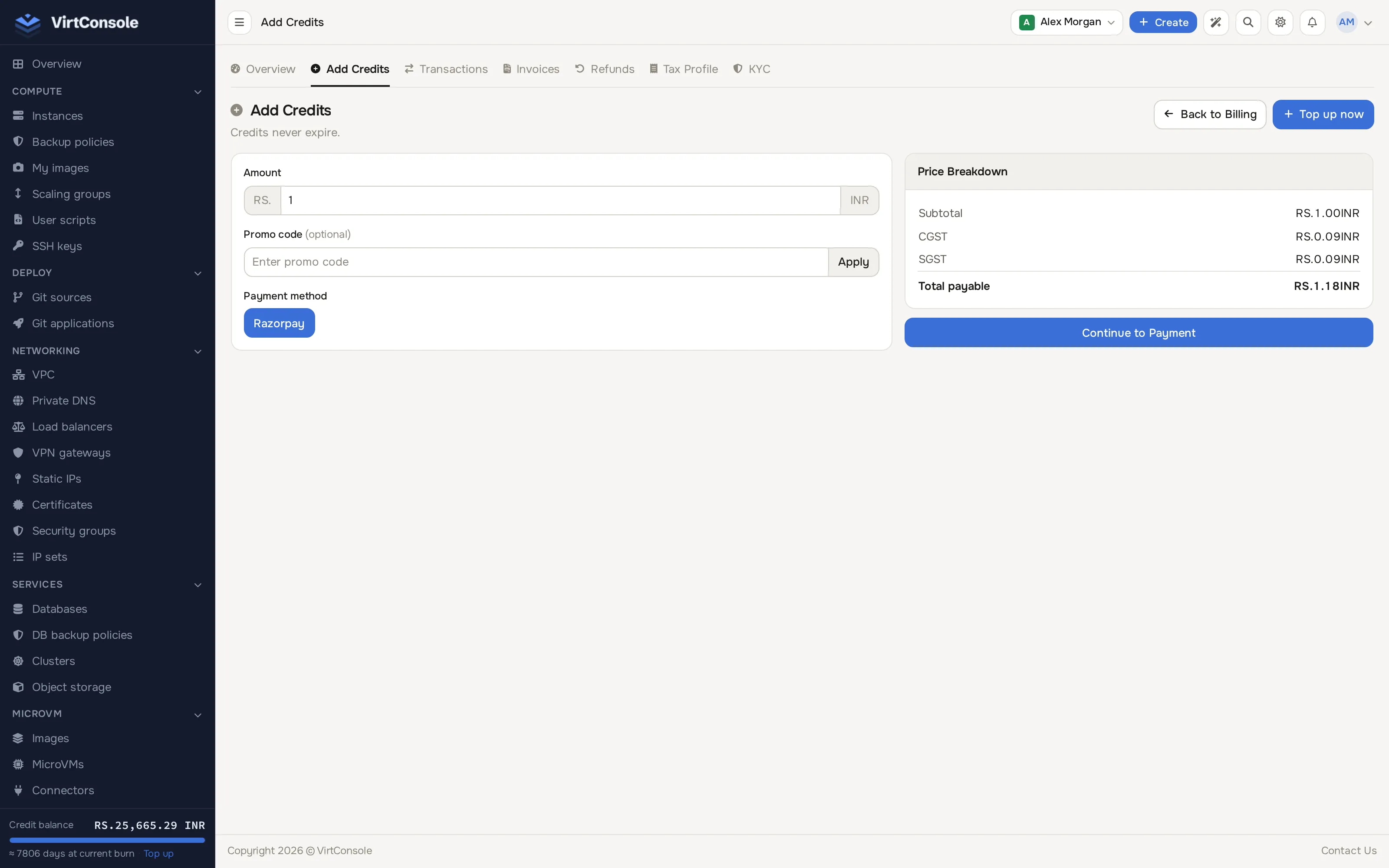
Open the Add Credits tab.
-
Enter the Amount to add.
-
If you have a Promo code, enter it and click Apply; the price breakdown updates before you pay.
-
Check the Price Breakdown (subtotal, tax lines, total payable) and pick a Payment method.
-
Click Continue to Payment and pay through the gateway.
Your balance increases as soon as the payment is confirmed and is immediately available for running resources. Every successful top-up produces an invoice automatically; it is emailed to you with a PDF attached.
If your provider requires identity verification (KYC) before you can add funds, you are guided through it before your first top-up (see Identity verification below).
How hourly deduction works
Section titled “How hourly deduction works”Each metered resource has an hourly rate derived from its plan’s monthly price. While the resource exists, the rate is deducted from your balance every 2 minutes. Delete or destroy the resource and the deduction stops. Depending on your provider’s settings:
- You get a reminder email when the balance runs low.
- A second warning when the balance goes negative.
- Past a provider-set negative threshold, your instances are suspended automatically so no further charges accrue, and creating new instances may be blocked until you top up.
Suspended instances come back when the balance is topped up again. Your monthly Usage & spend report (in the sidebar’s Observe group) lists each resource, its hourly rate, hours used and total cost, with month switching for history.
Transactions
Section titled “Transactions”The Transactions tab lists every top-up, refund and manual credit with its reference, type, gateway, amount, status and date. Rows with an invoice carry an Invoice download action.
Invoices
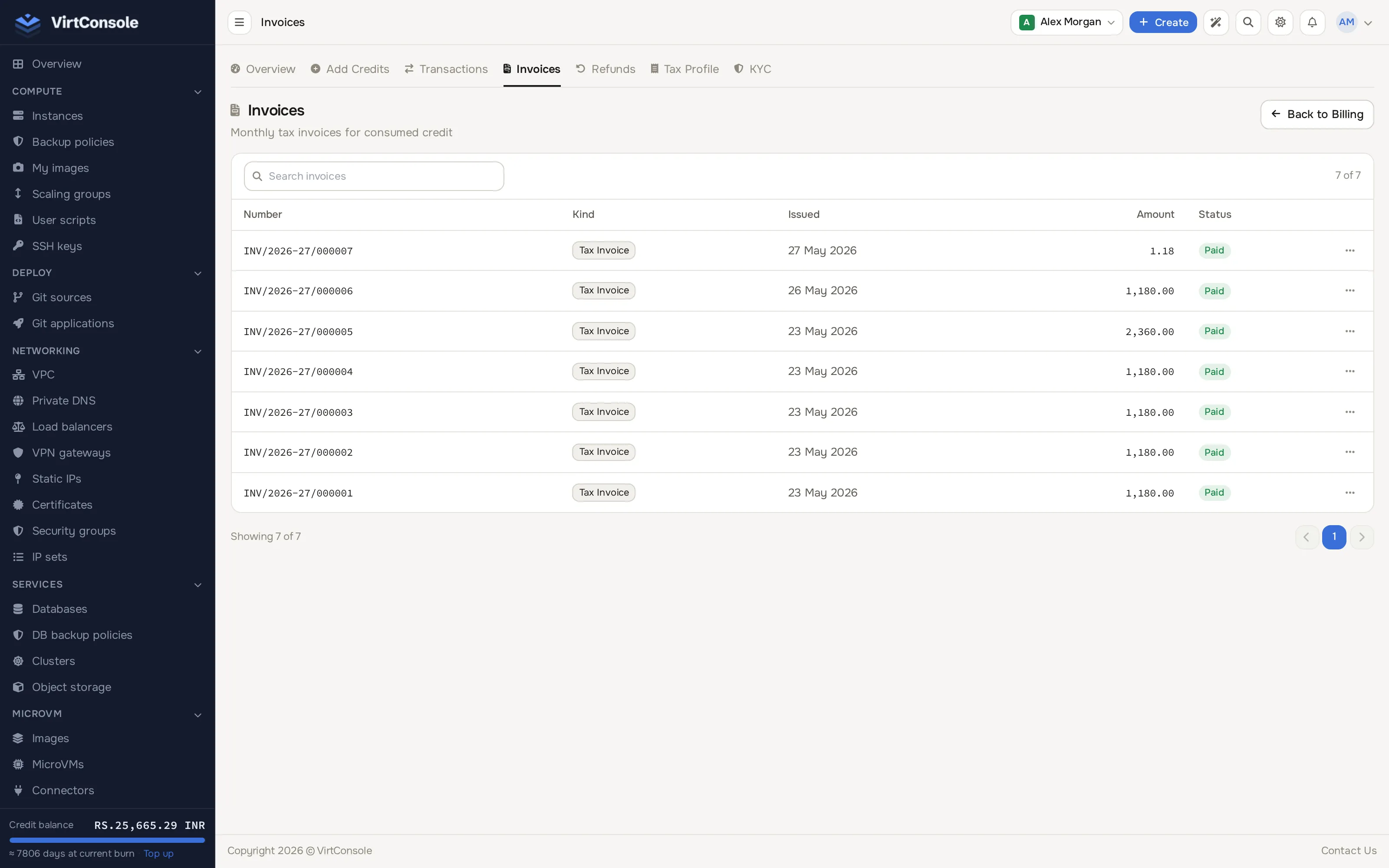
Section titled “Invoices”The Invoices tab lists every invoice with its number, kind, issue date, amount and status.
Refunds
Section titled “Refunds”The Refunds tab lists refund requests and their status (Pending, Processing, Completed or Failed). If a charge needs reversing, contact your provider (for example through a support ticket); they review and process refunds, which then appear here.
Tax Profile
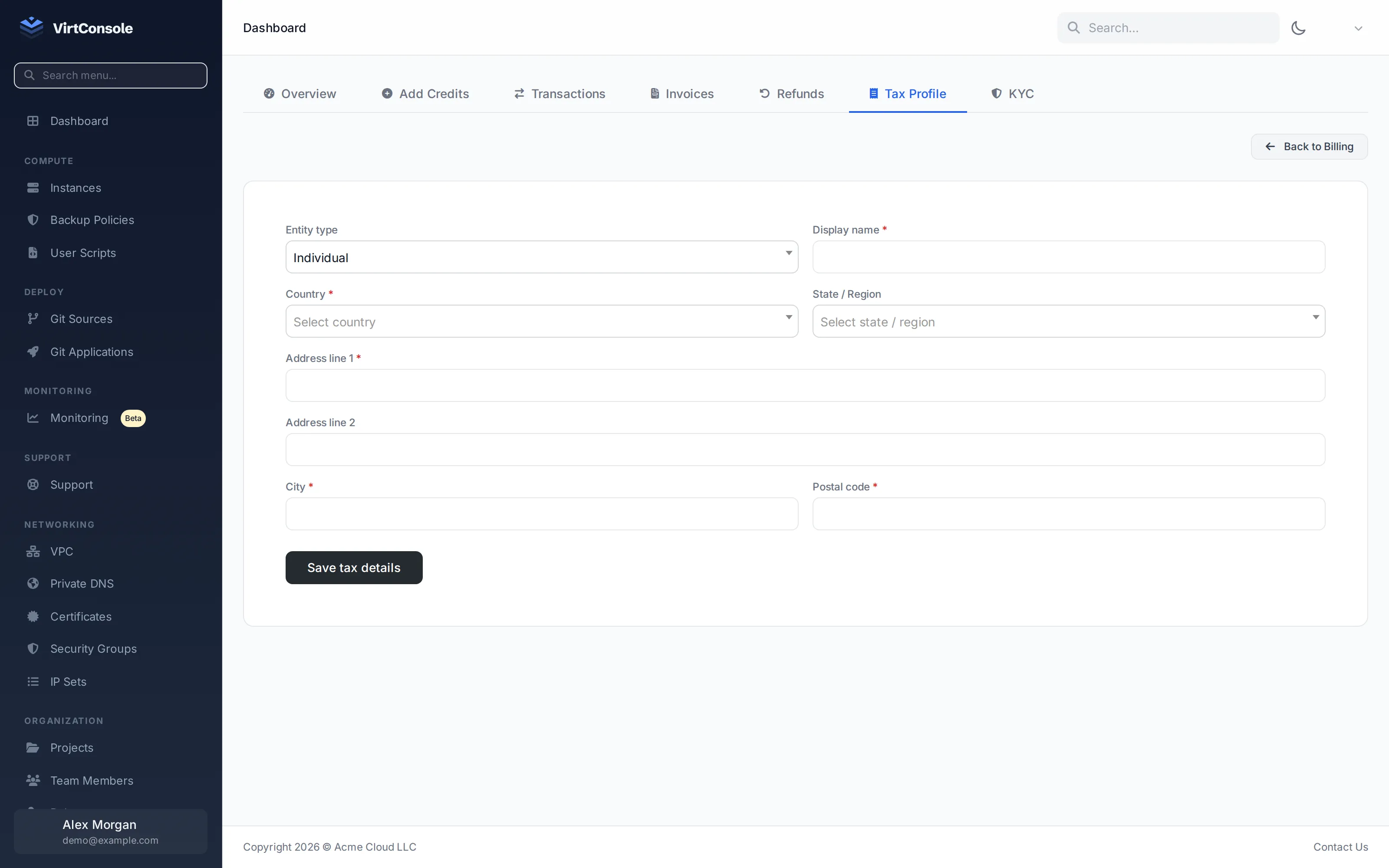
Section titled “Tax Profile”Business customers can complete a tax profile so invoices are issued correctly: entity type, display name, billing address and, where your country requires it, tax identifiers such as a GSTIN or PAN. Click Save to store it.
Identity verification
Section titled “Identity verification”The KYC tab lists any identity documents you have submitted and their review status. Click Upload document (shown when your provider requires verification), pick a document type (Passport, National ID or Driver’s License), choose a file and optional notes, then click Submit.
Common problems
Section titled “Common problems”- Instances suspended without warning me. Check your spam folder for the low-balance emails, then top up under the Add Credits tab. Instances resume after the balance is positive again.
- I paid but the balance did not move. Give it a minute for the gateway to confirm, then check the Transactions tab. If nothing appears, contact your provider with the payment reference.
- A promo code is rejected. Codes are checked live at top-up. An expired or invalid code is rejected before any payment is taken.
- The Billing item is missing from my sidebar. Your provider does not use the built-in billing on your account. Your invoices and payments are with them directly.