

Add storage
A storage pool is where instance disks live. Each hypervisor needs at least one pool before the panel will deploy onto it, and you can add several pools per host and mix classes so plans can target tiers (NVMe vs SSD vs HDD).
Pools are created with a five-step wizard: Backend, Variant, Configure, Probe, Confirm.
Before you begin
Section titled “Before you begin”- The target hypervisor is connected and online. See Manage hypervisors.
- For LVM: the volume group (and thin pool, for thin) exists on the host, and the agent has the LVM tooling.
- For ZFS: the zpool is imported on the host.
- For Ceph: the cluster is reachable and you have the libvirt secret UUID. See Ceph shared storage.
- For NFS: the export is already mounted on every hypervisor that will use it.
Where to find it
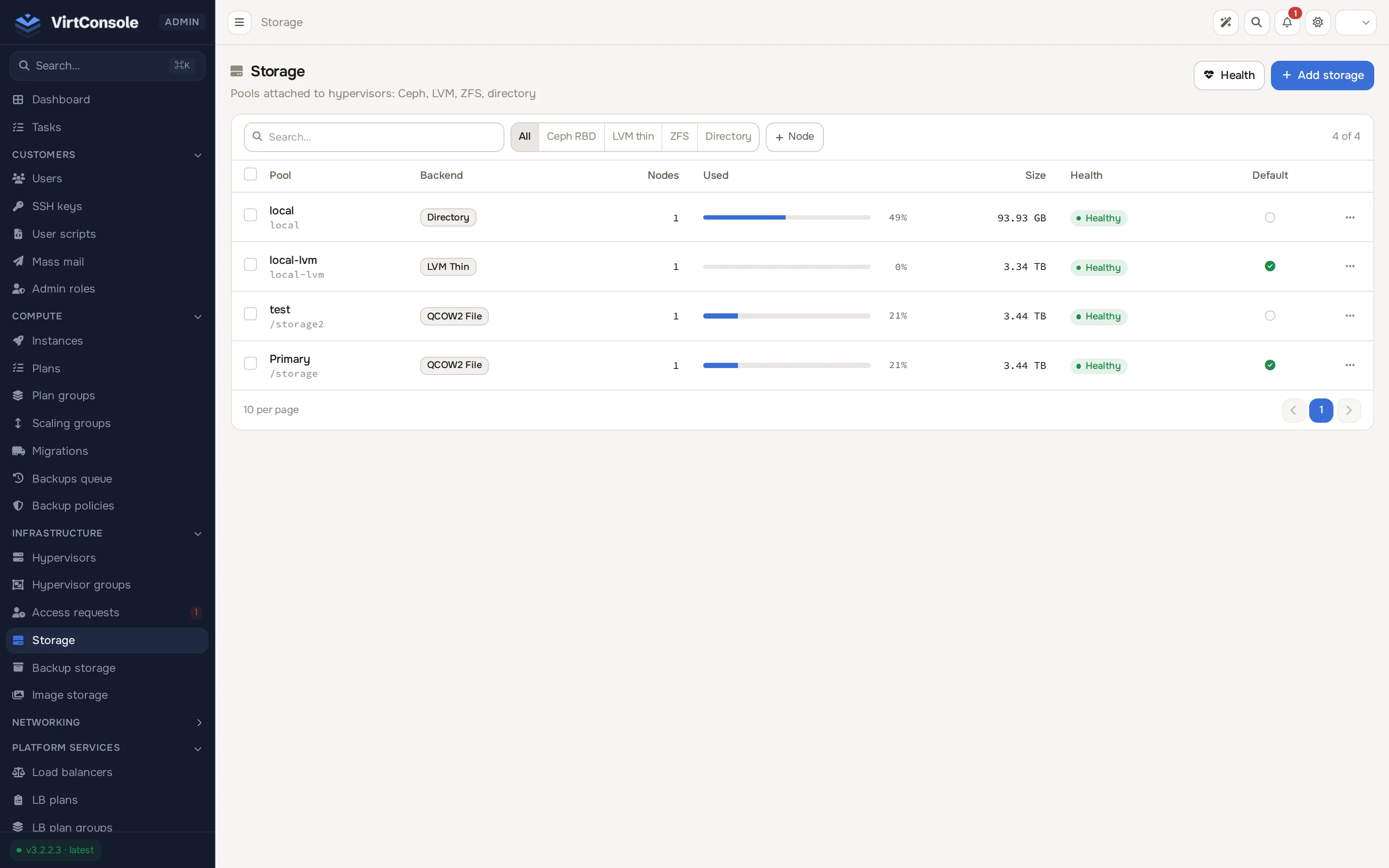
Section titled “Where to find it”In the admin panel go to Infrastructure > Storage.
The list shows each pool’s Name, Type, Health, Usage, Available, Size, Pool State and attached Hypervisors. A banner appears at the top when the storage watchdog reports a pool filling up or degraded, naming the pool and any instances it suspended.
Step 1: Backend
Section titled “Step 1: Backend”Click Add Storage on the list to open the wizard. Pick the backend family:
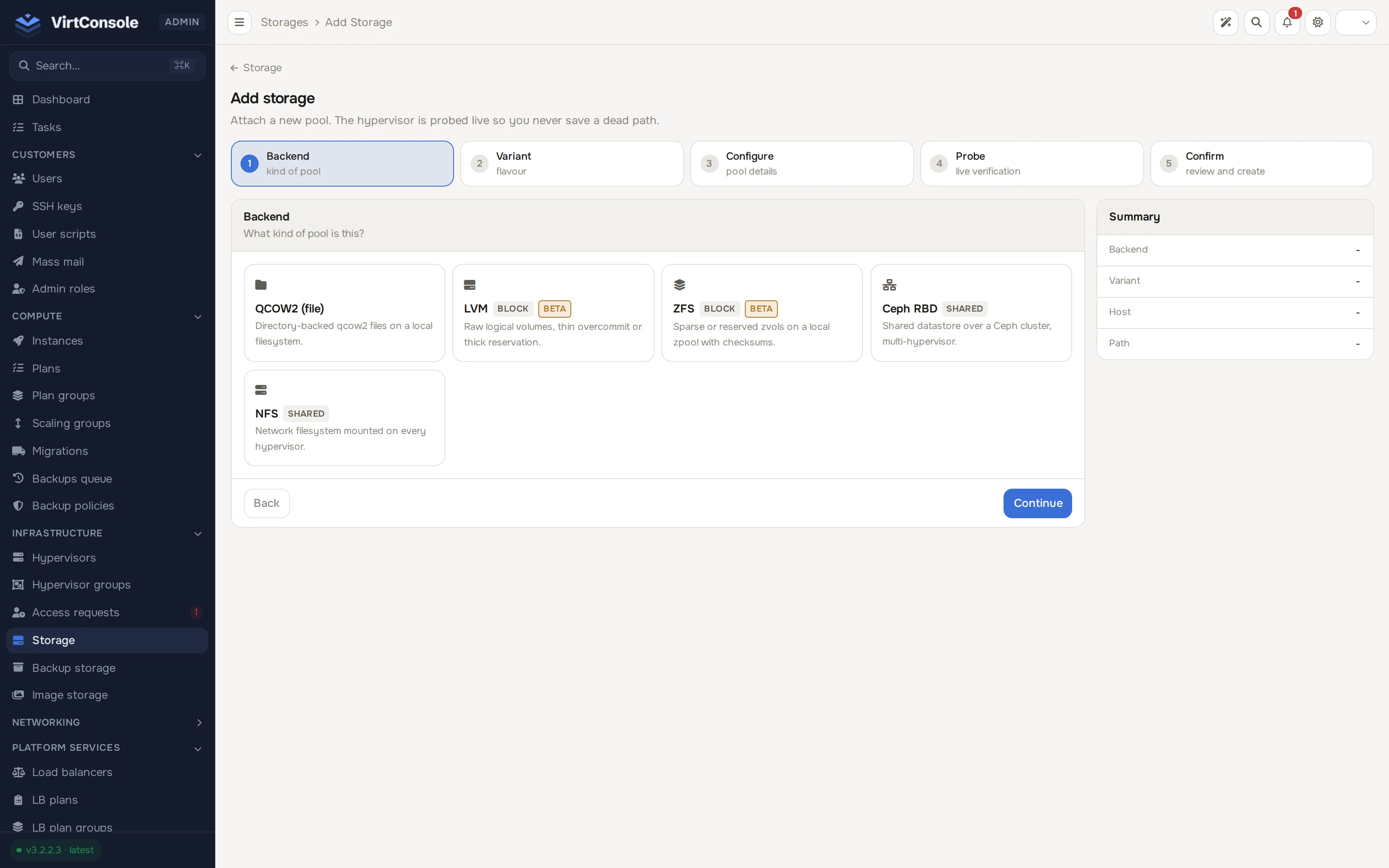
| Backend | Kind | Notes |
|---|---|---|
| QCOW2 (file) | Local | Directory of qcow2 files on one hypervisor. Supports snapshots and persistent bitmap incrementals. |
| LVM (block) | Local, Beta | Raw logical volumes. Native block speed. Thin or Thick variant. |
| ZFS (block) | Local, Beta | Zvols on a local zpool with checksums and inline compression. Thin or Thick variant. |
| Ceph RBD | Shared | One datastore shared across hypervisors. Enables the shared-disk path for live migration. |
| NFS | Shared | An NFS export mounted on every hypervisor. Migration without a block copy. |
The wizard notes the trade-off on the page itself: LVM and ZFS are local block and fastest; Ceph and NFS are shared across hypervisors.
Step 2: Variant
Section titled “Step 2: Variant”LVM and ZFS ask for a variant. Everything else has a single variant and you move straight on.
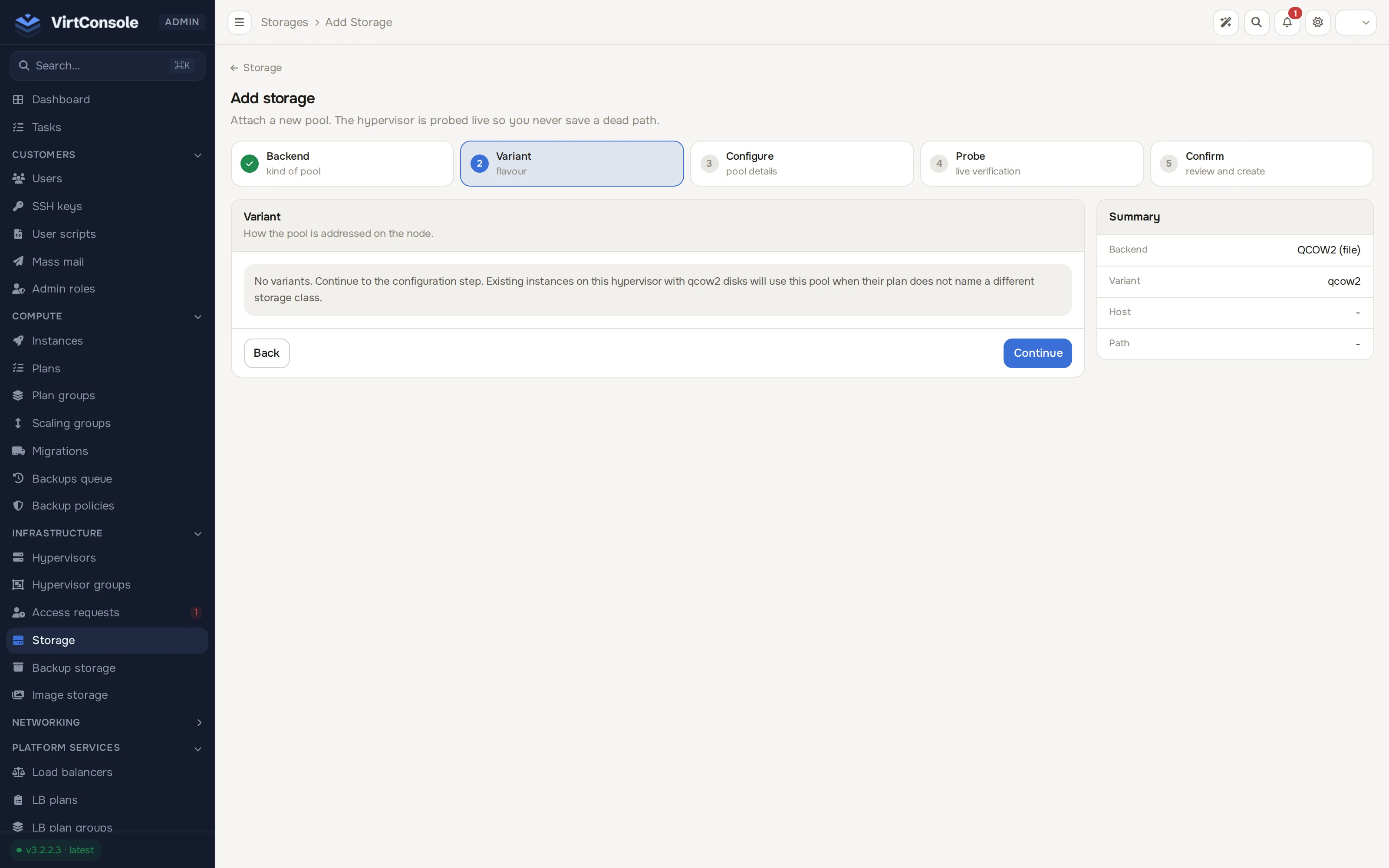
| Variant | Allocation | Snapshots | Risk |
|---|---|---|---|
| LVM Thin | Lazy: blocks allocate on first write, so you can overcommit. | Yes, instant. | Pool fill; the watchdog and pool autoextend cover it. |
| LVM Thick | Eager: fully reserved at create time. | No instance snapshots. | None. |
| ZFS Thin | Sparse zvols; overcommit with native snapshots. | Yes. | Pool fill; the watchdog reports fill and degraded mirrors. |
| ZFS Thick | refreservation pins the full size. |
Yes. | None; guests can never hit pool-out-of-space. |
Step 3: Configure
Section titled “Step 3: Configure”The fields depend on the backend. Every backend shares a common set:
| Field | What to enter |
|---|---|
| Name | A unique label for the pool. |
| Hypervisor / Hypervisors | Local backends take one host. Shared backends (Ceph, NFS) take all hosts that will use the pool. |
| Storage class | Any, NVMe, SSD or HDD. Plans use this to target a tier. |
| Driver | Disk bus: Default (VirtIO) plus VirtIO, VirtIO-SCSI, SATA, IDE, SCSI. |
| Cache | Default (None), None, Write-through, Write-back or Direct sync. |
| I/O mode | Native (default, uses aio) or Threads. |
| Discard | Default (None), Unmap (pass TRIM through to reclaim space) or Ignore. |
| Max size (GB, 0 = unlimited) | Cap on a single disk in this pool. |
| Primary pool | The default target for new instance disks on its host. |
| Enabled | Off keeps the pool out of new deployments. |
Backend-specific fields:
| Backend | Fields |
|---|---|
| QCOW2 | Path: the directory on the host, for example /var/lib/libvirt/images. |
| LVM | Volume Group (for example vg_data), LV Prefix (default vm-), and Thin Pool (for example thinpool) on the Thin variant only. |
| ZFS | ZFS Pool (for example tank), Dataset Prefix (for example vms), Volume Block Size (8-128 KiB, 16 KiB recommended) and Compression (lz4 recommended, zstd or off). |
| Ceph RBD | Username (the client.<name> Ceph user), Libvirt Secret UUID, RBD Pool Type (Replicated or Erasure Coded), Pool Name, and Metadata Pool when the type is Erasure Coded. |
| NFS | Path: the local mount path on each hypervisor, for example /mnt/shared-storage. The share itself is mounted by you beforehand. |
Step 4: Probe
Section titled “Step 4: Probe”For LVM and ZFS the wizard verifies the configuration on the host before you can continue. Click Run probe.
- LVM: checks the volume group and thin pool exist and the tooling is installed, then reports capacity, data and metadata usage and free extents.
- ZFS: checks the zpool is imported, then reports capacity, allocation, fragmentation and pool health.
A green Probe successful result unlocks Continue. A capacity of 0 means the pool exists but is empty; you can still save, but check the sizing first.
QCOW2, Ceph and NFS skip this step. The agent validates the directory, credentials or mount path when you save.
Step 5: Confirm
Section titled “Step 5: Confirm”The last step shows exactly what will be created, grouped into Identity, Backend, Performance and Status. Click Create storage pool to save. The pool’s page opens.
What happens next
Section titled “What happens next”The pool appears in Infrastructure > Storage and, when Enabled, the scheduler may place new instance disks on it. Plans can target it by class and backend; see Instance plans. The watchdog monitors thin and ZFS pools continuously and raises the health banner (and, at critical fill, suspends affected instances) before a pool runs out.
To remove a pool later, use Remove on its row. Removal is refused while disks still live on it; confirm Force Remove only when you are sure nothing depends on it.
Common problems
Section titled “Common problems”- Probe fails with “tooling missing”. The host lacks
lvm2andthin-provisioning-tools, orzfsutils-linux. The panel tells you to update the agent from Infrastructure > Hypervisors; open the host and click Update Agent, then probe again. - Probe fails mentioning the thin pool. The volume group has no thin pool. Create one on the host, or go back to step 2 and pick LVM Thick.
- The wizard will not continue from Configure. A required field is empty: Name, the hypervisor selection, and the backend fields listed above are all mandatory.
- Saving a Ceph or NFS pool fails. The agent-side validation rejected the credentials or path. For Ceph, re-check the secret UUID and pool names against Ceph shared storage.