

Team access
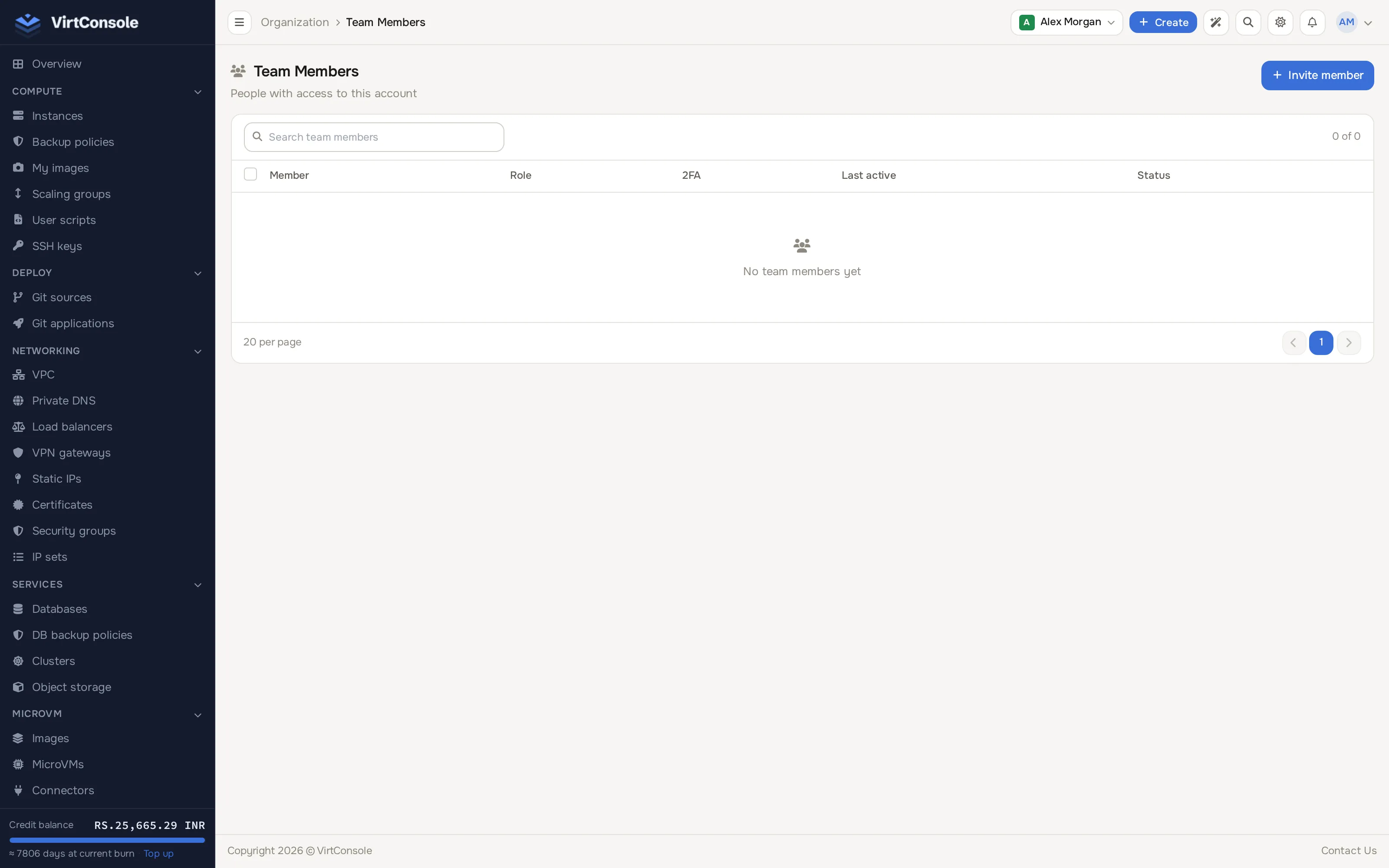
A customer can invite colleagues into their own account from the user panel (Organisation > Team members). Those colleagues are called team members or subusers: they log in with their own email and password but work on the account owner’s resources.
There is no separate admin menu for teams. The admin-side view lives on each user’s detail page, and that is where you step in when a customer asks you to fix a membership.
Where to find it
Section titled “Where to find it”In the admin panel go to Customers > Users and click the user’s row. A Team tab appears next to Profile, Cloud Service, Billing and Self-provisioning whenever the account has any team links; it holds the Team Associations card and does not show at all for an account with none.
The card has up to two lists:
- Member of: accounts this user has been invited into, with the owner’s name or company, the member’s role and the invitation status.
- Team Members: people invited into this user’s own account, with their role and invitation status.
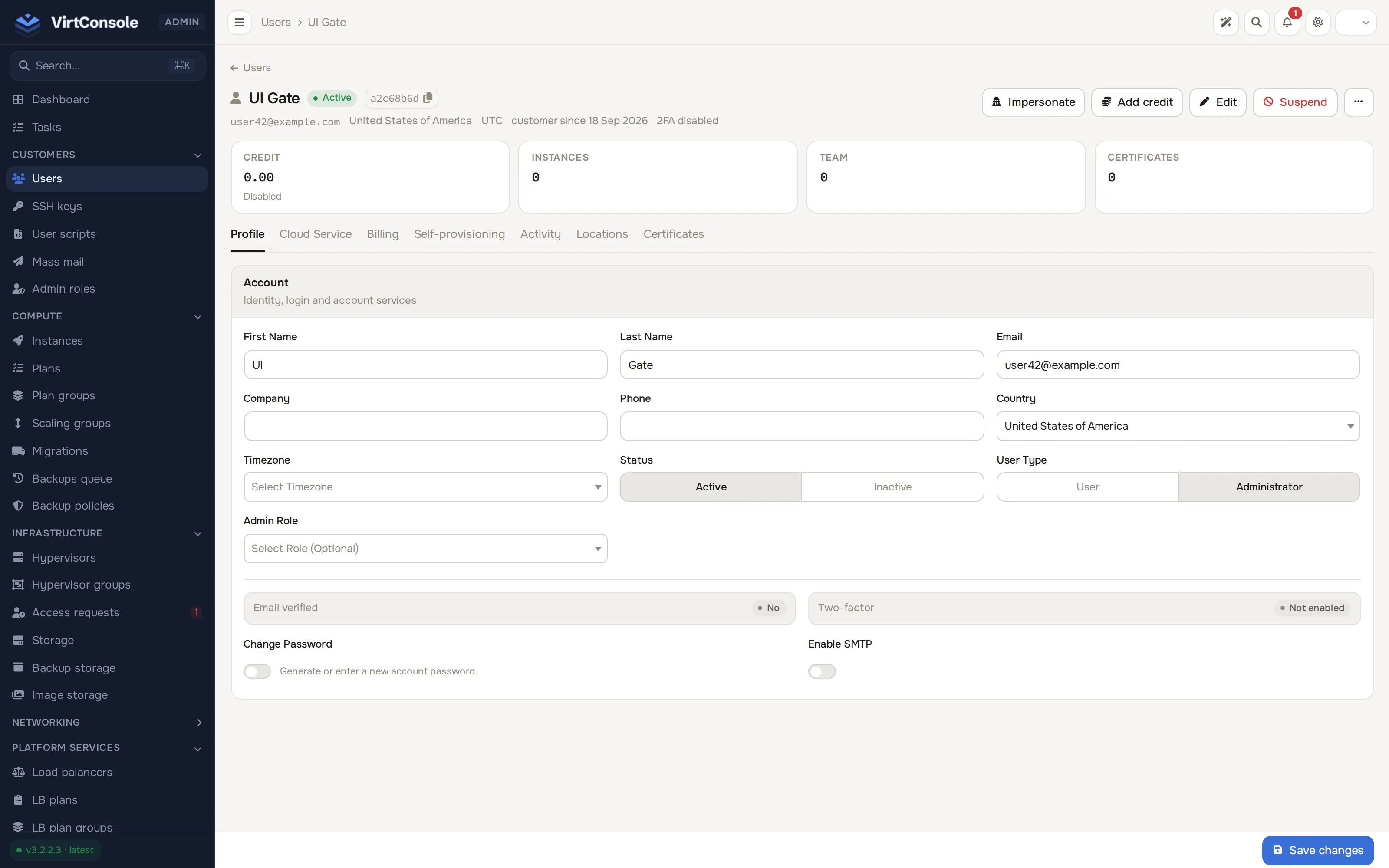
Remove a team association
Section titled “Remove a team association”Do this when a former employee still has access, or an invitation went to the wrong person.
- Open the relevant user’s detail page, click the Team tab and find the Team Associations card.
- Click Remove on the association’s row.
- Confirm. The row disappears and the link is severed immediately.
Removing a membership does not delete either account. The member keeps their own login; they lose access to the other account’s resources.
Convert a subuser to a standalone account
Section titled “Convert a subuser to a standalone account”A subuser can outgrow the team arrangement and need their own billing and resources. The account’s detail page shows Convert to Main Account in the header’s ⋯ overflow menu whenever the user belongs to another account.
- Open the subuser’s detail page.
- Open the ⋯ menu in the header and click Convert to Main Account.
- Confirm Convert to Standalone Account. The account becomes standalone and can manage its own resources and billing independently.
What happens next
Section titled “What happens next”Customers manage their own teams day to day: inviting, assigning team roles and removing members all happen in the user panel, under Organisation > Team members.
The customer sees their own team members list, with each person’s role and invitation status.
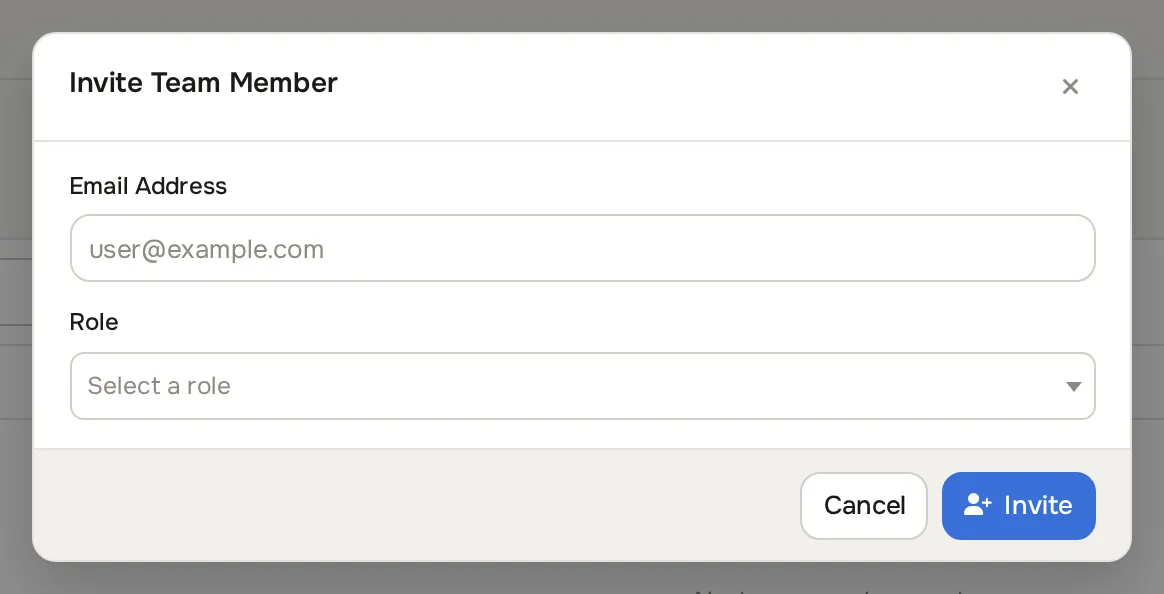
They click Invite member to open the Invite Team Member dialog and send a new invitation with Invite.
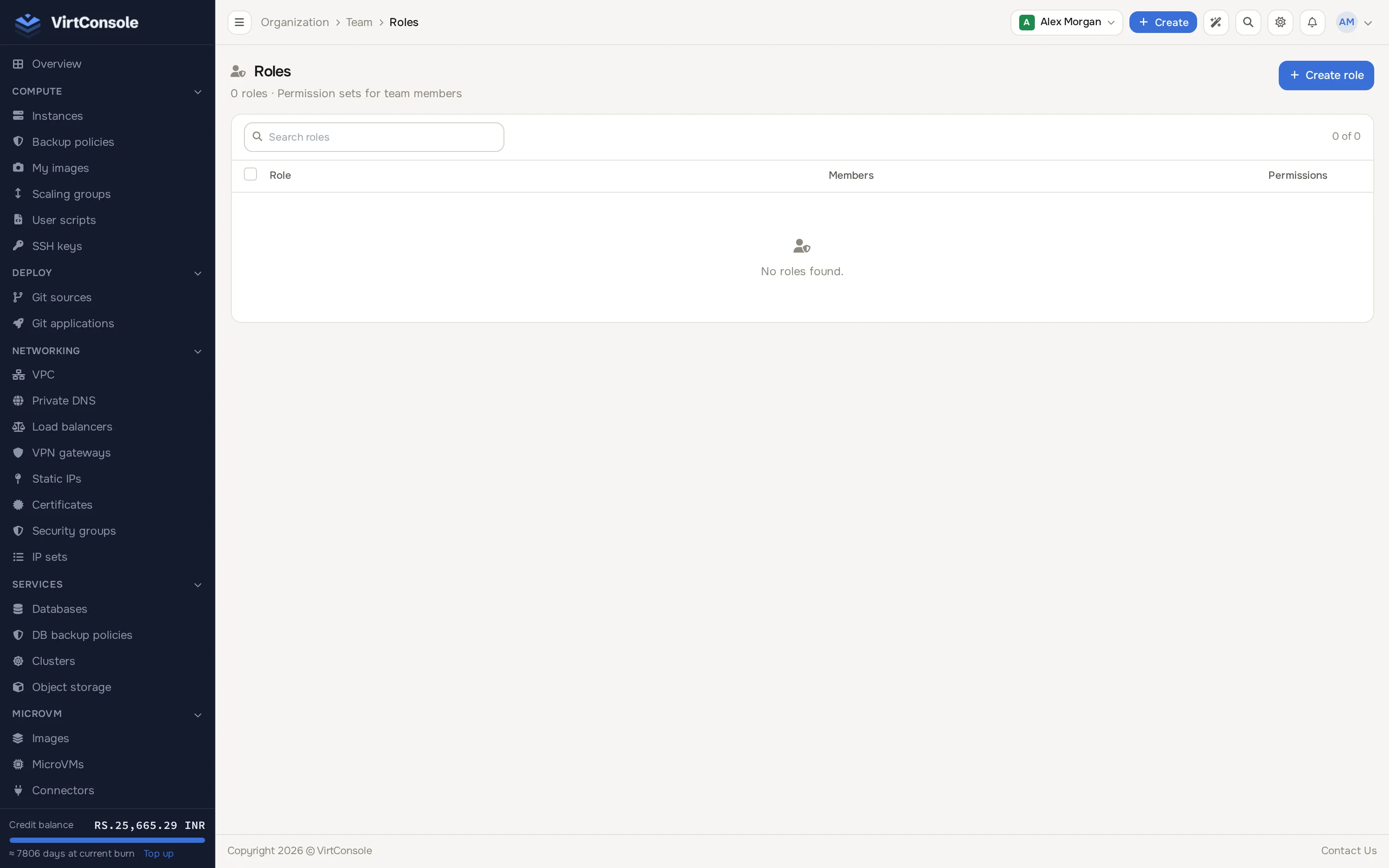
Roles that control what a team member can do are managed separately, under Organisation > Roles.
Point them to Team members when they can do it themselves.
Common problems
Section titled “Common problems”- The Team tab is missing. The account has no team links. The tab only renders when at least one association exists.
- A removed member still sees the account in their account picker. The membership is gone from the Team Associations card but the picker entry can linger until their next login. Have them log out and back in; access checks run against the membership on every request, so the account’s resources are already closed to them.
- There is no Convert to Main Account item. The account is already a main account. The overflow menu item shows only for users that belong to another account.