

Payments and account credit
VirtConsole ships a complete, self-contained billing system. A customer adds funds to their account credit with a card or wallet, and that credit pays for their Cloud Service usage. You do not need an external billing platform to run a pay-as-you-go cloud, and the two work side by side if you already use one.
How it works
Section titled “How it works”- Account credit is a prepaid balance on a customer’s account, stored as an integer amount in cents. The platform deducts from it as the customer’s resources run.
- A top-up pays money into account credit. Every successful top-up produces an invoice.
- A payment gateway is the external processor (Stripe, Razorpay, PayPal) that takes the payment. The panel talks to the gateway’s API; you never handle card data.
- A webhook is the gateway’s server-to-server notification that a payment settled. The panel verifies and records every webhook it receives.
- A refund reverses a top-up through the same gateway and claws back the matching credit.
The money flow is: top-up at a gateway, webhook confirmation, credit posted, invoice issued. Every step leaves a record you can inspect under Billing.
Before you begin
Section titled “Before you begin”- You have an account with at least one supported payment gateway, and its API credentials (start in the gateway’s test mode).
- You have set your business details under Billing > Billing settings, Seller tab, because they print on customer invoices. See Billing settings.
- If you sell in multiple currencies, add them first. See Currencies.
Billing dashboard
Section titled “Billing dashboard”In the admin panel go to Billing > Billing dashboard.
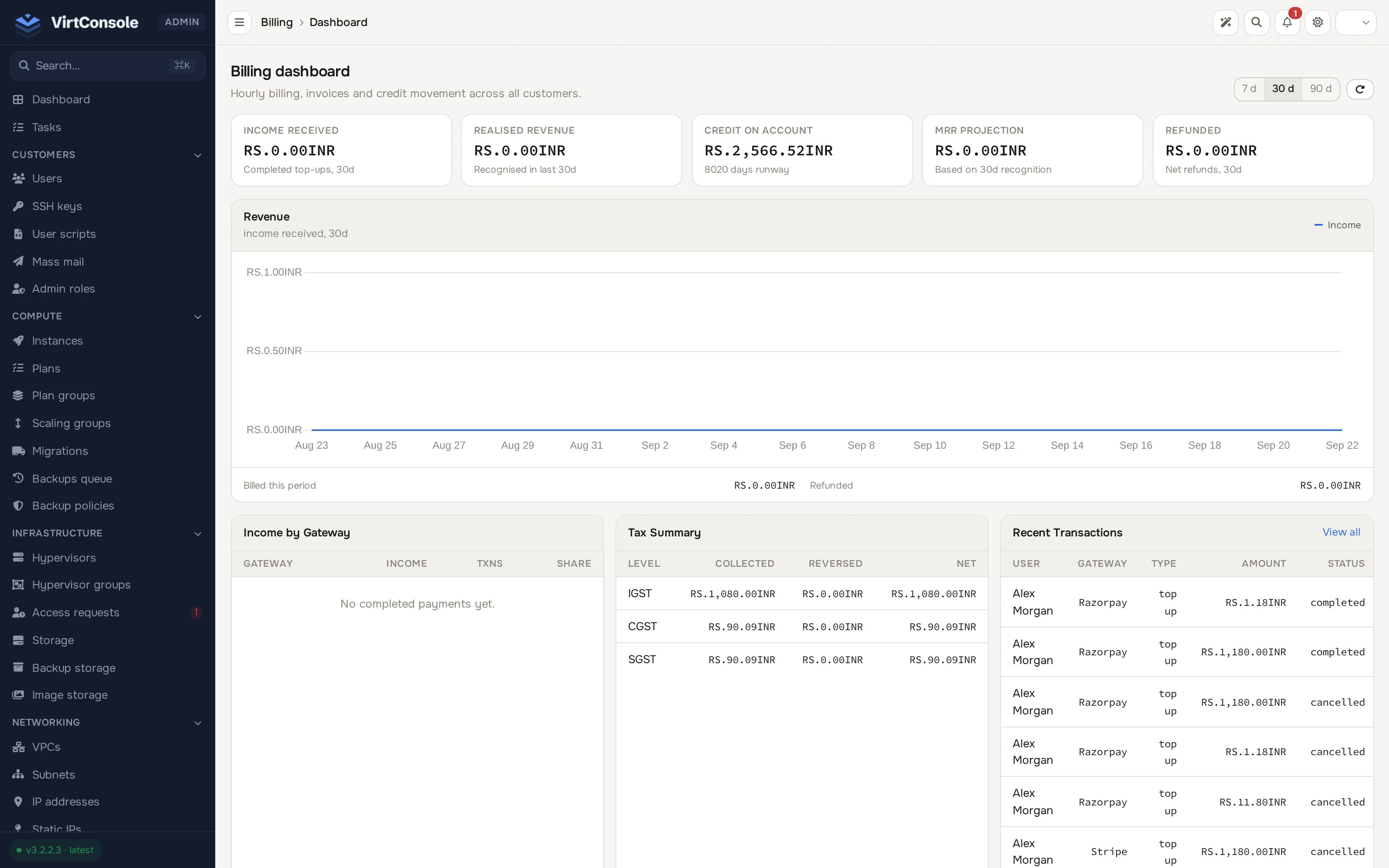
The dashboard summarises the money moving through your platform over the last 30 days: Income Received (completed top-ups), Realised Revenue (credit consumed and recognised), Credit Liability (unconsumed customer credit), MRR Projection and Refunded. Below the headline cards you get tax collected per tax level, a transaction status breakdown, a revenue forecast for the next 30, 60 and 90 days, and the most recent transactions.
A daily income digest email summarises the previous day’s completed top-ups, grouped by gateway and currency. Enable it under Billing > Billing settings, Balance tab, in the Income Notifications block and set the Income Notification Email address. Nothing is sent on days with no income.
Connect a payment gateway
Section titled “Connect a payment gateway”In the admin panel go to Billing > Payment gateways.
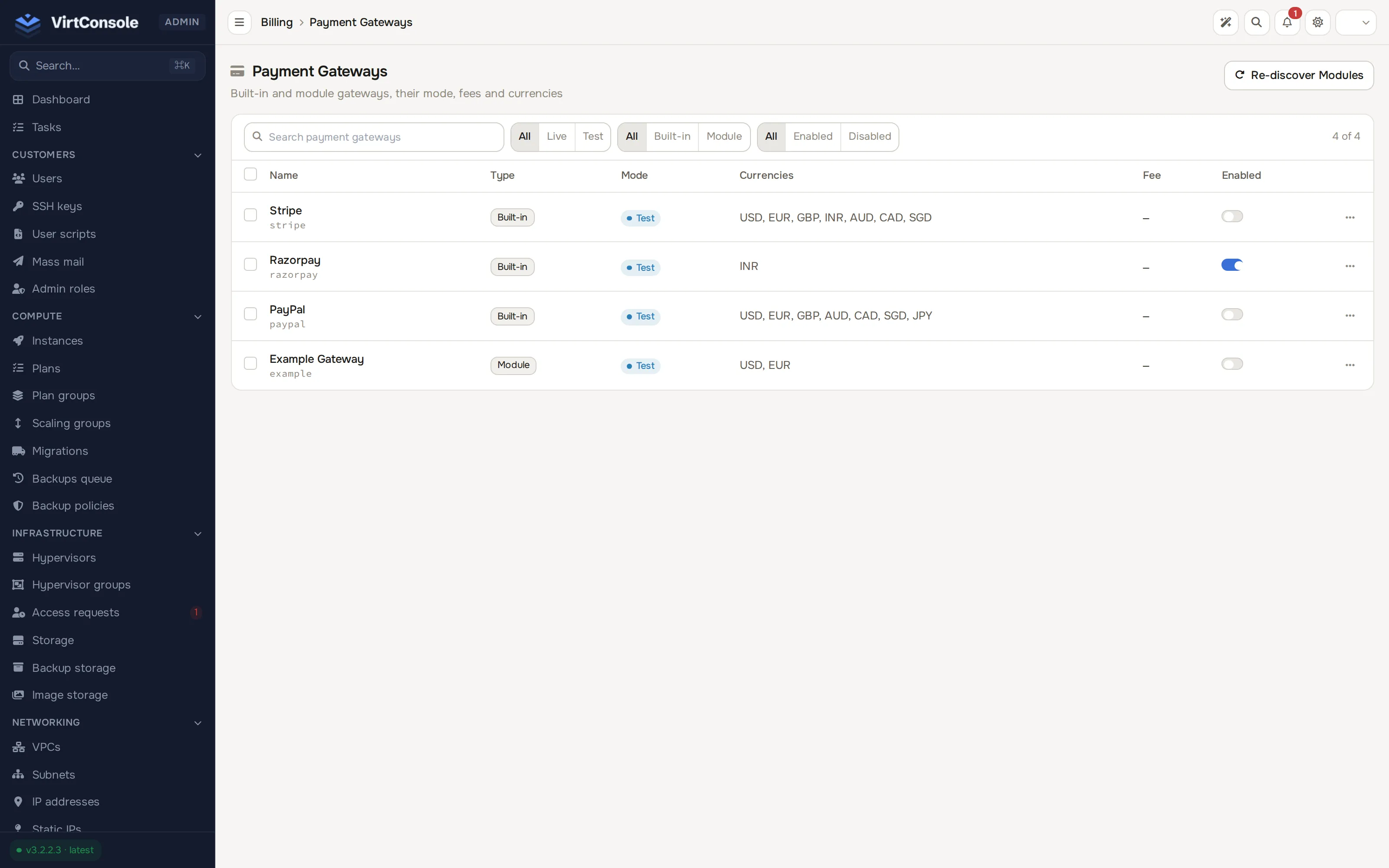
The list shows every gateway with its Name (and slug), Type, Mode and Enabled state, and a Test connection row action. Stripe, Razorpay and PayPal are built in; module-based gateways appear too. If the list is empty, or a gateway you installed as a module is missing, click Re-discover Modules.
-
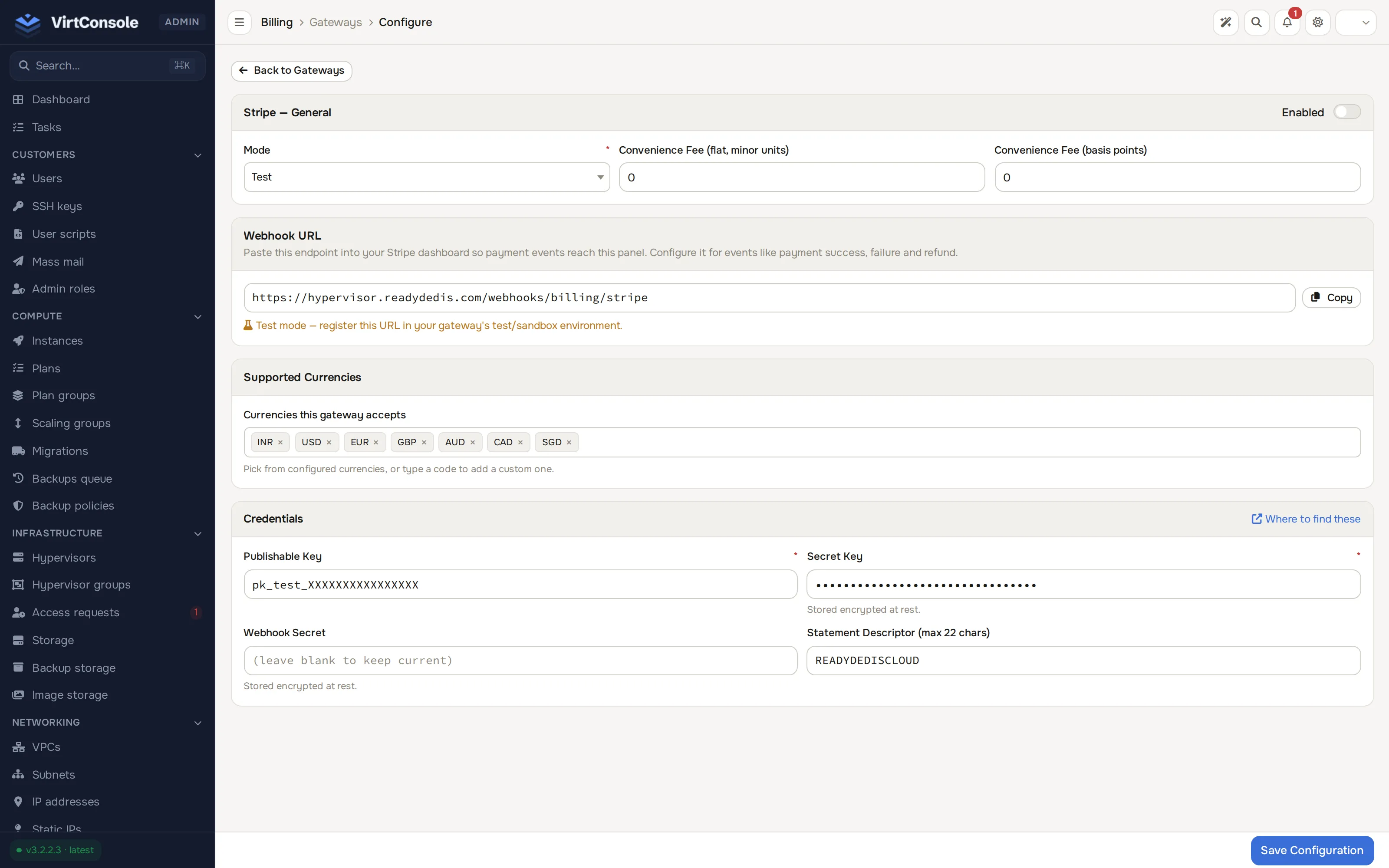
Click Configure on a gateway. The gateway settings page opens.
-
Fill in the fields:
Fields
| Field | What to enter |
|---|---|
| Mode | Test while you verify the flow, then Live. |
| Enabled | Whether customers can pay through this gateway. |
| Convenience Fee (flat, minor units) | A fixed fee added to each top-up, in the currency’s smallest unit. |
| Convenience Fee (basis points) | A percentage fee added to each top-up. |
| Webhook URL | Copy this URL into the gateway’s webhook settings. The panel shows the exact value to register. |
| Supported Currencies | The currencies this gateway accepts. Built-in limits apply, for example Razorpay accepts INR only. |
| Credentials | The gateway’s API keys. Each gateway declares its own fields. |
- Save, then use the gateway’s test mode to make a real top-up end to end before switching Mode to Live.
You can enable several gateways at once; the customer picks their preferred one at checkout. Every incoming payment is verified with the gateway before any credit is added, so a payment cannot be faked or replayed into free credit.
Review transactions
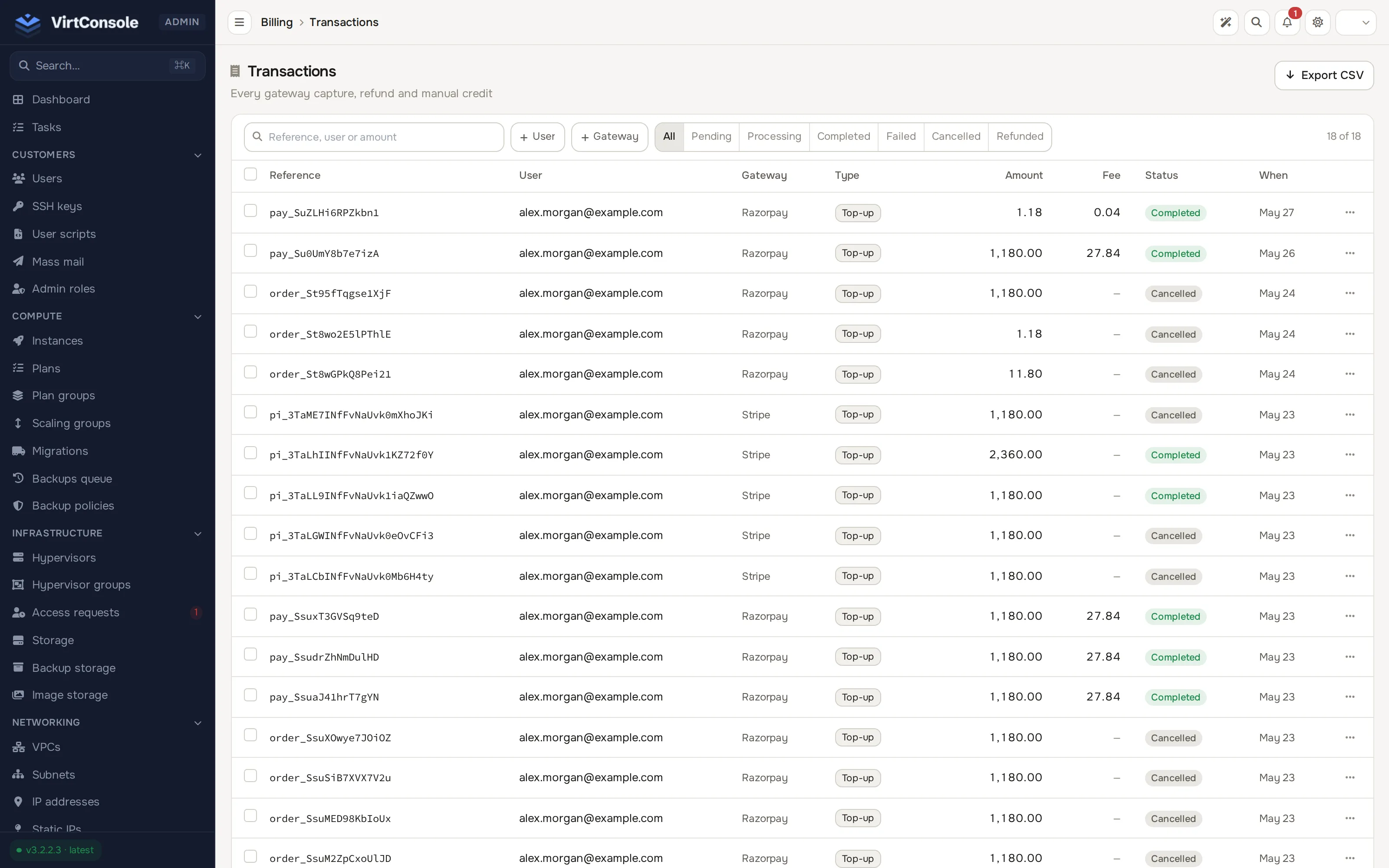
Section titled “Review transactions”Go to Billing > Transactions for the full record of every top-up: Reference, User, Gateway, Type, Amount, Fee, Status and When, with an Export CSV toolbar button. Use View on a row to see its detail.
Two recovery actions exist on a pending or failed transaction row:
- Cancel: abandons a stale, unfinished top-up (only shown while it is pending) so it stops counting against the customer. Confirm with Yes, cancel it.
- Replay webhook: asks the gateway to re-send its payment notification. Use it when a payment succeeded at the gateway but the panel never received the webhook. Confirm with Yes, replay.
Issue and refund invoices
Section titled “Issue and refund invoices”Go to Billing > Invoices. Every successful top-up produces an invoice automatically. Invoices carry a sequential number from your configured format, reflect any tax applied, and are emailed to the customer with a PDF attached. The list shows Number, Kind (proforma, tax invoice or credit note), User, Issued At, Amount and Status.
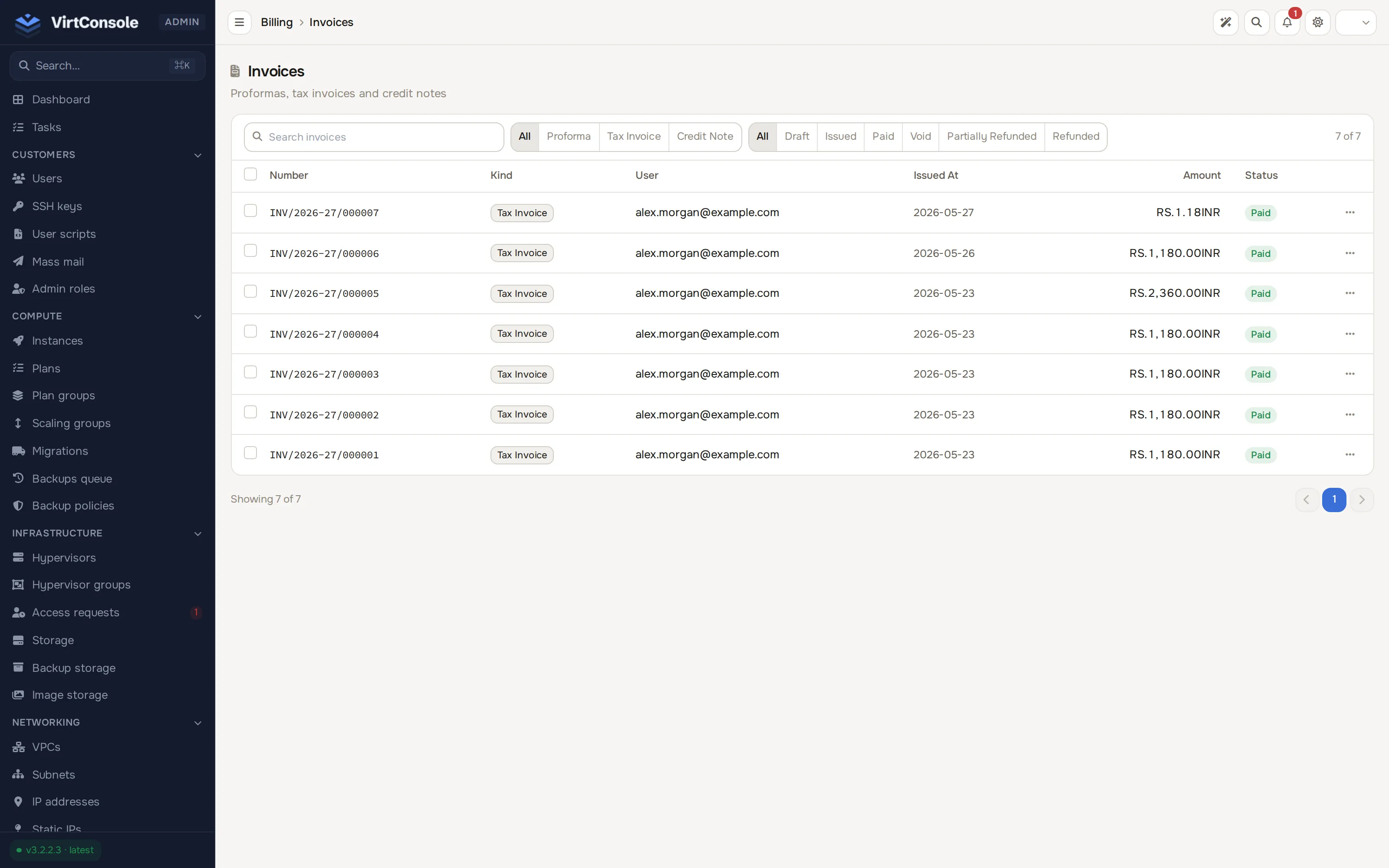
Per-row actions let you View the rendered invoice or Download PDF. Invoice numbering is configured under Billing > Billing settings, Documents tab, in the Invoice Number Formats and Invoice Sequences blocks.
To refund a charge, use the Refund… action on a refundable invoice row (or work from Billing > Refunds). The Refund Invoice dialog asks:
| Field | What to enter |
|---|---|
| Credits to refund | How many credits of the invoice to refund, up to the refundable maximum shown. |
| What to do with the customer’s credits | Deduct the credits (never below zero), deduct them allowing a negative balance, or let the customer keep the credits and refund money only. |
| Processing fee (minor units, optional) | A fee withheld from the refund. |
| Reason | Why the refund is being issued. Recorded for audit. |
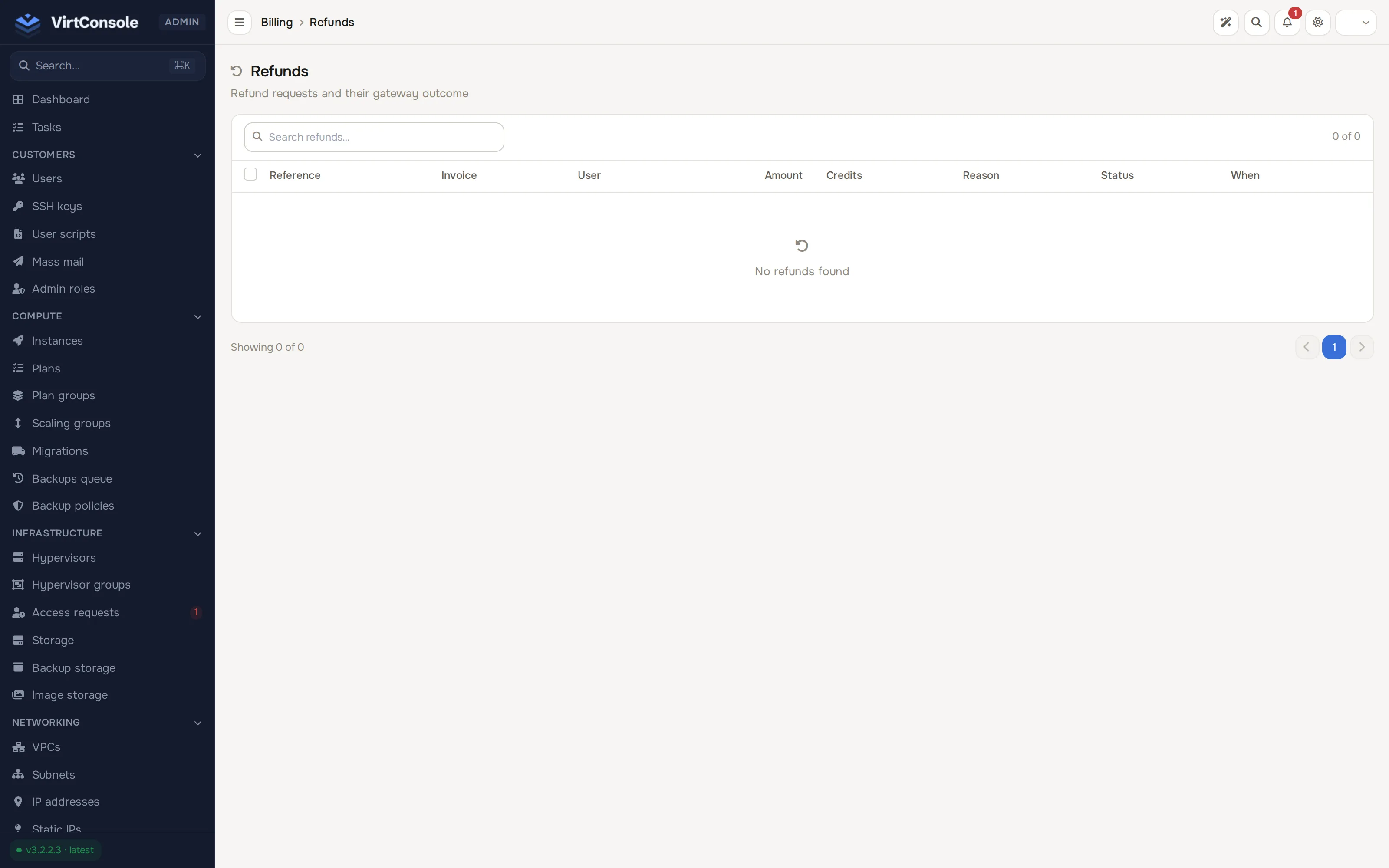
Click Process Refund. The refund is sent to the gateway and tracked under Billing > Refunds, which shows Reference, Invoice, User, Amount, Credits, Reason, Status and When. If a refund fails at the gateway, use Retry at gateway on the refund row.
User credits and usage reports
Section titled “User credits and usage reports”Billing > User credits shows each customer’s credit balance and its history across two tabs (Credits and Credit Log); Billing > Usage reports breaks down what each customer consumed. Both belong to Cloud Service setup and are documented on the Cloud Service page.
Billing settings
Section titled “Billing settings”Go to Billing > Billing settings. The page opens on a row of tabs:
- Seller: your business name, tax identifiers (GSTIN, VATIN, PAN, US Tax ID), address, and an authorized signature image printed on invoices.
- Currency: the Billing & Currency Display card (billing master toggle, prefix/suffix display, order form pricing format, hours per month) and the Currencies card. See Cloud Service and Currencies.
- Balance: Balance Thresholds & Policy (low-balance, suspension and creation blocking rules) plus the daily income digest. See Cloud Service.
- Tax: Defaults (fiscal year reset month, default HSN codes, KYC required by default).
- Documents: Invoice Number Formats and Invoice Sequences, numbering templates and counters per document kind.
Search across every setting with the box in the header, and use Save changes in the footer once you edit a field (a footer indicator flags unsaved changes; Cancel discards them).
Common problems
Section titled “Common problems”- A customer paid but has no credit. The webhook did not arrive or failed verification. Find the top-up under Billing > Transactions and click Replay webhook, then check Billing > Webhook log. See Reports and webhook log.
- No gateway appears in the list. Run Re-discover Modules on the Payment gateways page, then configure credentials.
- Invoices show the wrong business details. Update Seller details under Billing > Billing settings. New invoices pick up the change immediately; an already-issued invoice keeps the details it was created with.