

Admin IP restriction
Admin IP restriction limits who can sign in as an admin to a small list of trusted IP addresses: your office, your VPN exit, your home IP. When the feature is enabled and a login attempt comes from an IP that is not on the list, the panel rejects it before the password is even checked. Customer logins are not affected. By default the feature is off and admins can sign in from anywhere.
How it works
Section titled “How it works”- The allow-list holds single IPv4 or IPv6 addresses, each with an optional description.
- The list is managed with the
vcli admin:ipcommand on the management server. Adding and removing IPs is deliberately command-line only, so a misconfigured panel session cannot accidentally lock every admin out. - The on/off state and the current list are visible in the panel under System > Settings, on the Security tab, in the Admin IP Restriction section (with the CLI commands listed next to it).
- Active sign-ins and their IPs are visible under System > Sessions. See Sessions.
Before you begin
Section titled “Before you begin”- Console (SSH) access to the management server.
- You know the public IP addresses your admins sign in from. Check System > Sessions for the IPs currently in use.
Where to find it
Section titled “Where to find it”On the management server, run vcli admin:ip commands as root. In the admin panel, go to System > Settings and open the Security tab to see the state and the list.
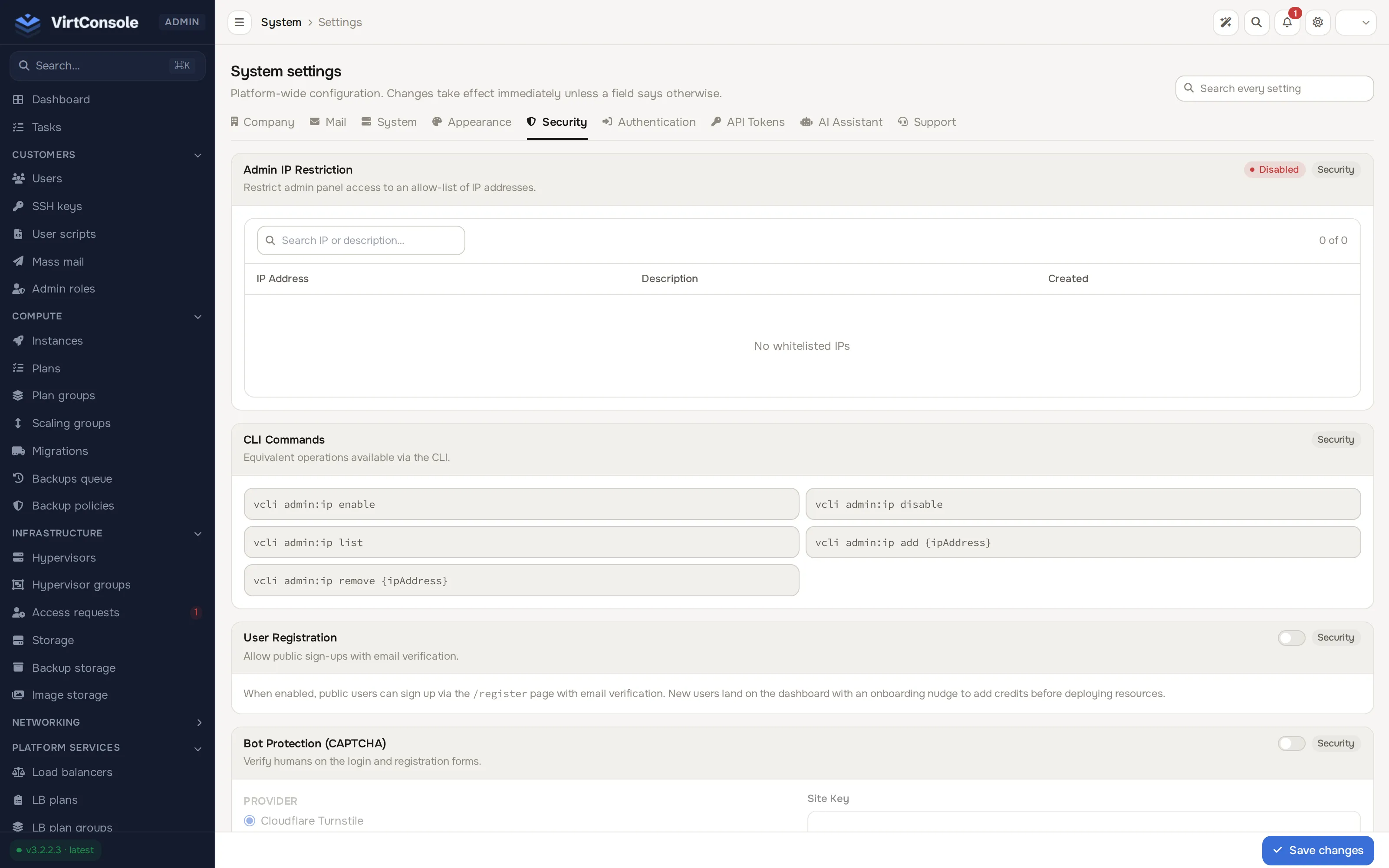
Add IPs and enable the restriction
Section titled “Add IPs and enable the restriction”-
Whitelist the IP you are connecting from first, so you do not lock yourself out:
Terminal window vcli admin:ip add 203.0.113.45 --description="Office" -
Add any other trusted IPs (other admins, VPN exit IPs):
Terminal window vcli admin:ip add 198.51.100.10 --description="VPN exit" -
Confirm the list:
Terminal window vcli admin:ip list -
Turn the feature on:
Terminal window vcli admin:ip enable
Changes apply immediately. No restart is required.
Remove an IP or disable the feature
Section titled “Remove an IP or disable the feature”vcli admin:ip remove 203.0.113.45vcli admin:ip disableCommand reference
Section titled “Command reference”| Command | What it does |
|---|---|
vcli admin:ip enable |
Turn the restriction on. Only whitelisted IPs can sign in as admin. |
vcli admin:ip disable |
Turn the restriction off. Admin logins work from any IP. |
vcli admin:ip list |
Show the current allow-list. |
vcli admin:ip add <ip> |
Add an IP. Add --description="..." to label it. |
vcli admin:ip remove <ip> |
Remove an IP. |
Common problems
Section titled “Common problems”- Locked out after enabling the feature. SSH into the management server and either add your current IP with
vcli admin:ip add <ip>or runvcli admin:ip disable. - Not sure what your public IP is. From your own machine run
curl https://ifconfig.me, or look at your latest session under System > Sessions. - An admin is rejected although their IP is whitelisted. Their traffic arrives through a reverse proxy that does not forward the real client IP, so the panel sees the proxy’s address. Fix the proxy forwarding, then whitelist the IPs again.