

Security groups
A security group is a named set of firewall rules enforced on the hypervisor before an instance ever sees the traffic. Groups are stateful: you define rules for new connections, and replies to allowed connections are let back automatically.
Default behaviour
Section titled “Default behaviour”- With no groups attached, all traffic passes in both directions. The one exception is outbound SMTP (TCP port 25), which stays blocked unless the customer has SMTP enabled.
- Once any attached group contains at least one ingress rule, inbound traffic that matches no rule is dropped.
- The same logic applies independently to egress.
Scopes
Section titled “Scopes”| Scope | Created by | Visible to |
|---|---|---|
| Global | Admin | All customers, who can attach but not edit |
| User-owned | Admin or customer | The owner |
Use Global groups for platform-wide presets like “Allow SSH” or “Allow Web Traffic”. Use user-owned groups for customer-specific policies.
Where to find it
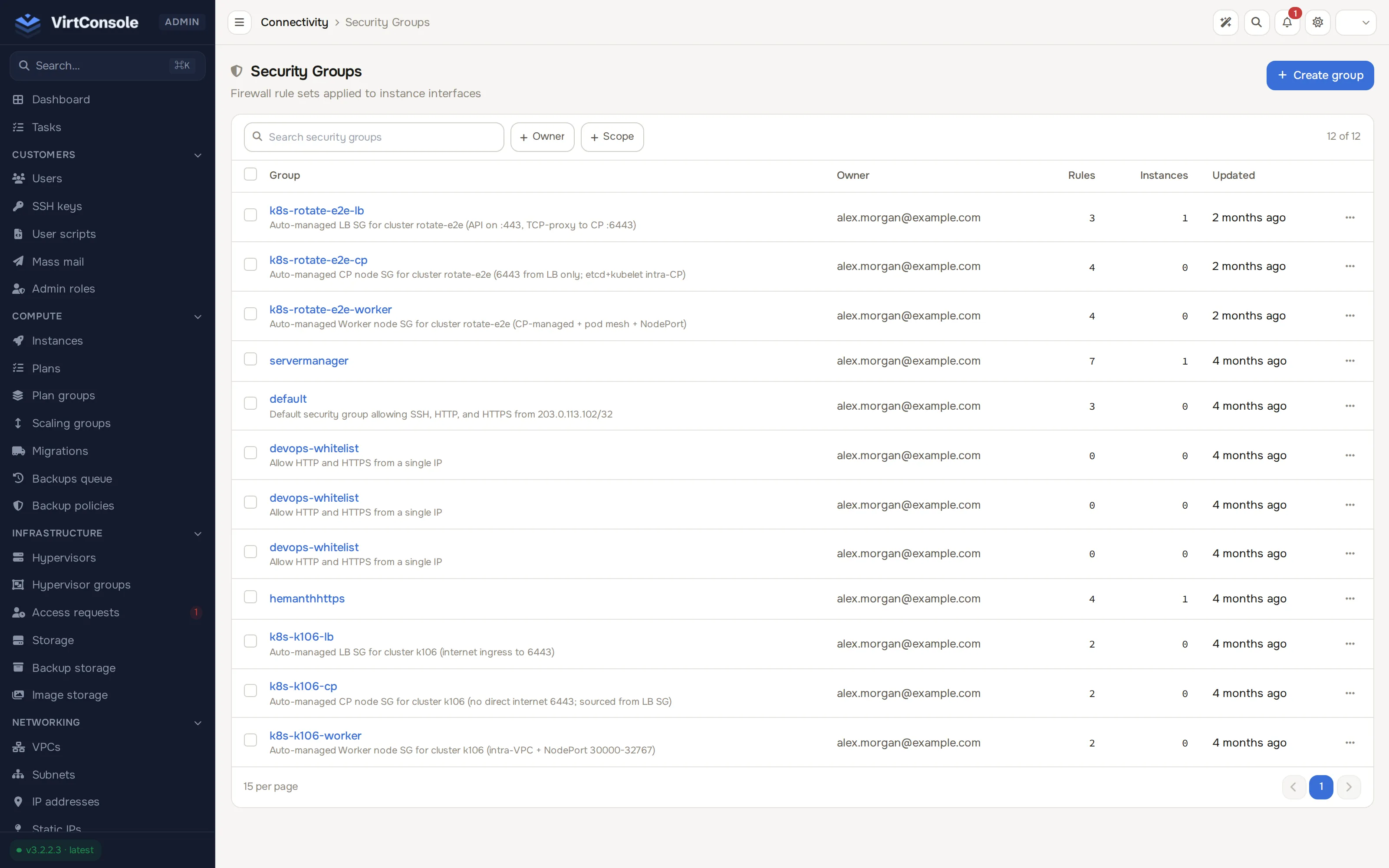
Section titled “Where to find it”In the admin panel go to Networking > Security groups. Filter by search text, owner, and scope (Global / User-owned). Global groups carry a Global badge.
Create a security group
Section titled “Create a security group”-
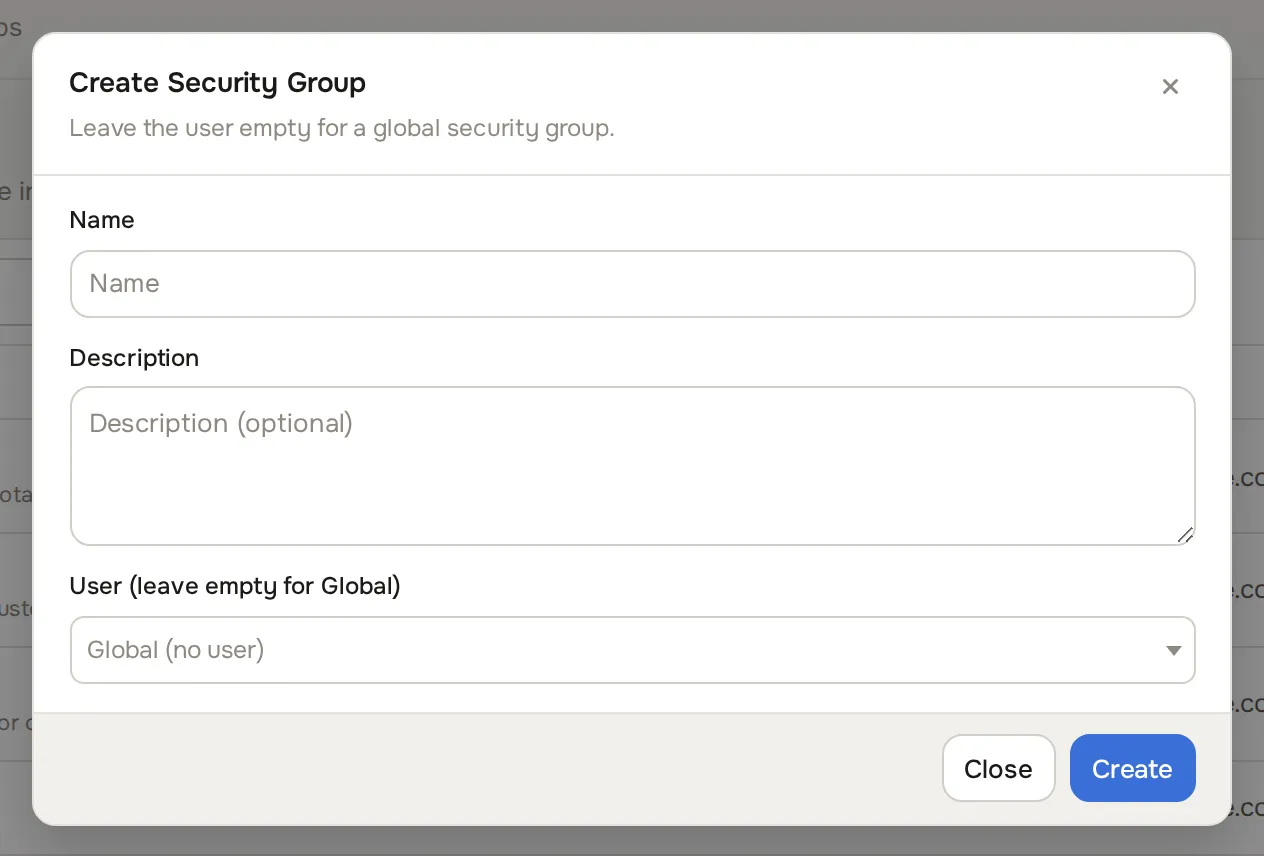
Click Create group. The Create Security Group dialog opens.
-
Enter a Name and an optional Description.
-
In User (leave empty for Global), leave empty for a Global group or pick the customer who owns it.
-
Click Create.
Add a rule
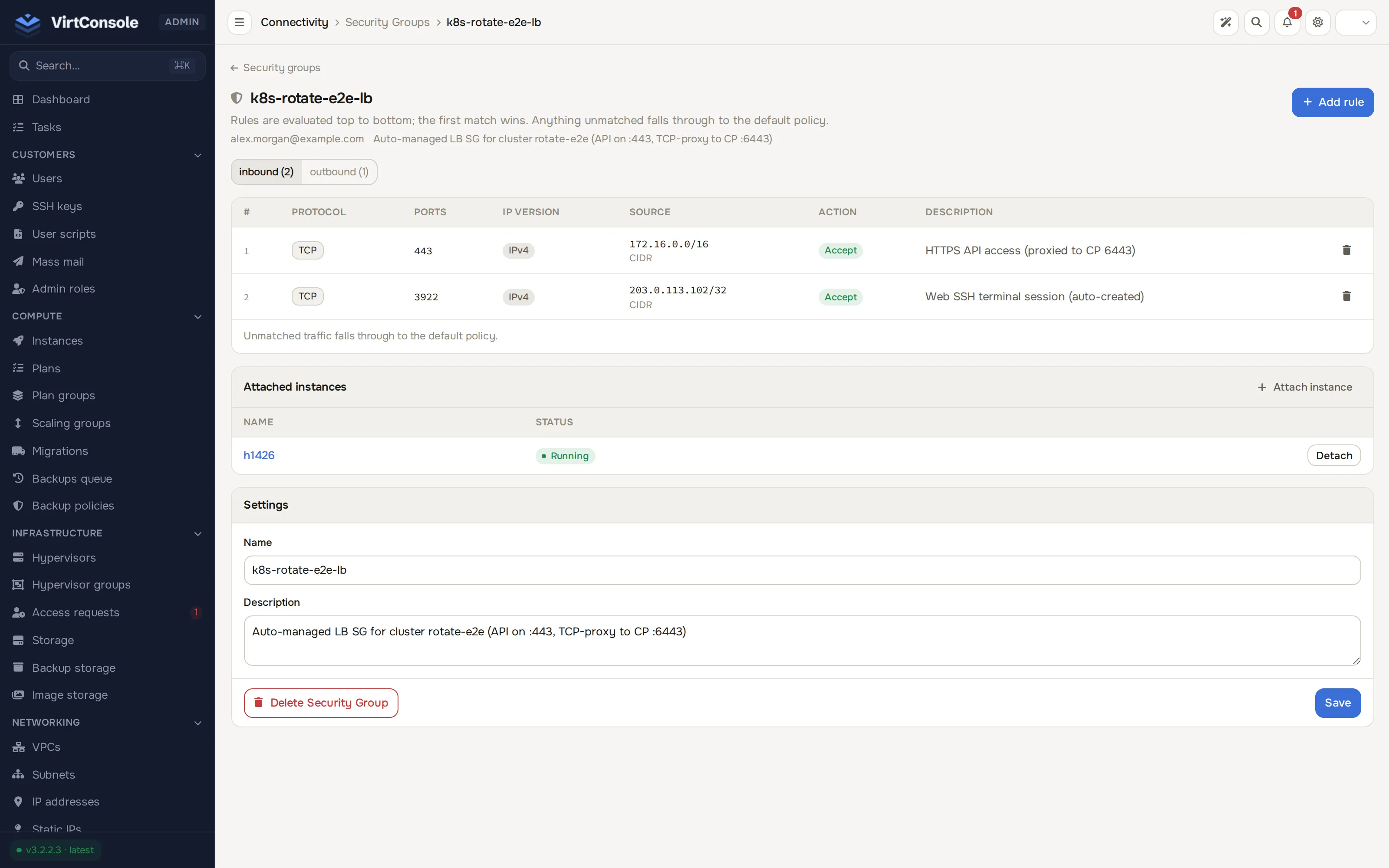
Section titled “Add a rule”Open the group. A pill toggle above the rules table switches between inbound (N) and outbound (N); the table shows only the selected direction’s rules. Add rule in the page header adds a rule to whichever direction is currently selected.
-
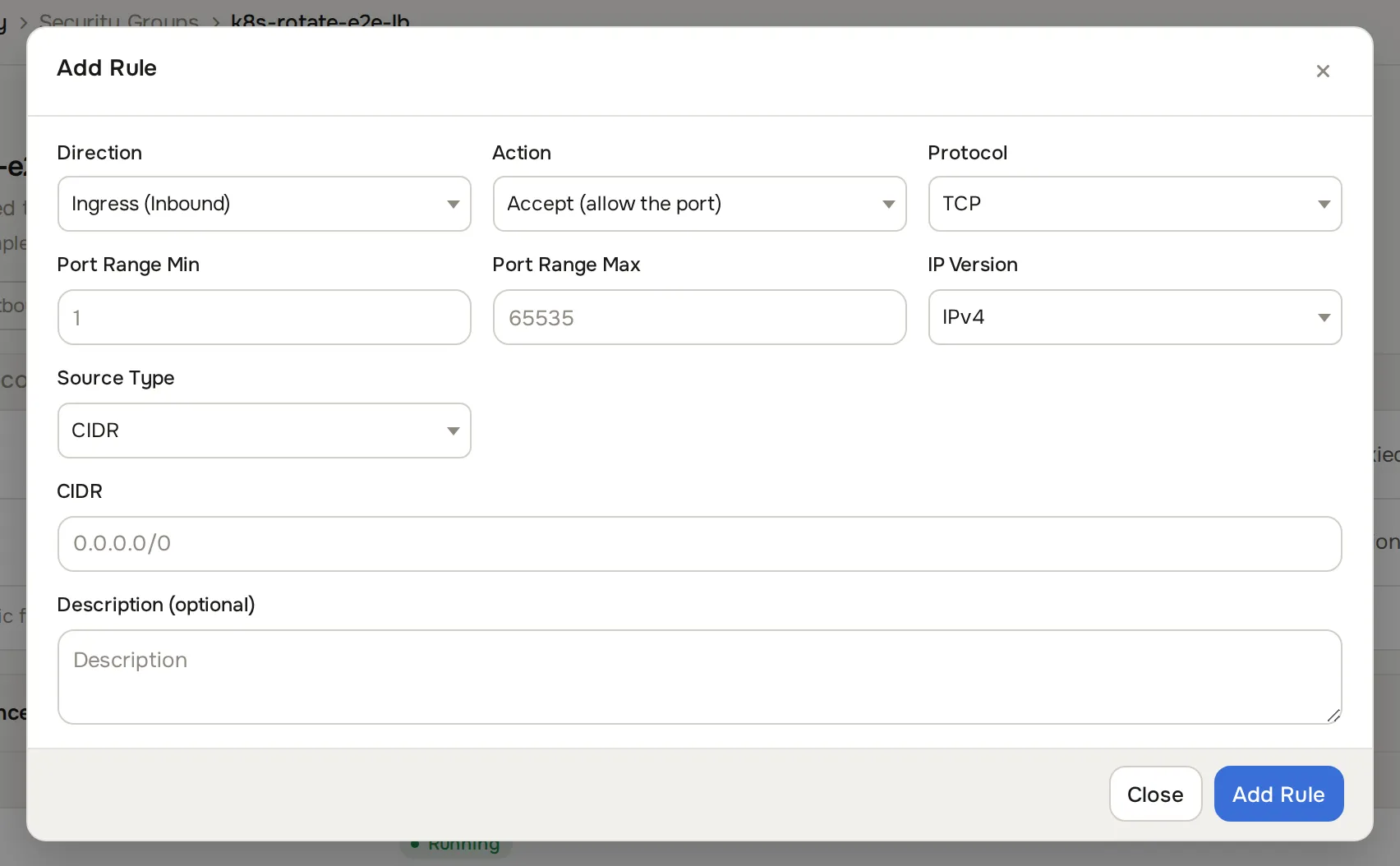
Click Add rule. The Add Rule dialog opens.
-
Fill in the fields:
Fields
| Field | What to enter |
|---|---|
| Direction | Ingress (Inbound) or Egress (Outbound). |
| Action | Accept (allow the port) or Drop (block the port). |
| Protocol | TCP, UDP, ICMP, ICMPv6, or All. |
| Port Range Min / Port Range Max | 1 to 65535. For a single port, set both to the same value. Not used for ICMP, ICMPv6, or All. |
| IP Version | IPv4 or IPv6. Must match the source CIDR. |
| Source Type | CIDR, Security Group, or IP Set. |
| Description (optional) | Free text. |
- Click Add Rule.
Source types
Section titled “Source types”- CIDR. An address or range:
0.0.0.0/0for anywhere,198.51.100.0/24for a subnet,203.0.113.5/32for one host,::/0for all IPv6. - Security Group. Reference another group. The rule matches every instance that has that group attached, and updates automatically as instances join or leave. Example: an ingress rule on a “Database Servers” group that references a “Web Servers” group lets every web instance reach the databases without hardcoded IPs.
- IP Set. Reference a named CIDR list. See IP sets.
Duplicate rules (same direction, protocol, port range, IP version, and source) are rejected.
Attach instances
Section titled “Attach instances”Each instance supports up to 10 attached groups. Attach or detach either way:
- On the group page, use the Attached instances section: click Attach instance, pick one or more instances in Instance(s), then click Attach. To detach, click Detach on the instance’s row.
- On an instance’s Security Groups tab, in the admin or user panel.
Rule changes and attachments reach the hypervisors within about a minute. When an instance starts, resumes, or migrates, its rules are applied before it gains network access.
VPC traffic
Section titled “VPC traffic”Security groups work on both public and VPC interfaces. Inside a VPC, every instance can reach every other instance by default. Attach a group with ingress rules to restrict that, for example allowing TCP 3306 on database instances only from the web subnet.
Delete a group
Section titled “Delete a group”From the list, open the row’s actions menu and click Remove, or open the group and click Delete Security Group in its Settings card. Either way the panel detaches the group from all instances automatically before removing it.
Common problems
Section titled “Common problems”- Rules seem ignored. Changes take about a minute to sync. Also confirm the group is attached to the instance, and that the rule’s IP version matches the traffic you test. An IPv4 rule does not affect IPv6 traffic.
- The instance still allows everything. No ingress rules means allow all inbound. Add at least one ingress rule to start filtering.
- SMTP stays blocked despite an allow rule. Outbound TCP 25 is blocked unless SMTP is enabled for the customer, regardless of rules.