

Manage your license
VirtConsole is licensed per management server. One license key covers one panel installation. On top of that, the license carries hypervisor addons in four tiers. Each connected hypervisor consumes one addon, and the tier sets how many instances that host may run.
You activate the license once after installation, and come back here when you buy more capacity.
License tiers
Section titled “License tiers”| Tier | Limit per hypervisor |
|---|---|
| Unlimited Instances | No per-host cap. |
| 10 Instances / HV | Up to 10 instances on this host. |
| 5 Instances / HV | Up to 5 instances on this host. |
| 1 Instance / HV | A single instance. Useful for dedicated-server style products. |
The tiers are per host, not global. A license with 20 unlimited addons and 10 single-instance addons lets you connect 20 hypervisors with no cap and 10 hypervisors capped at one instance each.
Before you begin
Section titled “Before you begin”- Make sure the panel is installed. See Management server installation.
- Make sure you have bought a license from service.readydedis.com. The license key is in your client area there.
Where to find it
Section titled “Where to find it”In the admin panel go to System > License.
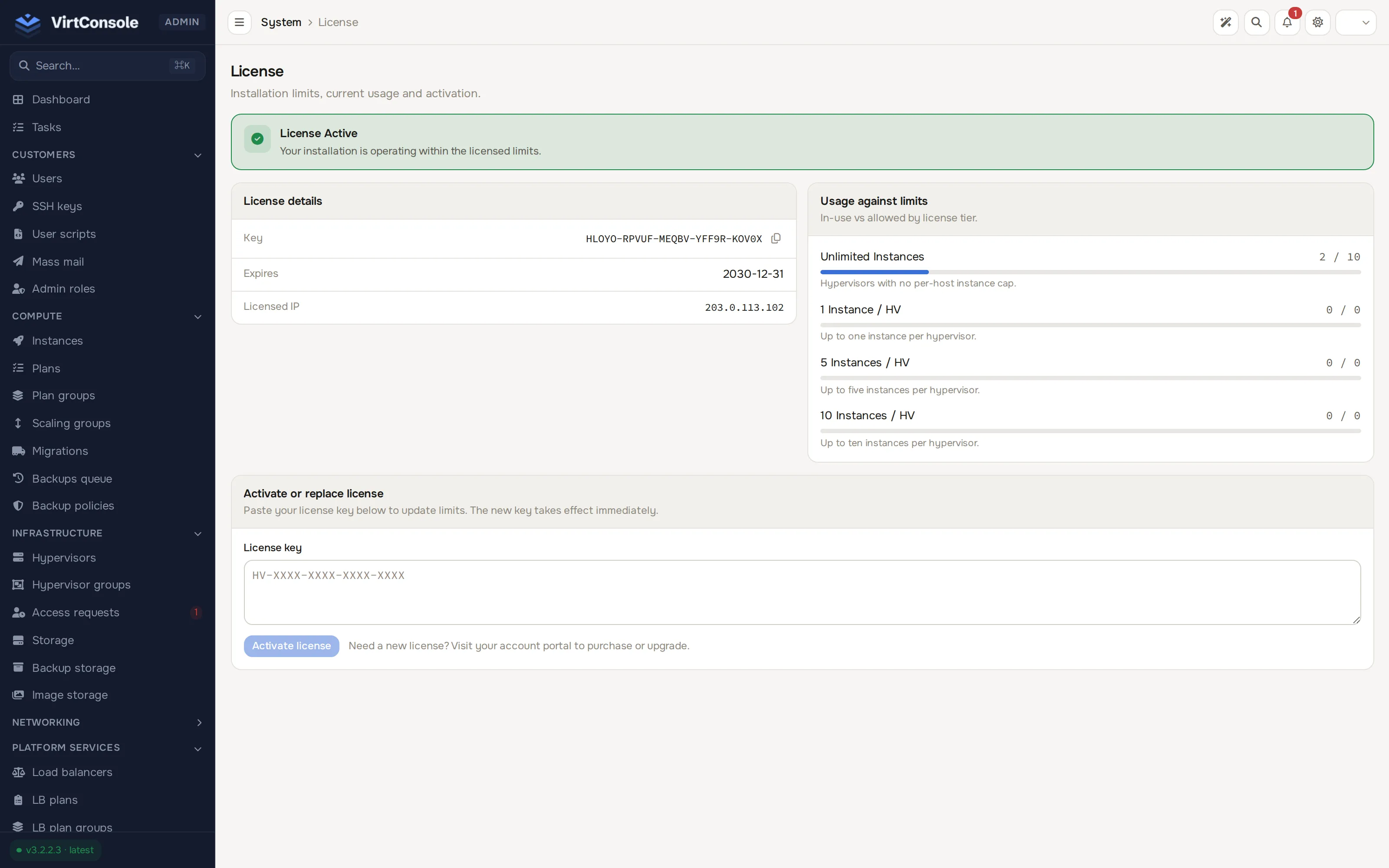
The License page opens on a status banner (License Active when you are within your limits), a License details card and a Usage against limits card.
Activate or replace a license
Section titled “Activate or replace a license”- Copy the license key from your VirtConsole account.
- Scroll to Activate or replace license and paste it into the License key field.
- Click Activate license. The page reloads and the banner at the top confirms the new state.
The new limits take effect immediately. To upgrade later, buy more addons in your account portal, then paste the updated key here and activate again. There is no downtime.
Reading the page
Section titled “Reading the page”- License details: the active Key, Expires date and the Licensed IP the key is bound to. The key is locked to the public IP of your management server; overall compliance is shown by the banner above the card, not by a separate status field.
- Usage against limits: one row per tier (Unlimited Instances, 1 Instance / HV, 5 Instances / HV, 10 Instances / HV), each with a progress bar of in-use vs allowed hypervisor slots for that tier.
Assign a tier to a hypervisor
Section titled “Assign a tier to a hypervisor”Each connected hypervisor needs a tier. You set it from the hypervisors list, not from the License page.
- Go to Infrastructure > Hypervisors.
- Find the hypervisor and look at the Licensing column.
- Click the tier button: infinity (unlimited), 1, 5 or 10. The active tier is highlighted.
The panel refuses to deploy new instances on a host that is over its tier limit.
What happens next
Section titled “What happens next”With an active license you can connect hypervisors. The Usage against limits rows fill in as you assign tiers. If you ever exceed the licensed limits, the page switches to a conflict state that names the exceeded limits, and full admin access is restricted until you resolve them: either assign a different tier to a host, remove a hypervisor, or upgrade the license.
Common problems
Section titled “Common problems”- The page shows a license conflict. You are over a limit. Read the listed reasons, then open Infrastructure > Hypervisors and lower a host’s tier or remove it, or activate a key with more addons.
- A key is refused on activation. Keys are bound to one management server IP. Check that the Licensed IP matches this server’s public IP, and that you copied the full key.
- You cannot connect a new hypervisor. Every hypervisor consumes one addon slot. Buy another addon, or free a slot by removing an unused hypervisor.