

My Images
My Images are custom OS templates you create from your own instances. Capture a configured instance once, then deploy new instances from that image exactly like a stock OS image.
Create an image
Section titled “Create an image”- Open the instance manage page (Compute > Instances > Manage).
- On the Overview tab, click Create image under Quick actions. The Create Image dialog opens.
- Enter a name, for example
production-web-v2. If the instance has no source image recorded, you also get a Cloud-init is installed on this instance checkbox; tick it when the OS has cloud-init, so SSH keys and cloud-init config keep working on instances deployed from this image. - Click Create Image.
The capture runs in the background. Running instances are captured live; you do not have to power off first.
Where to find it
Section titled “Where to find it”In the user panel go to Compute > My Images. The list shows each image’s name, OS, size, location, status and creation date. There is no create button on this page; images are created from an instance’s Overview tab (see above).
The My Images list.
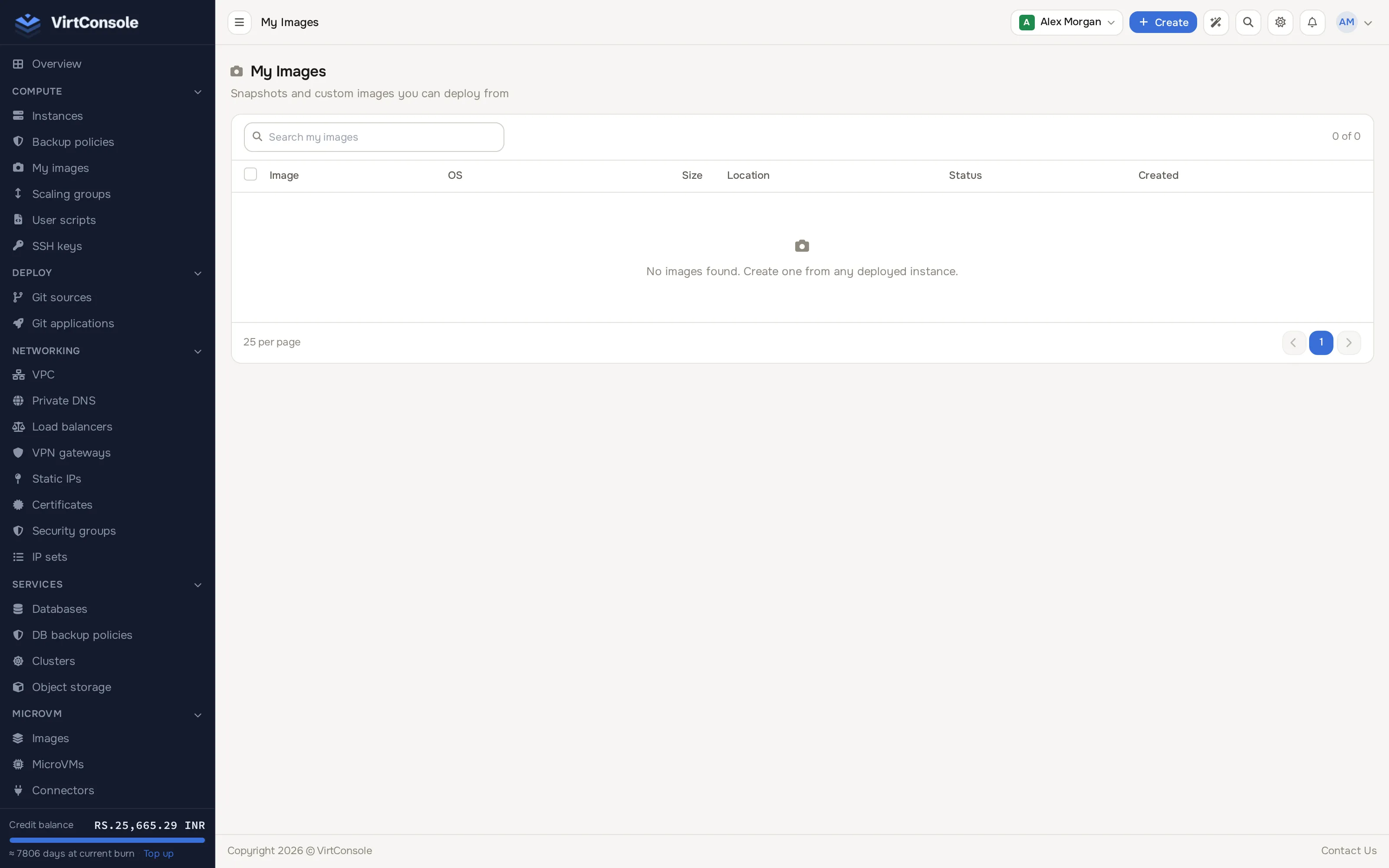
Image statuses: Creating (being generated), Available (ready to deploy from), Error (capture failed; retry from the instance), Deleting.
Deploy from a custom image
Section titled “Deploy from a custom image”On the install form (when deploying a new instance or reinstalling), switch the OS picker to the My Images tab and click your image. The rest of the flow is the same as deploying a stock OS image. See Create an instance.
Custom images also appear under My Images when you configure a scaling group. See Scaling groups.
Billing
Section titled “Billing”Where your provider prices custom images, billing is per GB per month, prorated hourly, starting when the image becomes Available and stopping when you delete it. Charges appear in your usage report under an Images section.
Delete an image
Section titled “Delete an image”Click Delete next to the image and confirm. Instances already created from the image keep working.
Common problems
Section titled “Common problems”- “Image feature is not enabled.” Your provider has not enabled custom images in this location. Contact your provider.
- “Maximum image limit reached.” You hit your account’s image cap. Delete an unused image or ask your provider to raise the limit.
- The image is stuck in Creating. Check the task on the instance page. The usual cause is no space on the image storage; retry, or contact your provider if the task failed.