

Tax rules
Tax in VirtConsole is driven by two tables. Tax rule sets define which rates apply and where; country rules decide, per country, whether you accept customers at all and what limits and checks apply to them. The platform picks the correct rule for each top-up from the customer’s tax profile.
Before you begin
Section titled “Before you begin”- You know which regions you sell in and at what rate.
- Your seller details (country, state, tax identifiers) are filled in under Billing > Billing settings, Seller tab, because intra-state vs inter-state tax depends on them. See Payments and account credit.
Tax rule sets
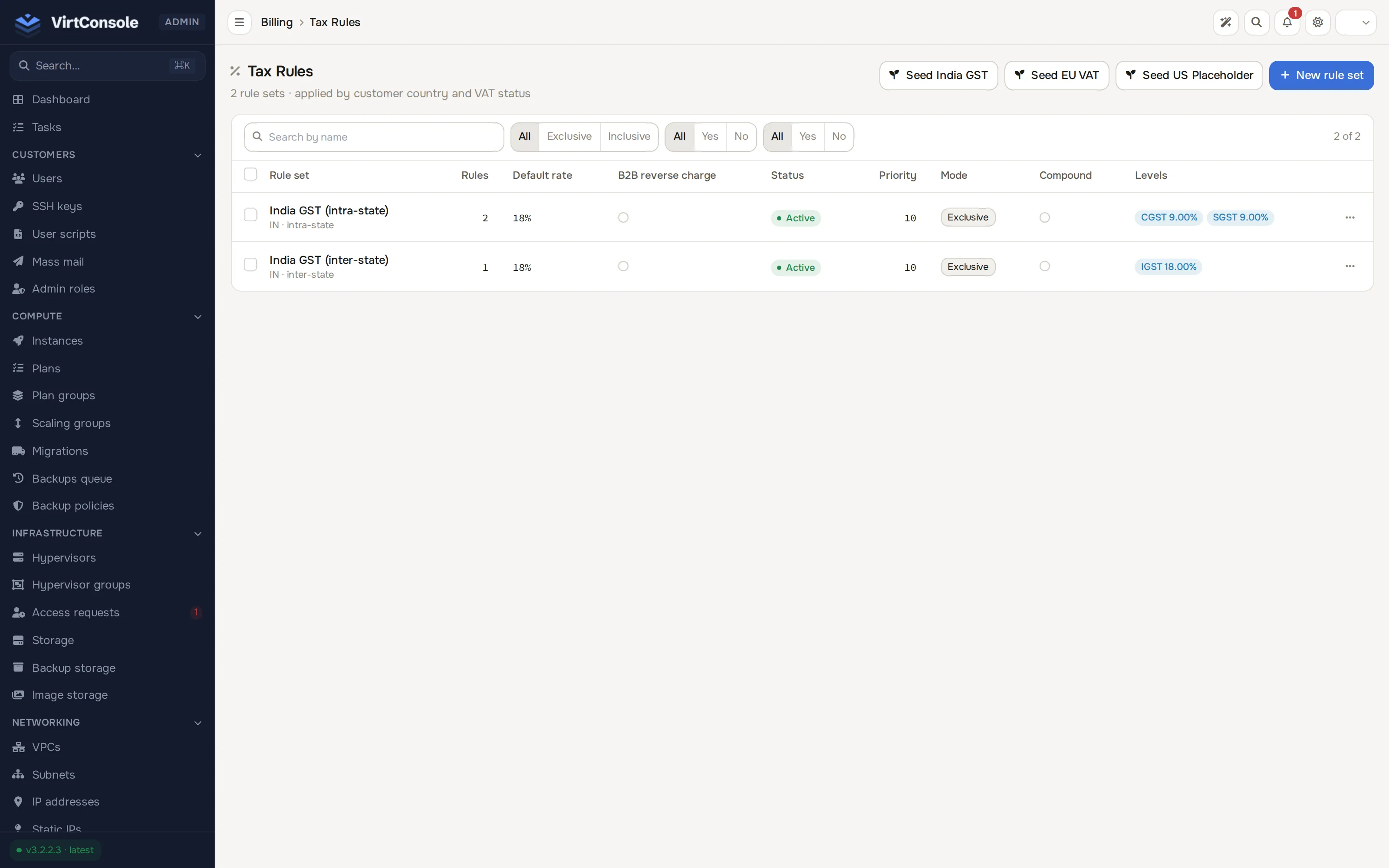
Section titled “Tax rule sets”In the admin panel go to Billing > Tax rules. The list shows every rule set with its Name, Country, Priority, Mode, Compound, B2B Only and Levels.
Seed a regional preset
Section titled “Seed a regional preset”Instead of building rules by hand, you can start from a preset. The toolbar offers three seed buttons:
- Seed India GST: CGST/SGST/IGST rule sets for Indian sales.
- Seed EU VAT: per-country VAT rates for the EU.
- Seed US Placeholder: placeholder rules for the US to fill in per state.
Click one, then review and adjust the rule sets it creates.
Create a rule set
Section titled “Create a rule set”-
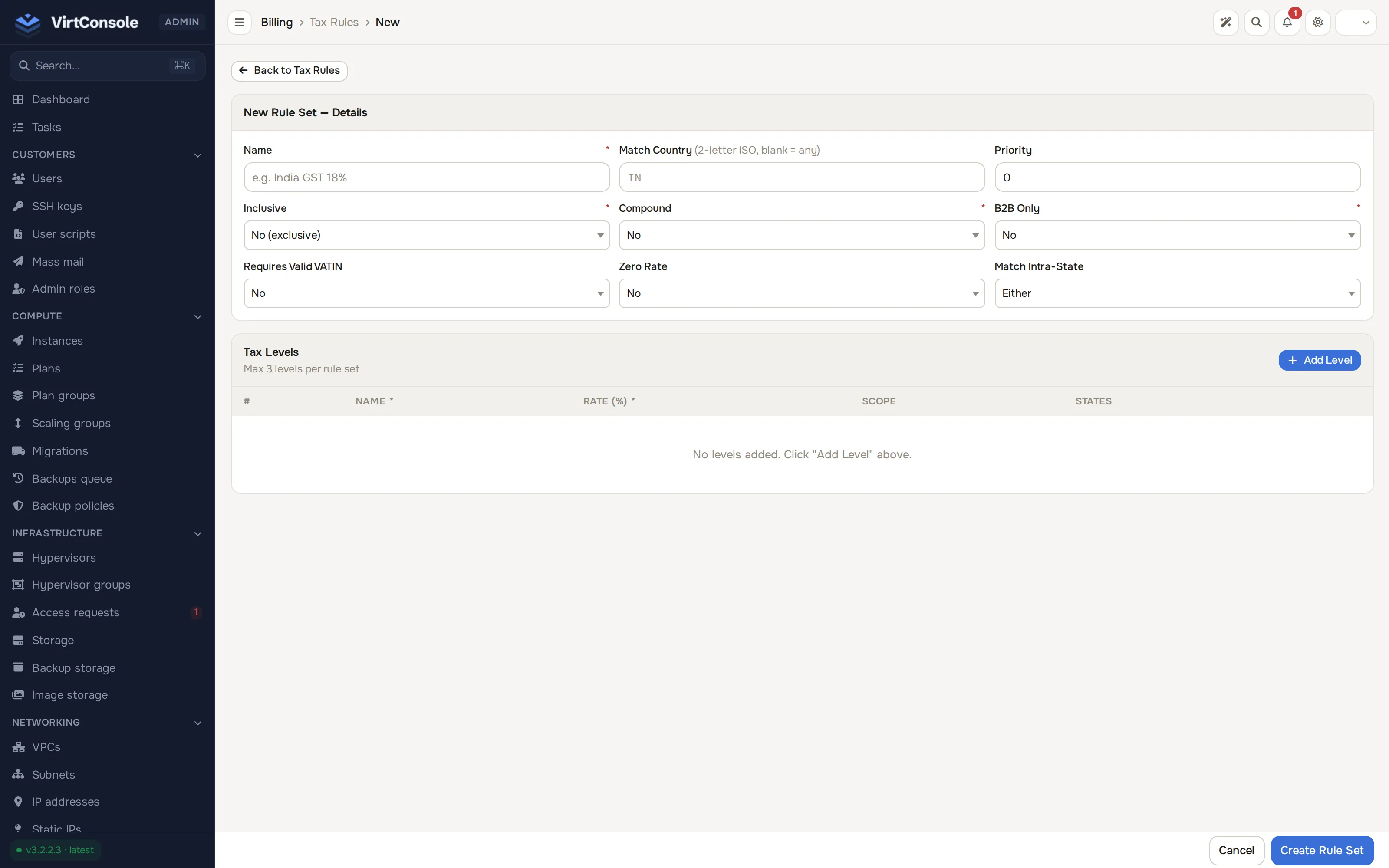
Click New rule set. The create form opens.
-
Fill in the fields:
Fields
| Field | What to enter |
|---|---|
| Name | A label for the rule set, for example Germany VAT. |
| Match Country | The 2-letter ISO country code this set applies to. Leave blank to match any country. |
| Priority | Which set wins when several match. Lower numbers win. |
| Inclusive | Whether the tax is included in the top-up amount. |
| Compound | Whether this tax applies on top of earlier taxes. |
| B2B Only | Apply only to business customers. |
| Requires Valid VATIN | Only apply when the customer’s VAT identification number validates. Use this for reverse-charge B2B treatment in VAT regions. |
| Zero Rate | Charge 0%, for example for exempt supplies. |
| Match Intra-State | For federal tax systems: match All states, or Include states / Exclude states with a state list. |
- Add up to 3 Tax Levels with Add Level, and set each level’s Rate (%). Levels support multi-part taxes such as CGST + SGST.
- Save.
When a customer tops up, the platform resolves their country and state from their tax profile, picks the matching rule set by priority, and applies its levels to the amount.
Country rules
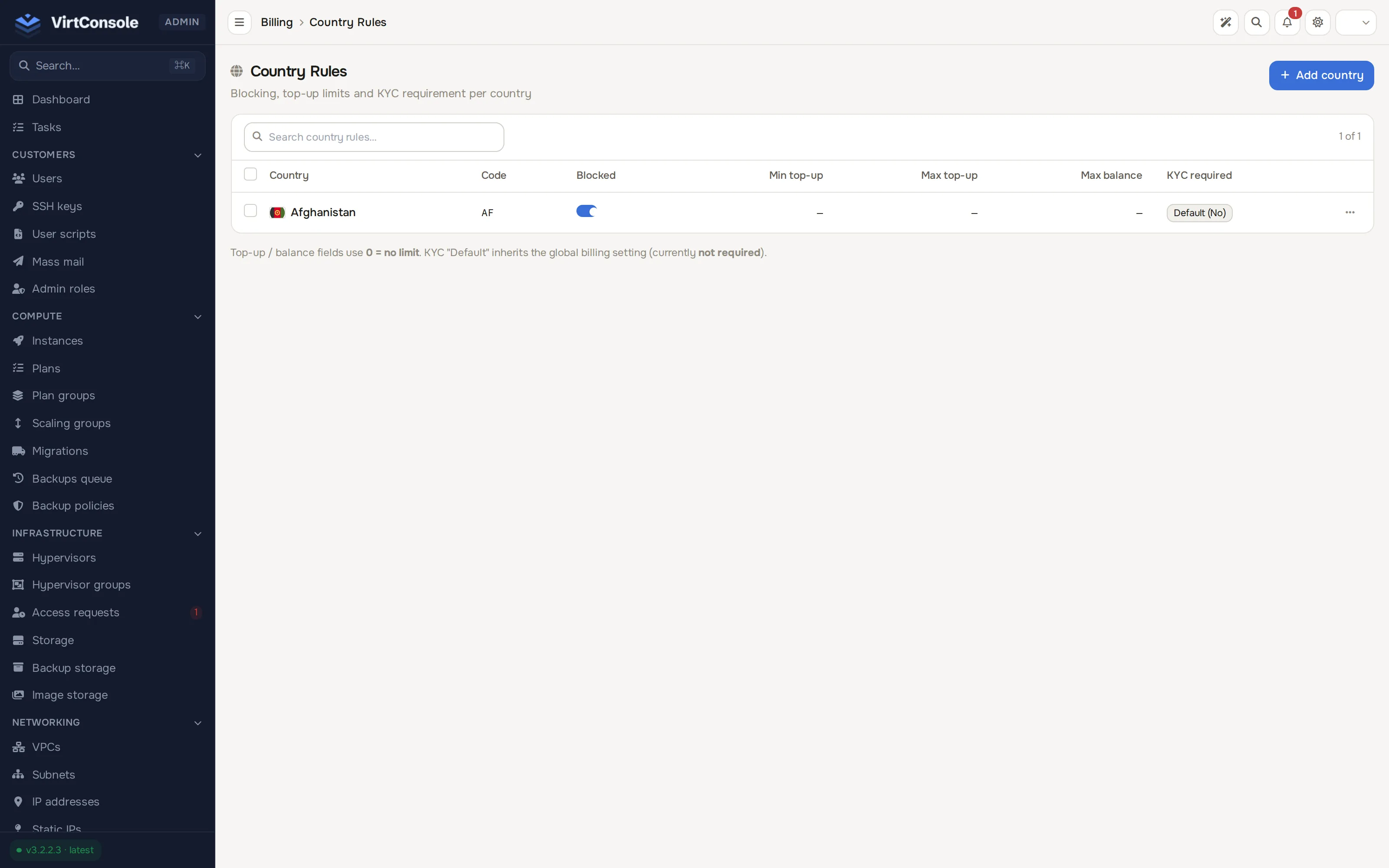
Section titled “Country rules”In the admin panel go to Billing > Country rules. Each row is one country; the Blocked toggle flips inline, and an Edit row action opens the rest of the fields in a dialog:
| Column / field | What it does |
|---|---|
| Blocked | Refuse top-ups and sign-ups from customers in this country. In the edit dialog this is the Block sign-ups and top-ups toggle. |
| Min top-up | The smallest top-up allowed, in credit. |
| Max top-up | The largest single top-up allowed. |
| Max balance | The highest account balance a customer in this country may hold. |
| KYC required | Per-country identity verification override: Default (global), Yes or No. The global default is set under Billing > Billing settings, Tax tab, as KYC required by default. |
- Click Add country, pick a country, and set its fields in the dialog. Save with Add country.
- To change an existing row, click Edit, adjust the fields, and save with Save changes. You can also flip Blocked directly in the table without opening the dialog.
VAT validation
Section titled “VAT validation”For business customers in VAT regions, the platform validates the customer’s VAT identification number so business-to-business transactions are treated correctly (for example zero-rated under a reverse charge when Requires Valid VATIN is set). Customers complete their tax profile in their billing area; the identifiers you collect there also print on invoices.
Common problems
Section titled “Common problems”- No tax is applied to a top-up. No rule set matches the customer’s country, or the matching set has the wrong priority. Check Match Country and Priority on your rule sets.
- A business customer is charged VAT despite a valid VATIN. The rule set is missing Requires Valid VATIN, or the customer’s VATIN has not validated in their tax profile.
- A customer’s top-up is rejected. Their country row is Blocked, the amount is outside Min top-up / Max top-up, or the top-up would push them past Max balance. Check Billing > Country rules.