

Kubernetes admin setup
The panel provisions and manages Kubernetes clusters end to end. Customers click through a wizard, and the panel creates the virtual machines, installs Kubernetes on them, wires up the networking, and exposes the API server through a managed load balancer.
For each cluster the panel creates:
- One or three control plane VMs (single, or high-availability).
- One or more worker VMs, grouped into node pools.
- One managed load balancer fronting the API server.
- A per-cluster security group for the load balancer, control plane and workers.
- A kubeconfig file the customer downloads to use
kubectl.
Provisioning typically takes 5-12 minutes.
Before you begin
Section titled “Before you begin”- Control plane and worker images are baked and registered. See Image baking. This is the long pole; do it first.
- The target region has VPC and load balancing available. A cluster must live in a VPC, and every cluster needs a load balancer for its API server. See VPC and Load balancers.
Where to find it
Section titled “Where to find it”In the admin panel sidebar, clusters live at Platform services > Kubernetes clusters, and the version catalogue at Platform services > Supported versions. Both pages carry a Kubernetes > Clusters / Kubernetes > Supported Versions breadcrumb once open.
Step 1: Enable Kubernetes on the hypervisor group
Section titled “Step 1: Enable Kubernetes on the hypervisor group”Customers pick a region (hypervisor group) when creating a cluster, and only enabled regions appear.
- Go to Infrastructure > Hypervisor groups and open the group.
- Switch on Enable Kubernetes service in this group.
- Save.
Step 2: Register supported versions
Section titled “Step 2: Register supported versions”The Supported Versions page is the admin-curated list of Kubernetes versions customers can pick in the create wizard.
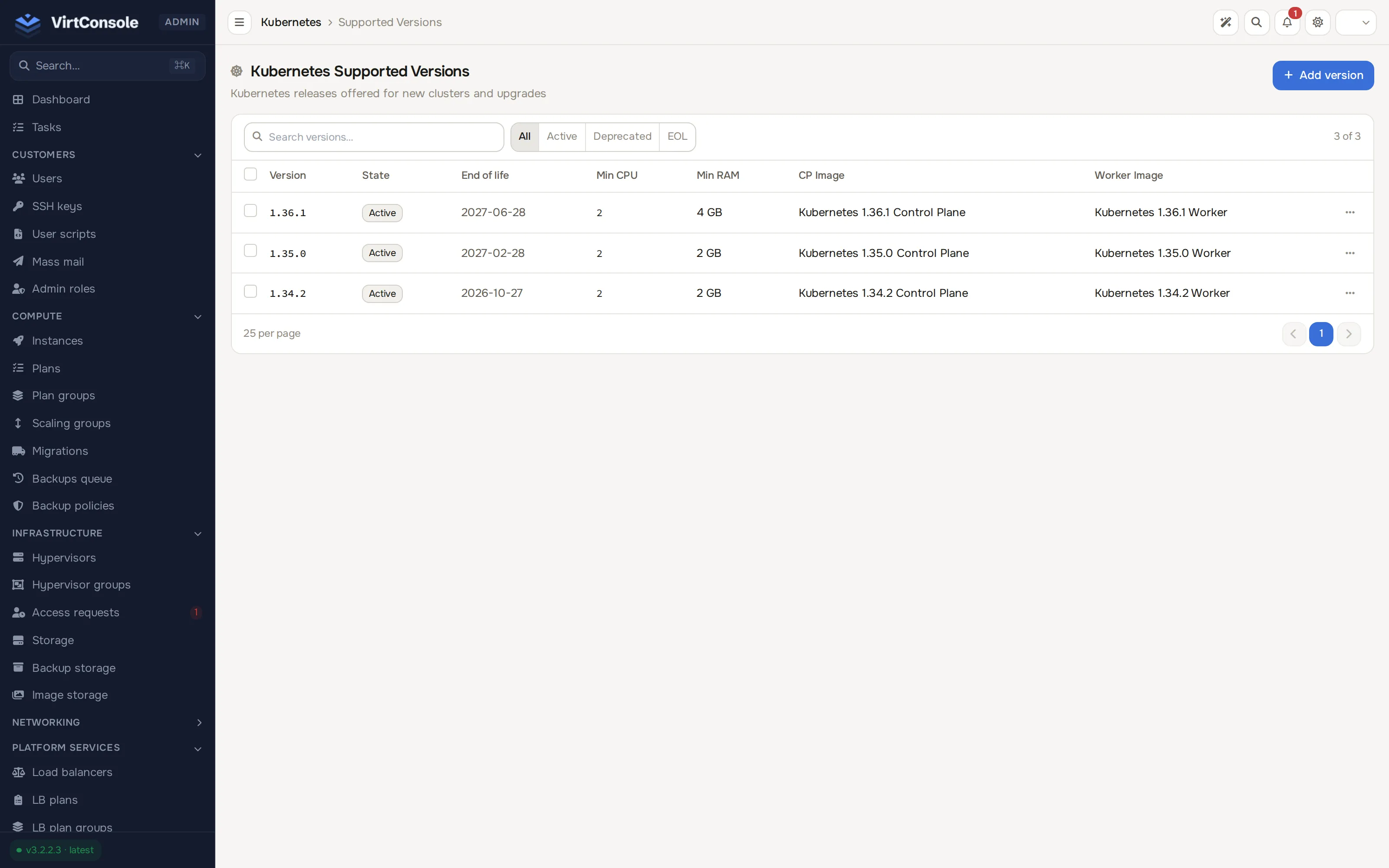
- Go to Platform services > Supported versions and click Register Version.
- Fill in the fields:
Fields
| Field | What to enter |
|---|---|
| Semantic Version | The full version, for example 1.31.0. Immutable after registration. |
| State | Active (selectable), Deprecated (selectable, shown with a warning) or EOL (hidden from new clusters). |
| Control Plane Image | An image with purpose Kubernetes control plane. |
| Worker Image | An image with purpose Kubernetes worker. |
| Cluster Autoscaler Image | Container image used when clusters on this version enable worker autoscaling. Leave blank for the global default. |
| Min CPU Cores | Floor used to filter the plan picker in the wizard. 1-64. |
| Min RAM in MB | Same, for memory. 512-1048576. |
| EOL Date | Optional end-of-life date. |
| Upgrade From (comma-separated) | Versions that may upgrade to this one, for example 1.30.0, 1.30.1. Kubernetes does not allow skipping minor versions. |
| Bundled Components (JSON object) | Optional map of co-packaged components, for example {"containerd": "1.7.13", "cilium": "1.16.0"}. |
| Notes | Free-form notes. |
- Click Register Version. Repeat for every version you want to offer.
Removing a version is blocked while clusters still reference it.
Step 3: Operate customer clusters
Section titled “Step 3: Operate customer clusters”Platform services > Kubernetes clusters lists every cluster on the platform with a State filter (Created, Starting, Running, Stopped, Alert, Destroying, Error, Destroyed). Each row shows the owner, region, version and control plane / worker counts. Click a row to open it, or use View in the row’s action menu.
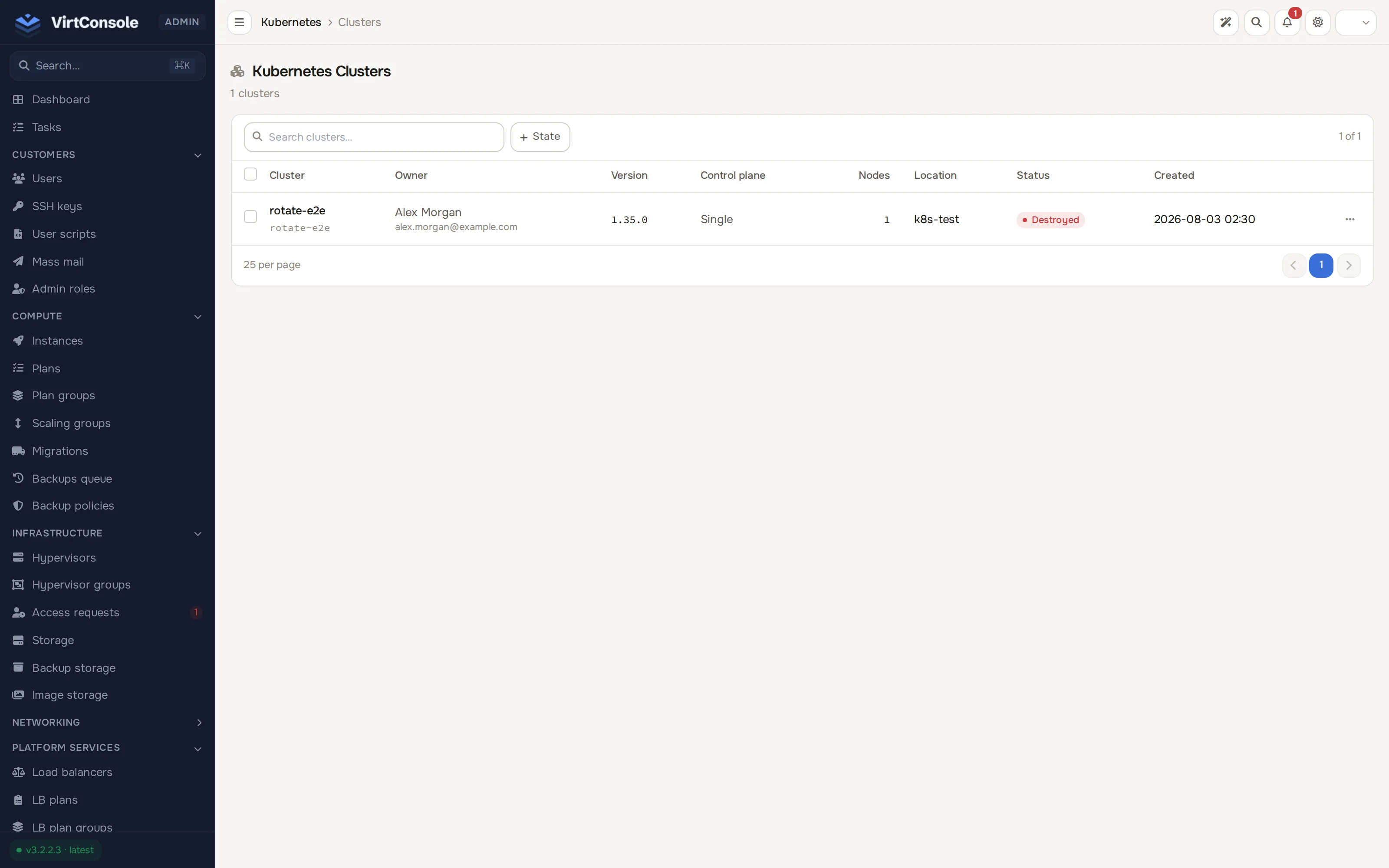
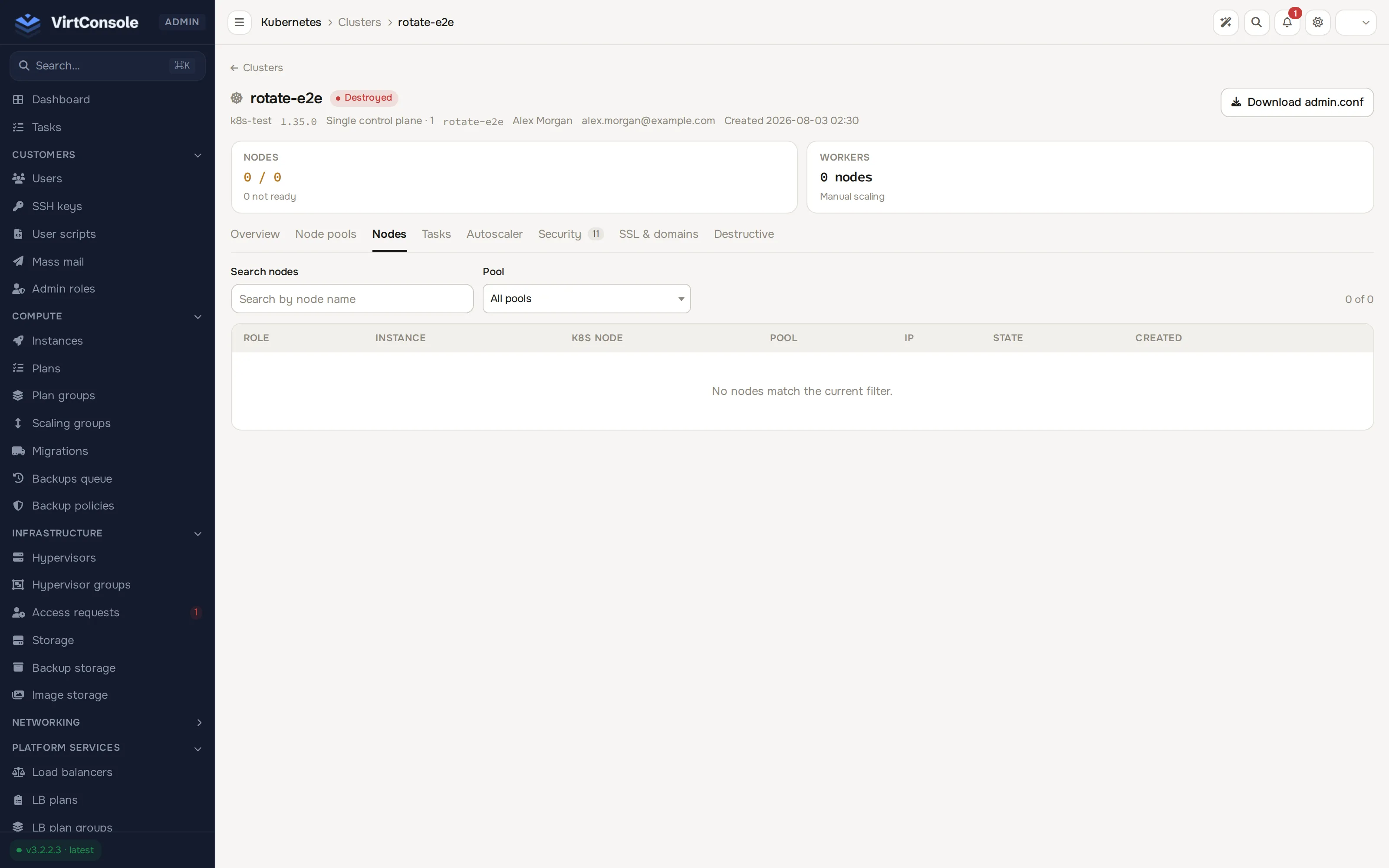
The cluster detail page shows almost the same tabs the customer sees, in this order: Overview, Node pools, Nodes, Tasks, Autoscaler, Security, SSL & domains, plus the admin-only Destructive tab (the customer additionally has an Upgrades tab the admin panel does not show; see Upgrades and rotation). Opening a cluster lands on the Nodes tab by default. See Node pools for pool management.
The Destructive tab
Section titled “The Destructive tab”The admin-only Destructive tab holds the operator controls. Every action asks for a reason and is audit-logged.
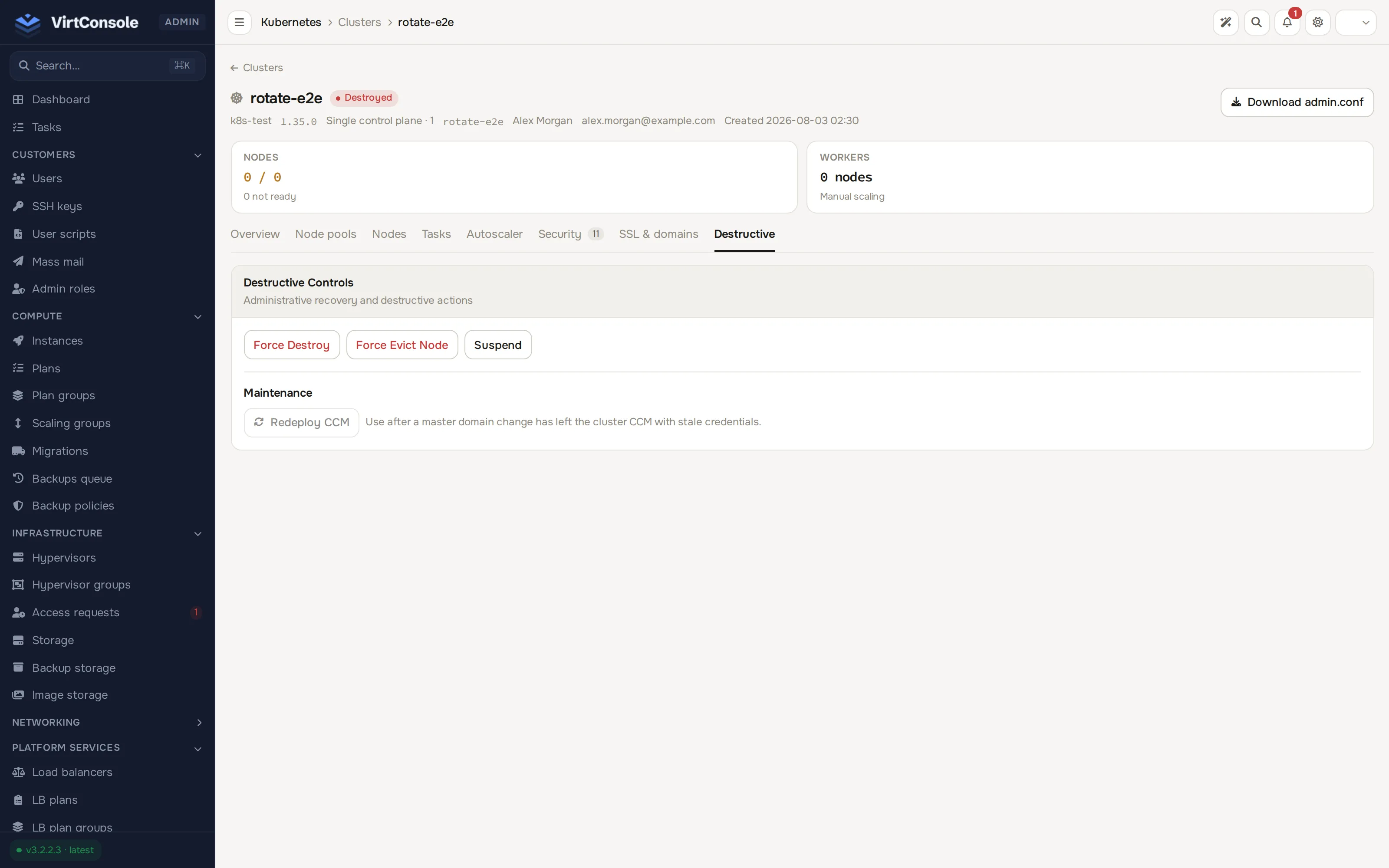
| Action | What it does |
|---|---|
| Force Destroy | Terminate the cluster even when a normal delete is stuck. Requires typing the cluster slug. Irreversible; all cluster VMs are terminated. |
| Force Evict Node | Forcibly remove a worker node that refuses to drain. Blocked for the last worker node; use Force Destroy instead. |
| Suspend / Unsuspend | Block the customer’s cluster operations and pause Cloud Service billing. The VMs keep running. |
| Reset State | Move a cluster stuck in error, destroying, starting or created back to error or running. The button also shows for alert, but the confirm dialog reports that state as not resettable. Changes the state flag only; fix the underlying VMs first. |
| Cancel Task | Cancel the currently active task when it is no longer making progress. |
A Maintenance section below the controls holds Redeploy CCM, which re-applies the in-cluster cloud controller manager with current panel settings. Use it after the management server’s domain changes and the cluster’s controller is left with stale credentials.
Annotation prefix
Section titled “Annotation prefix”The controller manages type=LoadBalancer Services through annotations keyed by a prefix, by default service.beta.kubernetes.io/managed-loadbalancer-. The panel injects this prefix into each cluster’s cloud controller manager when the cluster bootstraps. A white-label deployment can change it with the K8S_ANNOTATION_PREFIX environment variable on the management server; the controller reads its copy from the ANNOTATION_PREFIX environment variable on its Deployment. The two values must match exactly. If they disagree, the controller silently skips Services carrying the other prefix. After changing the prefix, use Redeploy CCM on existing clusters.
What happens next
Section titled “What happens next”Once a version is Active and its region has Kubernetes enabled, customers can create clusters from their panel. Their prerequisites (a VPC with a NAT gateway and a private subnet) and the create wizard are covered in Clusters.
Common problems
Section titled “Common problems”- A cluster is stuck in
StartingorError. Open its Tasks tab; the failing task’s log names the phase. The full symptom list is on Troubleshooting.