

Agent channel security
The panel talks to each KVM hypervisor’s agent over HTTPS on port 2443, and the agent calls the panel back. Three controls harden that channel, and the Agent Channel Security card on the hypervisor’s Overview tab shows where each one stands. This page explains the badges, the matching Agent channel hardening warning in Readiness, and how to roll the controls out one node at a time.
Everything here is optional and off the critical path: an unhardened node keeps working, it is simply reported as such.
Where to find it
Section titled “Where to find it”In the admin panel go to Infrastructure > Hypervisors, open a KVM hypervisor, and stay on the Overview tab. The card sits in the right column under Readiness. See Manage hypervisors for the rest of the page.
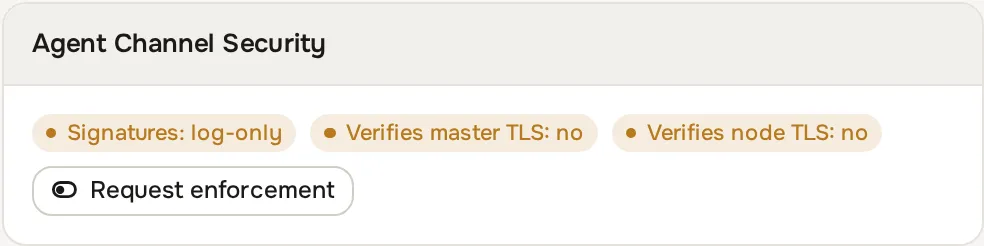
The badges
Section titled “The badges”| Badge | Values | What it tells you |
|---|---|---|
| Signatures | enforced, log-only, unknown |
Whether the node rejects panel commands that are not correctly signed. |
| Verifies master TLS | yes, no, unknown |
Whether the node checks the panel’s TLS certificate when it calls the panel. |
| Verifies node TLS | yes, no |
Whether the panel checks the node’s TLS certificate when it sends a command. |
| Node certificate changed, re-link | red, shown only when it applies | The node now presents a different certificate than the one the panel pinned. |
Signatures
Section titled “Signatures”Every command the panel sends to a node carries a signature built from the node’s shared secret, a timestamp and a one-time nonce.
log-only: a missing, expired, invalid or replayed signature is written to the node’s log, and the command still runs because the token and source address checks passed. This is the default.enforced: the node refuses any command whose signature is missing, expired, invalid or replayed. The refusal is an HTTP 403 with the body{"success":false,"message":"Unauthorized"}, and the real reason is logged on the node.unknown: the node has not reported its posture yet. This happens on an agent too old to report it, or before the first metrics heartbeat after you add the node.
The badge shows what the node reports it is doing, not what you asked for. After you click the button it can lag behind by one metrics cycle (about five minutes).
Signatures also run in the other direction: the panel checks the signature on the callbacks nodes send to it. That setting is fleet wide and automatic. It turns itself on once every enabled node has been seen sending valid signatures, and it never turns itself off. There is nothing to do on this page for it.
Verifies master TLS
Section titled “Verifies master TLS”This is the node’s view of the panel’s certificate. It is yes when the node has a readable certificate bundle configured through HV_MASTER_CA_BUNDLE (see below), and no otherwise. When it is no the node still uses HTTPS but does not check who answers, so the shared secret in the request depends on the network being trustworthy. unknown means the node has not reported yet.
Verifies node TLS
Section titled “Verifies node TLS”This is the panel’s view of the node’s certificate. It is yes when any of these is true:
- the node has a pinned certificate (see the next section);
- the panel has a readable CA bundle set in
HV_MASTER_CA_BUNDLEin its own.env; - the panel’s
SLAVE_TLS_VERIFYis true. Node certificates are self-signed, so only turn this on if your nodes present certificates a public or private authority has signed.
Otherwise it is no. Nodes added before certificate pinning existed show no until you add them again.
The Readiness warning
Section titled “The Readiness warning”Readiness on the same tab shows an Agent channel hardening row, as a warning and never as a blocker, while any of these is true:
- the node certificate changed since it was pinned;
- the node has not reported its security posture;
- command signatures are log-only;
- the node is not verifying the panel’s TLS certificate.
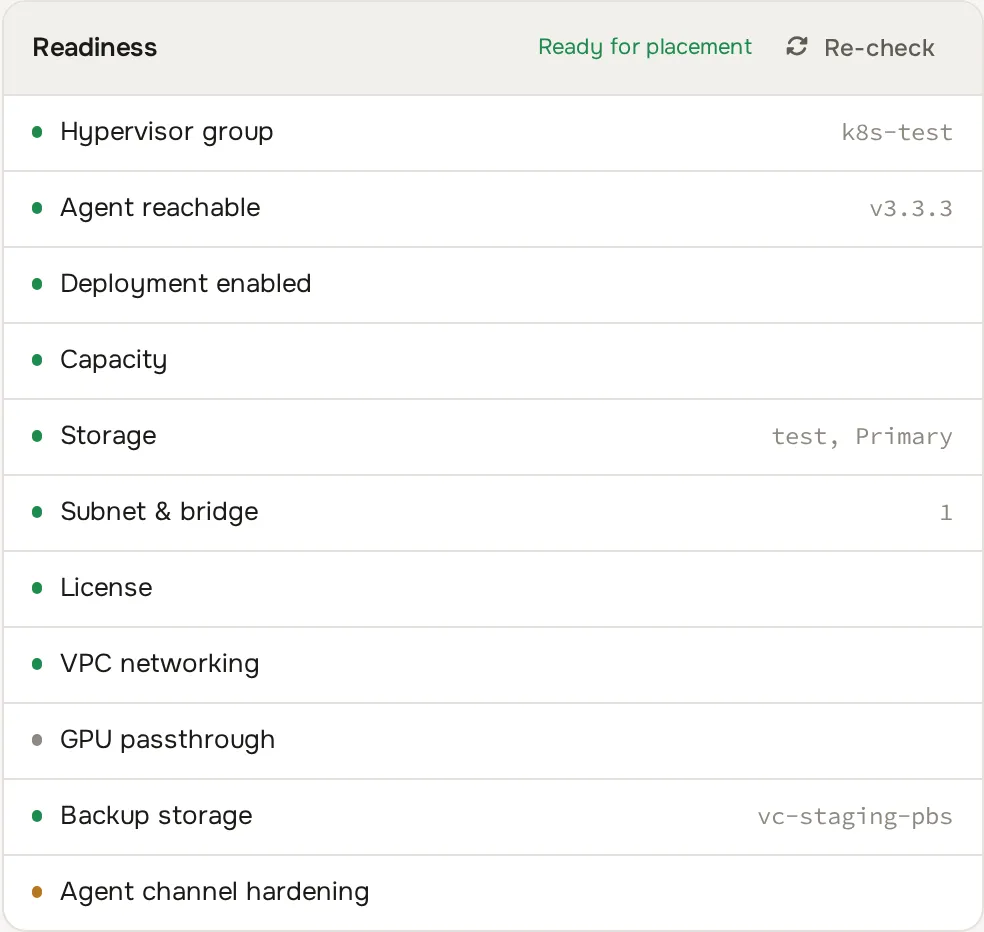
Warnings do not stop deployments and do not count toward the blocking checks. The row disappears once all of them are clear. Hover the row for the full text.
Note that this row does not report the state of Verifies node TLS. A node can show no on that badge and still have no warning.
Pin a node’s certificate
Section titled “Pin a node’s certificate”Each node has one long-lived self-signed certificate for port 2443. The panel can pin that exact certificate and then refuse to talk to anything else on that address. The pin is captured once, at the moment the node is linked to the panel.
The panel has no in-place re-link action today, so pinning an existing node means removing it and adding it again:
- Make sure the node hosts no instances. If it does, move them first (see Migrations). Remove refuses while instances remain.
- Open the hypervisor and click Remove, then confirm. The panel asks the node to unlink itself and then deletes the hypervisor record.
- Go to Infrastructure > Hypervisors and click Add Hypervisor. Enter the node’s name, IP address and group as before.
- During the link the node returns the fingerprint and the certificate itself. The panel stores the fingerprint and saves the certificate as the only certificate it will accept for that node.
- Open the new hypervisor and check that Verifies node TLS reads
yes.
A node you have just installed is pinned automatically when you first add it, so a fresh install needs none of this.
Re-running hypervisor:deploy on a node does not change its certificate while that certificate is valid for more than 30 more days, so routine re-provisioning leaves the pin intact. A replacement is created only when the certificate is missing, unreadable or close to expiry, and new certificates are valid for ten years.
When the certificate changed badge appears
Section titled “When the certificate changed badge appears”On every metrics heartbeat the node reports the fingerprint of the certificate file it has on disk. If you have a pin and the two differ, the card shows the red Node certificate changed, re-link badge and Readiness reports that the certificate changed. The panel never overwrites the stored pin on its own.
The badge can appear a little before commands fail, because a running web server keeps serving the certificate it loaded earlier. When the node’s web server next restarts, commands to that node fail TLS verification and the panel logs tls_pin_mismatch. To recover, repeat the removal and re-add steps above.
Request or revert signature enforcement
Section titled “Request or revert signature enforcement”Enforcement is requested per node, so you can stage it. On the card, click Request enforcement. The panel records your request, and the next metrics heartbeat delivers it to the node. The node saves it in its own security.json file in its home directory, so it survives restarts, and starts enforcing. The Signatures badge moves from log-only to enforced once the node reports back. The button then reads Revert enforcement; click it to ask for log-only again.
A saved request takes precedence over the node’s own MASTER_SIGNATURE_ENFORCE setting. A node you have never touched keeps whatever that setting says, which is log-only unless you changed it.
When it is safe
Section titled “When it is safe”Request enforcement on a node when all of these hold:
- the node’s Signatures badge shows a value (
log-only), meaning it is reporting; - the panel and the node run current releases;
- the clocks on the panel and the node are synchronised. A signature is only accepted within five minutes of the node’s clock by default, so a node with a drifting clock will refuse every command once enforcement is on;
- the node’s log shows no recent
command signature check failedwarnings. While a node is log-only, each unsigned or invalid command is recorded there with its reason, so a clean log is your evidence that enforcing will not break anything.
If enforcement locks a node out
Section titled “If enforcement locks a node out”The revert request travels as a normal command, and an enforcing node refuses commands with a bad signature, so a node with a skewed clock cannot receive it. Fix the clock first and the next heartbeat delivers the revert.
If you cannot, click Revert enforcement in the panel anyway, so the panel stops asking for enforcement. Then remove security.json from the node’s home directory (usually /home/virtconsole/). The node falls back to its MASTER_SIGNATURE_ENFORCE setting, accepts commands again, and the next heartbeat delivers the revert. Removing the file without reverting in the panel does not hold, because the panel’s request is saved again on the next heartbeat.
Turn on node-to-panel TLS verification
Section titled “Turn on node-to-panel TLS verification”This makes the node check the panel’s certificate. It is off by default because the panel’s certificate chain is often not in the node’s own trust store, and verifying against it would break every node callback.
-
Choose a PEM file that contains the certificate, or the certificate authority that issued it, for the address the node uses to reach the panel. For a publicly trusted certificate on Debian or Ubuntu, the system bundle
/etc/ssl/certs/ca-certificates.crtworks. For a private authority, copy its PEM to the node. -
On the node, open the
.envfile in the agent’s application directory (/opt/virtconsole/.envon a standard install) and add:HV_MASTER_CA_BUNDLE=/path/to/master-ca.pem -
Run
php artisan queue:restartin that directory so the long-running queue workers pick the setting up. Cron jobs and web requests read it on their next run. If you cached the node’s configuration withphp artisan config:cache, runphp artisan config:clearfirst, because a cached configuration skips.env. -
Wait for the next metrics heartbeat (about five minutes) and check that Verifies master TLS reads
yes.
If the file is missing or unreadable the node falls back to no verification and the badge stays no. Note that verification applies to every call from the node to the panel, so confirm the certificate is valid for the name the node actually uses before you roll this out fleet wide.
The node logs a warning about disabled verification at most once a day. If you have decided to accept that risk, set HV_MASTER_TLS_INSECURE=1 in the same .env to silence the line. It does not change the badge or turn verification on.
Staged rollout checklist
Section titled “Staged rollout checklist”Work through one node at a time, starting with a node that is not busy.
- Check that the panel and node clocks are in sync and that the node reports a posture (no
unknownbadges). - Pin the node’s certificate if Verifies node TLS reads
no(move instances off, remove, add again). Confirm the badge readsyes. - Set
HV_MASTER_CA_BUNDLEon the node, restart its queue workers, and confirm Verifies master TLS readsyes. - Look at the node’s log for
command signature check failedentries. Fix the cause of any you find. - Click Request enforcement. After the next heartbeat confirm Signatures reads
enforced. - Watch Readiness. The Agent channel hardening row should be gone.
- Repeat for the next node. If anything misbehaves on a node, click Revert enforcement (or follow the recovery steps above) before continuing.