

Scaling groups
A scaling group is a managed set of identical instances that grows and shrinks automatically. You define one template (plan, image, cloud-init, networking) and one or more scaling policies (rules that say when to add or remove instances). The panel watches CPU or memory across the group and keeps the metric inside your target band.
The classic use is a stateless web tier behind a load balancer: traffic goes up, the group adds workers; traffic dies down, the group removes them. Instances in the group are billed by the hour exactly like any other Cloud Service instance; there is no separate charge for the group itself.
Before you begin
Section titled “Before you begin”- A location with autoscaling enabled by your provider. Only enabled locations appear in the create form.
- Enough credit balance for the maximum number of instances you allow.
- Optional: a load balancer to front the group (see Load balancers) and a VPC (see VPC networks).
Where to find it
Section titled “Where to find it”Click Scaling groups in the sidebar’s Compute group.
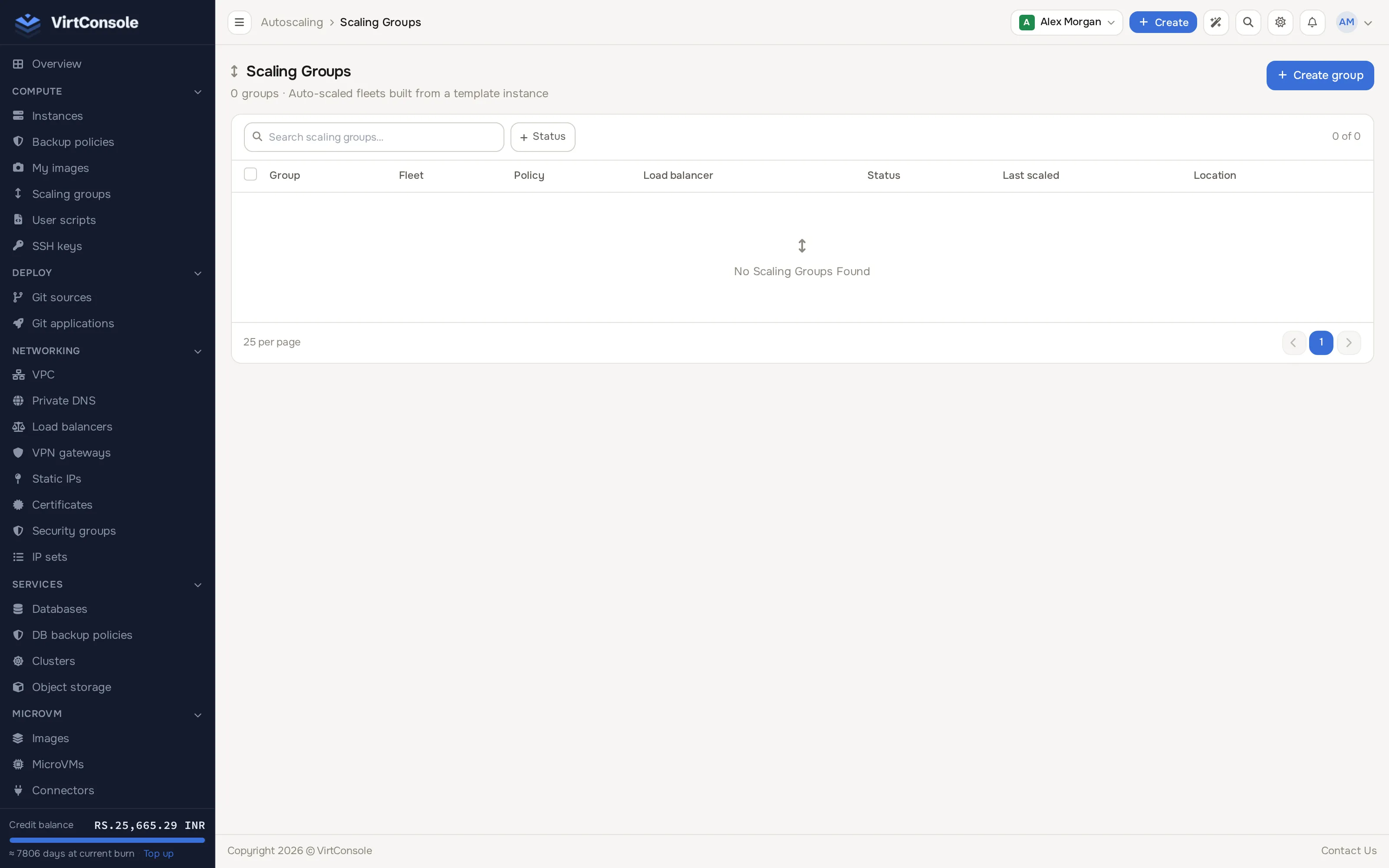
Create a scaling group
Section titled “Create a scaling group”Click Create group. This opens a single scrolling page with numbered sections that appear as you complete each one, the same pattern as creating an instance.
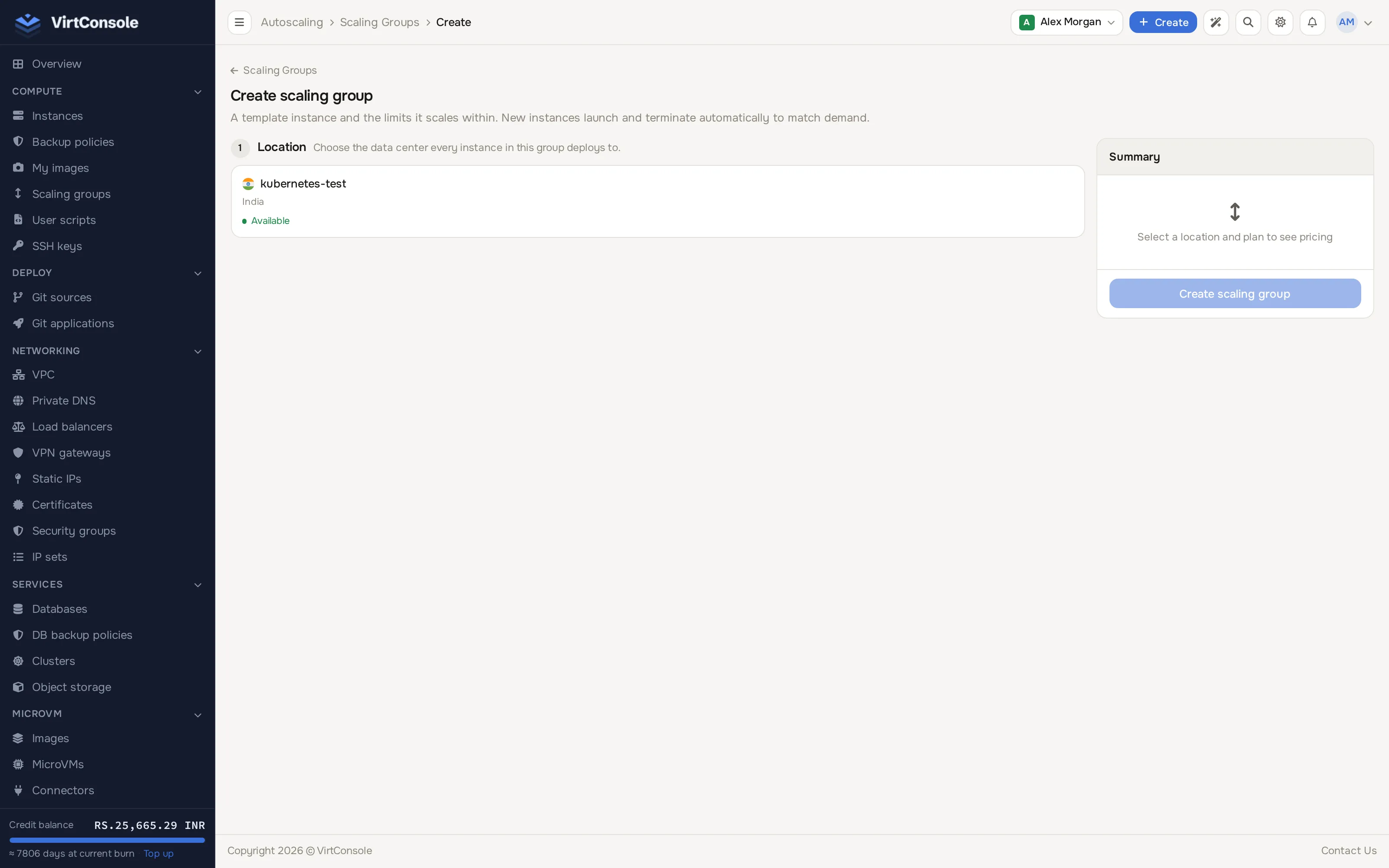
- Location: pick the data center every instance in the group deploys to. Only locations with autoscaling enabled appear.
- Plan: pick a plan type card, then a plan (vCPU, RAM, SSD, traffic and price), then an Image (search your saved images and base OS images).
- Scaling: set Min instances (floor, default placeholder 1) and Max instances (ceiling, default placeholder 5). Scale-up/down thresholds and cooldowns are configured after the group is created, from its Policies tab.
- Network (optional): pick a VPC and subnet for private networking, Security groups, and a Load balancer + Backend so new instances register as targets automatically and deregister on scale-down.
- Configuration (optional): SSH keys, User scripts and Cloud-init user data applied to every instance the group deploys.
- Name: a descriptive name for the group, for example
web-fleet.
Check the sticky Summary panel for pricing, then click Create scaling group.
If min is above 0, the initial instances deploy immediately. Otherwise the group stays empty until a policy triggers a scale-up.
Manage the group
Section titled “Manage the group”Open the group from the list. The page shows its overview (location, plan, image, VPC, load balancer, current count against the limits), its instances, its policies and its activity log.
- Edit Plan / limits / cloud-init: changes apply to new instances only. Raising min above the current count creates instances immediately; lowering max below the current count removes the excess.
- Pause / Resume: pausing stops all scaling evaluation; existing instances keep running and billing. On resume, if the count is below min, instances are created immediately.
- Destroy: removes the group, every instance in it, its policies and its history. Permanent.
Per instance in the group’s list: Manage opens its full manage page, and the trash icon destroys that single instance. If a manual destroy drops the count below min, a replacement is created automatically.
Scaling policies
Section titled “Scaling policies”Click Add Policy on the group page:
| Field | What it means | Default |
|---|---|---|
| Metric | CPU or Memory. |
CPU |
| Scale Up Threshold | Group average above this percentage adds instances. | - |
| Scale Down Threshold | Group average below this percentage removes instances. | - |
| Scale Up / Down Step | How many instances to add or remove per event. | 1 |
| Scale Up / Down Cooldown | Seconds to wait before another event in the same direction. Prevents flapping. | 300 / 600 |
| Evaluation Interval | How often the metric is checked, in seconds. | 30 |
| Evaluation Window | How far back to average the metric, in seconds. | 120 |
A group can have several policies, for example one for CPU and one for memory.
The activity log lists every scaling event (scale up, scale down, error) with the metric reading that triggered it and the instance created or destroyed. Entries are kept for 30 days.
Common problems
Section titled “Common problems”- The Location list is empty when creating. Autoscaling is not enabled in any location for your account. Contact your provider.
- Instances are not being created. The group must be Active (not paused), your credit balance must cover the new instances, and the location needs capacity. In a private VPC subnet, the VPC needs a NAT gateway so new instances can fetch packages at first boot.
- Scale-up is not triggering. At least one policy must be enabled, the averaged metric must actually cross the threshold, and the cooldown since the last event must have elapsed. Check the activity log for error entries.
- New instances are not reachable. Give them a minute or two to boot and apply cloud-init. Behind a load balancer, they must pass health checks before receiving traffic.
- “No hypervisors available.” The location is at capacity. Contact your provider.