

SSH keys
Customers upload SSH public keys once and attach them to instances at deploy time, so they can log in without a password. The admin SSH Keys page is a global view across all accounts. Use it to confirm a fingerprint a customer reads to you, to spot the same key uploaded twice, or to delete a leaked key on a customer’s behalf.
Where to find it
Section titled “Where to find it”In the admin panel go to Customers > SSH keys.
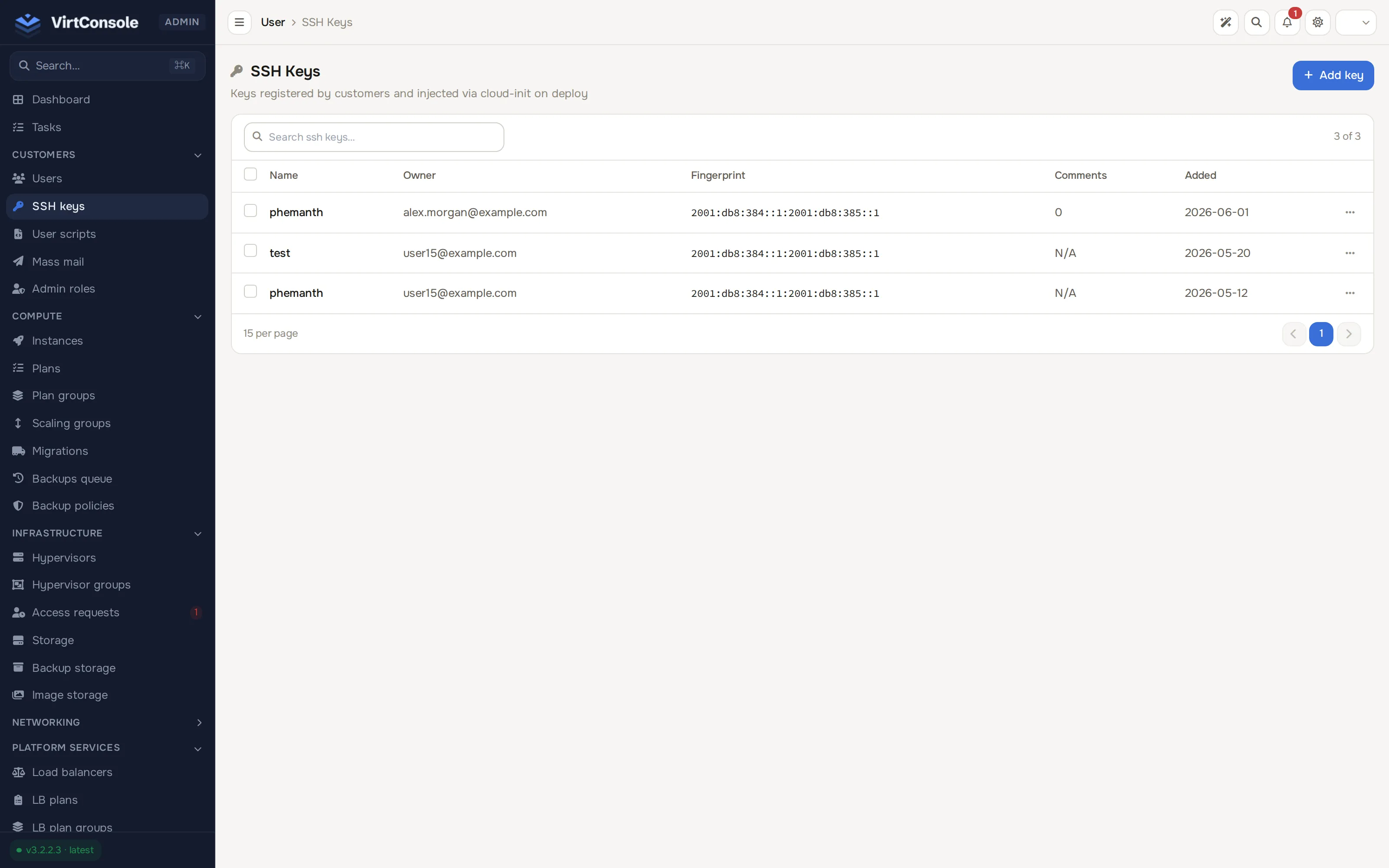
The list shows every key on the platform with Name, Owner (the owning account), Fingerprint, Comments and Added date.
Add a key
Section titled “Add a key”-
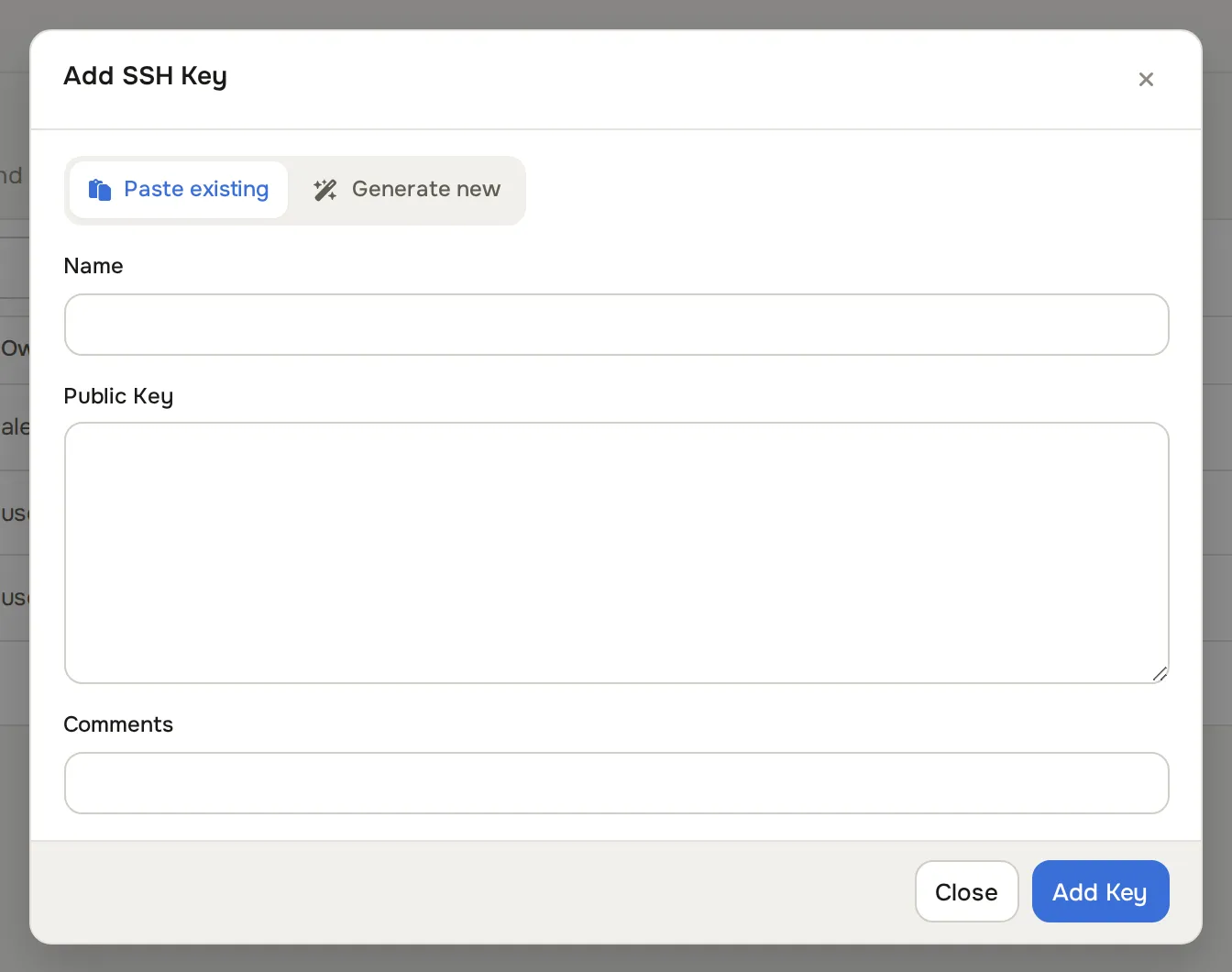
Click Add key. The Add SSH Key dialog opens.
-
Enter a Name.
-
Choose how to supply the key:
- Paste existing: paste the public key (the
ssh-rsa,ssh-ed25519orecdsa-sha2-*line) into Public Key. - Generate new: pick a key type (Ed25519 is recommended; RSA and ECDSA are also offered) and a size, then click Generate keypair. Generation happens in your browser; the private key never leaves it. Download or copy the private key before closing the dialog, because the panel does not store it.
- Paste existing: paste the public key (the
-
Optionally add Comments.
-
Click Add Key. The key appears at the top of the list.
A key added from this page is owned by your own admin account; the dialog has no customer picker. Customers add their own keys under Compute > SSH keys in the user panel.
Remove a key
Section titled “Remove a key”Click Remove on the row and confirm. Deleting a key does not remove it from instances already deployed with it; it only stops the key being offered for new deployments.
What happens next
Section titled “What happens next”Keys attached at deploy time are written into the instance by cloud-init on first boot. Instances already running keep whatever keys they were deployed with.
Common problems
Section titled “Common problems”- A customer reads you a fingerprint and you cannot find the key. Search the list by fingerprint fragment or by the customer’s email. The Fingerprint column is the reliable match; names are free text and repeat.
- Add fails with “key already exists”. The same public key is already registered, possibly under another name or account. Match it by fingerprint.
- A customer lost their private key. You cannot recover it; the panel stores only public keys. Have them generate a new pair and add the public key, then use it on the next deploy or reinstall.