

High availability
High availability (HA) restarts a virtual machine on a different hypervisor when the hypervisor it was running on stops responding. The goal is to keep customer instances up even when a physical server fails.
HA only works when the instance’s disks live on storage that more than one hypervisor can read. If a disk lives only on the dead host’s local storage, no other host can restart that instance.
How it works
Section titled “How it works”Every 30 seconds the management server checks each hypervisor in an HA-enabled group: a ping, then a call to the agent’s health endpoint.
- Both checks fail: the hypervisor’s failure counter increments.
- The counter reaches the group’s failure threshold (default 3, so about 90 seconds of failure): the hypervisor is marked down.
- If fencing is enabled, the management server sends a power-off to the failed host over its BMC (baseboard management controller, the out-of-band management port on the motherboard). Fencing makes sure a host that looks dead is actually off, so two hosts never run the same instance against the same shared disk.
- Each HA-covered instance on the failed host is restarted on another healthy hypervisor in the same group (evacuation).
- Every step is written to the HA events log.
If the failed host recovers, it is marked back up. Evacuated instances stay where they were moved.
Before you begin
Section titled “Before you begin”-
Shared storage attached to every hypervisor in the group. Ceph (recommended) or NFS. See Ceph RBD storage.
-
A hypervisor group with at least two hypervisors, all on the same shared storage and the same CPU architecture. An instance cannot restart on a different architecture.
-
BMC access for every hypervisor: IPMI or Redfish enabled in the BIOS or UEFI, reachable over the network from the management server, with working credentials.
-
For IPMI fencing, the
ipmitoolpackage on the management server:Terminal window apt-get install ipmitool # Debian / Ubuntudnf install ipmitool # RHEL family
Step 1: Configure fencing on every hypervisor
Section titled “Step 1: Configure fencing on every hypervisor”- Go to Infrastructure > Hypervisors and open the hypervisor.
- In the Fencing / BMC card, fill in:
Fields
| Field | What to enter |
|---|---|
| Fencing Type | IPMI or Redfish. |
| BMC Host | IP or hostname of the BMC interface. |
| BMC Username | BMC login. |
| BMC Password | BMC password. |
- Save, then click Test BMC Connection. A successful test shows the chassis power state.
You can also test from the management server shell:
ipmitool -I lanplus -H 203.0.113.30 -U <username> -P <password> power statusExpected output: Chassis Power is on. Fix timeouts or authentication failures before continuing; HA fencing fails the same way at runtime.
Step 2: Enable HA on the hypervisor group
Section titled “Step 2: Enable HA on the hypervisor group”The HA options live on the group’s edit page. Create the group first if it does not exist yet.
- Go to Infrastructure > Hypervisor groups and open the group.
- Switch Enable High Availability on.
- Switch Enable Fencing on.
- Set the thresholds:
Fields
| Field | What it does |
|---|---|
| Hypervisor Health Failure Threshold | Consecutive failed health checks before the host is declared down. Default 3 (90 seconds at the 30-second cadence). Lower reacts faster but trips on brief network blips; do not go below 3. |
| Max Instance Restart Attempts | How many times the panel retries restarting each instance elsewhere before giving up. |
- Save.
Which instances are covered
Section titled “Which instances are covered”An instance deployed onto a hypervisor in an HA-enabled group is flagged for HA automatically at creation time. Two conditions still apply at failover:
- The instance’s disks must be on shared storage. Local-disk instances are skipped.
- The rest of the group needs free capacity to absorb the evacuated instances.
Plan capacity so the group can lose one host (N+1) and still hold every instance: keep total RAM in use below the group’s total RAM minus the largest host’s RAM.
Watch the HA events log
Section titled “Watch the HA events log”The operational view is Logs > HA events. Each row shows the time, the node, the target hypervisor for evacuations, the event type and a detail message. Filter by event type or search.
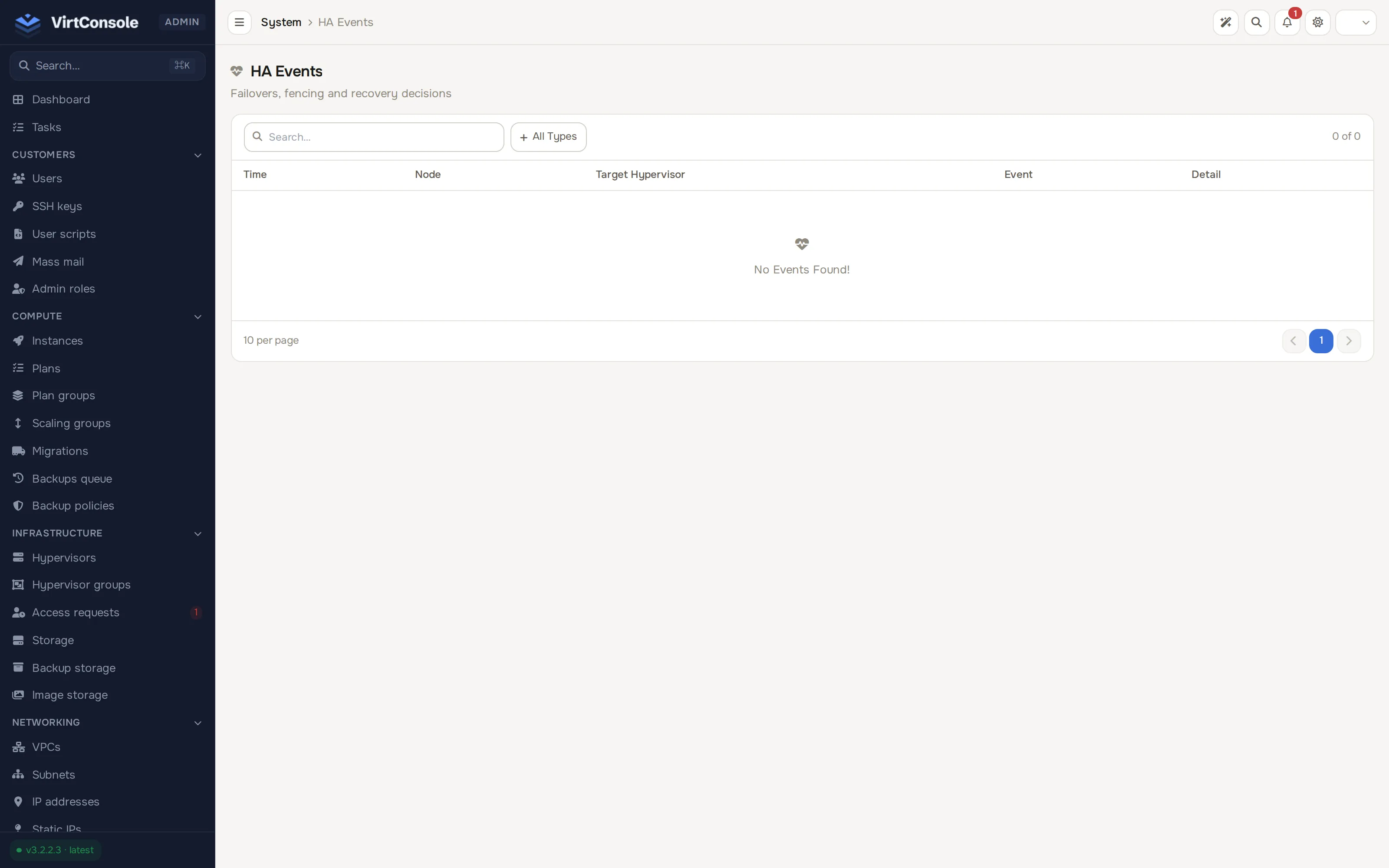
| Event | When it fires |
|---|---|
| Hypervisor Up | Health checks pass again after the host was marked down. |
| Hypervisor Down | Consecutive failures reached the threshold. |
| Hypervisor Fenced | The BMC power-off was sent; evacuation begins next. |
| Fence Failed | The power-off failed. Evacuation is unsafe until this is resolved. |
| Instance Evacuated | One instance was restarted on a different hypervisor. |
| VPC NAT Assigned / VPC NAT Failover | The VPC NAT gateway role moved hosts as part of the failover. |
When a host dies and HA evacuates an instance, the customer sees the instance reboot and its hypervisor field change. No customer notification is sent by default.
Common problems
Section titled “Common problems”- A host was marked down but never fenced. BMC is misconfigured or unreachable. Check the credentials on the hypervisor’s Fencing / BMC card, use Test BMC Connection, and confirm the management server can reach the BMC over the network. Watch for
Fence Failedevents. - Instances were not evacuated after a fence. Check each instance: its disks must be on shared storage, and the group needs free capacity. The events log carries per-instance evacuation errors.
- False failovers during network blips. The default threshold tolerates about 90 seconds of outage. Raise Hypervisor Health Failure Threshold on the group; do not lower it below 3.