

User Scripts
User Scripts are saved scripts that run automatically during first-boot setup when you create or reinstall an instance. Typical uses: install a web server, configure a firewall, drop in a config file, register the machine with your inventory.
Script types: bash and python for Linux, powershell for Windows. The script body is stored encrypted.
Where to find it
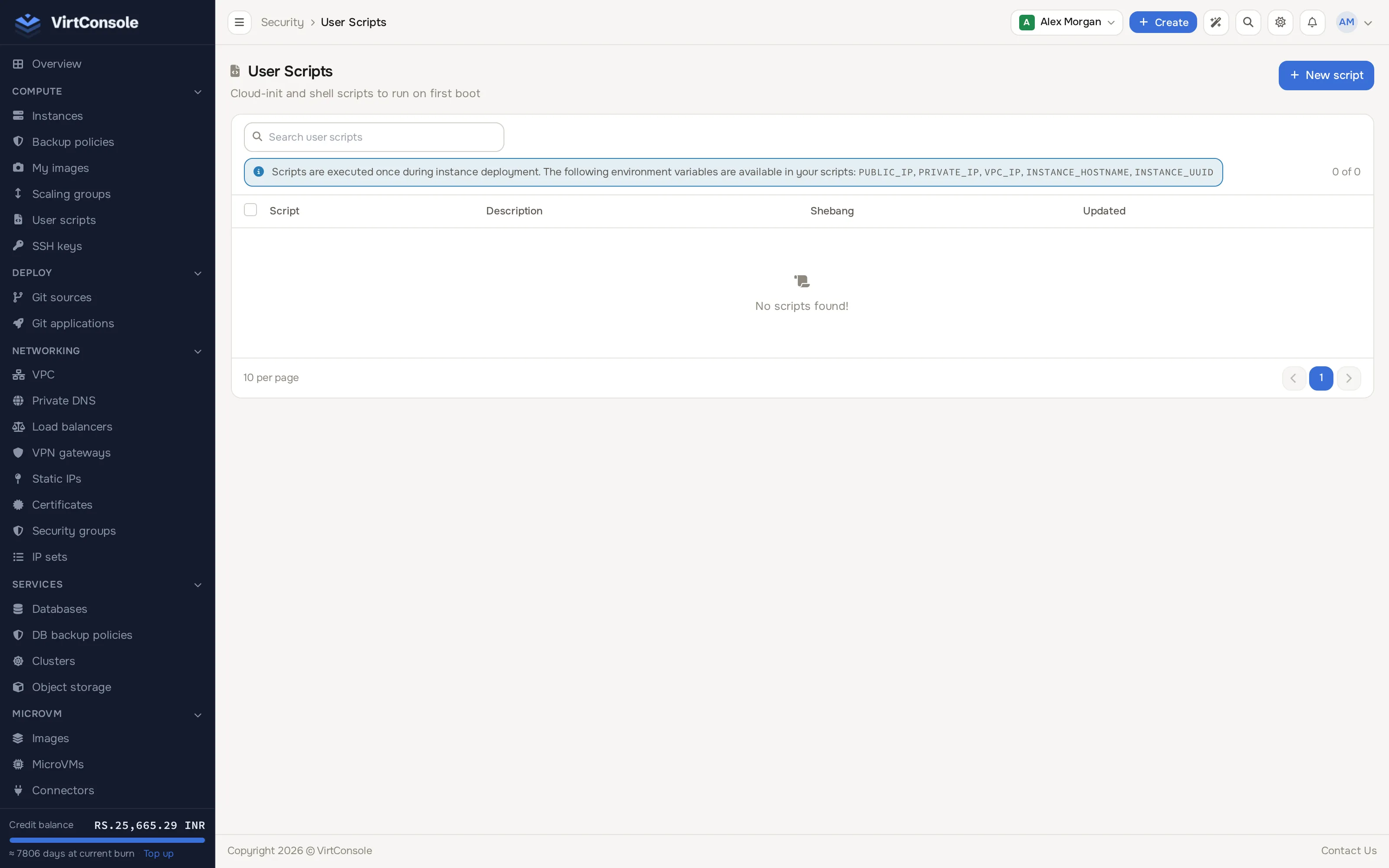
Section titled “Where to find it”In the user panel go to Compute > User Scripts.
The User Scripts list.
Create a script
Section titled “Create a script”-
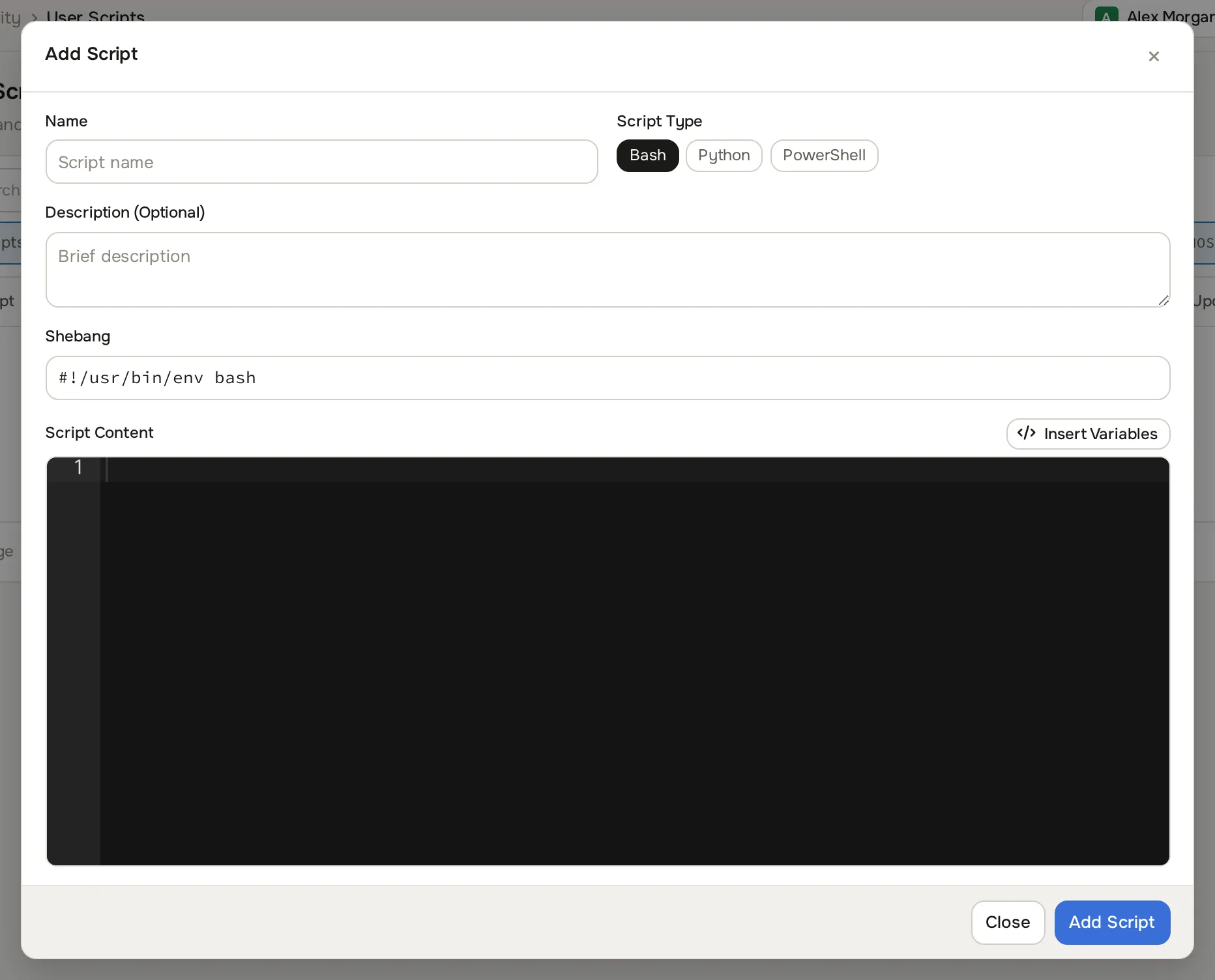
Click New script. The Add Script dialog opens.
-
Fill in:
Fields
| Field | What to enter |
|---|---|
| Name | A label (letters, digits, spaces, dots, dashes, underscores). |
| Script Type | Bash, Python or PowerShell. |
| Description (Optional) | Optional. |
| Shebang | Optional, Linux only. Defaults to #!/usr/bin/env bash or #!/usr/bin/env python3. |
| Script Content | The script body, in the built-in code editor. |
- Click Add Script.
Click Insert Variables in the editor to drop in a ready-to-edit template using the variables below.
Variables available at runtime
Section titled “Variables available at runtime”The panel fills these in from the instance before the script runs. Use them directly ($PUBLIC_IP in Bash, $env:PUBLIC_IP in PowerShell):
| Variable | What it holds |
|---|---|
PUBLIC_IP |
Primary public IPv4 address. Empty if the instance has none. |
PRIVATE_IP |
Primary private IPv4 address. Empty if not configured. |
VPC_IP |
Primary VPC IPv4 address. Empty if the instance is not on a VPC. |
INSTANCE_HOSTNAME |
The instance hostname. |
INSTANCE_UUID |
The instance’s unique ID. |
Example Bash script:
#!/usr/bin/env bashapt-get updateapt-get install -y nginxecho "Server IP: $PUBLIC_IP" > /var/www/html/index.htmlsystemctl enable --now nginxRun scripts on a new instance
Section titled “Run scripts on a new instance”When you create or reinstall an instance (see Create an instance), the install form has a Select Scripts to Run field when the chosen OS image supports cloud-init. Pick one or more scripts; they run in the order you select them, each finishing before the next starts, with root (Linux) or System (Windows) privileges.
Common problems
Section titled “Common problems”- The script ran but did nothing visible. Check the cloud-init log on the instance:
/var/log/cloud-init-output.logon Linux, or the Cloudbase-Init log directory underC:\Program Files\Cloudbase Solutions\Cloudbase-Init\log\on Windows. - A variable came out empty. Variables are filled from the instance record at boot. If an IP had not been assigned yet, the matching variable is empty.