

OS images
An image is a pre-built OS template (Ubuntu, Debian, AlmaLinux, Windows, and so on) that new instances are cloned from. As the operator you control the stock catalog: which images exist, what they are called, and whether they are available for new deployments. Customers can also capture their own instances as custom images; that side is covered in My images.
Two admin pages manage the stock catalog: Media & DNS > Image browser (download images VirtConsole publishes) and Media & DNS > Images (the registered images on your platform).
Download a stock image from the Image Browser
Section titled “Download a stock image from the Image Browser”In the admin panel go to Media & DNS > Image browser.
The browser lists the upstream catalog in tabs by purpose: VM Images, Load Balancer, VPN Gateway, Database, K8s Control Plane and K8s Worker. Each row shows the name, download URL and size.
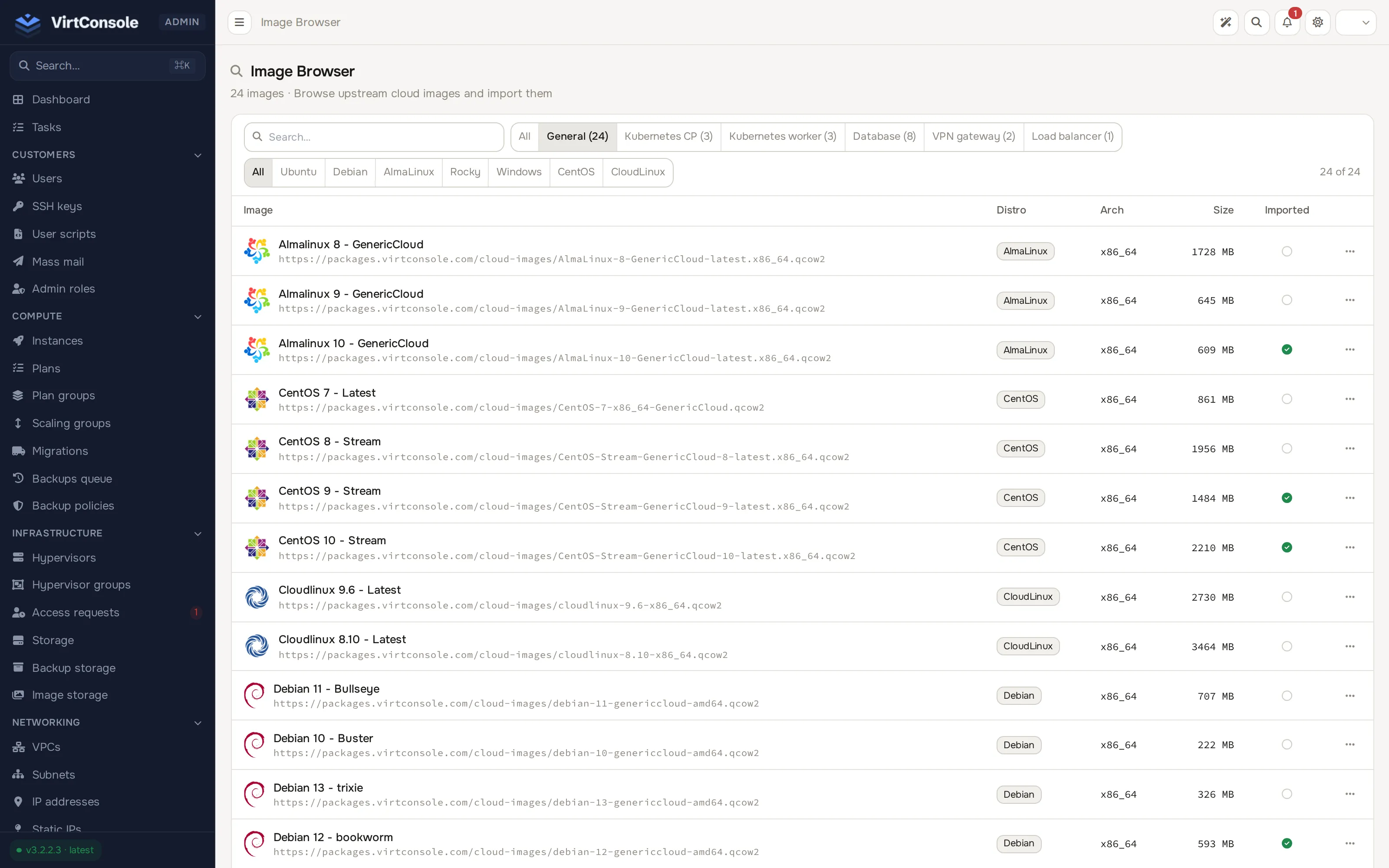
Flip the Download switch on a row. The panel registers the image and queues a download on every connected hypervisor. Watch Tasks until the downloads finish: an instance cannot deploy on a hypervisor until the image has arrived there.
Manage registered images
Section titled “Manage registered images”Go to Media & DNS > Images. The list shows every registered image with its name, filename, distro, format, purpose and update state.
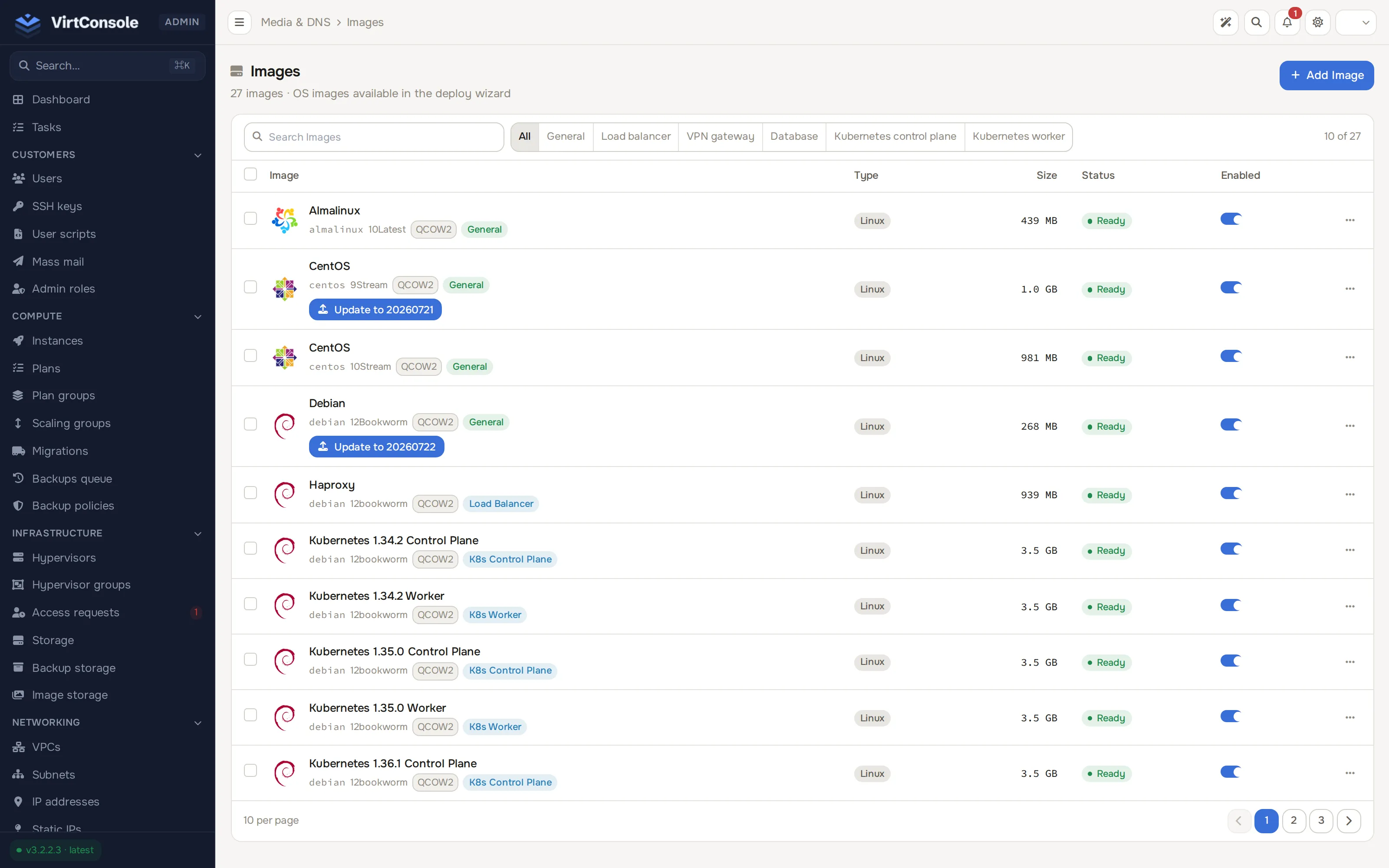
- Add Image registers an image by hand (see below).
- Edit opens the image for changes.
- Update appears useful when the Updates column shows Update Available!: it re-reads the upstream catalog entry and moves the image to the newest release.
- Remove deletes the image. Instances already deployed from it keep running.
Add Image fields
Section titled “Add Image fields”Click Add Image. The Add Image dialog opens.
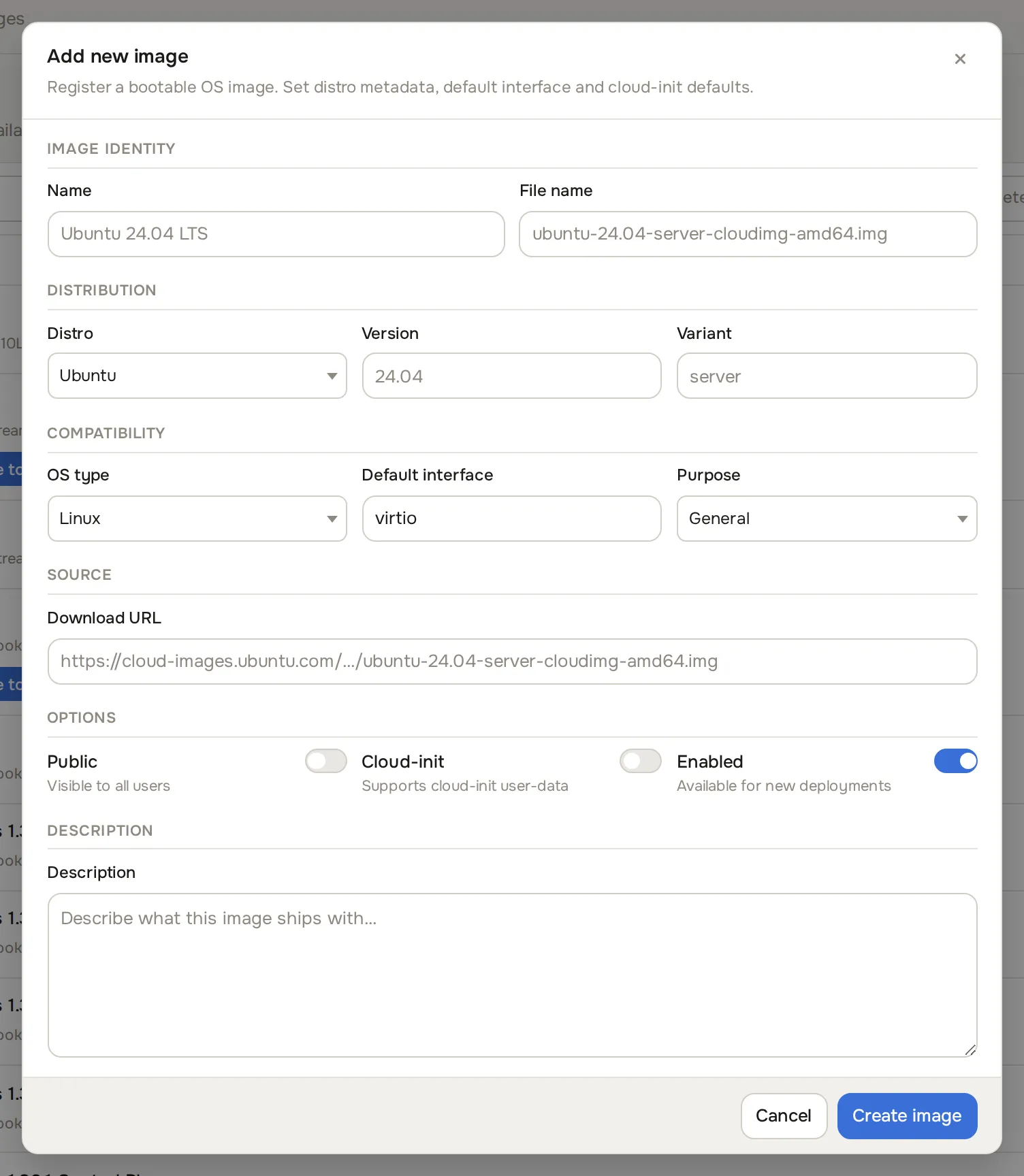
Fill in the dialog:
| Section | Fields |
|---|---|
| Image identity | Name (shown to customers, for example Ubuntu 24.04 LTS) and File name (the file on disk, for example ubuntu-24.04-server-cloudimg-amd64.img). |
| Distribution | Distro (drives the icon and grouping in the user UI), Version and Variant. |
| Compatibility | OS type (Linux or Windows), Default interface (for example virtio, scsi, sata) and Purpose (General, Load balancer, VPN gateway, Database, Kubernetes control plane, Kubernetes worker). Purpose routes the image into the matching feature. |
| Source | Download URL: a direct, publicly reachable link to the image file. |
| Options | Public (visible to all users), Cloud-init (the image supports cloud-init user data, which enables SSH key injection and user scripts), Enabled (available for new deployments). |
| Default cloud-init | Shown when Cloud-init is on. YAML applied when a customer deploys without their own user data. |
| Description | Shown to customers when picking this image. |
Group images for the create-instance screen
Section titled “Group images for the create-instance screen”Images are bundled into labeled sets with media groups (for example “Linux” and “Windows”), and plans choose which groups to offer. Assign images to a group from Media & DNS > Media groups. See Media groups.
Where image files live
Section titled “Where image files live”Stock images and ISOs are fetched from their URLs by the hypervisors themselves. Images that customers capture from their own instances (“Create Image” on an instance) are written to a different place: the Image Storage backends under Infrastructure > Image storage, which you bind to hypervisors. Customer images are billed under Cloud Service from the moment they become available until the customer deletes them, prorated hourly, and appear as an Images section on the customer’s usage report.
Common problems
Section titled “Common problems”- The create-instance form has no images to pick for a hypervisor. The image has not finished downloading there. Check Tasks for the download jobs.
- An image shows 0 bytes or never becomes selectable. The download failed or the agent has not reported back. Confirm the hypervisor is online and re-check the task log. Images added from the browser store the catalog file size; if a size cannot be determined the image is not added and the panel says that the size is unknown. Older images stored with size 0 are repaired from the live catalog by the five-minute sync. An image whose URL uses an old host alias or plain
httpis not repaired automatically: use its update-release action. - The Images list shows a download error under an image. Fix the cause, then click Retry download on that row. After repeated failures a node backs off between attempts, from 10 minutes up to 24 hours. A download task that has not reported progress for 15 minutes no longer blocks a retry.
- Customers cannot see an image. Check that Public and Enabled are on, and that the image’s media group is attached to the plan. See Instance plans.