

Instance plans
An instance plan is the template a customer (or you, on their behalf) picks when ordering an instance. It defines CPU, RAM, disk, bandwidth and IP allocation, plus billing and feature options. Create as many as you sell.
Where to find it
Section titled “Where to find it”In the admin panel go to Compute > Plans.
The list shows each plan’s Name, RAM, Disk, Bandwidth, Network Speed, Storage Type and whether it is Enabled. Actions per row: Clone (opens the create form pre-filled from that plan), Edit and Remove.
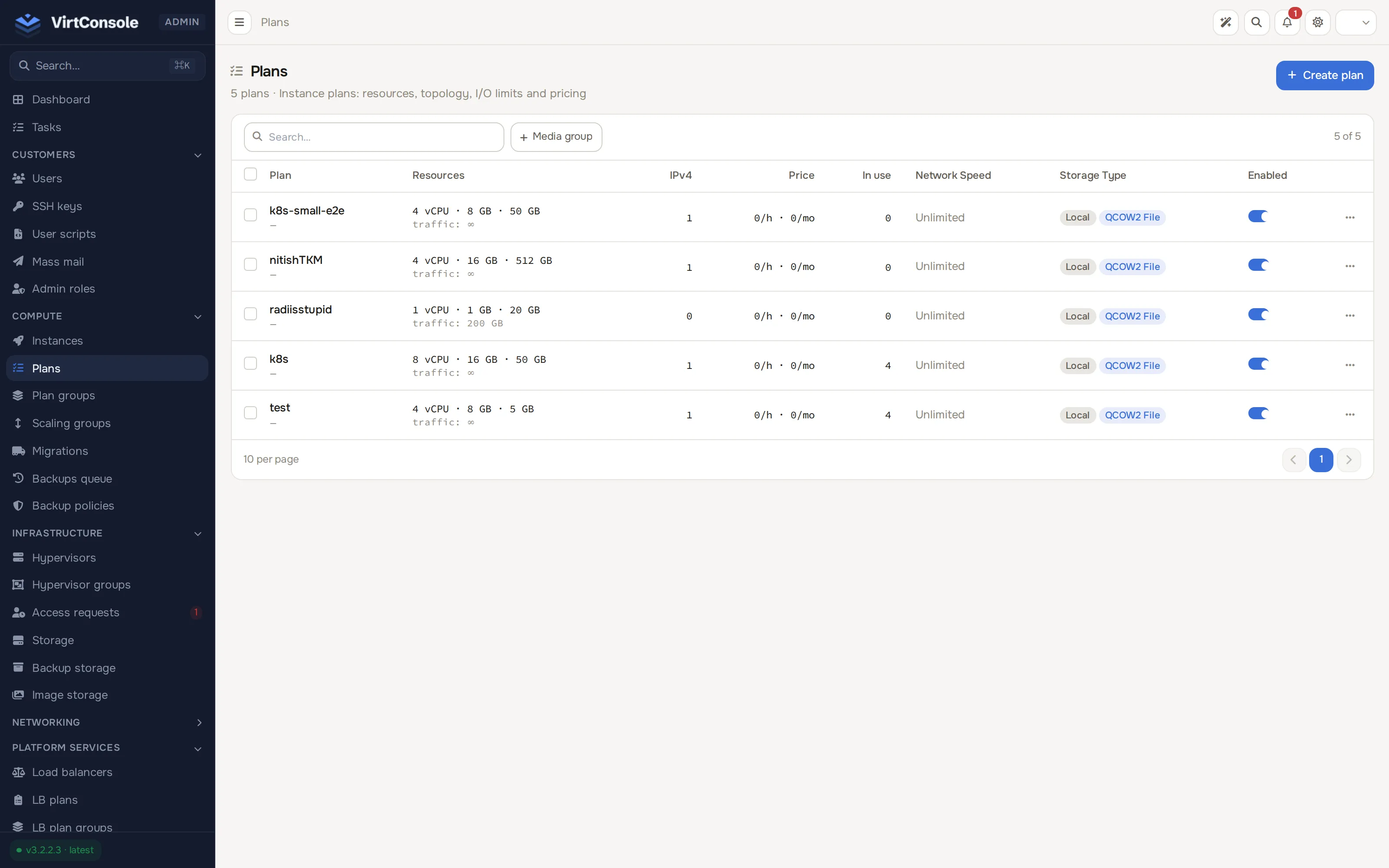
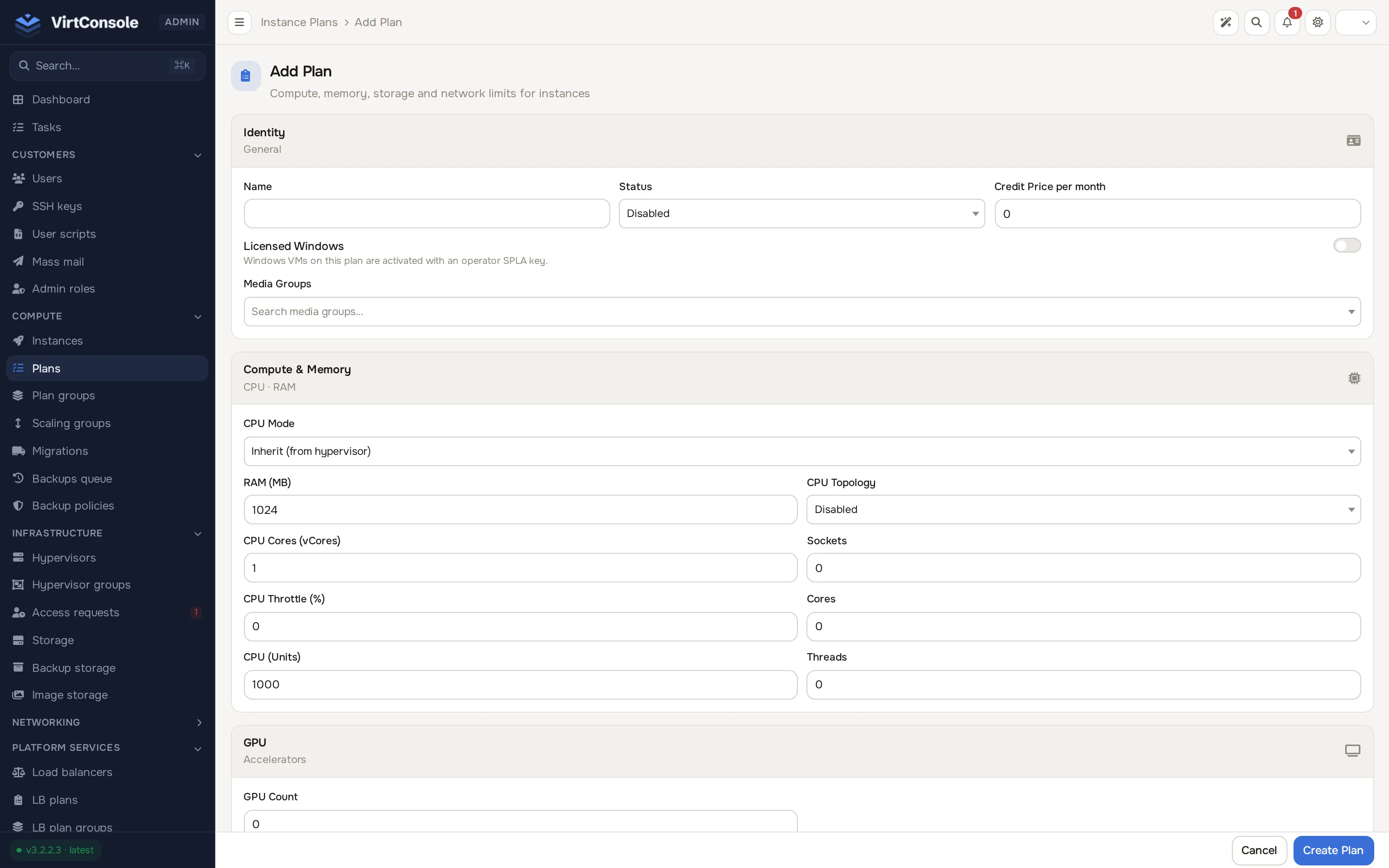
Click Add Plan to open the create form. It carries the same fields as the reference below.
Plan fields
Section titled “Plan fields”Identity
Section titled “Identity”| Field | What it does | Default |
|---|---|---|
| Name | The label customers see. | |
| Status | Enabled plans can be picked for new instances. | Disabled |
| Credit Price per month | The monthly price in credits, used by Cloud Service hourly billing. 0 for unmetered. |
0 |
| Licensed Windows | Windows instances on this plan are activated with your operator SPLA key. Manage keys under System > Windows licensing. | off |
| Media Groups | Which media groups of images this plan offers on the create-instance screen. | none |
Compute & Memory
Section titled “Compute & Memory”| Field | What it does | Default |
|---|---|---|
| CPU Mode | The CPU model guests see: Inherit (from hypervisor), Host Passthrough, Host Model, or a named model such as EPYC. Inherit keeps plans portable across hosts. |
Inherit |
| RAM | Guest memory in MB. | 1024 |
| CPU Cores | Number of vCPUs. | 1 |
| CPU Throttle | Percentage cap on CPU use. 0 disables throttling. |
0 |
| CPU | CPU units (scheduler weight). Higher means a bigger share under contention. | 1000 |
| CPU Topology | When Enabled, the guest sees the Sockets / Cores / Threads layout below instead of flat vCPUs. Windows guests in particular care about socket counts for licensing. | Disabled |
| Sockets / Cores / Threads | The topology layout. | 0 |
| Field | What it does | Default |
|---|---|---|
| GPU Count | How many GPUs the instance gets, 0-16. 0 means no GPU. |
0 |
| GPU Vendor | Any, NVIDIA or AMD. | Any |
| GPU Mode | Passthrough, MIG or SR-IOV. | Passthrough |
| GPU Profile | For MIG and SR-IOV modes, the profile name, for example 1g.5gb. |
|
| Min VRAM (MB) | Only allocate GPUs with at least this much VRAM. |
GPU plans deploy only into hypervisor groups with GPU passthrough enabled, and only onto hosts with a matching free GPU.
Storage
Section titled “Storage”| Field | What it does | Default |
|---|---|---|
| Storage Size | Primary disk size in GB. Disks can grow later but never shrink. | 10 |
| Backend and variant | Which kind of pool the disk lands on: local QCOW2, LVM Thin or Thick, ZFS Thin or Thick, or a shared datastore (Ceph RBD, NFS). Must match a storage pool that exists on the target hypervisor. | local QCOW2 |
| Storage class | Any, NVMe, SSD or HDD. Any accepts every class. | Any |
I/O Operations
Section titled “I/O Operations”Per-disk limits. Leave a field at 0 for no limit.
| Field | Unit |
|---|---|
| Read IOPS / Write IOPS | operations per second |
| Read Throughput / Write Throughput | bytes per second |
Network
Section titled “Network”| Field | What it does | Default |
|---|---|---|
| Network Driver | NIC model: VirtIO (fastest, pick this), Realtek 8139 or E1000 for legacy guests. | VirtIO |
| Bandwidth | Traffic allowance in GB per month. 0 means unlimited. |
0 |
| Upload Speed / Download Speed | Interface rate caps in Mbit/s. 0 means unlimited. |
0 |
| VPC Upload/Download Speed (override) | Per-plan override of the hypervisor group’s default VPC interface caps. Empty inherits the group. | inherit |
| Bandwidth Accounting | What counts against the allowance: Both, Uploads Only or Downloads Only. Uploads are traffic the instance sends and downloads are traffic it receives. | Both |
| Bandwidth Overage | What happens at the limit: Suspend Network, Throttle Network, Suspend Instance or Charge Overage. | Suspend Instance |
| Bandwidth Rate (per GB) | Credit price per GB of overage, used with Charge Overage. | 0 |
IP Allocation
Section titled “IP Allocation”| Field | What it does | Default |
|---|---|---|
| IPv4 Count | How many IPv4 addresses each instance gets. | 1 |
| IPv6 Count | How many individual IPv6 addresses. | 0 |
| IPv6 Subnet Count | How many routed IPv6 subnets each instance gets. | 0 |
| IPv6 Subnet Size | Size of each routed subnet: /48, /64, /80, /96 or /112. |
0 (off) |
What happens next
Section titled “What happens next”An enabled plan can be picked in the Create Instance dialog and anywhere your billing exposes plans to customers. Changes to a plan do not touch existing instances; move an existing instance with the Change Plan card on its manage page. A plan change that would move the disk to a different storage backend is refused, because a disk cannot be converted in place; use a migration instead.
Common problems
Section titled “Common problems”- A plan does not appear anywhere customers can pick it. Its Status is Disabled, or no media group is attached, or the hypervisor group it deploys into is not visible to that customer.
- Deploy fails with a storage error. No pool matching the plan’s backend and class exists on the chosen hypervisor, or the pool is full. See Add storage.
- Deploy fails with a GPU error. The group does not have GPU passthrough enabled, or no host in it has a free GPU matching the vendor and VRAM requirements.