

Block storage
Block storage gives a customer a disk that lives independently of any virtual machine. They can attach it to an instance, detach it, move it to another instance in the same region, or resize it, without losing the data on it. Inside the instance the volume appears as a raw block device (for example /dev/xvdb) that the customer formats and mounts.
Three building blocks make up the offer:
- Volume: the block device itself. Has a size, a storage class and a status.
- Volume plan: the template a customer picks: size, storage class, datastore type, I/O limits and price.
- Volume plan group: a bundle of plans offered in a region (hypervisor group).
Volumes are billed hourly through Cloud Service from creation until deletion, whether or not they are attached.
Before you begin
Section titled “Before you begin”- A storage backend that supports volumes (Ceph or NFS) is available to your hypervisors. See Ceph RBD storage.
- At least one hypervisor group exists.
Where to find it
Section titled “Where to find it”Volume plans live at Storage > Volume plans, groups at Storage > Volume plan groups, and customer volumes at Storage > Volumes.
Create volume plans
Section titled “Create volume plans”Go to Storage > Volume plans to see every volume plan.
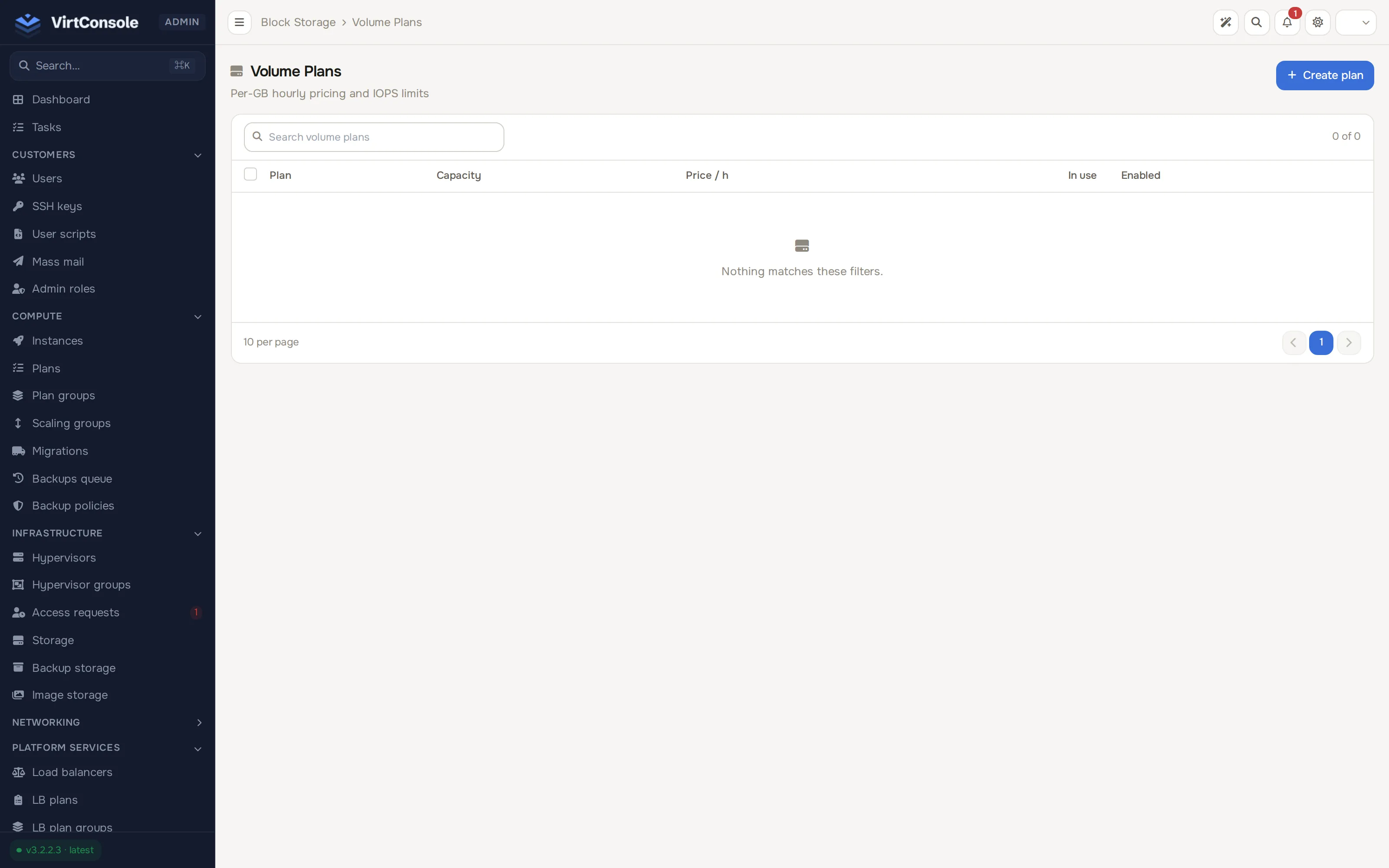
- Click Add Plan. The Add Volume Plan dialog opens.
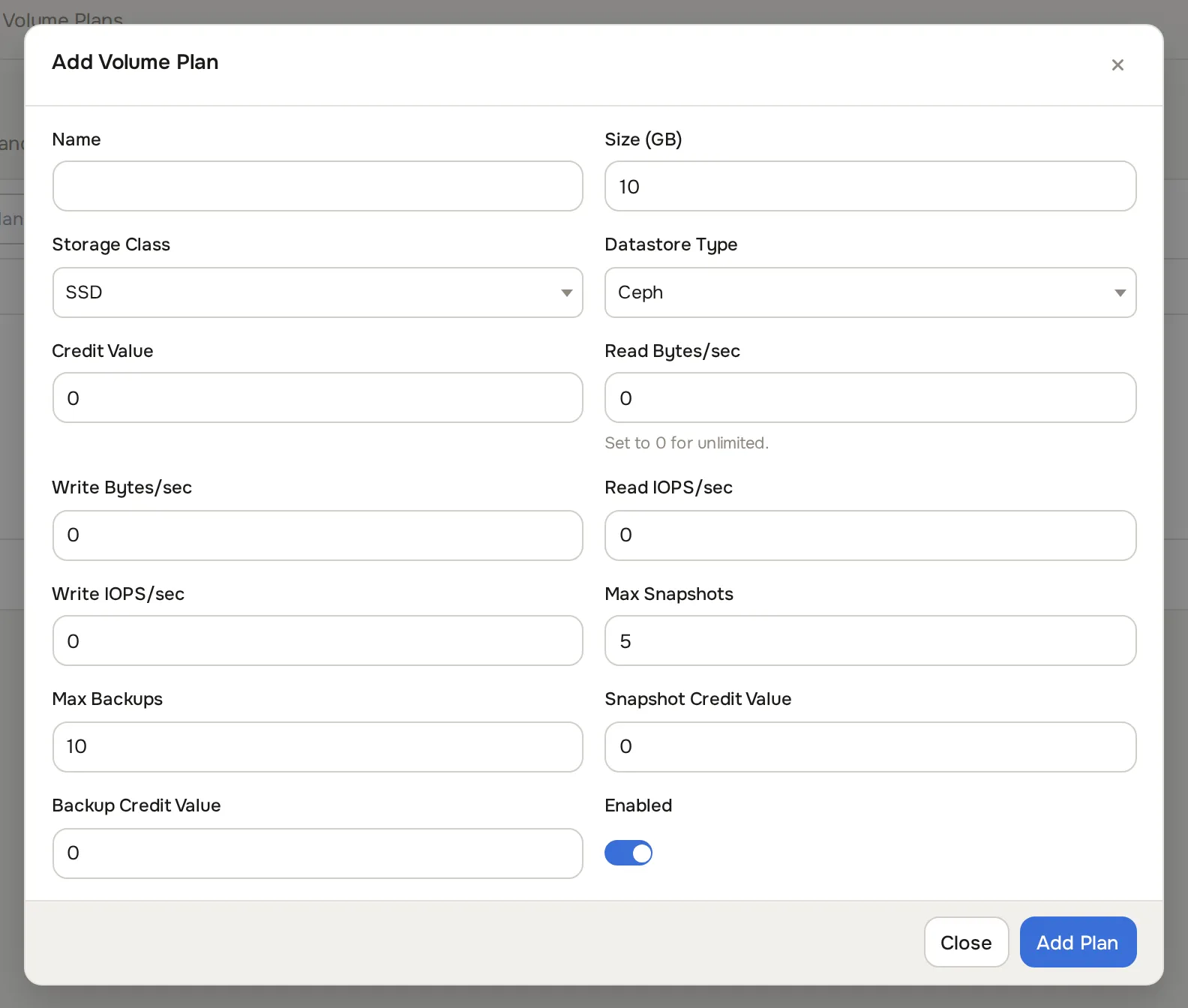
- Fill in the fields:
Fields
| Field | What to enter |
|---|---|
| Name | Customer-facing label, for example SSD 100 GB Standard. |
| Size (GB) | Capacity of the volume. |
| Storage Class | HDD, SSD, NVMe or SAS. Customers use this to pick a tier. |
| Datastore Type | Ceph or NFS. The backend the volume is provisioned on. |
| Credit Value | Monthly price in credits. The hourly rate is this divided by the hours in a month. |
| Read Bytes/sec, Write Bytes/sec | Bandwidth caps. 0 means unlimited. |
| Read IOPS/sec, Write IOPS/sec | Operations-per-second caps. 0 means unlimited. |
| Max Snapshots | How many snapshots of one volume are kept at once. Default 5. |
| Max Backups | How many backups of one volume are kept at once. Default 10. |
| Snapshot Credit Value | Credits charged per GB of retained snapshots per month. 0 means free within the cap. |
| Backup Credit Value | Credits charged per GB of retained backups per month. 0 means free within the cap. |
| Enabled | Off hides the plan from customers. |
The I/O caps use QEMU iotune and work on all storage backends, including Ceph. Use them to build pricing tiers: two plans can both be 100 GB and still perform very differently.
- Click Add Plan.
Create a plan group
Section titled “Create a plan group”Go to Storage > Volume plan groups to see every group.
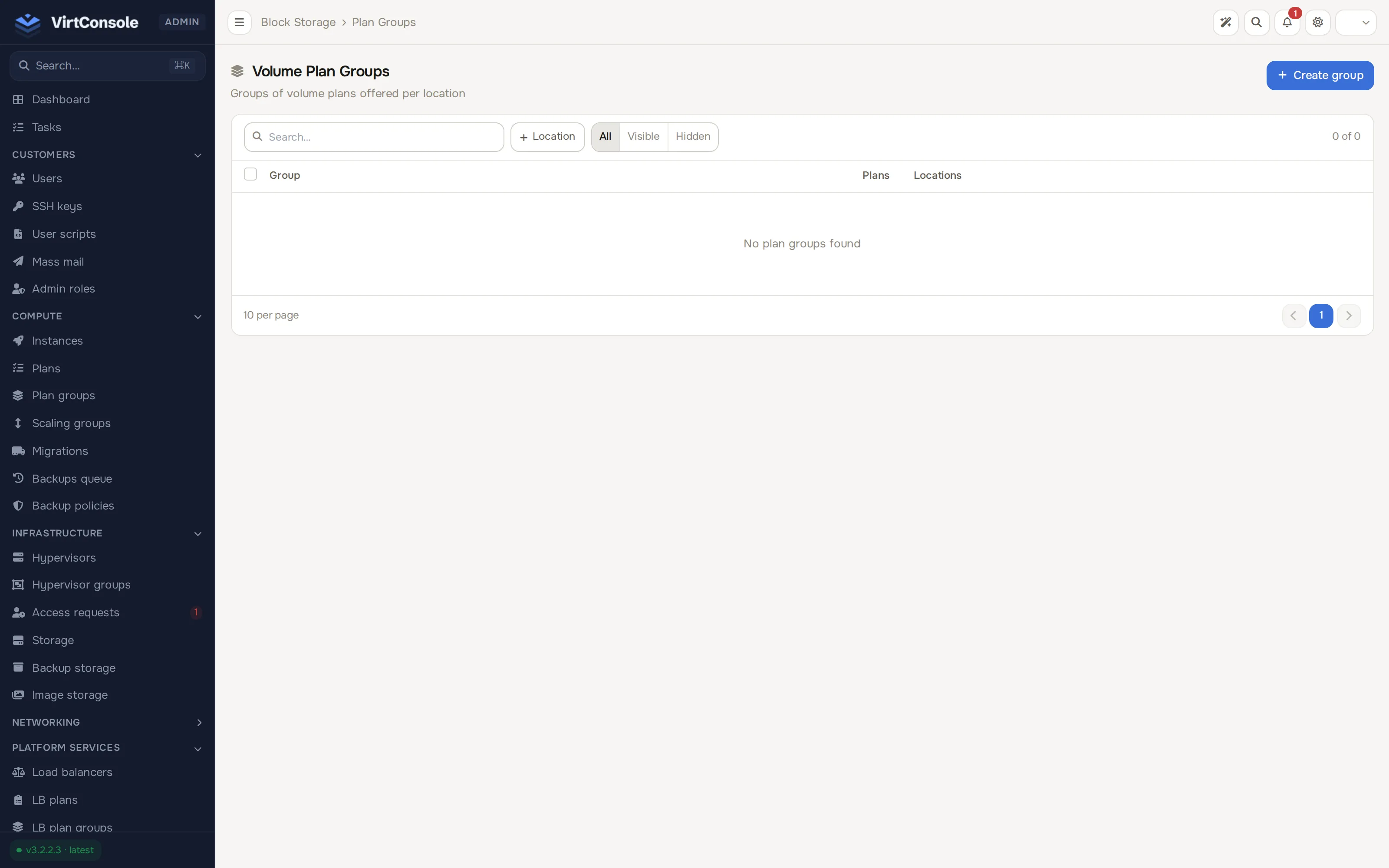
- Click Add Plan Group. The Add Plan Group dialog opens.
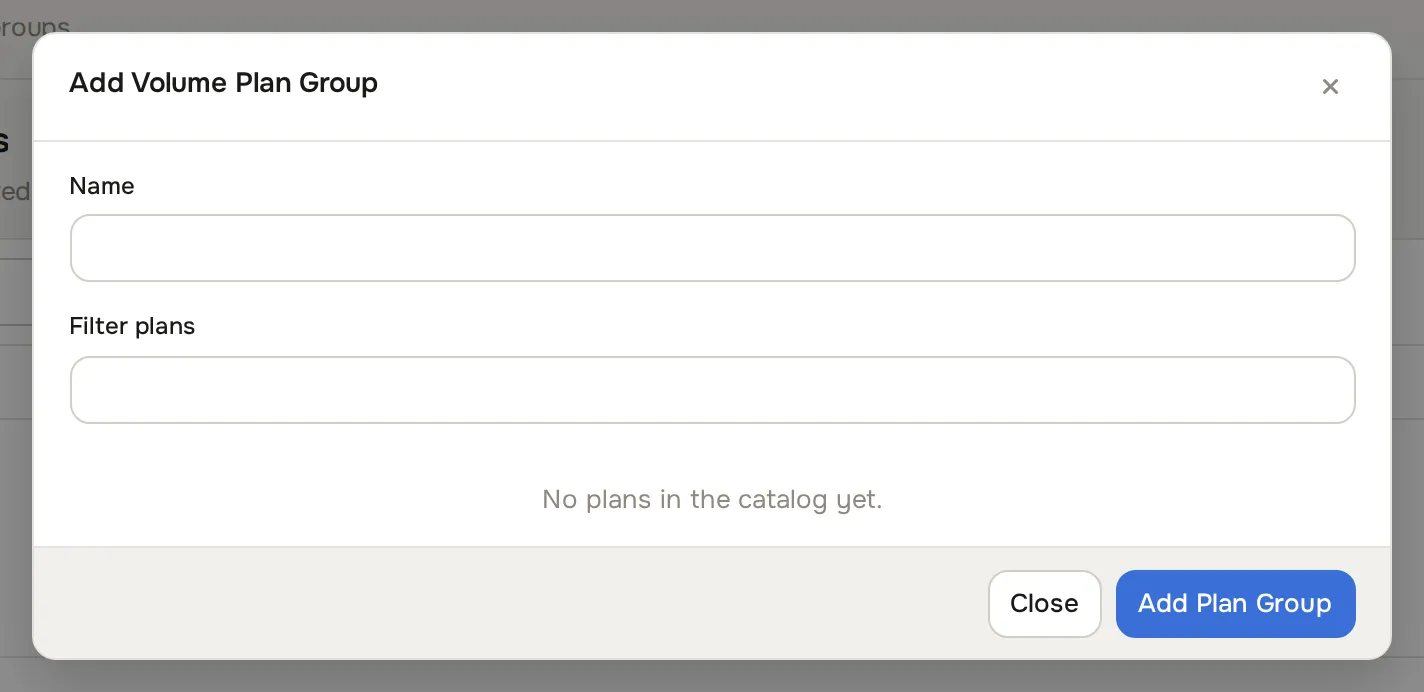
- Enter a Name and select the Plans to include.
- Click Add Plan Group.
Different regions can offer different groups with different pricing.
Enable block storage in a region
Section titled “Enable block storage in a region”- Go to Infrastructure > Hypervisor groups and open the group.
- Open the Storage & backup tab. In the Block storage card, switch Enabled on.
- Under Select Volume Plan Groups, link the plan group you created.
- Click Save group.
Only the plans inside the linked groups are offered to customers in that region. A volume can only attach to instances in the same region as itself.
Set the per-customer cap
Section titled “Set the per-customer cap”Each customer has a maximum number of volumes, 5 by default.
- Go to Customers > Users and open the customer.
- Set Max Volumes. Use
0for unlimited. - Save.
Manage customer volumes
Section titled “Manage customer volumes”Storage > Volumes lists every volume with its owner, plan, size, storage class, status, region and attached instance.
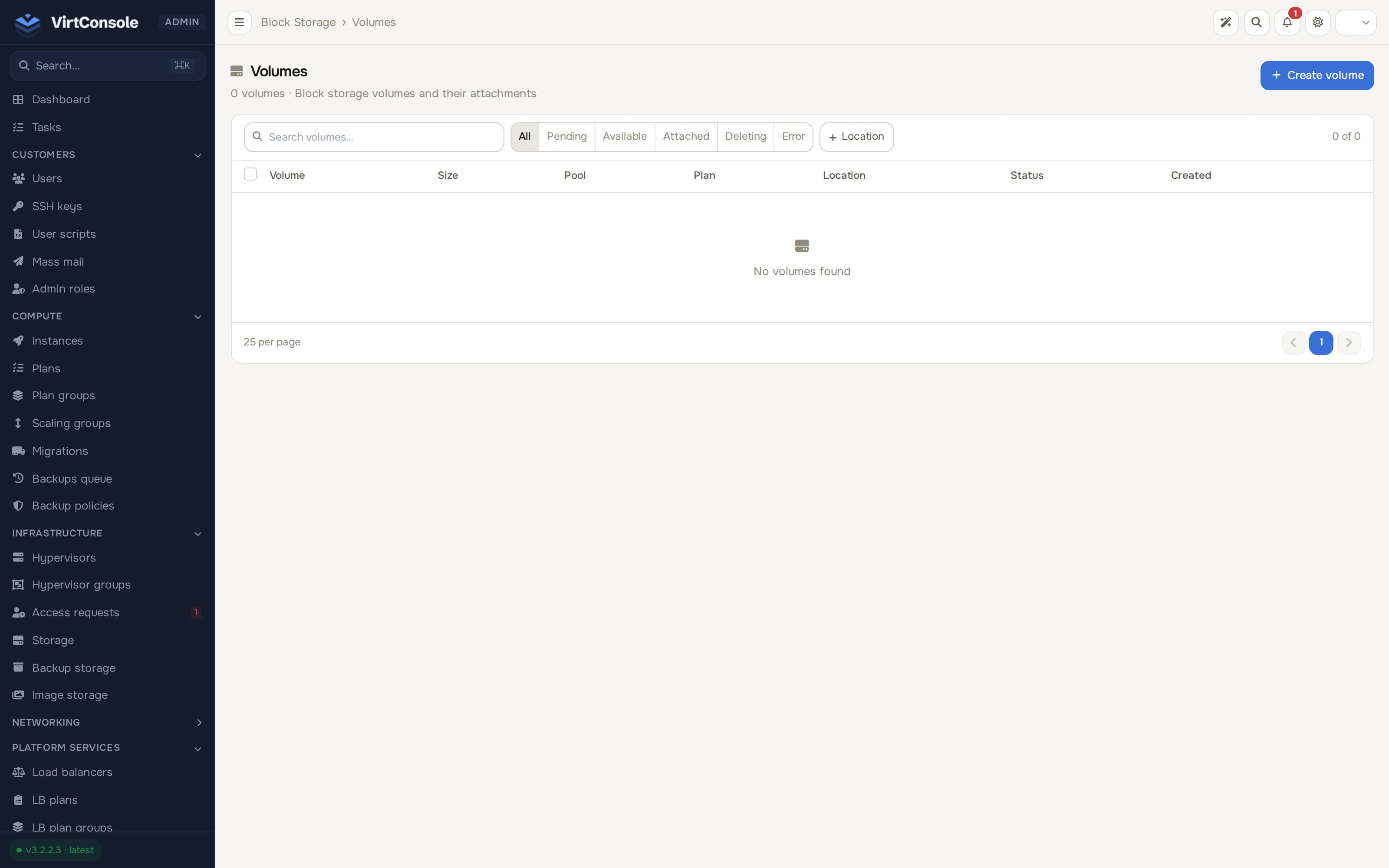
From this page you can:
-
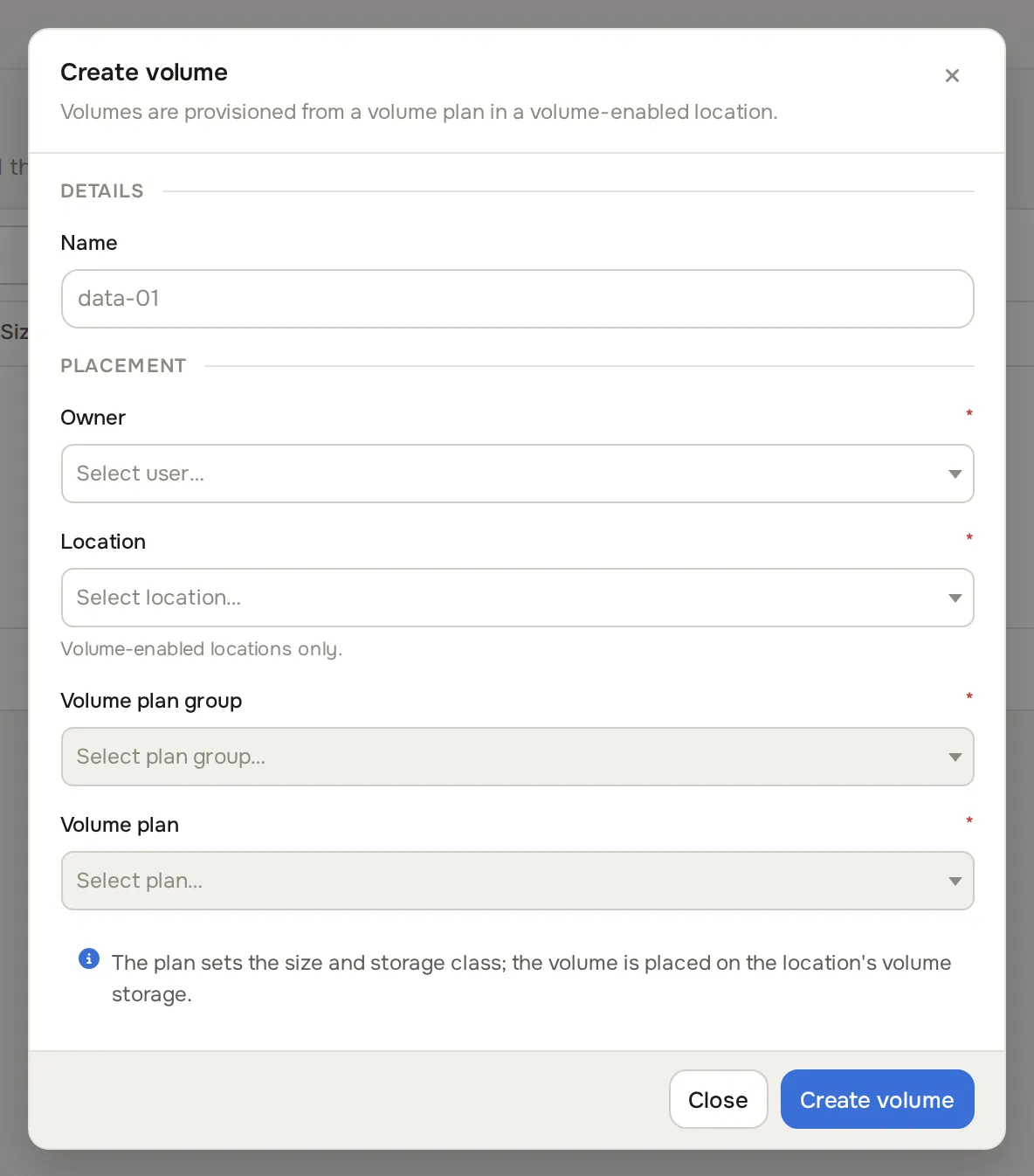
Create a volume on behalf of a customer: click Add Volume. The Create volume dialog asks for a Name, then, under Placement, the Owner, the Location (only hypervisor groups with block storage enabled are listed), the Volume plan group and the Volume plan. Confirm with Create volume.
-
Open a volume’s detail page with View for full configuration, I/O limits and billing state.
-
Detach an attached volume with the unlink icon.
-
Delete a volume with the trash icon, after confirmation.
Volume statuses: available (ready to attach), attached, creating, resizing, detaching, deleting, error. Each instance supports up to 23 attached volumes.
Snapshot and backup management for a volume lives on the volume’s detail page; see Volume snapshots and backups.
Common problems
Section titled “Common problems”- A volume is stuck in
creating. Check Tasks for the provisioning error. The storage backend is usually unreachable or out of space. - A customer cannot attach a volume. The volume must be
available, in the same region as the instance, and the instance must have fewer than 23 attached volumes. - A customer does not see the region in the create flow. Block storage is not enabled on that hypervisor group, or no plan group is linked to it.
- Delete is refused. Only
available(detached) volumes can be deleted. Detach first.