

Your profile
Your profile holds your account details, your sign-in security settings and your password.
Where to find it
Section titled “Where to find it”Click Profile in the sidebar (it sits on its own, below the main navigation groups). The page has three tabs: Account, Security and Password.
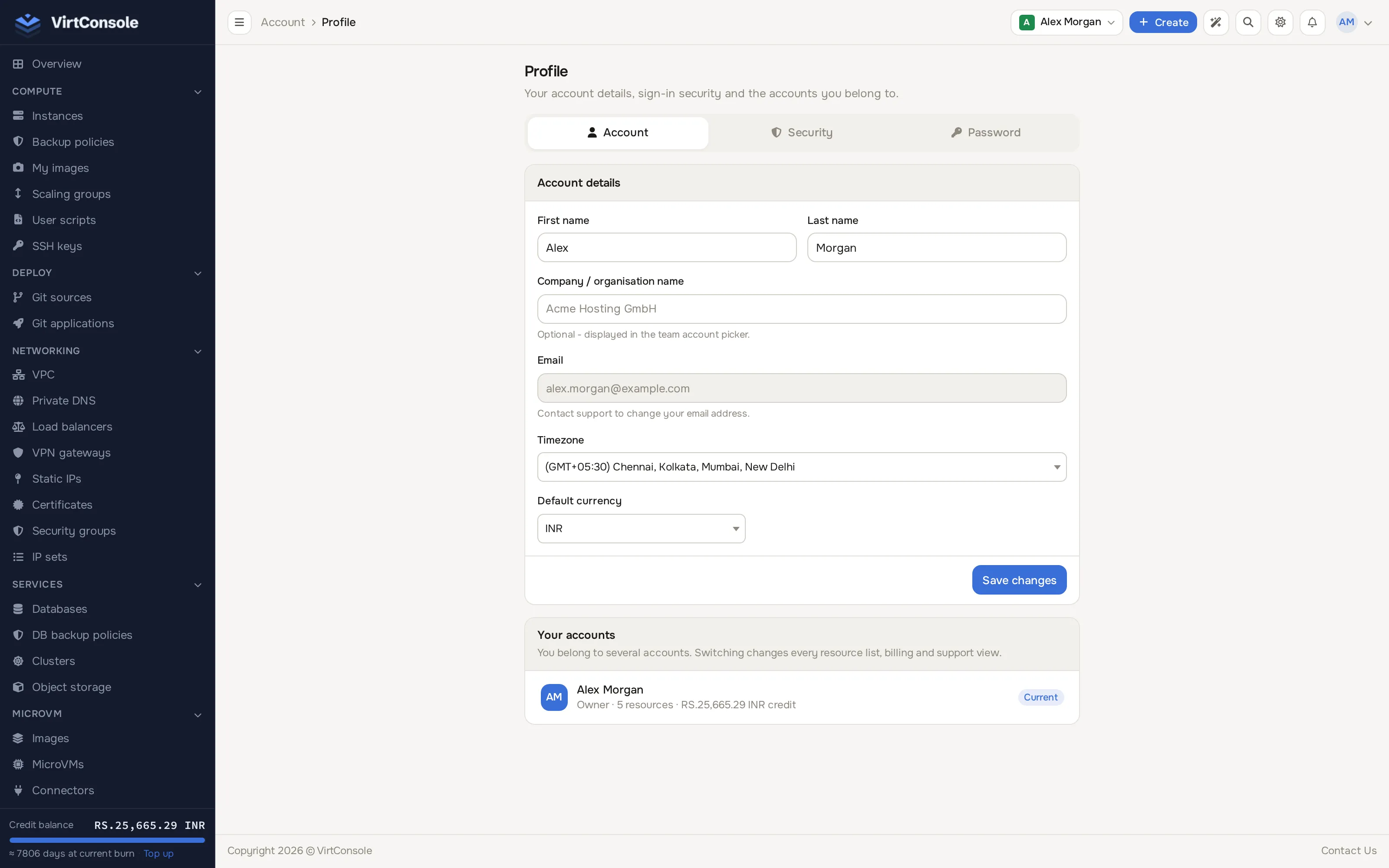
Account details
Section titled “Account details”On the Account tab:
| Field | What it does |
|---|---|
| First name / Last name | Your display name. |
| Company / organisation name (optional) | Displayed in the team account picker. |
| Your login and where the panel emails you (deploy passwords, invoices, alerts). Read-only; contact support to change it. | |
| Timezone | Backup schedules and timestamps across the panel are shown in this timezone. |
| Default currency | The currency prices and your balance are displayed in. |
Click Save changes to save.
Below the form, a Your accounts card lists every account you belong to (your own account plus any you were invited into as a team member), each with its role, resource count and credit balance, and a Current badge on the one you are viewing. Switching accounts changes every resource list, billing view and support view to that account.
Security
Section titled “Security”Open the Security tab for two-factor authentication, connected sign-in providers and active sessions.
Two-factor authentication
Section titled “Two-factor authentication”Two-factor authentication (2FA) asks for a code from an authenticator app in addition to your password at login.
- Click Enable two-factor auth.
- Scan the QR code with your authenticator app (Google Authenticator, Authy, 1Password and similar), or copy the key and enter it manually. Click Next.
- Enter the 6-digit verification code from the app and confirm.
To turn 2FA off later, enter your password in the disable form on the same tab.
Connected accounts
Section titled “Connected accounts”Link a provider (Google, Microsoft or GitHub) to sign in with it instead of a password, or unlink one you no longer use. Your password login always stays available.
Active sessions
Section titled “Active sessions”Lists every device signed in to your account, with the current one marked This device. Click Revoke on a single session to sign it out, or Sign out everywhere else to end every session except the one you are using.
Password
Section titled “Password”On the Password tab, enter a New password, repeat it in Confirm password, and click Update password. Use a long, unique password; the account controls real infrastructure.
Common problems
Section titled “Common problems”- The 2FA code is rejected. The clock on your phone is off. Enable automatic time and try the next code.
- I lost my authenticator. Contact your provider; they can reset two-factor authentication on your account after verifying you.
- Prices show in the wrong currency. Set Default currency on the Account tab. Only currencies your provider has configured are listed.
- A session I don’t recognise is active. Click Sign out everywhere else on the Security tab, then change your password.