

Logs
The Logs section of the admin sidebar holds four read-only audit logs. Together they answer “who did what, what went out, where the IPs went, and how the cluster reacted”. None of these pages changes platform state; they are records.
For active sign-ins rather than historical events, see Sessions. For background operations, see Tasks.
Admin Audit Log
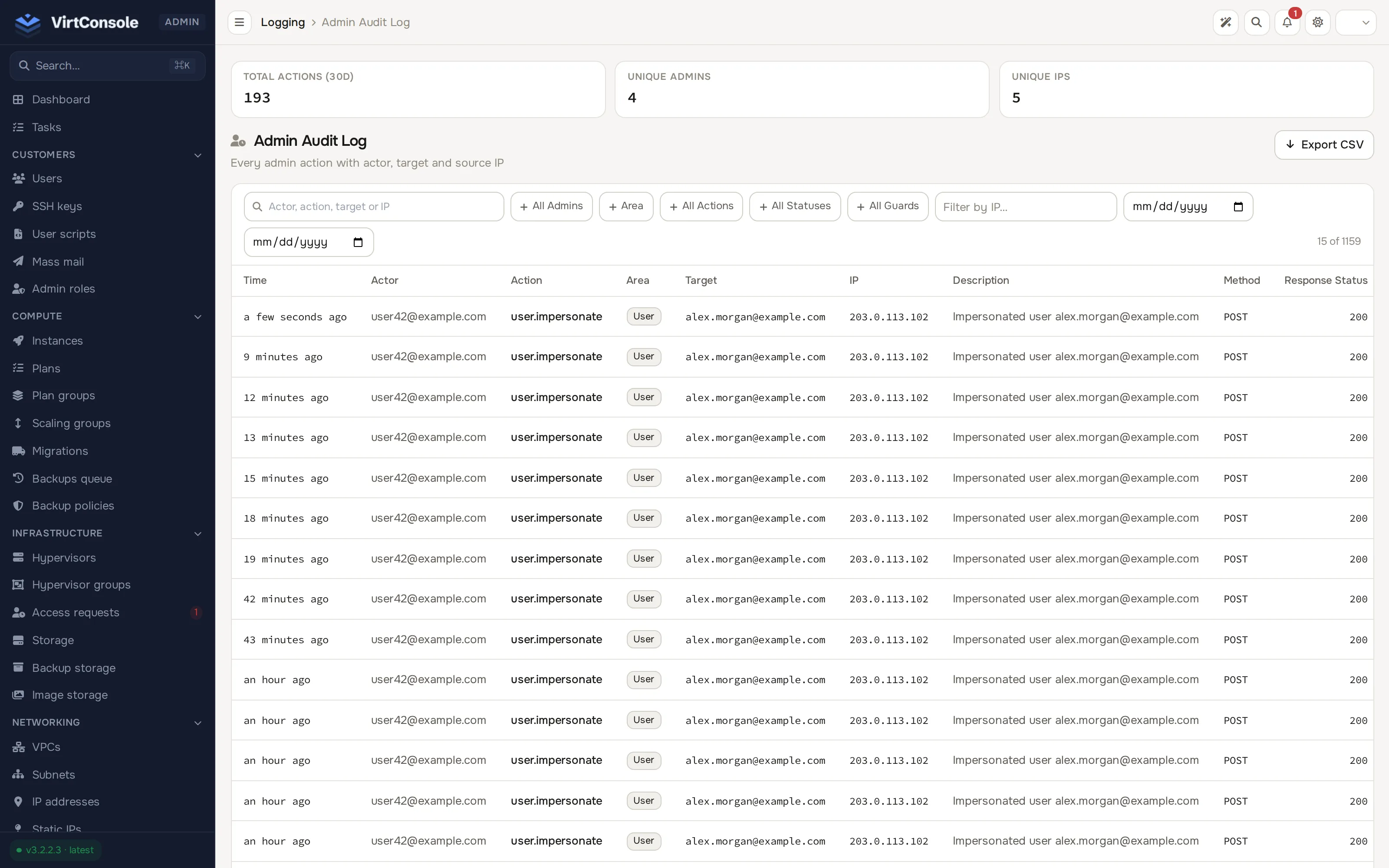
Section titled “Admin Audit Log”Go to Logs > Audit log. Every admin panel action is recorded: the Time, the Actor, the Action, the Area it touched, the Target it acted on, the source IP, a Description, the HTTP Method and the Response Status. Sensitive value changes are recorded as a difference without revealing secrets. Three summary tiles at the top show total actions in the last 30 days, unique admins and unique IPs.
Filters: free-text Search, All Admins, Area, All Actions, All Statuses, All Guards, a Filter by IP box and a From/To date range. An Export CSV button downloads the filtered result.
Email Log
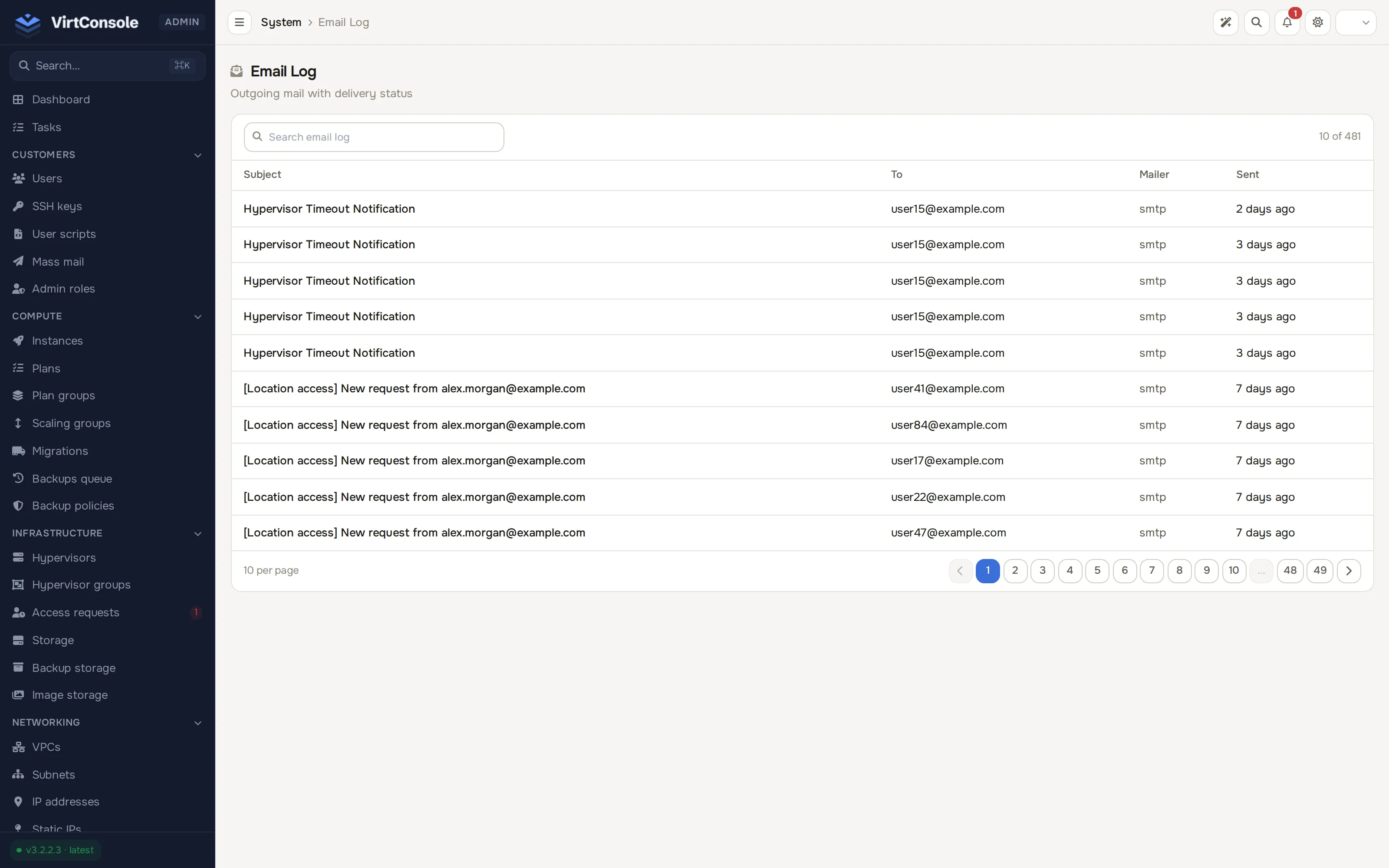
Section titled “Email Log”Go to Logs > Email log. Every outgoing email is recorded with its Subject, the address it was sent To, the Mailer that delivered it and when it was Sent. Open a row to read the rendered body exactly as the recipient received it.
This is the first place to look when a customer says an email never arrived: a missing entry means the panel never sent one, and a failed entry shows the delivery error.
IP Log
Section titled “IP Log”Go to Logs > IP log. This log tracks IP address operations, not logins: every time an IP address is assigned to an instance, revoked, or transferred. Filter by search text, action or IP.
Use it to answer “which instance had this address, and when did it move?”.
HA Events
Section titled “HA Events”Go to Logs > HA events. The high-availability system records its decisions here. Columns are Time, Node, Target Hypervisor, Event and Detail. Filter by search text or All Types:
| Event type | Meaning |
|---|---|
| Hypervisor Up | A hypervisor came back online. |
| Hypervisor Down | A hypervisor stopped responding. |
| Hypervisor Fenced | The cluster isolated a failed hypervisor to protect its workloads. |
| Fence Failed | Fencing was attempted and did not succeed. Investigate. |
| Instance Evacuated | An instance was moved off a failed hypervisor. |
| VPC NAT Assigned / VPC NAT Failover | NAT gateway placement and failover decisions. |
See High availability for how the system that produces these events works.
Common problems
Section titled “Common problems”- The audit log is missing an action an admin claims they did. They ran it on the management server’s command line rather than in the panel, or a different account did it. Filter by that account.
- The same internal IP appears on every entry. A reverse proxy in front of the panel is not forwarding the real client IP. Check the proxy configuration on the management server.
- Fence Failed events keep appearing. Fencing cannot isolate the failed hypervisor. Treat this as an incident: check the hypervisor and its networking before its workloads are at risk. See Hypervisors.