

Hypervisor groups
A hypervisor group is a logical pool of hypervisors, for example by region or hardware tier. Plans deploy into a group and the panel picks an available hypervisor from it, so customers never pick a physical host themselves. Cloud Service shows groups to customers as “Locations” on the create-instance screen.
Groups also carry feature switches. Kubernetes, VPC networking, NAT gateways, VPN gateways, load balancers, managed databases, block storage, static IPs and GPU passthrough are all enabled per group, and high availability is configured per group.
Before you begin
Section titled “Before you begin”- At least one hypervisor is connected. See Manage hypervisors.
Where to find it
Section titled “Where to find it”In the admin panel go to Infrastructure > Hypervisor groups.
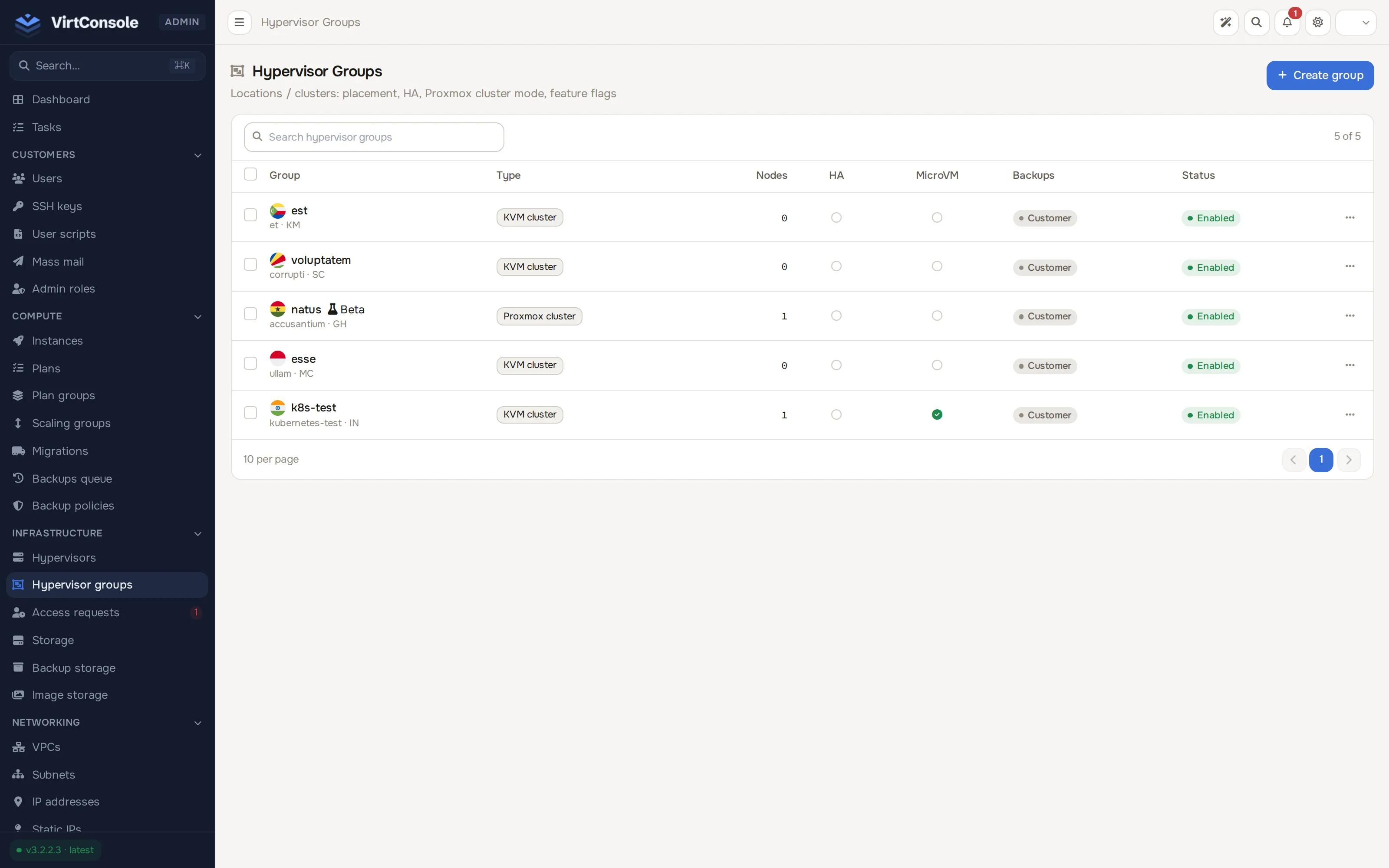
Create a group
Section titled “Create a group”-
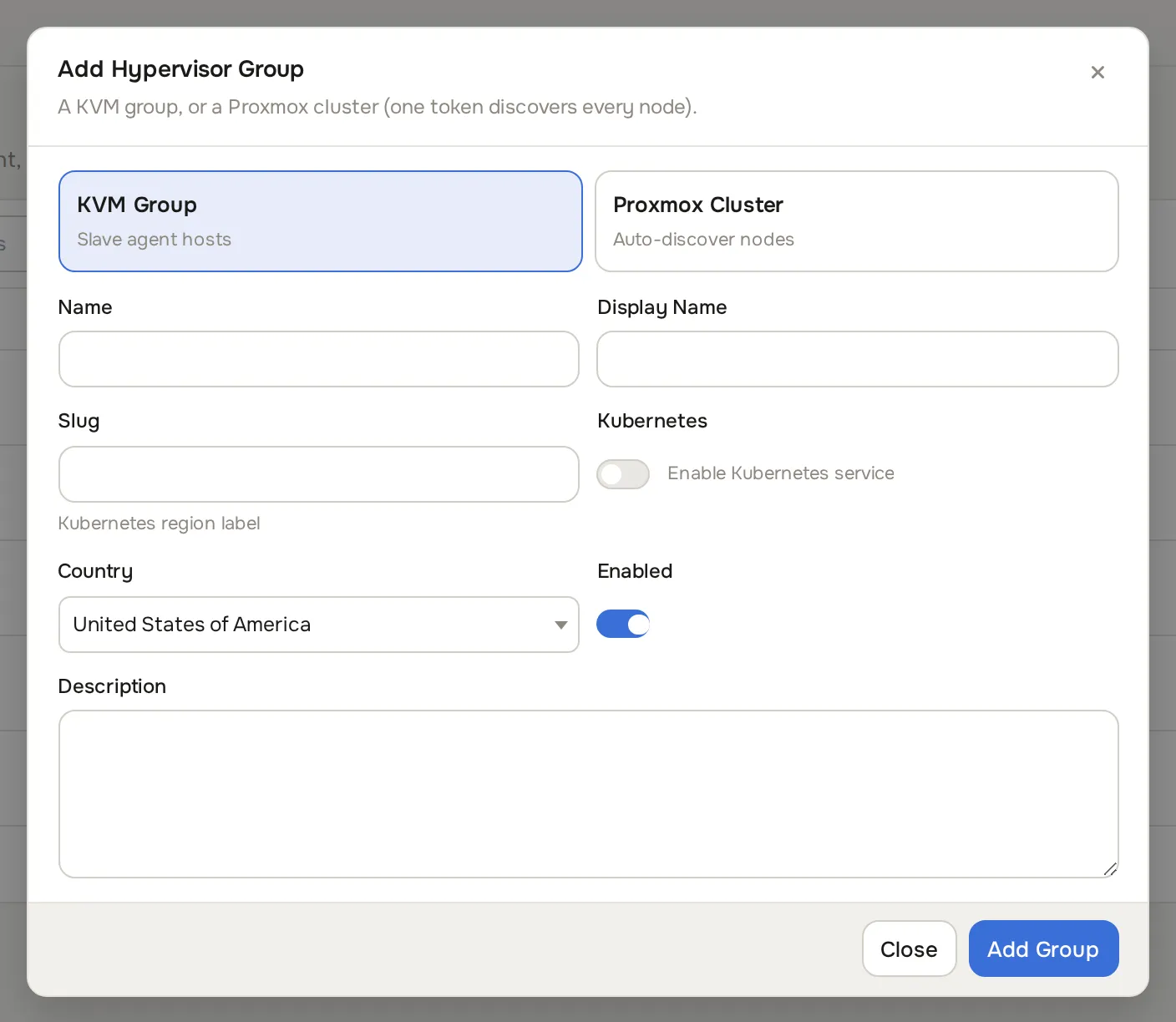
Click Add Group. The Add Group dialog opens.
-
Fill in the fields:
Fields
| Field | What to enter | Example |
|---|---|---|
| Name | Internal label. | us-east-ssd |
| Display Name | Customer-facing name, shown as the location label. | US East (NVMe) |
| Slug | Short identifier used as the Kubernetes region label. Auto-derived from the name; lowercase letters, digits and hyphens. | us-east |
| Country | Shown as a flag next to the location. | United States |
| Enable Kubernetes service in this group | On only if customers may create clusters here. They also need at least one supported version registered. | off |
| Enabled | Off closes the group to every new resource an account can create in it, not just Cloud Service: Kubernetes clusters, VPCs, load balancers, volumes, managed databases, autoscaling groups, self-provisioned instances, and the location pickers for all of them. Admins can still place a resource here directly, and orders placed through an external billing module (WHMCS, Blesta, HostBill, Paymenter) still go through. | on |
| Description | Optional notes, internal use. |
- Click Add Group. The group appears in the list.
After creating: open the group
Section titled “After creating: open the group”Click the group to open its edit page. A row of tabs splits the settings; each tab holds one or more cards:
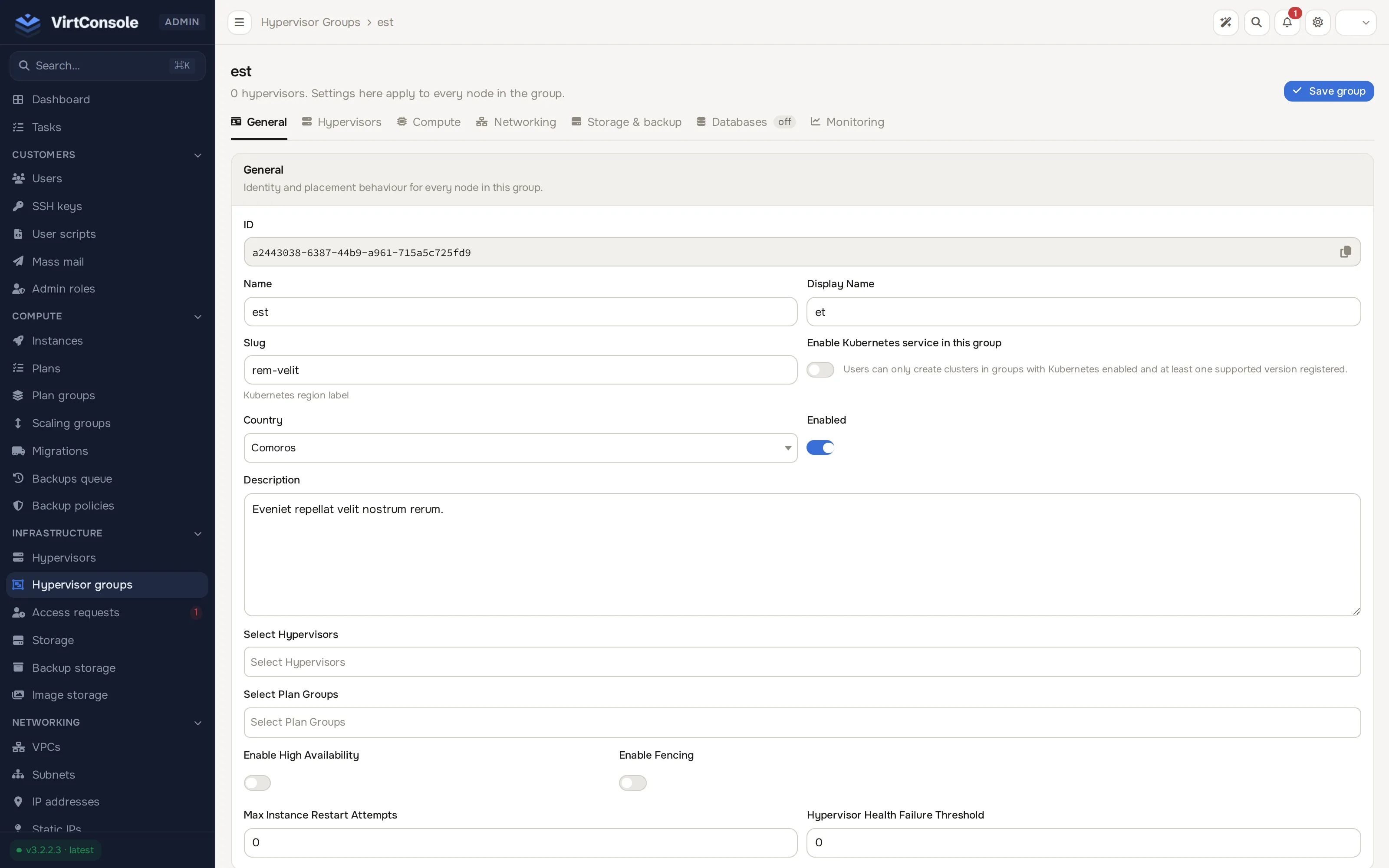
- General: Name, Display Name, Slug, Enable Kubernetes service in this group, Country, Enabled, Description, plus Select Hypervisors (assign hosts to the group) and Select Plan Groups (which Cloud Service plan groups can deploy here). High availability lives here too: Enable High Availability, Enable Fencing, Max Instance Restart Attempts and Hypervisor Health Failure Threshold. On Proxmox cluster groups, extra HA options control PVE restarts, relocations, failback and strict node placement. The Access card sits at the bottom of this tab: the group’s Visibility to customers. Public is available to everyone by default, Opt-in is listed but locked until you grant an account access, and Restricted is hidden entirely until granted. Grant or revoke individual accounts from each user’s Cloud Service tab; see Manage users.
- Hypervisors: the Hypervisors in Group table, with a running count in the tab badge.
- Compute: GPU passthrough, Images & autoscaling (which images customers may deploy here, and how the group grows) and MicroVMs (Firecracker sandboxes billed per second).
- Networking: VPC (enable VPC and set overlay parameters: VXLAN range, L2 interface and MTU, VXLAN mode, default VPC bandwidth caps) and, once VPC is on, NAT gateway, VPN gateway and Load balancing cards.
- Storage & backup: Static IP addresses, Block storage and Backups (backup mode, provider default policy, and the Backup Storage Credit rate per GB per month; see Backups).
- Databases: Managed databases, shown once VPC is on; the tab badge reads
offwhile the toggle is off. - Monitoring: Monitoring & metrics, shown once load balancing or managed databases are on.
What happens next
Section titled “What happens next”Assign at least one hypervisor to the group, then point plans at it. The group becomes selectable on the create-instance form, and to customers as a location when your billing exposes it. Pending customer requests for opt-in locations appear under Infrastructure > Access requests and on the requesting user’s Cloud Service tab.
Common problems
Section titled “Common problems”- Customers cannot see the new group as a location. Check that Enabled is on, that Visibility is Public (or grant the account access), and that the group has at least one hypervisor assigned.
- The Slug field is locked. Kubernetes clusters exist in this group. The slug is their region label and cannot change while clusters use it.
- The Access card warns that accounts have resources here but no grant. Those customers keep what they already run but cannot create new resources in this location until you grant them access.