

Your dashboard
The dashboard is the first page you see after logging in. It answers two questions at a glance: what do I have running right now, and is anything using up my balance or quotas.
Where to find it
Section titled “Where to find it”Click Overview at the top of the sidebar, or log in. The dashboard is the default landing page.
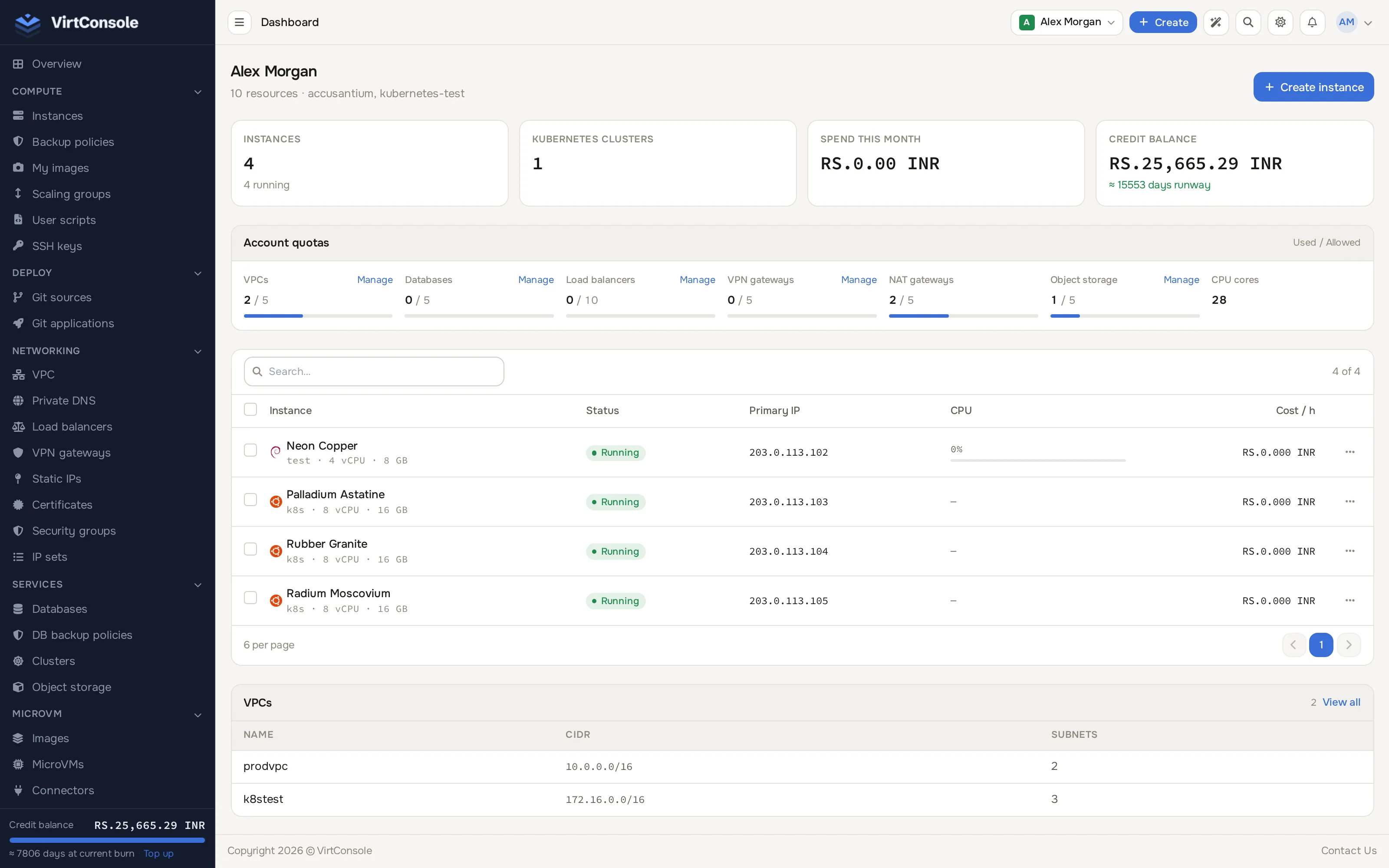
The dashboard with a running instance.
What the dashboard shows
Section titled “What the dashboard shows”Header. Your account name and a one-line summary (N resources · location[, location]), plus a single Create instance button. You only see the button when your provider has enabled provisioning for your account.
Setup alert. A banner appears above the stat cards if your profile is incomplete, for example when your timezone or default currency is not set. It links to your profile so you can fix it.
Stat cards. Up to four cards across the top:
- Instances: total instances, and how many are running.
- Kubernetes clusters: shown only when the Kubernetes feature is enabled for your account.
- Spend this month: shown when your provider uses the built-in Cloud Service billing.
- Credit balance: your current balance and an estimated number of days of runway at your current spend. Shown alongside Spend this month.
Account quotas. A card showing how much of each limit you have used, for example 2 / 5 VPCs, with a Manage link next to each feature that has one. A quota with no configured maximum shows as unlimited (no bar). Only the features your provider has enabled appear here.
Instances. A searchable, paginated table of your instances: name, status, primary IP, CPU and (when billing applies) cost per hour. Each row has a Manage action that opens the instance’s manage page, and a Web SSH action where available.
VPCs, Load balancers, Databases, VPN gateways. A compact table per resource type below the instance list, each with a View all link to the full list page. Only the features your provider has enabled appear.
Recent activity. A card listing your latest deploys, power actions, backups and other tasks, newest first.
Common problems
Section titled “Common problems”- A card or table you expect is missing. Your provider has not enabled that feature on your account or location. Contact your provider.
- The Spend this month or Credit balance card is missing. Your account is billed through an external billing system instead of Cloud Service, so there is no in-panel balance. Your invoices live with your provider.