

Promo codes
Promo codes reward customers at top-up time. A code either discounts the amount they pay or grants bonus credit on top of it. Codes are checked live while the customer completes a top-up, so an expired, exhausted or invalid code is rejected before any payment is taken.
Where to find it
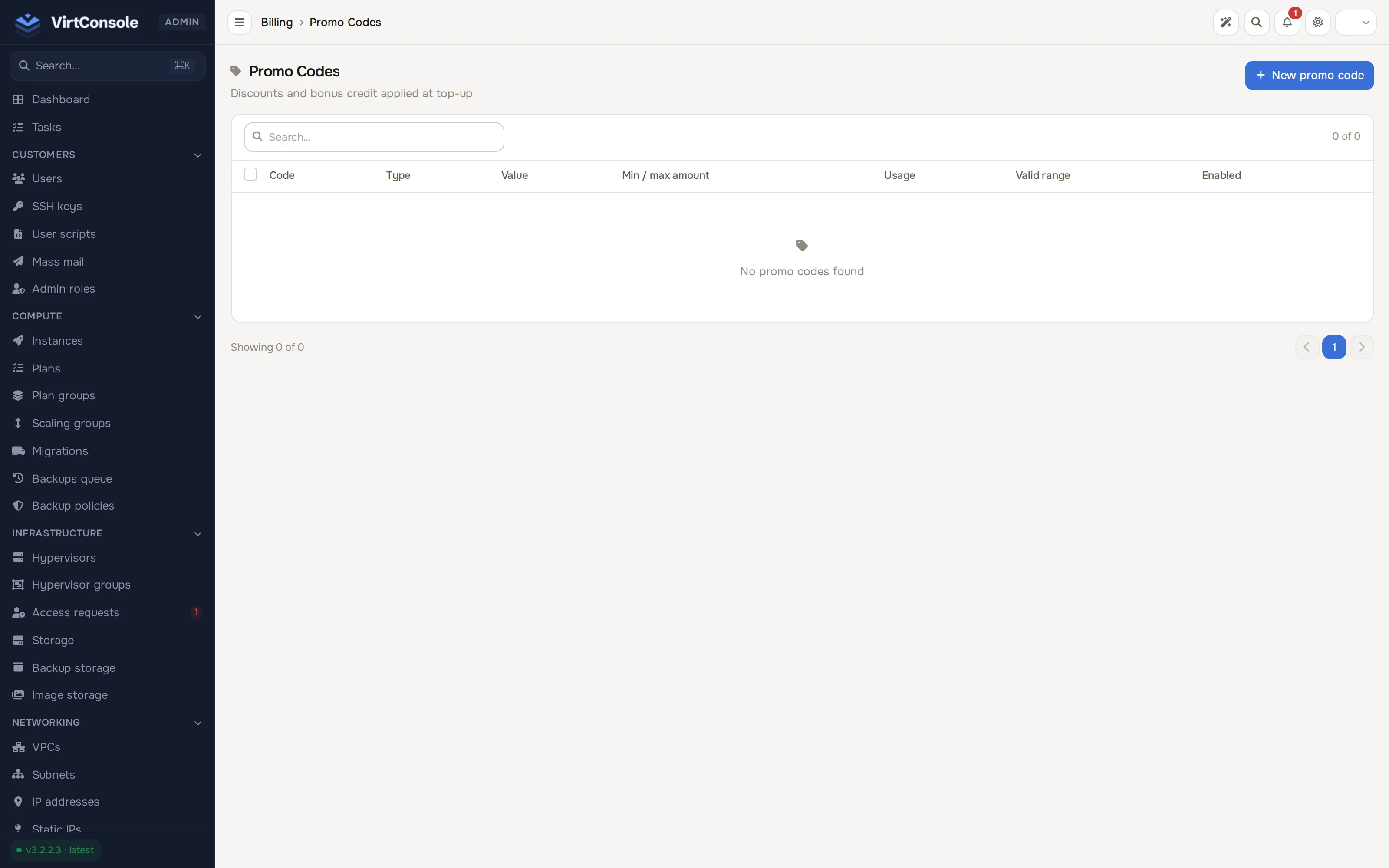
Section titled “Where to find it”In the admin panel go to Billing > Promo codes. The list shows each code with its Code, Type, Value, Min / max amount, Usage, Valid range, and an inline Enabled toggle.
Create a promo code
Section titled “Create a promo code”-
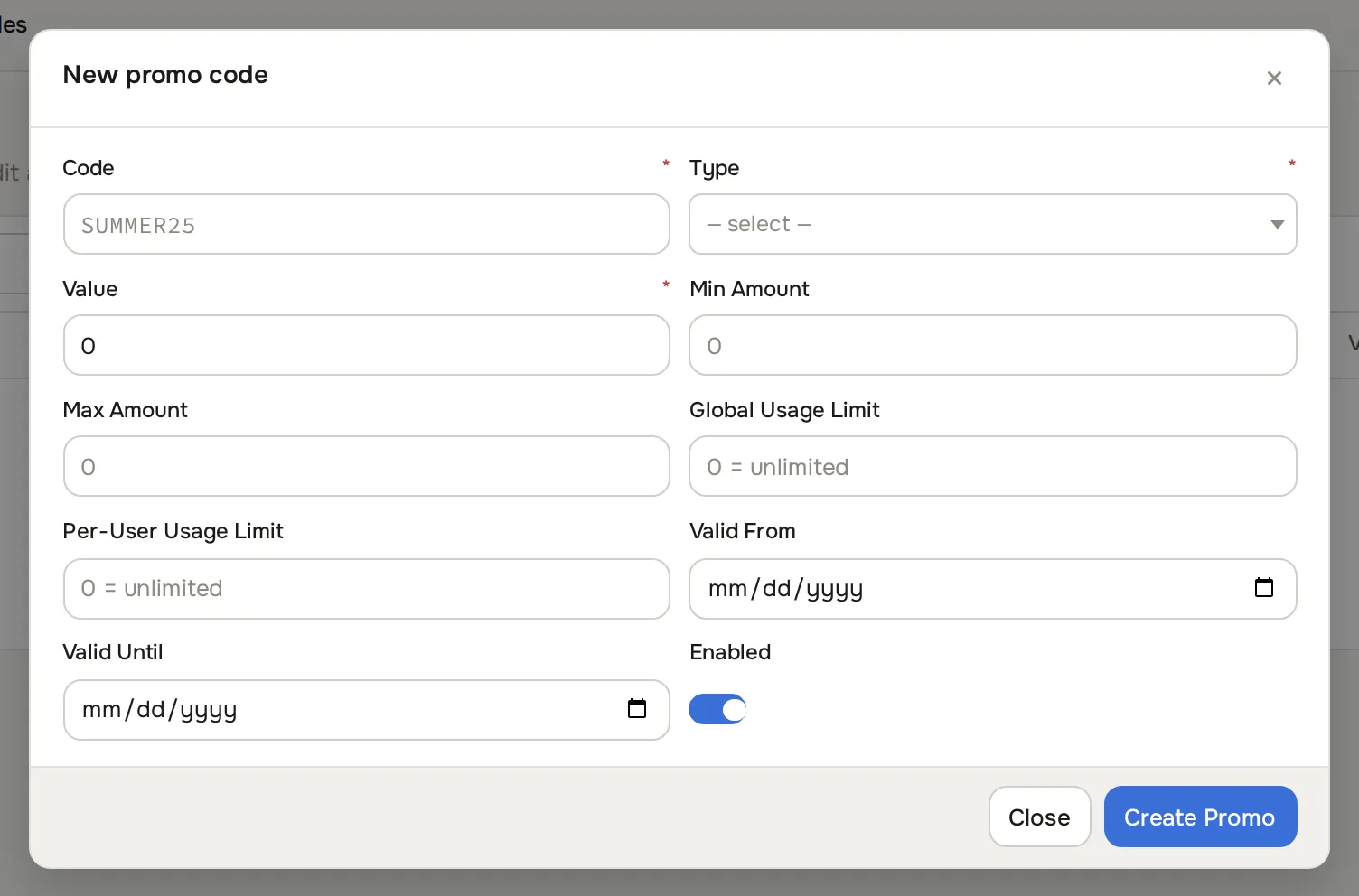
Click New promo code. The New Promo Code dialog opens.
-
Fill in the fields:
Fields
| Field | What to enter |
|---|---|
| Code | The code the customer types at top-up, for example SUMMER25. Required. |
| Type | Discount %, Discount Flat, Bonus Credit % or Bonus Credit Flat. Required. |
| Value | The percentage or flat amount for the type. Required. |
| Min Amount | The smallest top-up the code applies to. 0 means no minimum. |
| Max Amount | The largest top-up the code applies to. 0 means no maximum. |
| Global Usage Limit | Total redemptions across all customers. 0 means unlimited. |
| Per-User Usage Limit | Redemptions per customer. 0 means unlimited. |
| Valid From / Valid Until | The window in which the code works. Leave blank for an open end. |
| Enabled | Whether the code can be redeemed. |
- Click Create Promo. The code appears in the list.
A Discount type reduces what the customer pays for a given amount of credit. A Bonus Credit type keeps the payment unchanged and adds credit on top. The top-up summary the customer sees shows the adjustment before they confirm, so there are no surprises at the gateway.
Edit, disable or delete a code
Section titled “Edit, disable or delete a code”Click Edit on a row to change any field, or flip the row’s Enabled toggle directly without opening the dialog. Use the delete action to remove a code permanently. The Usage column tracks redemptions against the limits you set.
What happens next
Section titled “What happens next”Customers enter the code on the top-up form in their billing area. The panel validates it against the window, the usage limits and the top-up amount, and shows the adjusted total before checkout. Every redemption is recorded against the code and appears in the customer’s transaction history. See Customer billing (user guide).
Common problems
Section titled “Common problems”- A customer says a valid code is rejected. Check the code’s Valid From / Valid Until window, its Usage against the limits, and the top-up amount against Min Amount / Max Amount.
- A code gave more credit than intended. Review the Type and Value: a flat value applies on every redemption regardless of the top-up size.
- The code does not appear in the list. It was deleted rather than disabled; deleted codes cannot be recovered. Create it again.