

Plans and plan groups
A MicroVM plan defines the vCPU, memory and disk a MicroVM gets, and how it is priced. A plan group bundles plans together and maps that bundle onto one or more hypervisor groups (locations), the same way Cloud Service plan groups work for instances.
Where to find it
Section titled “Where to find it”In the admin panel go to MicroVM > Plans for plans, and MicroVM > Plan groups for the location mapping.
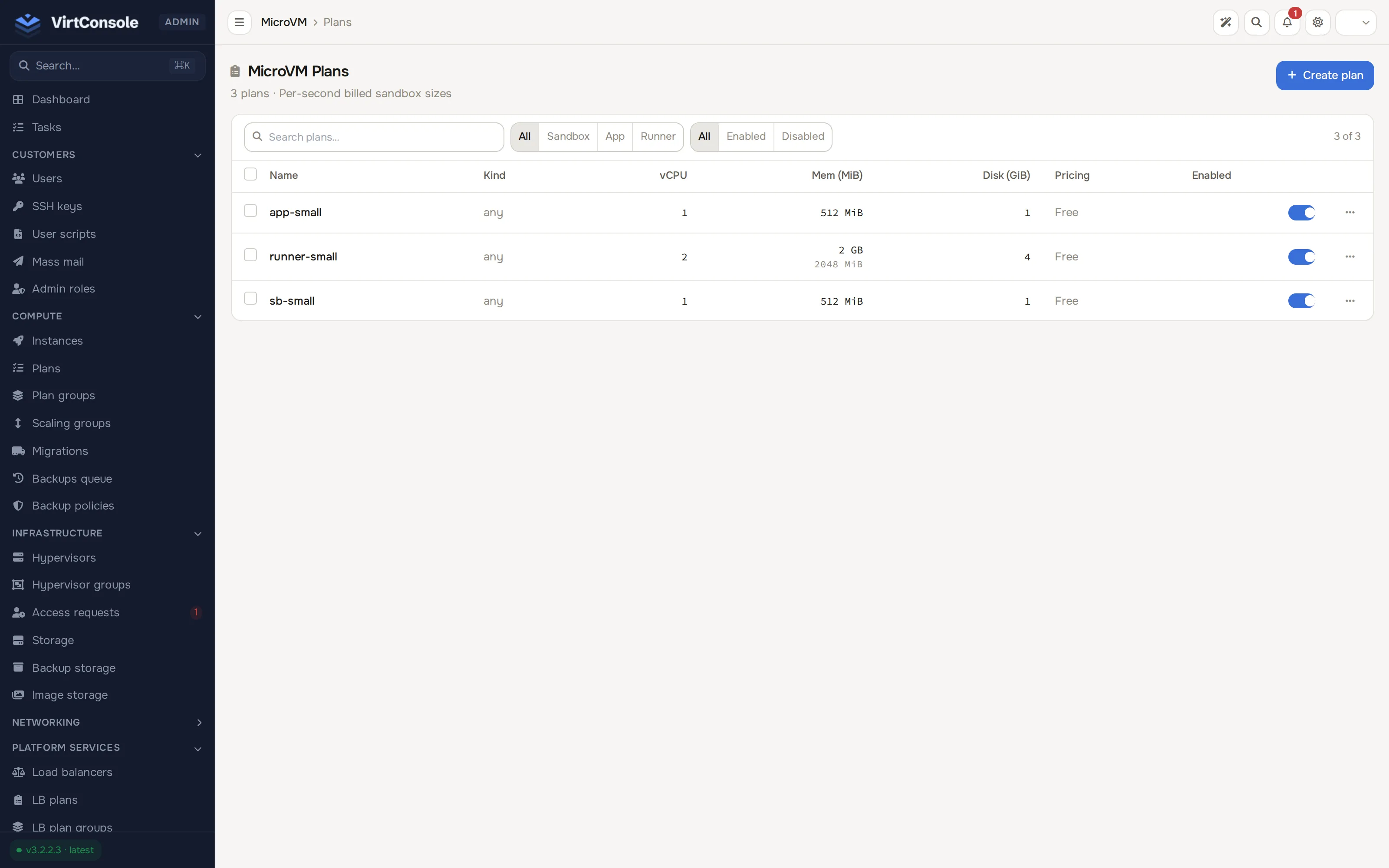
The list is filterable by kind (Sandbox, App, Runner) and by enabled/disabled, and each row’s Enabled toggle switches a plan on or off directly, without opening it.
Plan fields
Section titled “Plan fields”The Add Plan / Edit Plan form has three sections:
| Field | What it does |
|---|---|
| Name | The label shown to customers. |
| vCPU | Number of vCPUs. |
| Memory | RAM in MiB. |
| Disk | Disk in GiB. |
| vCPU (Pricing) | Credit price per vCPU-second of running time. |
| Memory (Pricing) | Credit price per MiB-second of memory allocated. |
| Disk (Pricing) | Credit price per GiB of disk per hour. |
| Runner minute (Pricing) | Flat credit price per minute. Set above 0 on a plan used for CI runner connectors to bill by the minute instead of by resource usage. |
The form also shows a live Estimate for this plan panel (hourly and monthly cost at the entered resources and prices) so you can sanity-check pricing before saving. Enabled is not part of this form; it is the toggle in the plans list, gating whether customers and plan groups can pick the plan at all.
A plan with the runner-minute price set above 0 is billed by the minute; a plan that leaves it at 0 is billed by vCPU-seconds, MiB-seconds and disk GiB-hours instead. See Usage and billing for how these prices turn into a charge.
The list’s Kind column (Sandbox, App, Runner, or blank shown as “any”) is a legacy classification carried over from an earlier release; it is not a field on the create/edit form and cannot be set from the admin panel.
Create or edit a plan
Section titled “Create or edit a plan”- Click Create plan to open the Add Plan modal, or click a row (or its Edit action) to open Edit Plan for an existing plan.
- Fill in the fields above.
- Click Add Plan (create) or Save (edit).
There is no separate clone action; start a new plan from Create plan and copy the values across by hand. A row’s Remove action deletes a plan after a confirmation prompt.
Plan groups
Section titled “Plan groups”A plan group is a named set of plans mapped to one or more locations. Open MicroVM > Plan groups, click Create group to name a new one, or click a row’s Manage action to open the editor for an existing group:
- Plans: which enabled plans this group offers.
- Locations: which hypervisor groups show this bundle of plans. Search, select individually, or Select all.
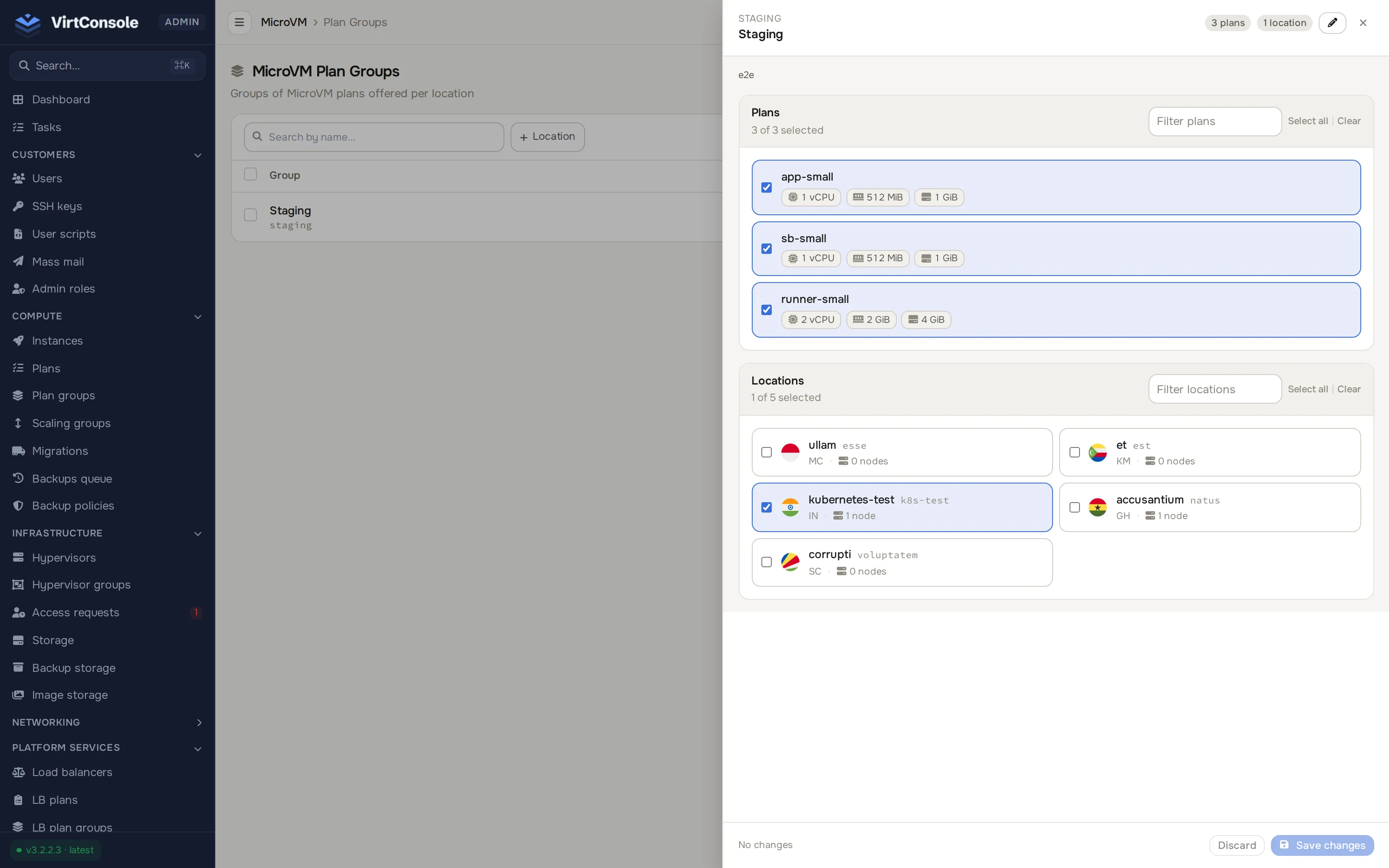
Changes in the editor are not saved until you click Save changes; Discard drops them.
A hypervisor group only offers MicroVM plans once it appears as a location in at least one plan group, and it must also have MicroVMs enabled. See Enable MicroVMs.
What happens next
Section titled “What happens next”A customer creating a MicroVM in a location only sees the plans reachable through that location’s plan group. Changing a plan’s price or specs does not affect MicroVMs already running on the old plan.
Common problems
Section titled “Common problems”- A plan does not appear for customers in a location. The plan is disabled, or its plan group is not mapped to that hypervisor group, or the hypervisor group itself has MicroVMs disabled.
- The Readiness page’s “Plans mapped to a group” check fails. No enabled plan is reachable, through a plan group, to a MicroVM-enabled hypervisor group. See Enable MicroVMs.