

CAPTCHA and self-registration
Two related features control how new customer accounts appear on your platform:
- Self-registration: visitors who are not logged in can open the register page and create their own account, instead of waiting for you to create it.
- CAPTCHA: a prove-you-are-human challenge on the login and registration forms that blocks automated sign-up scripts.
Both are off by default. Both live on the same settings tab.
Where to find it
Section titled “Where to find it”In the admin panel go to System > Settings and open the Security tab. The User Registration and Bot Protection (CAPTCHA) sections hold everything on this page.
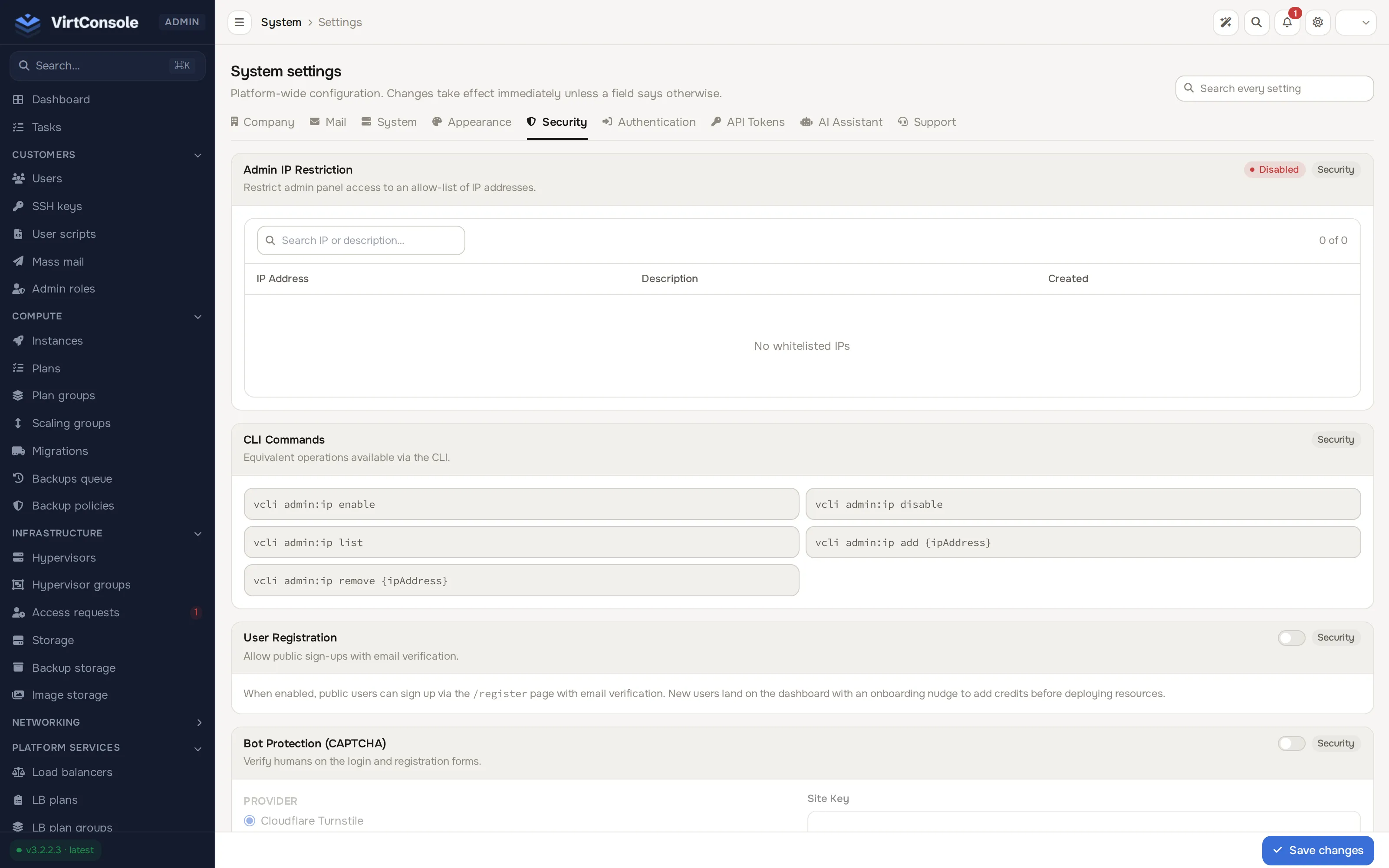
Enable self-registration
Section titled “Enable self-registration”- In the User Registration section, turn the switch on.
- Save.
While self-registration is off, visitors who open the register page are redirected away, and the login form shows no sign-up link. You can still create customers yourself under Customers > Users. While it is on, the public form is reachable, so also turn on CAPTCHA protection for the registration form (below).
Every self-registered account must verify its email address before it can deploy anything: the panel sends a signed link, and the account waits on the verify page until the visitor clicks it. Email verification is mandatory and cannot be turned off; it raises the cost of throw-away sign-ups. New customers land on their dashboard with a nudge to add credit before deploying.
Configure CAPTCHA
Section titled “Configure CAPTCHA”- In the Bot Protection (CAPTCHA) section, turn the switch on.
- Pick one Provider:
Providers
| Provider | What the visitor sees | Where you get the keys |
|---|---|---|
| Cloudflare Turnstile | A small verifying pill that usually resolves on its own | Cloudflare dashboard, Turnstile |
| Google reCAPTCHA v2 | The classic checkbox, sometimes followed by an image grid | Google reCAPTCHA admin console |
| Google reCAPTCHA v3 | Nothing visible; the provider scores the visitor from 0.0 (bot) to 1.0 (human) | Google reCAPTCHA admin console |
You cannot mix providers. The one you pick protects every form where CAPTCHA is turned on.
- Paste the Site Key (public, embedded in the page) and the Secret Key (private, used server-side to verify). Never swap the two. The secret key is stored encrypted; leaving it masked on save keeps the current value.
- For reCAPTCHA v3 only, set the Score threshold: the minimum score the panel accepts, between
0.0and1.0. Default is0.5. Raise it if you see bot traffic, lower it if real users are blocked. - Under Apply on, choose the Login form, the Registration form, or both.
- Save.
Test the configuration
Section titled “Test the configuration”Click Test Connection in the CAPTCHA section. It runs a one-shot server-side check against your secret key and shows the provider’s reply. A success message means real visitors who pass the challenge will be accepted. An explicit provider error usually means a wrong or mistyped secret key, or that the management server cannot reach the provider over the internet. The test never blocks real visitors; it is a sanity check only.
Security recommendations
Section titled “Security recommendations”What happens next
Section titled “What happens next”Self-registered customers appear under Customers > Users like any other customer. Accounts that have not clicked the verification link yet are marked unverified and cannot deploy until they verify. From a customer’s page you can resend the verification email or flip the status by hand when the email never arrives. See Manage users.
Common problems
Section titled “Common problems”- Every sign-up fails verification. Click Test Connection. The usual causes are a secret key pasted with a leading or trailing space, a mismatched site key and secret pair, or a domain not registered with the provider.
- The verification email never arrives. Confirm outgoing mail works under System > Settings on the Mail tab, ask the visitor to check spam, and use Resend verification email on their user page. Brand-new sender domains are often flagged at first.
- reCAPTCHA v3 rejects real users. Lower the score threshold by 0.1 at a time. Fresh deployments with little traffic history score legitimate first-time visitors low.
- Self-registration is on but the register page still redirects away. Settings are cached briefly after you save. Hard-reload the page and confirm the switch reads enabled in the User Registration section.