

Migrations
A migration moves an instance from one hypervisor to another. Live migration keeps the instance running: memory and CPU state stream across, and the instance pauses for under a second at the end while the final bytes land. Cold migration stops the instance first, then moves the disks. Use live for zero-downtime maintenance, cold for stopped instances or big local disks on slow links.
Before you begin
Section titled “Before you begin”- Both hypervisors are online and in good standing under Infrastructure > Hypervisors.
- Source and destination reach each other directly, with no NAT or firewall in the path. Required ports:
Required Ports
| Port | Direction | Purpose |
|---|---|---|
| 22 (or the host’s configured SSH Port) | both ways | SSH orchestration |
| 16509 | destination to source | libvirt remote API (monitoring) |
| 49152-49215 | both ways | migration data transfer |
- Same CPU vendor on both sides with compatible generations. An instance started on a CPU with AVX cannot resume on one without it. Set a common CPU Mode / Model on both hosts to be safe; see Manage hypervisors.
- The destination has free RAM of at least the instance RAM plus about 2 GB, and, for cold or block copies, free disk at least the instance’s disk size.
- 1 Gbps link minimum, 10 Gbps preferred, latency under 10 ms.
Where to find it
Section titled “Where to find it”Start a migration from the instance’s manage page (Compute > Instances, open the instance, click Migrate). Track all of them under Compute > Migrations.
-
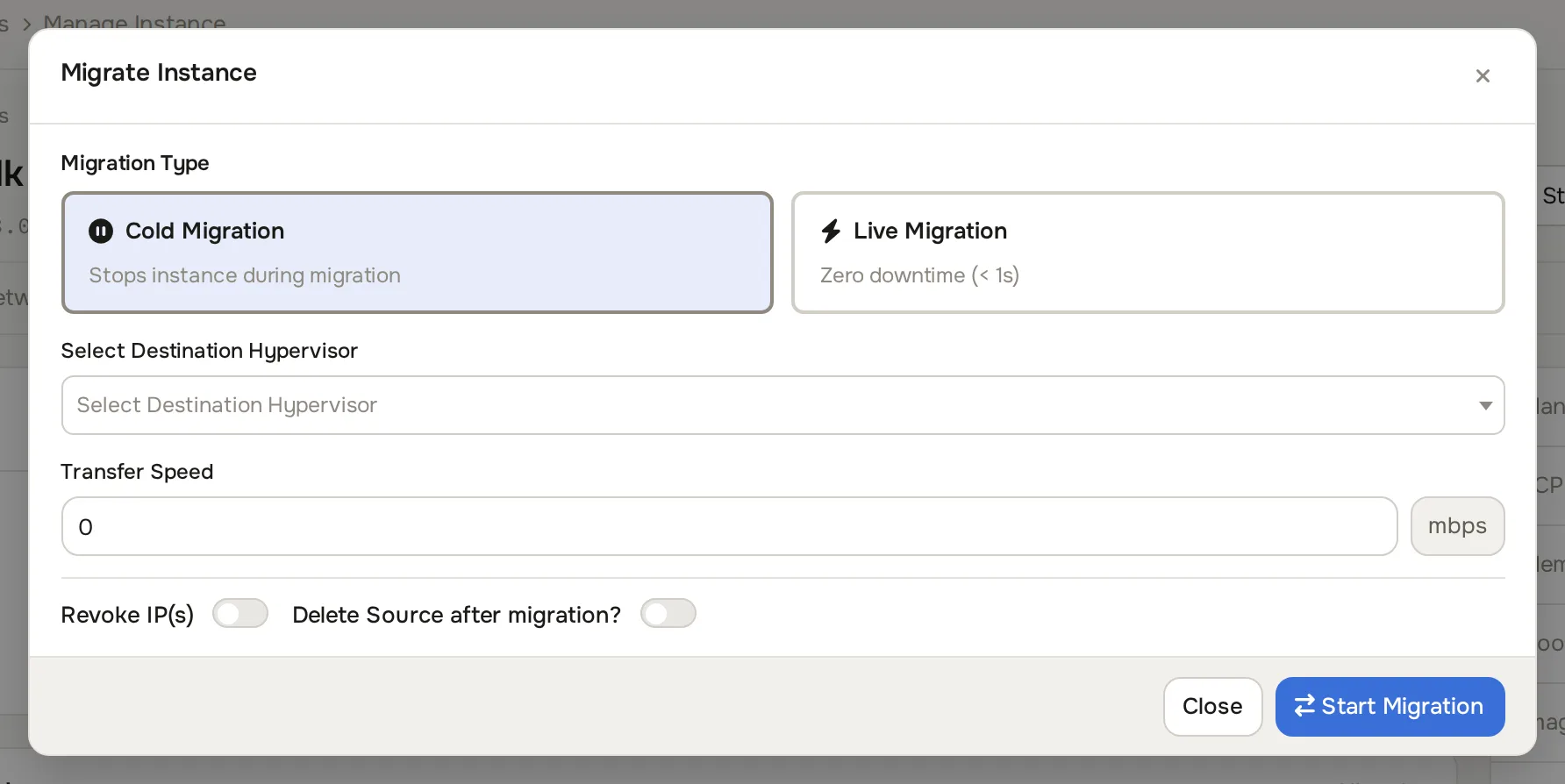
Open the instance under Compute > Instances and click Migrate. The Migrate Instance dialog opens.
-
Pick the Migration Type: Cold Migration (stops the instance during migration) or Live Migration (zero downtime, requires the instance to be running).
-
Pick the Select Destination Hypervisor target.
-
Map storage. For each disk, Select Storage for
picks the destination pool. Disks on shared storage show Shared storage (no copy needed) and move with no disk copy. -
For an instance with a VPC interface migrating to a different group, pick the Destination VPC and Destination VPC Subnet. Within one group the VPC is preserved automatically.
-
Tune the options:
- Live: Auto-Converge (recommended; briefly throttles a busy instance so memory transfer converges), Compression (recommended; cuts bandwidth use roughly in half), Bandwidth Limit (optional, in MB/s, empty for unlimited), Post-Copy (experimental).
- Cold: Transfer Speed cap in mbps.
-
Set the common switches: Revoke IP(s) releases the current IPs instead of keeping them, and Delete Source after migration? controls cleanup on the source host. On live migrations deletion happens during finalization.
-
Click Start Migration or Start Live Migration. The migration appears under Compute > Migrations.
For Proxmox nodes the dialog offers the cluster-native equivalent instead: pick the Target Node, toggle Live (online) migration, and optionally set Migrate local disks, Target Storage, Migration Network, Bandwidth Limit (KiB/s) and Transfer conntrack state (PVE 9+). The dialog runs a precheck and lists local resources that would block a live move.
Watch progress
Section titled “Watch progress”Compute > Migrations lists every migration with the instance, a LIVE or COLD badge, source and destination hosts, status and progress. Live rows show memory copied vs total and elapsed time; cold rows show per-disk percentages and transfer speed. Click the scroll icon on a row to expand its log.
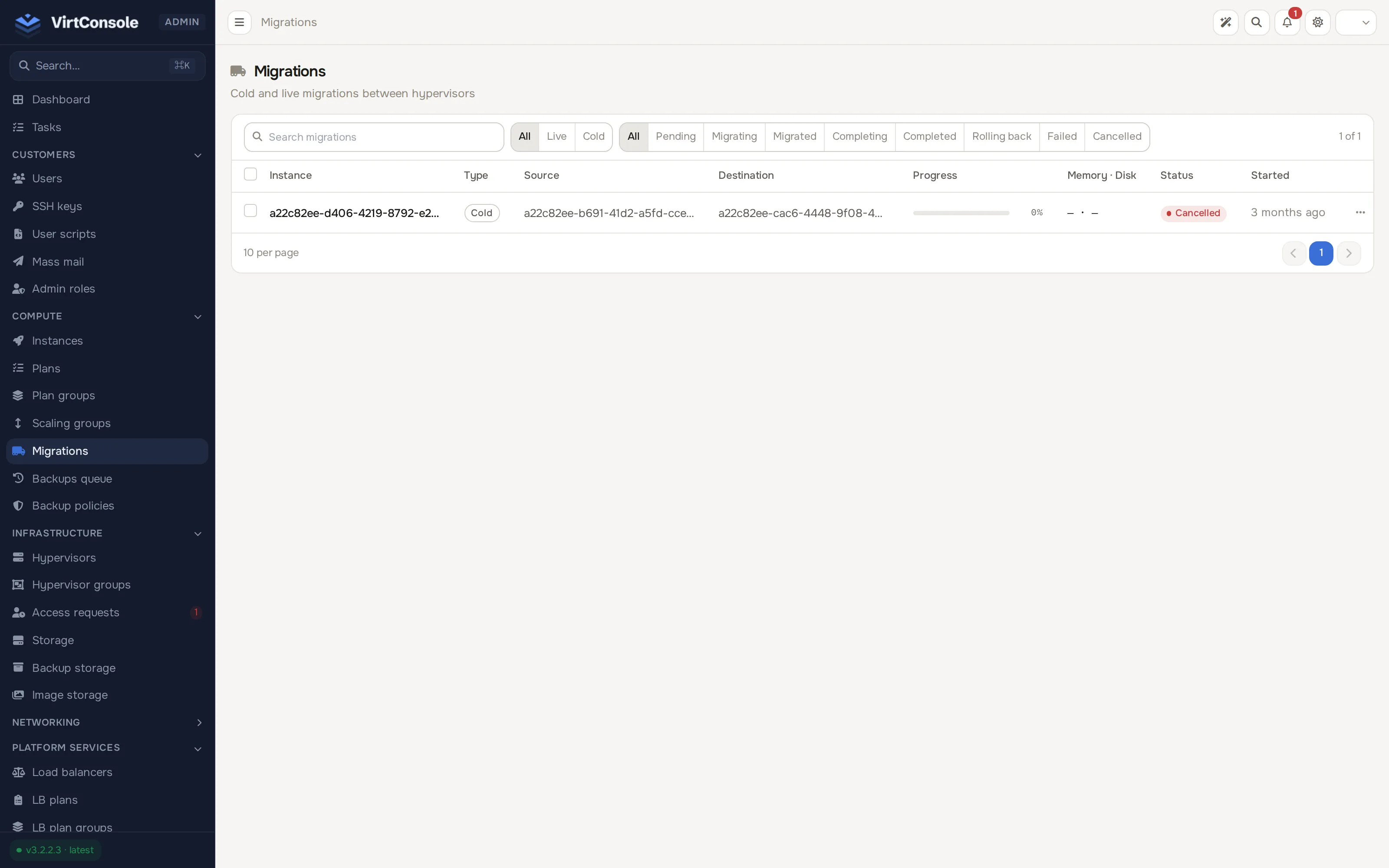
Actions per row, depending on state:
- Stop while the migration is pending or running. The instance keeps running on the source.
- Complete / Revert once it reaches the migrated state: Complete finalizes the move; Revert rolls back to the source.
- Revert is also offered when a migration failed partway.
Statuses: Pending, Started / Migrating, Migrated, Completed, Rolling back / Rolled back, Failed, Cancelled.
What happens next
Section titled “What happens next”On completion the instance runs on the destination with its network restored and storage mapped. If anything fails along the way, the instance stays on the source; read the row’s log, fix the cause and retry. To move back, run another migration in the opposite direction.
Common problems
Section titled “Common problems”- Migration stalls around 60-80 %. The instance is dirtying memory faster than the link can ship it. Enable Auto-Converge, retry in a quieter window, or reduce the instance’s workload temporarily.
- Fails immediately with a connection error. Ports 22, 16509 or 49152-49215 are blocked between the hosts, or SSH is unreachable. Test SSH by hand from source to destination.
- Block or cold migration fails with no space left. Free space on the destination or fix the per-disk storage mapping.
- The instance crashes after migrating, or the log reports an unsupported CPU feature. The CPUs differ. Compare the flags on both hosts and pick a destination with a compatible CPU.