

Docker Manager
Docker Manager installs web apps (Grafana, WordPress, Uptime Kuma and others) on your instance from a catalog, without you logging into the instance. You pick an app, fill in a few options, and the panel installs it as Docker containers and reports status live.
Before you begin
Section titled “Before you begin”- A running Linux instance with Docker installed. The easiest way is ticking Install Docker Engine & Docker Compose when you create or reinstall the instance (see Create an instance).
- If Docker was not installed at create time, the Docker section offers an install button on a running instance. Installing it later does not erase data.
Where to find it
Section titled “Where to find it”Open the instance manage page (Compute > Instances > Manage) and click Docker in the tab bar.
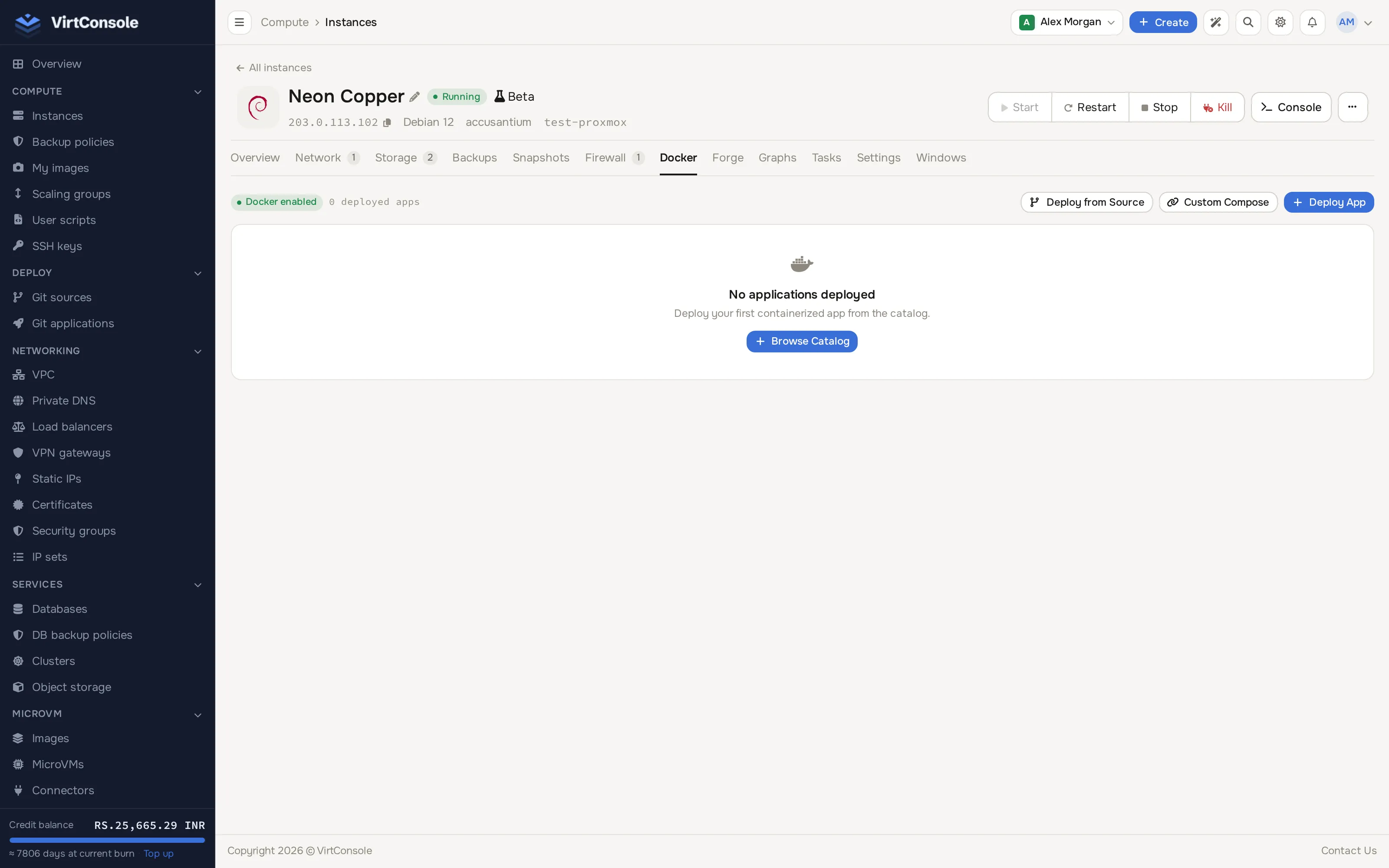
The Docker section with the app catalog.
Deploy an app from the catalog
Section titled “Deploy an app from the catalog”- Click Deploy App. The catalog opens; search by name or filter by category.
- Click an app. The deploy form has two sections:
- Environment Variables: labeled inputs the app needs. Password fields have an auto-generate button.
- Port Mappings: the container ports the app listens on and the host ports on the instance that map to them. Change a host port if the default is already taken.
- Click Deploy.
The deploy runs in the background with live status on the same page. Apps install to /opt/docker-apps/<name>/ on the instance. When the deploy succeeds, the panel emails you the access URL, port mappings and any generated passwords.
Deploy something that is not in the catalog
Section titled “Deploy something that is not in the catalog”Click Custom Compose, paste the URL of a docker-compose.yml file (for example a GitHub raw URL), name the app, optionally add environment variables and port mappings, and deploy.
For source code in a Git repository, use Deploy from Source instead: paste a public repository URL, set the branch and build pack, and the app is built and run on the instance. For full push-to-deploy automation with preview environments, see Git Deploy.
Manage deployed apps
Section titled “Manage deployed apps”Each app appears in a table with a status badge: Pending, Deploying, Running, Stopped or Error. Per app you can:
- Open App: open the app’s URL in a new tab.
- Check Status: refresh the container state.
- Logs: stream the container logs live.
- Start, Stop, Restart.
- Retry Deployment on a failed deploy; it reuses the same values.
- Remove: delete the containers, networks, volumes and the panel record.
Common problems
Section titled “Common problems”- The Docker section says Docker is not installed. Install it from the button on that section, or reinstall the instance with the Docker checkbox ticked.
- The deploy form warns about an unsupported distro. The app’s definition does not list your OS. Pick a supported app or deploy on a supported distro.
- A deploy sits in Error. Read the inline error, then use Retry Deployment. If ports conflict, change the host port mapping.
- The app is running but unreachable from the internet. A security group may be blocking the host port. See Security groups.