

Manage hypervisors
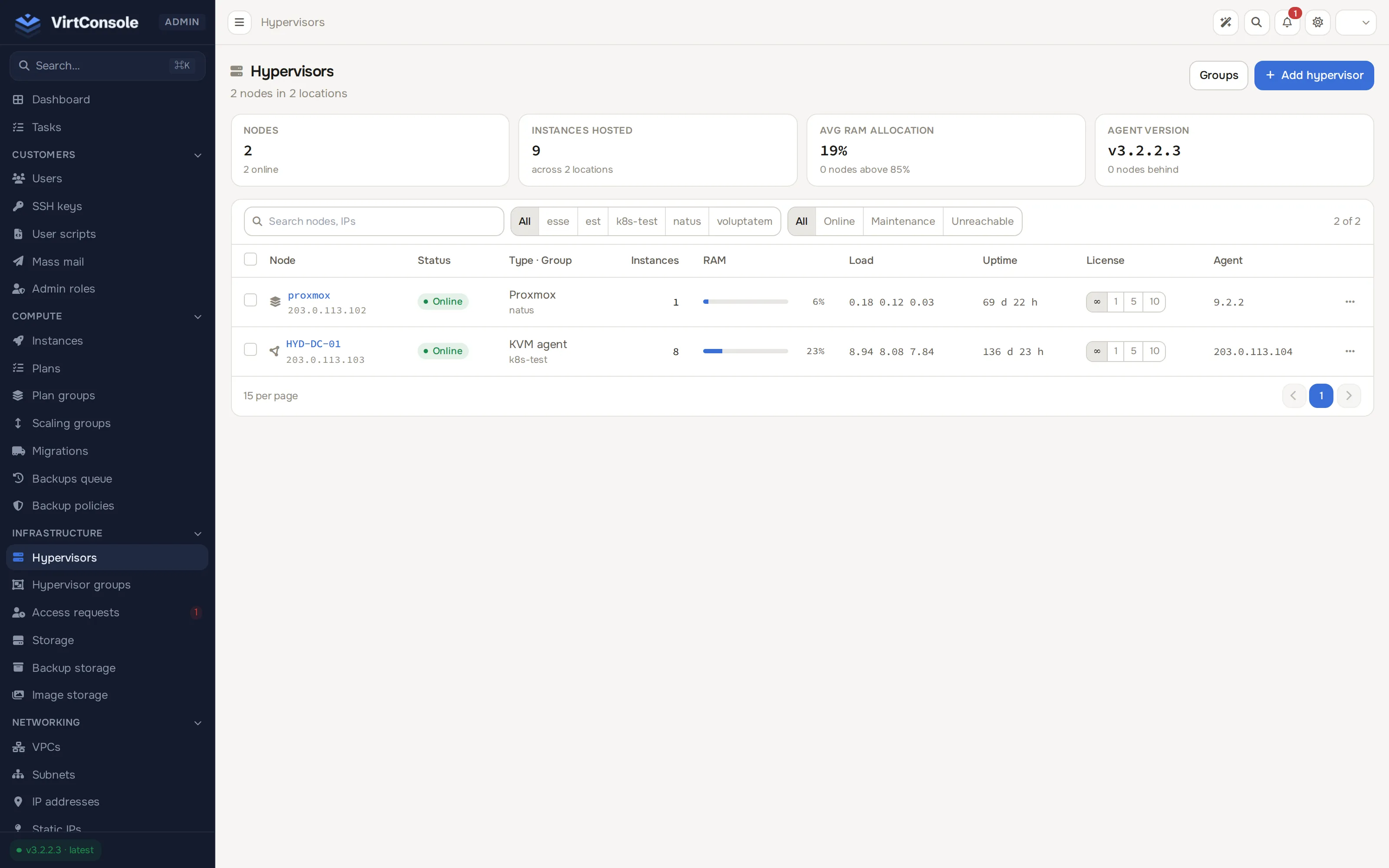
A hypervisor is a physical or virtual KVM host that runs your customers’ instances. This page covers the hypervisors list and the management page you land on after adding one. To add a host, see Install a hypervisor for a KVM host running the agent (the installer still calls it the slave agent), or Add a Proxmox VE node for an agentless node.
Where to find it
Section titled “Where to find it”In the admin panel go to Infrastructure > Hypervisors.
Add a hypervisor
Section titled “Add a hypervisor”After the agent (or, for Proxmox, the API token) is ready, click Add Hypervisor on the list to register the host with the panel. The Add Hypervisor dialog opens.
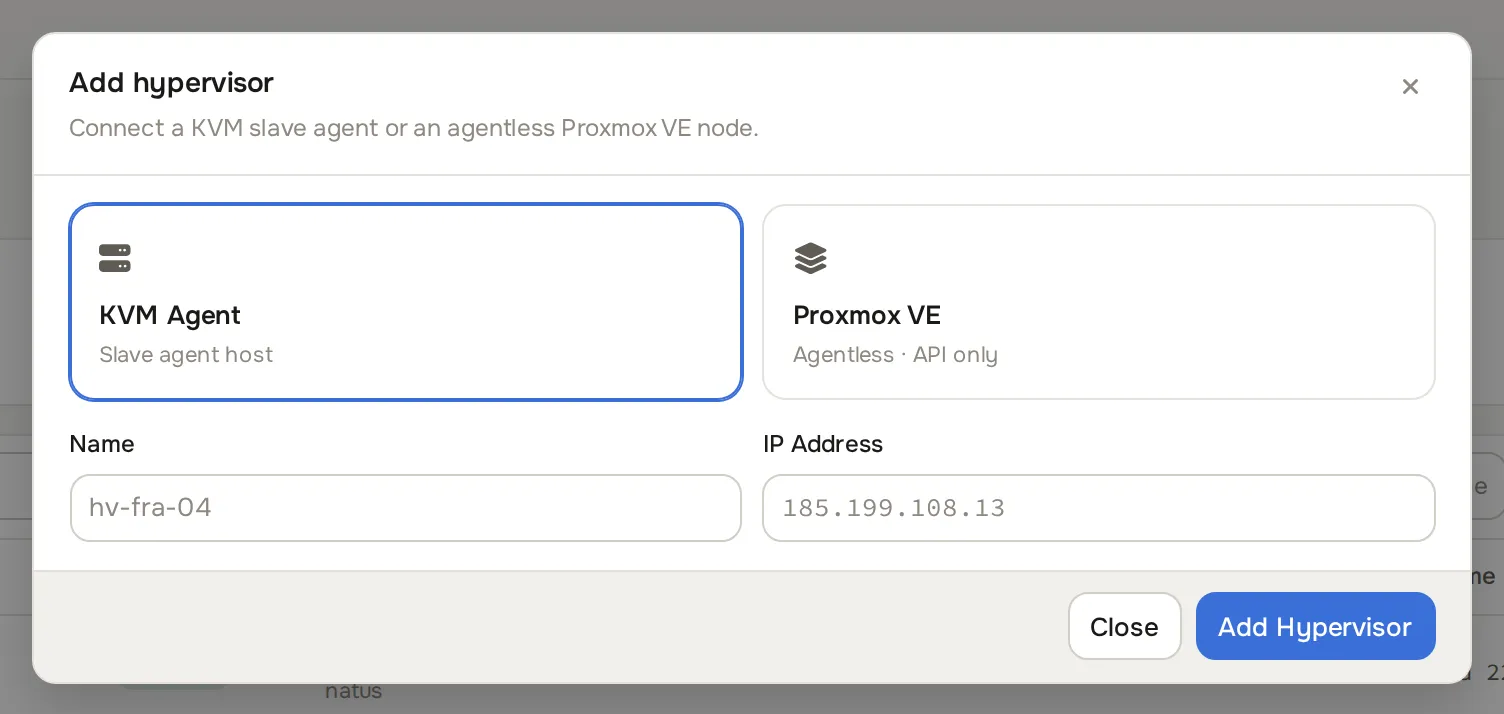
Choose KVM Agent or Proxmox VE, fill in the host’s name and address, select the Group it joins, and click Add Hypervisor. The group is required for both types: create one first under Infrastructure > Hypervisor Groups if you have none. The panel refuses the request before it contacts the host when the group is missing. See Install a hypervisor or Add a Proxmox VE node for the field-by-field walkthrough.
The hypervisors list
Section titled “The hypervisors list”Each row shows live state: Status (online dot), OS, HA heartbeat, Name, IP, Uptime, Load Average, Maintenance, Lock, Readiness (deployment checks passing), Licensing and agent Version (with a badge when a newer agent exists).
Two actions matter on day one:
- The Licensing column sets the per-host instance limit from your license. Click infinity, 1, 5 or 10. See Manage your license.
- Edit opens the management page. Remove detaches a host; Force removes it even when the panel cannot reach it.
The management page
Section titled “The management page”Click a hypervisor to open it. A WebSSH proxy bootstrap banner appears above everything on Proxmox nodes until the one-line install command runs (VPC instances fall back to the serial console until then; the banner disappears once the proxy is installed, checked every 10 minutes). Below that, the header shows the host name, an Online or Offline dot, and Maintenance and Remove buttons (Update Agent replaces Maintenance when a newer KVM agent exists; updating streams the agent’s update log into a terminal window). A Rebuild from backups button appears here too when the host is down or fenced; see Disaster recovery.
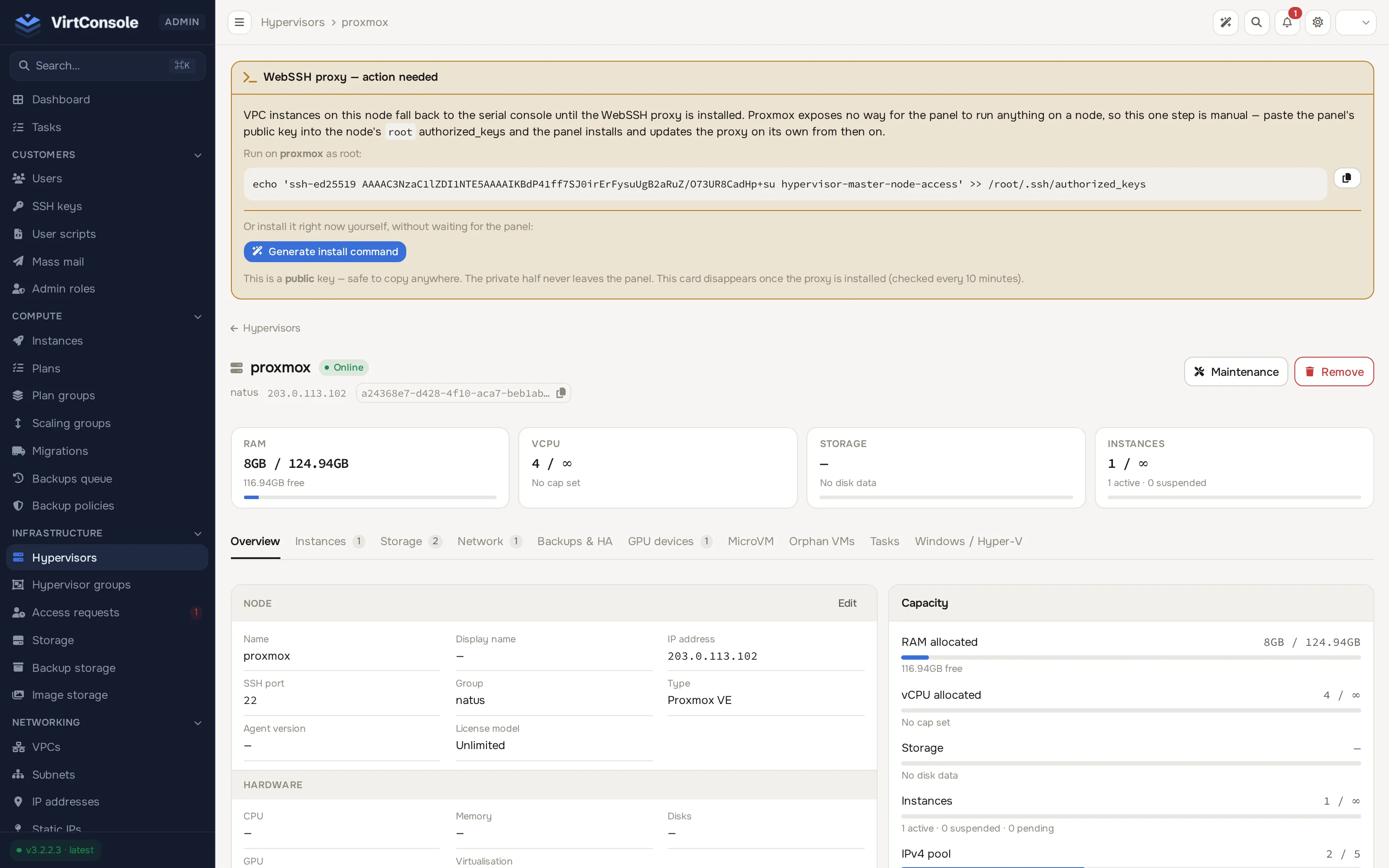
A KPI strip (RAM, vCPU, Storage, Instances, Load, each with a usage bar) sits under the header, always visible regardless of which tab is open. Below it, a row of tabs splits the rest of the page: Overview, Instances, Storage, Network, Backups & HA, GPU devices, MicroVM, Orphan VMs, Tasks and Windows / Hyper-V. Tab labels carry a live count badge (instances, storage pools, subnets, GPUs, orphan VMs) where relevant.
Overview tab
Section titled “Overview tab”Two columns of summary cards, each with an Edit link that opens a modal:
- Node (Edit): Name, Display name, IP address, SSH port, Group, Type, Agent version, License model. The Edit Node modal also sets Private IP (used for traffic such as migrations, when kept off the public interface) and, read-only, VPC Link-Local IP when the group has VPC enabled.
- Hardware: CPU, Memory, Disks, GPU count and detected virtualization stack (QEMU/libvirt versions) — read-only, agent-reported.
- CPU model (Edit CPU): CPU mode, model, flags added/removed. The Edit CPU Mode & Flags modal sets CPU Mode / Model (Host Passthrough — exact host CPU, best performance, required for live migration between identical hosts — Host Model, or a named model such as
EPYCorSkylake-Server) and Extra CPU Flags per flag (topoext,svm,vmx): Default, Disable or Require. Use Require for features guests must have, such as nested virtualization. - Limits (Edit limits): Max RAM, Max vCPU, Max instances — your overcommit control. The scheduler stops placing new instances here once any cap is reached; set a cap above the physical resource to overcommit.
- Placement: toggles for Allow deployments (off holds the host out of the scheduler until you turn it back on; existing workloads keep running either way), Maintenance mode (new placements skip it, existing instances keep running) and Silence alerts (suppress monitoring notifications for this host), plus a read-only Locked row tagged Automatic — set when the host goes silent for 6 or more minutes and cleared on the next successful metrics poll. Manual changes do not stick; use Allow deployments instead.
- Capacity: meters for RAM, vCPU, storage and instances allocated, plus the IPv4 pool split of available/in use/reserved.
- Readiness: a checklist of everything this host needs before the panel will place instances on it, each row with a status dot and a fix hint on hover. Click Re-check after you fix something. The dashboard’s node readiness card aggregates this across all hosts.
- Agent Channel Security: signature enforcement and TLS verification badges for the master-agent command channel (Signatures: enforced/log-only, Verifies master TLS, Verifies node TLS), with a Request enforcement / Revert enforcement button. A red badge warns when the node’s certificate changed and needs re-linking. See Agent channel security for what each badge means, how to pin a node’s certificate and how to roll enforcement out safely.
Instances, Storage, Network tabs
Section titled “Instances, Storage, Network tabs”Read-only tables scoped to this host: instances running here, its storage pools, and its subnets.
Backups & HA tab
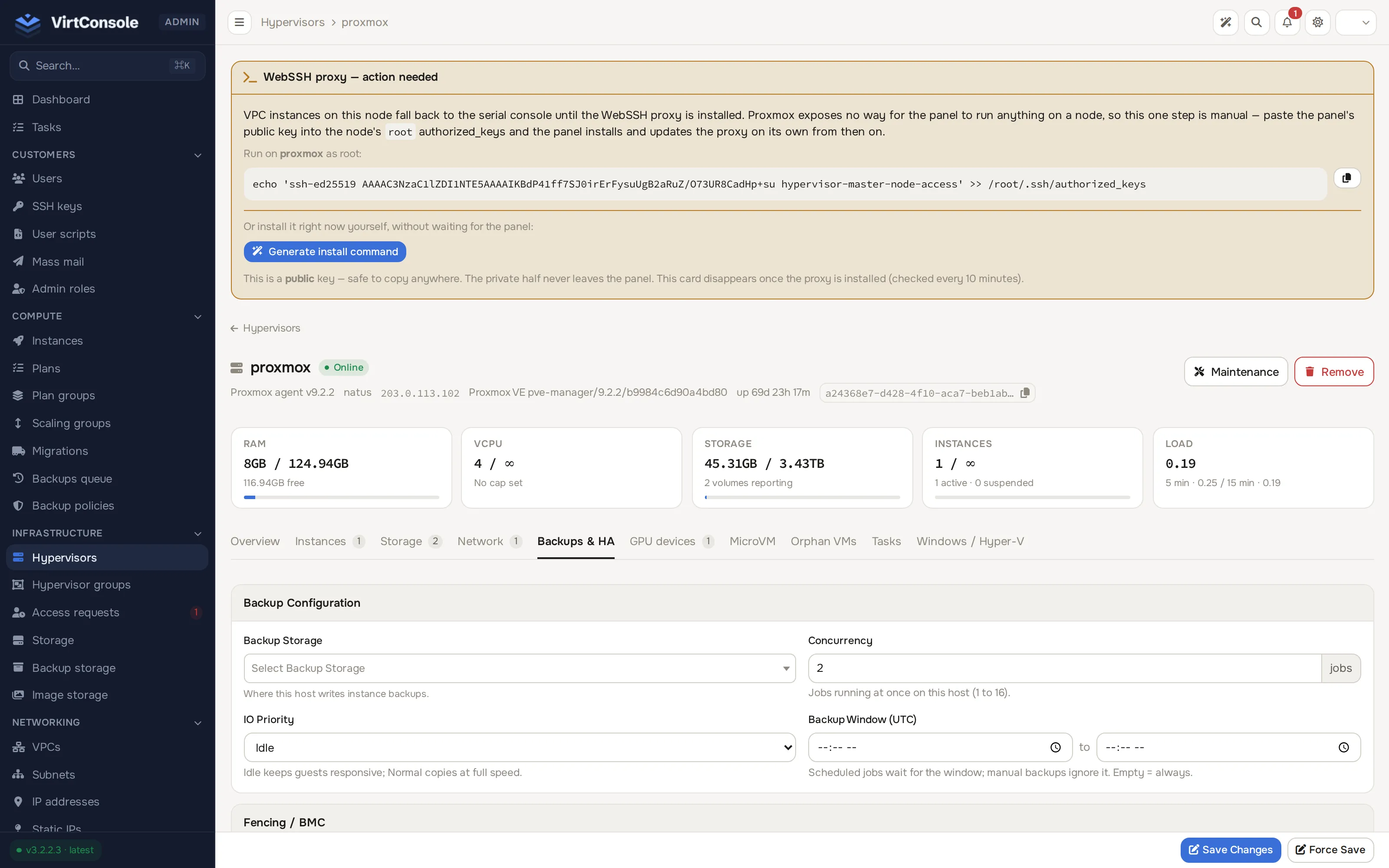
Section titled “Backups & HA tab”Two cards. Who is backed up, and on what schedule, is decided on the hypervisor group’s Backups card and on backup policies; these fields control where this host writes and how hard it is allowed to work. See Instance backups.
Backup Configuration
| Field | What it does |
|---|---|
| Backup Storage | Where this host’s instance backups are written. Required before any backup can run. |
| Concurrency | How many backup jobs this host may run at once, in jobs (1 to 16, default 2). Further jobs stay pending until a slot frees. |
| IO Priority | Idle (default) runs the copy at low CPU and IO priority so guests stay responsive. Normal runs at full priority. |
| Backup Window (UTC) | Optional daily from / to range. Policy-origin and provider-managed jobs wait outside the window; manual backups ignore it and start immediately. Empty means always. |
Fencing / BMC — used by high availability to power-cycle a failed host before moving its instances.
| Field | What it does |
|---|---|
| Fencing Type | IPMI or Redfish. |
| BMC Host / BMC Username / BMC Password | Credentials of the host’s baseboard management controller. |
Click Test BMC Connection to verify; the result shows the reported power state and board model.
GPU devices tab
Section titled “GPU devices tab”Detected GPUs with model, VRAM, PCI address, mode and allocation.
MicroVM tab
Section titled “MicroVM tab”Firecracker engine status for this host; see Enable MicroVM on a hypervisor.
Orphan VMs tab
Section titled “Orphan VMs tab”Scan for and adopt KVM domains that exist on this host but are not tracked by the panel. See Orphan VM import.
Tasks tab
Section titled “Tasks tab”Every task the panel has run against this host, most recent first, with a live progress bar and status badge.
Windows / Hyper-V tab
Section titled “Windows / Hyper-V tab”The Windows / Hyper-V card sets node-level defaults for Windows and Hyper-V enlightenments, applied to Windows guests on this host. Proxmox nodes additionally show an API Token card with a Check Token Privileges button (it warns when the token lacks the guest-agent privileges PVE 9 requires) and a Storage card with Re-sync storages from PVE, because Proxmox storage is created on the node and synced into the panel.
TPM support on nodes
Section titled “TPM support on nodes”Enabling TPM on an instance on a KVM node needs swtpm on that node. Each node tells the master whether swtpm is available in its heartbeat, and enabling TPM is refused (HTTP 409, reason tpm_unsupported_on_node) until the node confirms it. Proxmox nodes are not gated. New Debian and Ubuntu nodes get swtpm and swtpm-tools installed during provisioning. On an existing Debian or Ubuntu node, run apt-get install swtpm swtpm-tools once. On any node, TPM support is reported once the swtpm, swtpm_setup and swtpm_ioctl binaries are installed, and only by a node running the 3.3.1 agent. Migration, HA failover and rebuild never place a TPM instance on a node that cannot run it.
Common problems
Section titled “Common problems”- The host shows Offline right after adding it. The agent is not reachable from the management server on port 2443. See Install a hypervisor.
- The host locks and unlocks by itself. That is the automatic lock working: the agent stopped reporting for 6 or more minutes, then recovered. If it repeats, check the network path and the agent service on the host.
- Deployment Readiness never goes green. Read the fix hint on each failing check; most blocking items link to the exact missing piece (storage, subnet, image).
- Live migration between two hosts fails on CPU flags. Set both hosts to the same CPU Mode / Model, or use Host Passthrough only between identical CPUs. See Migrations.