

Instance disks
Every instance has a primary disk (the boot disk with the OS) and can have secondary disks. The Storage section of the manage page lists them all.
Where to find it
Section titled “Where to find it”Open the instance manage page (Compute > Instances > Manage) and click Storage in the tab bar.
The disk list for an instance.
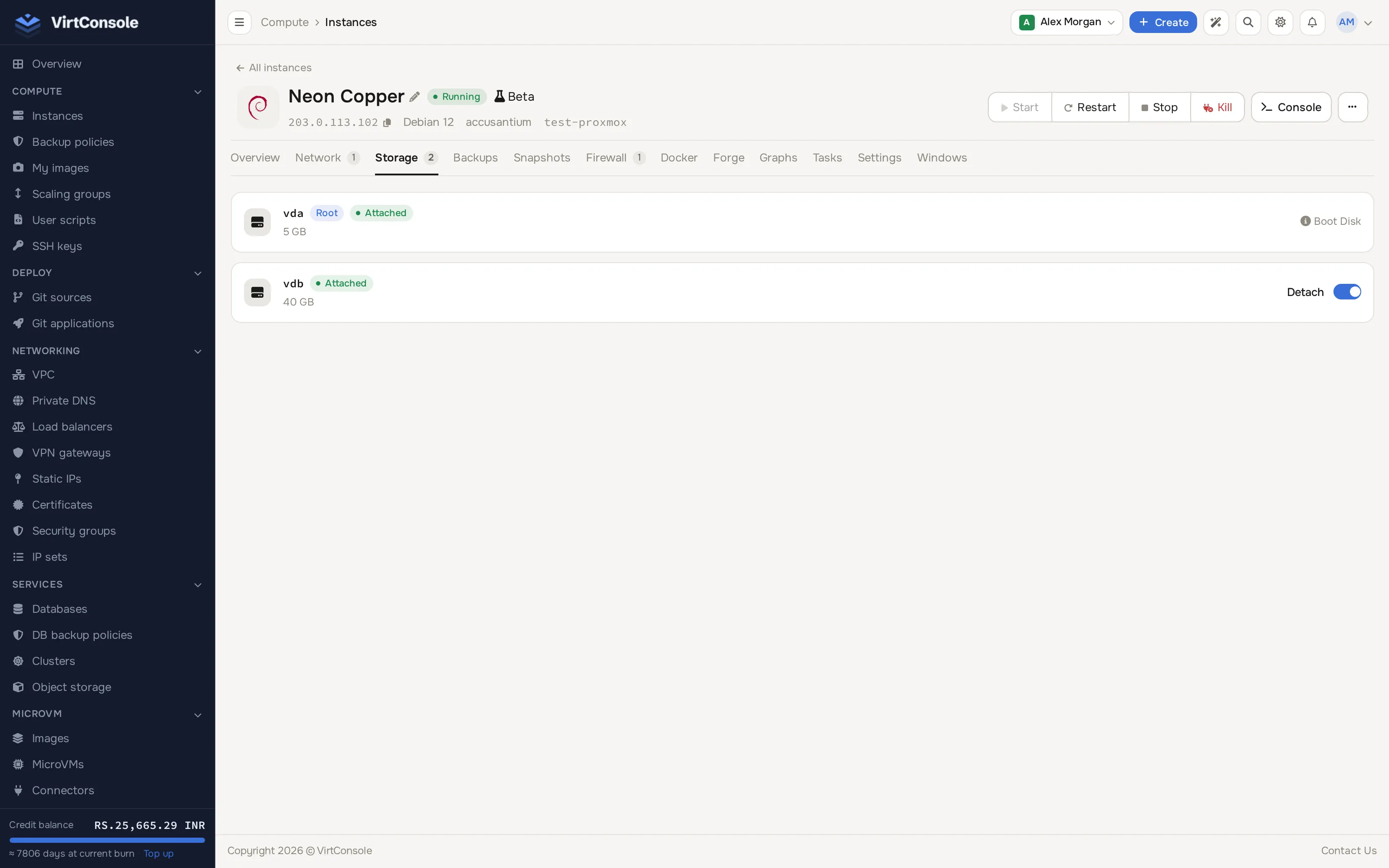
The disk list
Section titled “The disk list”Each disk shows as a card with:
- Device: the device name inside the OS, for example
vda, with a Root badge and a Boot Disk marker on the primary disk. - Type: the storage class the disk lives on (
SSD,NVME, and so on), shown as a badge when known. - Status:
AttachedorDetached. - Size: capacity in GB, with a usage bar when disk usage is available.
- An Attach / Detach toggle for secondary disks. The primary disk has no toggle and cannot be detached.
Attach or detach a secondary disk
Section titled “Attach or detach a secondary disk”Use the toggle on the disk’s card.
Grow a disk
Section titled “Grow a disk”The primary disk grows when the instance moves to a bigger plan; it cannot shrink.
- Cloud Service instances: on the Overview tab, click Change plan under Quick actions, pick a new plan and click Resize. The resize runs in the background and billing follows the new plan when it completes.
- Fixed-plan instances: ask your provider for a plan upgrade, or upgrade through the billing portal you ordered from.
Need a separate data disk?
Section titled “Need a separate data disk?”For storage you can move between instances, create a Block Storage volume instead and attach it from the Block Storage tab of the manage page (only shown when your provider enables Block Storage). See Block Storage volumes.
Common problems
Section titled “Common problems”- The disk list says “No storage volumes attached.” The instance has not finished deploying yet. Deploy it first.
- I made the plan bigger but the OS still shows the old size. The virtual disk grew but the partition did not. Extend the filesystem inside the OS as described above.
- The attach/detach toggle is disabled. A task is running on the instance, or the instance is managed by a Kubernetes cluster. Cluster-managed nodes are edited from the cluster page.