

Instance backups
An instance backup is a copy of a virtual machine’s disk written to a separate storage destination, so the instance can be restored if its disk is lost or corrupted. As the operator you configure three pieces:
- Backup Storage: the destination where backup files are written. A local path mounted on the hypervisor, an S3-compatible bucket, an rclone remote, or a Proxmox Backup Server.
- Who schedules the backups: either a provider policy attached to a hypervisor group, or a customer-owned backup policy on individual instances.
- Backups Queue: the system view of every pending, running and finished backup job.
For the per-instance, customer-managed schedules that opt individual instances into automated backups, see Backup policies.
How backups run
Section titled “How backups run”At a high level the flow is:
- A scheduler on the management server checks customer backup policies and provider-managed group defaults every few minutes and enqueues jobs that are due.
- The queue processor dispatches each job to the agent on the instance’s hypervisor, honouring that host’s concurrency cap and optional backup window.
- On a running instance the agent freezes the disk with an external snapshot, streams a copy to the destination, then merges the snapshot overlay back into the base disk. The instance keeps running throughout. Stopped instances are read directly.
- Progress and errors are reported back to the panel and appear in Compute > Backups queue.
Backups are written as qcow2 files. A full backup is a complete copy of the disk. An incremental backup contains only the blocks changed since the last backup; together, one full backup plus the incrementals that follow it form a chain. Restoring an incremental rebuilds the chain automatically.
On a Proxmox Backup Server destination this changes: snapshots are written in PBS’s own deduplicated format, “full” and “incremental” describe how much of the disk is read, and every snapshot is independently restorable with no chain to rebuild.
For instances stored on Ceph RBD, the agent uses Ceph-native export tools instead, but the destination options and the queue flow are the same.
Before you begin
Section titled “Before you begin”- At least one hypervisor is connected and online. See Hypervisors.
- You have a destination ready: an NFS or local path mounted on the hypervisors, an S3-compatible bucket with access keys, or an rclone remote configured on every hypervisor.
Where to find it
Section titled “Where to find it”Backup storage lives at Infrastructure > Backup storage. Provider policies live on the unified list at Compute > Backup policies (no more separate tabs; a Provider badge marks operator-owned rows). Group backup mode lives on each hypervisor group’s Storage & backup tab, Backups card. Per-host throttling lives on the hypervisor’s Backups & HA tab, Backup Configuration card. The job view is Compute > Backups queue.
Add backup storage
Section titled “Add backup storage”The Backup Storage page lists every destination with its type and status.
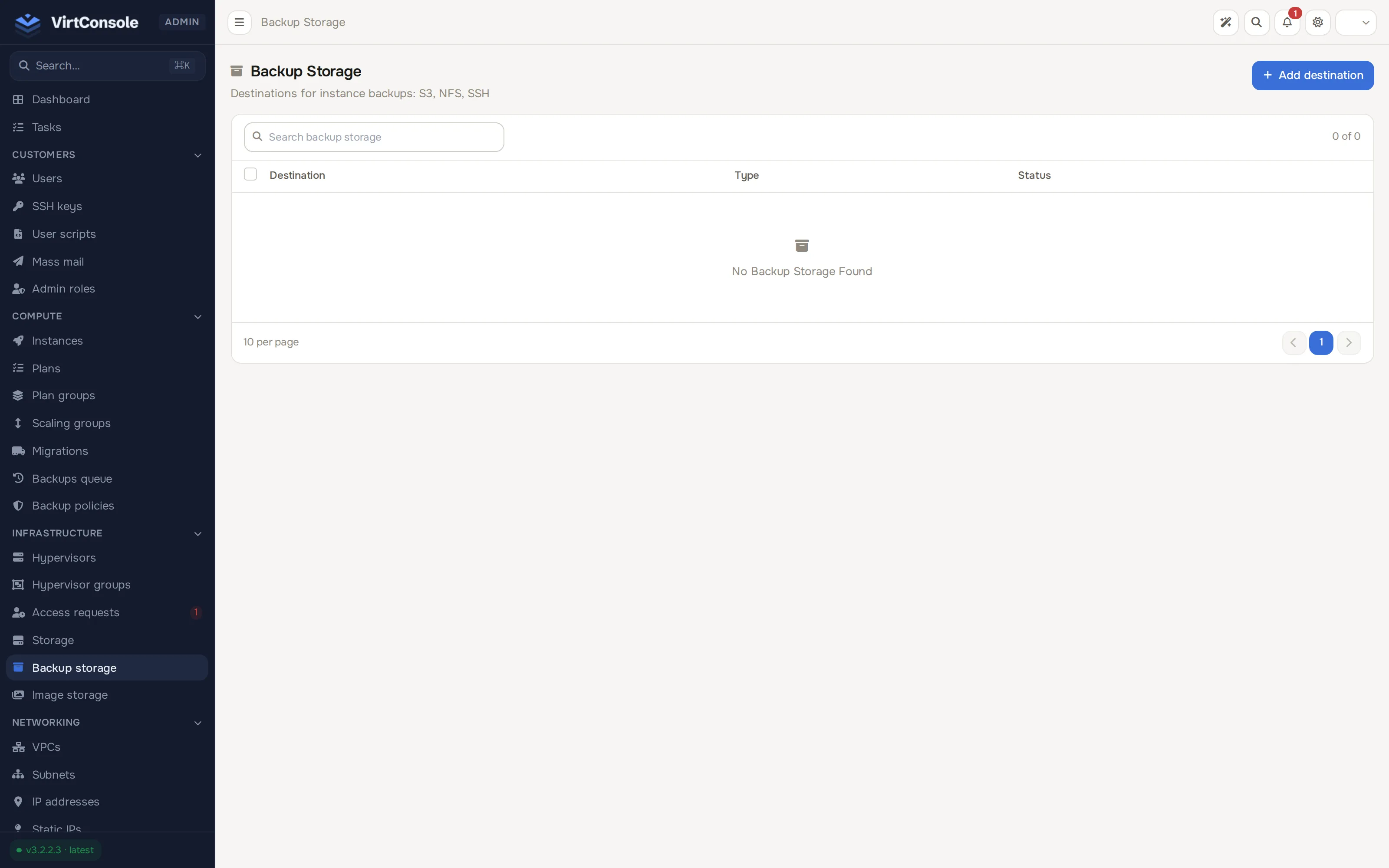
- Go to Infrastructure > Backup storage and click Add Storage. The Add Backup Storage dialog opens.
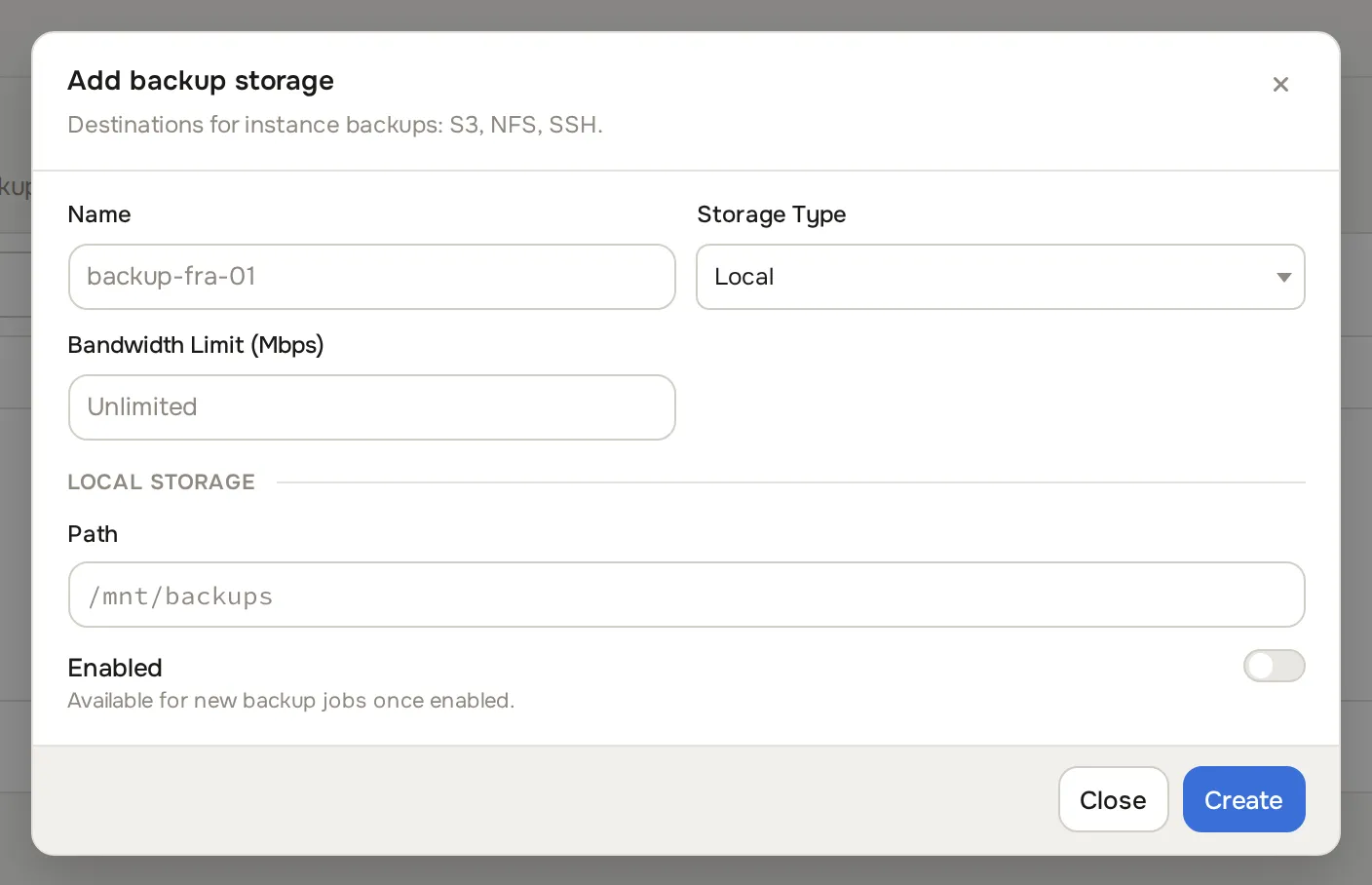
- Enter a Name and pick a Storage Type, then fill in the fields for that type:
Local
| Field | What to enter | Example |
|---|---|---|
| Path | Absolute path on the hypervisor where backups are written. Mount your NFS or SMB share here first. | /mnt/backup |
S3
| Field | What to enter | Example |
|---|---|---|
| Endpoint | Full HTTPS URL of the S3 endpoint. | https://s3.us-east-1.amazonaws.com |
| Bucket | Target bucket. | acme-instance-backups |
| Region | Bucket region. | us-east-1 |
| Access Key | Key with read, write and delete rights on the bucket. | |
| Secret Key | Matching secret. | |
| Path Prefix | Optional folder inside the bucket. | backups/production |
| Force Path-Style Addressing | Turn on for RustFS, Ceph or other self-hosted S3 endpoints. Leave off for AWS, Cloudflare R2 or Wasabi. |
Rclone (FTP / SFTP / WebDAV / etc)
| Field | What to enter | Example |
|---|---|---|
| Remote Name | Name of an rclone remote that already exists on every hypervisor. | backup-sftp |
| Path Prefix | Optional subdirectory inside the remote. | /backups |
Proxmox Backup Server
Deduplicated, incremental, verifiable backups on a PBS datastore, for KVM hypervisors and Proxmox VE nodes. This type needs one-time setup on the PBS server (user, token, ACL, namespace, fingerprint) before you add it here; see Proxmox Backup Server destinations for the full guide.
Every storage type also has:
| Field | What to enter |
|---|---|
| Bandwidth Limit (Mbps) | Optional cap on how fast this destination is written. Leave empty for unlimited. The agent applies the cap to every remote stream. |
- Switch Enabled on and click Create. The new row appears in the list.
Credentials are stored encrypted in the panel database and are only decrypted on a hypervisor when a backup actually runs.
Provider-managed backups
Section titled “Provider-managed backups”A hypervisor group decides whether customers schedule their own backups, or you do it for them. Open Infrastructure > Hypervisor groups, click the group, open the Storage & backup tab, and use the Backups card.
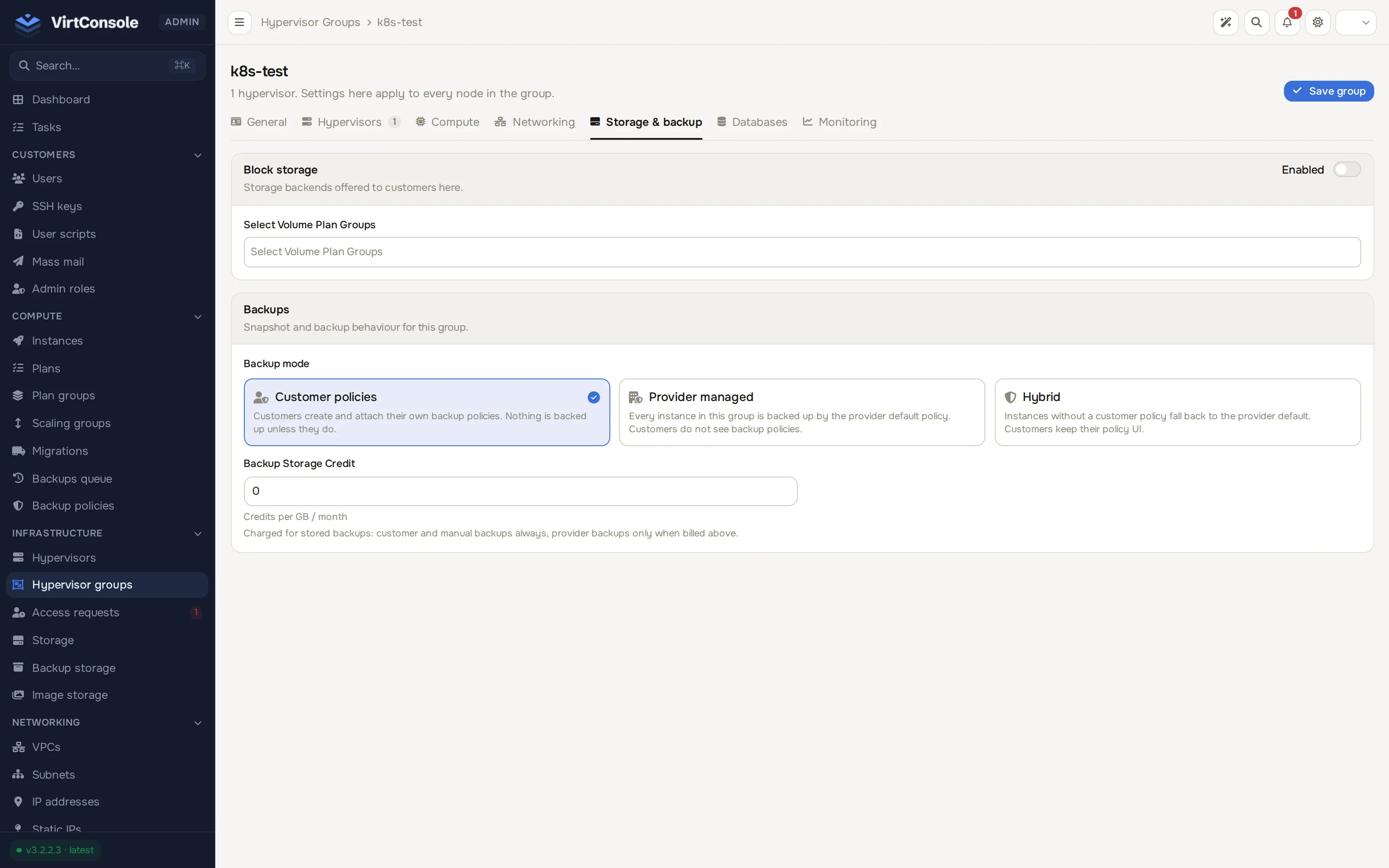
The Backups card sits below a Block storage card on the same Storage & backup tab.
Backup mode
| Mode | What it does |
|---|---|
| Customer policies | Today’s default. Only customer-owned policies run. The group default is ignored. |
| Provider managed | The group’s Provider default policy applies to every regular instance on the group’s hypervisors. Customers cannot attach their own policy to those instances. Existing customer policies stay visible so the customer can delete them, but they no longer run. The customer panel hides Compute > Backup policies when every location available to the account is in this mode (and the account has no leftover policy of its own). |
| Hybrid | The group default applies to instances with no policy of their own. An attached customer policy replaces it for that instance. Customers keep the Backup Policies menu. |
A group in Provider managed or Hybrid must pick an active Provider default policy. Create those policies first under Compute > Backup policies; see Backup policies. One provider policy can be the default of many groups. The panel refuses to delete a provider policy while any group still references it.
Bill customers for provider-managed backups is off by default: provider backups are included in the instance price. Turn it on to count those backups toward the group’s Backup Storage Credit, the same way customer and manual backups already do.
The group’s list shows a mode badge: Customer, Provider, or Hybrid.
Example: back up every instance in a location
Section titled “Example: back up every instance in a location”- Go to Compute > Backup policies and click New policy. Name it
Daily 02:00. Set Full backup frequency toDaily, Full backup time to02:00, and Retention count to3. Times are entered in your admin timezone and stored in UTC. Click Create policy. - Go to Infrastructure > Hypervisor groups and open the group. On the Storage & backup tab’s Backups card pick Provider managed, select
Daily 02:00as the Provider default policy, and leave Bill customers for provider-managed backups off. - Assign an S3 (or other) backup storage to every hypervisor in the group, as below. Optionally set a backup window so jobs only start overnight.
- A deployed, unsuspended instance on that group is queued around 02:00 in your timezone. The customer’s Backups tab shows Backed up by provider with the schedule summary in the customer’s own timezone (for example
Daily at 02:00 UTCfor a UTC account, keeps 3 chains) instead of No backup policy attached. Manual backups and restores stay available.
Throttle backups
Section titled “Throttle backups”Backup load is bounded per hypervisor and per storage destination. These fields do not change whether a backup is due; they change when and how hard it runs.
On the hypervisor’s Backups & HA tab, Backup Configuration card (Infrastructure > Hypervisors, open the host):
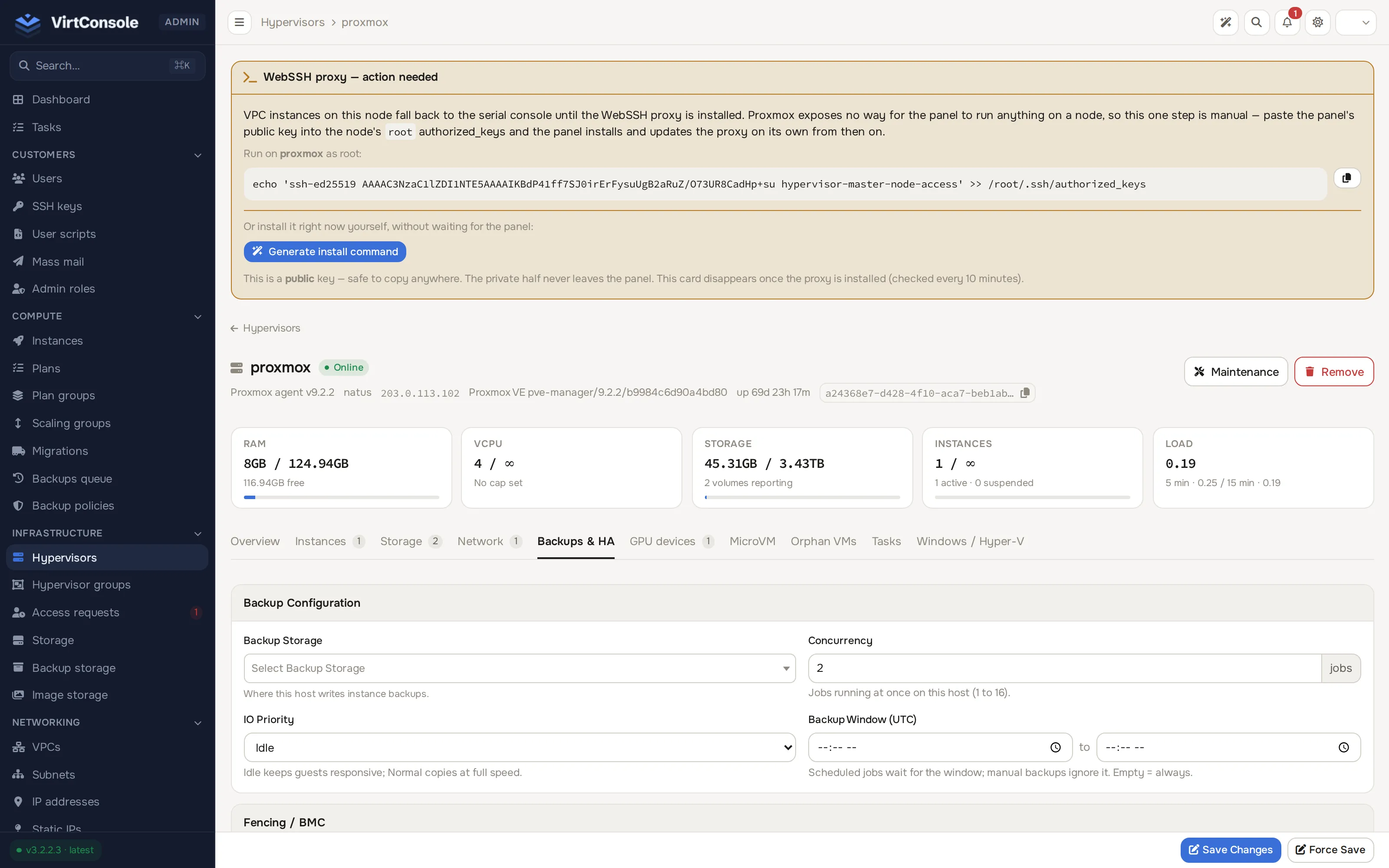
| Field | What it does |
|---|---|
| Backup Storage | Where this host’s instance backups are written. Required before any backup can run. |
| Concurrency | How many backup jobs this host may run at once, in jobs (1 to 16, default 2). Further jobs stay pending until a slot frees. |
| IO Priority | Idle (default) runs the copy at low CPU and IO priority so guests stay responsive. Normal runs at full priority. |
| Backup Window (UTC) | Optional daily from / to range. Policy-origin and provider-managed jobs wait outside the window; they stay pending until the window opens. Manual backups ignore the window and start immediately. Empty means always. |
On the backup storage form, Bandwidth Limit (Mbps) caps write throughput to that destination. Leave empty for unlimited.
Assign backup storage to a hypervisor
Section titled “Assign backup storage to a hypervisor”Backups only run on hypervisors that have a backup storage assigned.
- Go to Infrastructure > Hypervisors and open the hypervisor.
- Open the Backups & HA tab. In the Backup Configuration card, pick the Backup Storage. Set concurrency, window and IO priority if you want them different from the defaults.
- Click Save Changes.
Repeat for every hypervisor that should produce backups.
Watch the backup queue
Section titled “Watch the backup queue”Compute > Backups queue lists every job with filters for hypervisor, instance and status (Started, Done, Failed).
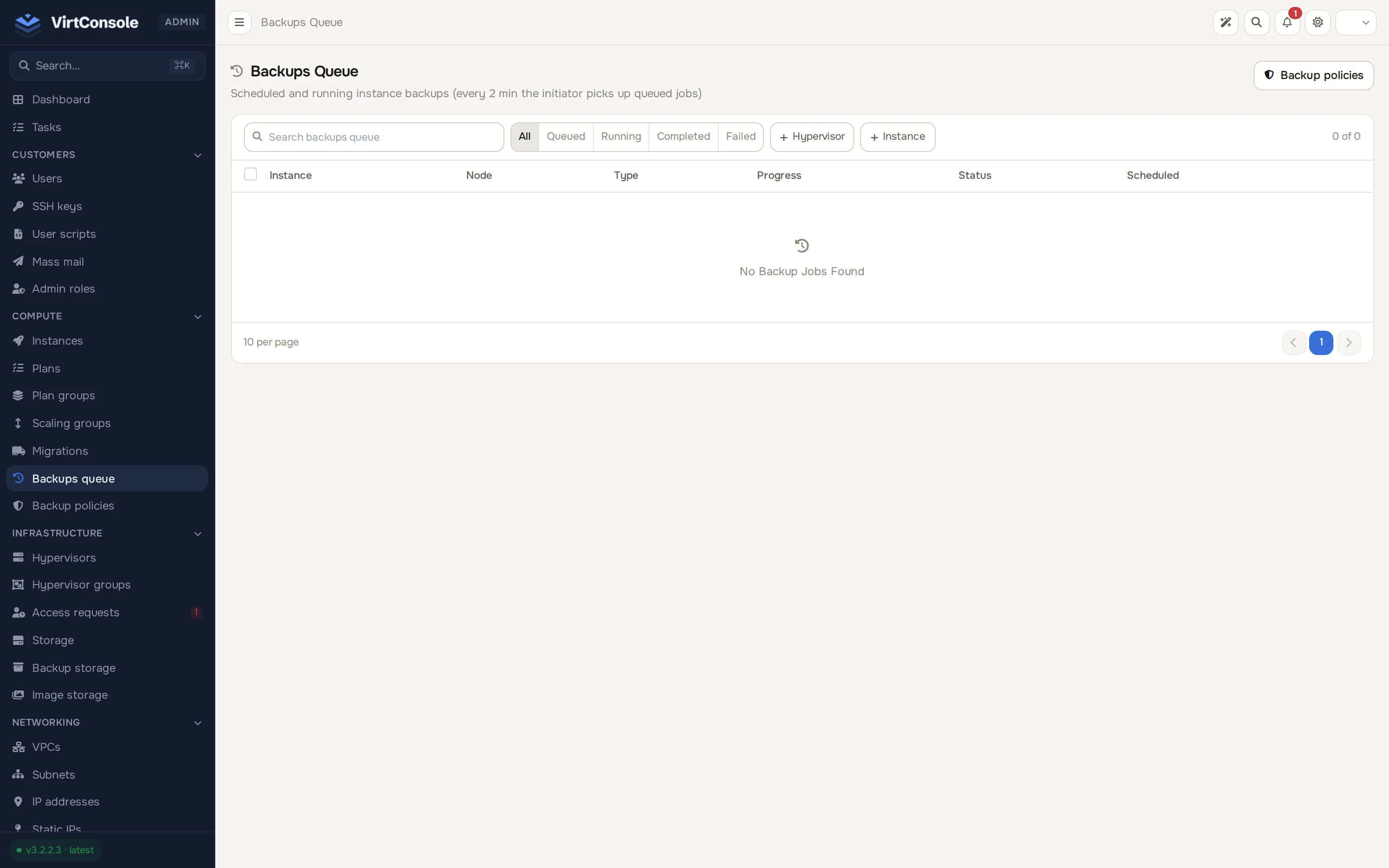
Each row shows the action, hypervisor, instance, backup type (Full or Incremental), disks (Primary or All Disks), a live progress bar, status, age and duration. Click the action cell of a row to expand its log inline.
Two operator actions are available per row:
- Fail: mark a stuck job as failed. It clears the spinner on the instance.
- Remove: delete the queue row.
A backup, restore or delete is never sent to a hypervisor twice. The Master dispatches each job with a one-time admission fence: the hypervisor accepts it exactly once and refuses a repeat of the same job outright. Because of that, Fail and Remove now refuse with a 409 (“This backup operation may still be running. Confirm its remote outcome before changing its state.”) whenever the row’s real outcome on the hypervisor is still unknown to the Master, instead of clearing the row and possibly leaving the hypervisor still working on it. A row in that state shows a Reconcile action instead.
Reconcile a stuck dispatch
Section titled “Reconcile a stuck dispatch”Reconcile appears on a queue row, or on a task in Tasks, once its dispatch state is unclear to the Master, for example after a network blip lost the hypervisor’s acknowledgement. Reconcile does two things in order: it revokes the attempt if the hypervisor has not started running it yet, then reads back the hypervisor’s own durable record of what happened.
- If the hypervisor confirms it never started the job, the row is released: Fail or Remove work normally afterward.
- If the hypervisor is still running it, Reconcile reports that and changes nothing; check back once it finishes.
- If the hypervisor finished the job but the Master never received the success callback, Reconcile reports “Callback not yet confirmed” and still does not release the row. This is the safest outcome to be wrong about: releasing it here could let a second, colliding job start while the first one’s result is still in flight. Wait for the callback to arrive, or, for a backup deletion specifically, use the dedicated deletion reconcile screen below.
Reconcile currently covers native KVM hypervisors. A Proxmox VE node is reconciled through its own existing task evidence; there is no separate Reconcile button for it.
If a Proxmox restore’s stop request times out, the task and the hypervisor’s storage lock now stay held for you to reconcile by hand, rather than releasing automatically, because Proxmox HA may still be applying the stop in the background. A restore that fails before it ever reaches Proxmox (for example a missing guest) still releases on its own as before.
See every backup on the platform
Section titled “See every backup on the platform”Compute > Backups lists every instance backup on the platform in one place, including backups that belong to an already-destroyed instance, with search and filters for instance, owner, destination, backup type, result (completed or failed), verification state, protection, and instance state (live or deleted). Each destination option shows its storage type, for example (PBS), and the filter has no separate storage type option.
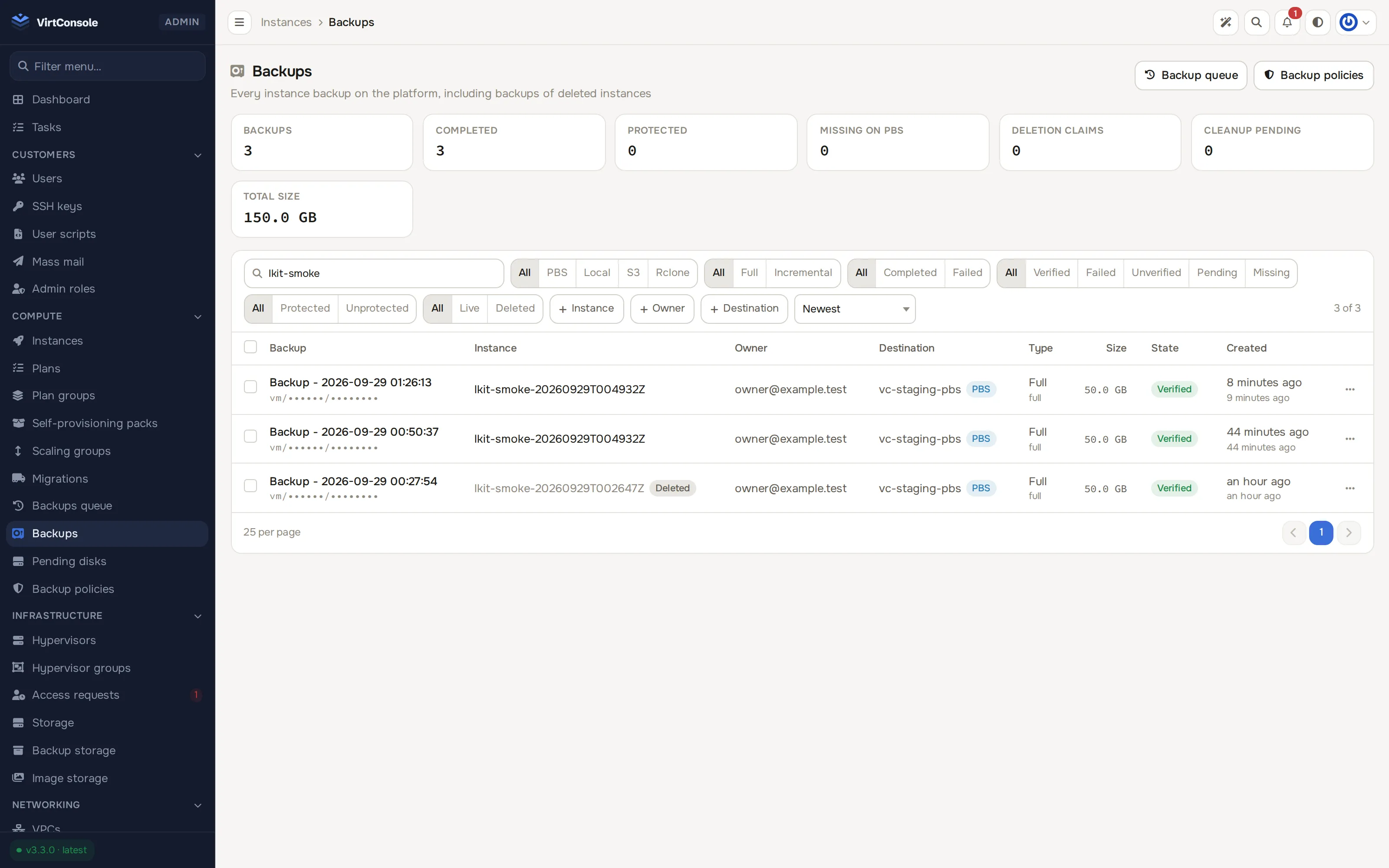
A stat strip at the top of the page shows totals, protected count, missing-on-PBS count, a Deletion claims count (rows currently being deleted) and total stored size. Cleanup pending is one of them: it counts backups whose owning instance was destroyed with deletion requested, but whose physical cleanup has not finished yet or gave up. These counts are read-only; to see the matching rows, look for the row’s own Cleanup pending, Being deleted or Deletion stuck badge, or query the admin API with issue=cleanup_pending or claim=held.
From this list you can protect or unprotect a backup, delete one or several at once (tick rows and use Delete Selected), open the owning instance, or use Restore to new instance on a Proxmox Backup Server backup. Restore and Restore to new instance are hidden on a row whose deletion is currently held, along with Protect/Unprotect and Delete; reconcile the row first.
Reconcile a stuck backup deletion
Section titled “Reconcile a stuck backup deletion”A backup row shows Reconcile deletion (or View deletion while a node task for it is still running) whenever its deletion is held. Click it, or open Compute > Backups and use the row action, to open the reconcile page for that backup.
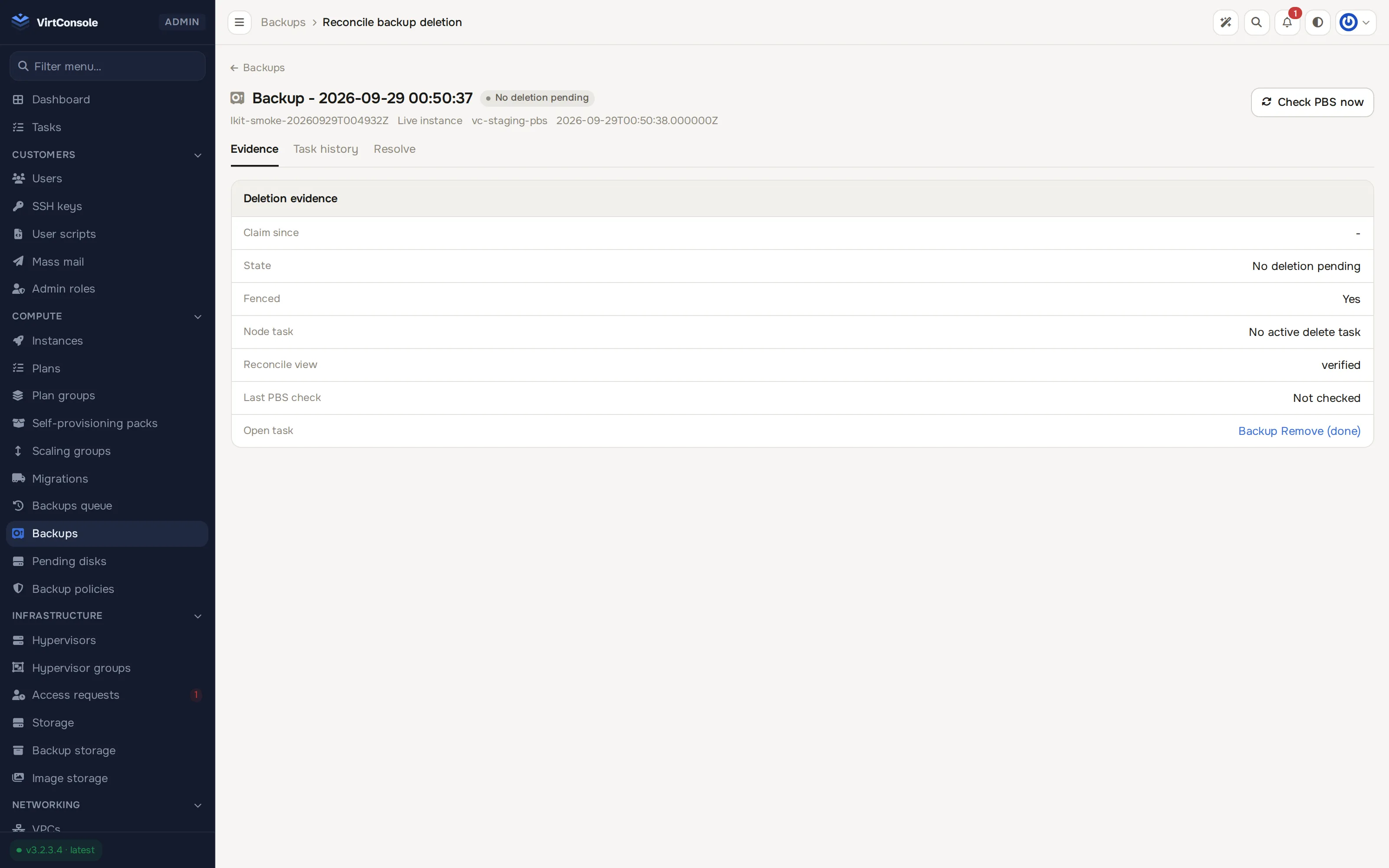
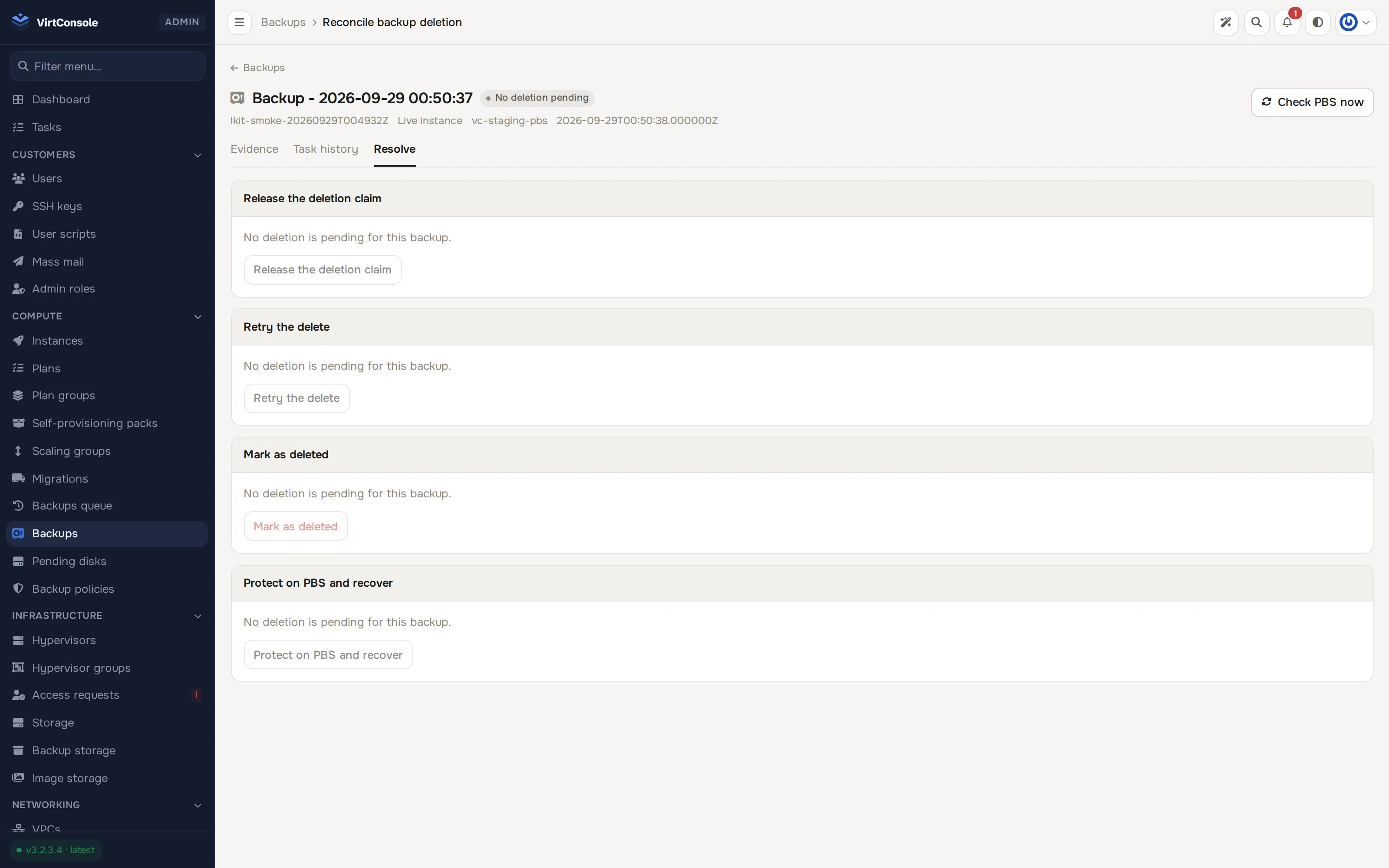
The page shows why the deletion is held (its claim state, in plain words), the matching task history, and, on a Proxmox Backup Server backup, a Check PBS now button that asks the destination directly whether the snapshot is still there. It offers up to four resolutions, each only when its preconditions are actually met:
- Release the deletion claim: available only when the hypervisor has not started the delete yet. Use this to give up on a delete that never reached the hypervisor (for example the hypervisor was offline) so the backup can be protected, restored or deleted again normally.
- Retry the delete: sends the same delete request again with the same claim, once a live task check and (on PBS) a fresh snapshot check both confirm nothing is actually running against it.
- Mark as deleted: for a Proxmox Backup Server backup only, once a fresh check confirms the snapshot is genuinely gone from the destination. Use this when the hypervisor deleted the snapshot but its callback never reached the Master.
- Recover a still-protected snapshot: for a Proxmox Backup Server backup whose delete reached an unclear outcome while the snapshot itself was left protected on the destination. This verifies the snapshot’s protection state directly against PBS before releasing the claim; it never guesses.
Once the hypervisor has actually started running a delete (the claim reads executing, or the hypervisor’s own agent predates this admission fence and the claim reads unfenced), none of these resolutions force a release. That is deliberate: an executing delete may really be deleting the backup at that moment, and no evidence available to the Master can prove otherwise while the job is in flight. A held deletion in that state resolves only when the hypervisor’s own terminal result arrives, or (on PBS) once a fresh check proves the snapshot is genuinely absent. The page’s own copy says so and names the next step: drain that hypervisor’s backup queue workers, or wait for its own result.
Run a manual backup for a customer
Section titled “Run a manual backup for a customer”Admins can start a one-off backup from any instance, as long as its hypervisor has a valid backup storage.
- Go to Compute > Instances and open the instance.
- Open the Backups tab and click Create Backup.
- Choose the Backup Type (
Full BackuporIncremental Backup) and the Backup Device (primary disk only or all disks). - Click Create Backup. The job is queued immediately and progress shows in the tab.
Restores start from the same tab. A restore overwrites the instance’s current disk.
What happens next
Section titled “What happens next”Scheduled backups follow the instance’s effective policy: the group’s provider default when the group is Provider managed (or Hybrid with no customer policy), otherwise the customer’s own policy. Customers manage their backups from their panel; see Instance backups (user guide).
Backups are kept when an instance is destroyed
Section titled “Backups are kept when an instance is destroyed”Destroying an instance keeps its backups by default; it no longer removes their rows or the underlying files as a side effect of the destroy. A kept backup keeps billing for its stored size, stays visible to its owner, and can still be restored to a new instance or deleted on demand, including well after the instance itself is gone (find it from Compute > Backups above).
Every place that destroys an instance offers a delete backups choice, off by default: the admin panel’s destroy dialog, the admin API’s DELETE /api/v1/instance/{instanceId} body, and the equivalent user-facing surfaces. Choosing to delete backups queues physical deletion for each one only after the hypervisor’s destroy callback has finished billing and soft-deleted the instance; a protected backup is never deleted by this choice and stays regardless. If that cleanup does not finish (the hypervisor was unreachable, a delete was left held, and so on), the affected backups carry the Cleanup pending badge described above until it does, or until you resolve them by hand.
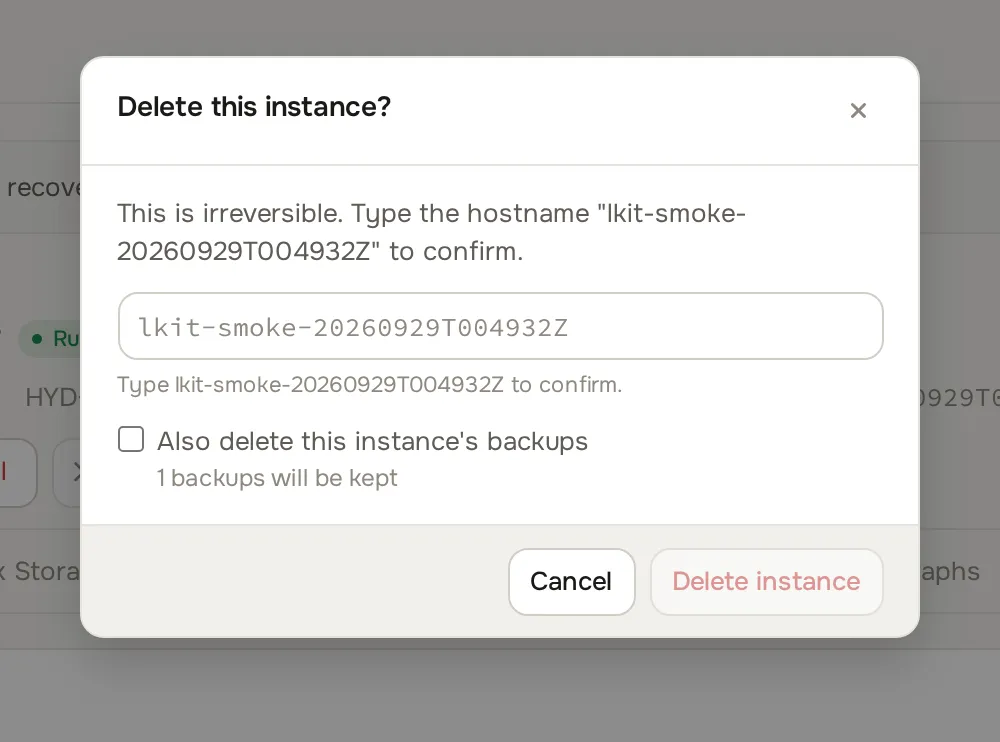
Destroys the platform itself initiates, such as autoscaling scaling down, a Kubernetes node being replaced or a cluster deleted, and the appliance instances behind a load balancer, managed database or VPN gateway, still request backup deletion, since those backups have no separate customer-facing surface to manage them from. Protected backups still remain regardless of who or what requested the destroy.
Deleting backups next to other work
Section titled “Deleting backups next to other work”On KVM nodes, deleting a backup no longer blocks other actions on the instance, and other running actions no longer block a delete. A bulk delete of several backups of the same instance sends every row. A delete is still refused on the node while a backup or restore of that instance is running, and a new backup or restore is refused while a delete of that instance is running. Proxmox nodes are unchanged. The tasks array in the user API instance payload no longer lists backup delete tasks.
Node credential grants
Section titled “Node credential grants”A backup, restore or delete dispatched to a Proxmox Backup Server destination carries a short-lived, signed grant that is the only thing that lets the hypervisor look up the destination’s credentials for that one job; the credentials themselves are never embedded in the dispatch. The grant’s clock starts the first time it is issued, when the job is first dispatched, and that starting point never moves; requesting it again for the same job does not push the deadline out. The hypervisor has 24 hours from that moment, measured by the Master’s own clock, to fetch the credentials. Once it has fetched them and started the transfer, the grant no longer matters; a very large restore or backup that runs for days keeps working normally. The window only bounds how long a job may sit queued and not yet started.
In practice this only bites a job that sat queued for a long time before the hypervisor could reach it, for example because the hypervisor was offline or its queue workers were stopped for an extended maintenance window. A queued backup or restore that misses the window is refused when the hypervisor finally tries to fetch its credentials; redispatch it (retry the backup or restore from the relevant queue or task row) to get a fresh grant. A queued delete that misses the window is refused earlier, before the Master admits it to run at all; retry the delete the same way.
Pending disks
Section titled “Pending disks”Compute > Pending disks lists instance disks the platform could not safely provision automatically, most often after an interrupted resize or an offline disk change. A pending disk stays unattached and unbootable until you inspect and repair it from that page. A repair request that cannot prove it made no changes to the disk is refused rather than guessed at, and stays held until you look at it directly; the page’s own evidence and copy tell you what it found and what to do next.
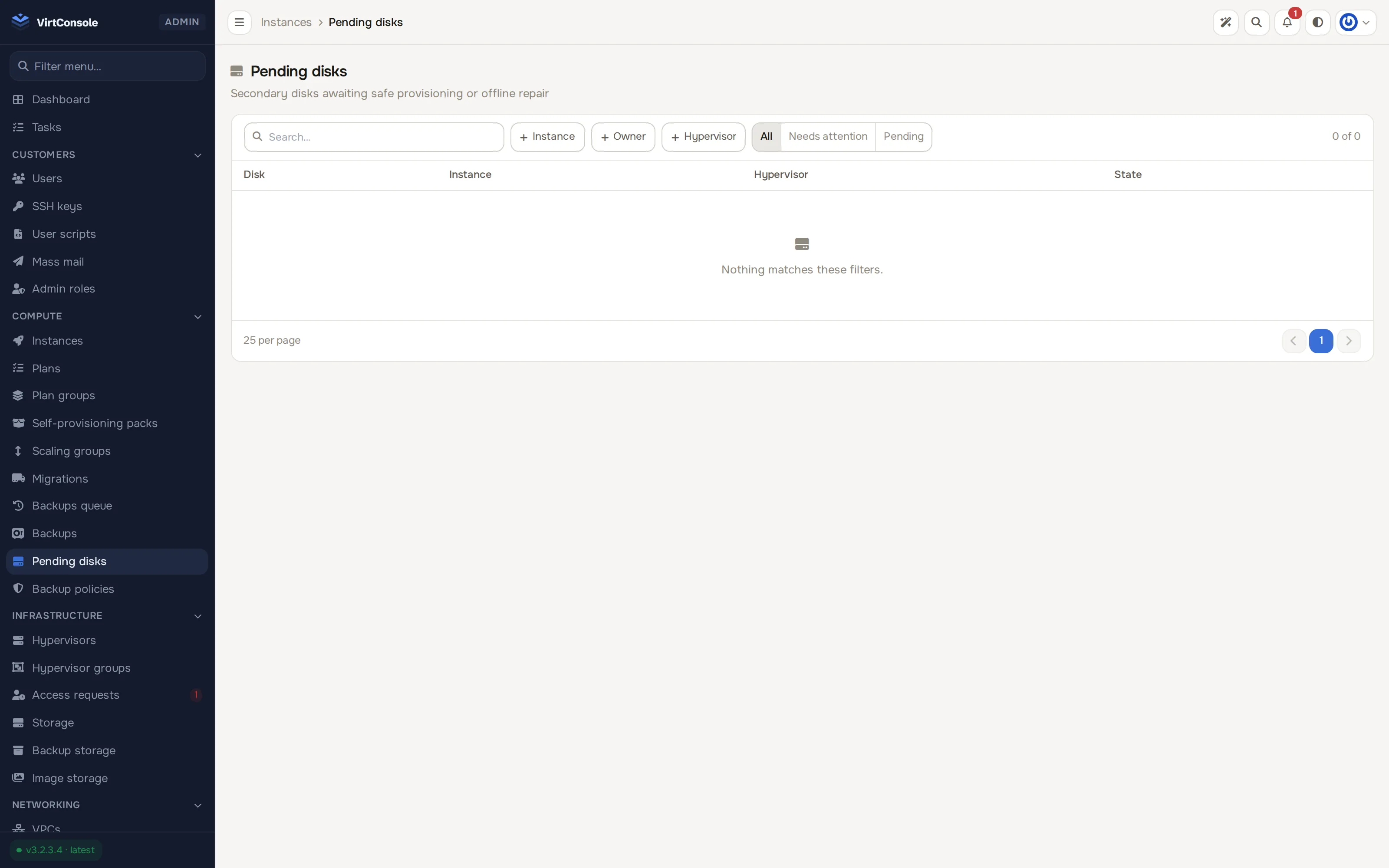
This is a disk-provisioning safety mechanism, not part of the backup pipeline; it is mentioned here only because it shares the platform’s general fail-closed reconciliation approach with the backup dispatch and deletion reconcile above.
Common problems
Section titled “Common problems”- Backups fail with “No backup storage is attached to this hypervisor”. Open the hypervisor’s Backups & HA tab and assign a Backup Storage in the Backup Configuration card, then retry.
- A job is stuck in progress forever. Click Fail on the queue row. If it refuses with a
409and points you at Reconcile instead, its outcome on the hypervisor is not yet confirmed; use Reconcile first. Once it clears, the next scheduled run starts clean. - Scheduled jobs sit in pending and never start. Check the hypervisor’s backup window (policy and provider-managed jobs wait outside it) and Concurrency (the host is already at the cap). Manual backups ignore the window.
- A group will not save in Provider managed or Hybrid. Create a provider policy first, then pick it as the Provider default policy.
- An incremental job produced a full-size backup. The change tracking on the disk was reset (for example after a failed run). The next scheduled incremental behaves normally.
- Upload errors on an Rclone destination. The remote is missing or broken on that hypervisor. Re-check
rclone configon the host and the remote name on the storage entry. - A backup’s deletion has been stuck for a while. Find it in Compute > Backups by its Being deleted or Deletion stuck badge and use its Reconcile deletion action; see Reconcile a stuck backup deletion above.
- A backup, restore or delete failed right after a hypervisor came back from a long outage. It likely sat queued past its 24-hour credential grant; see Node credential grants above and redispatch it.
- Backups pile up under Cleanup pending after a bulk instance cleanup. The destroy-time deletion for those instances did not finish; find them in Compute > Backups by the Cleanup pending badge (or the Cleanup pending stat count), and reconcile or retry each one from its row.