

Connectors
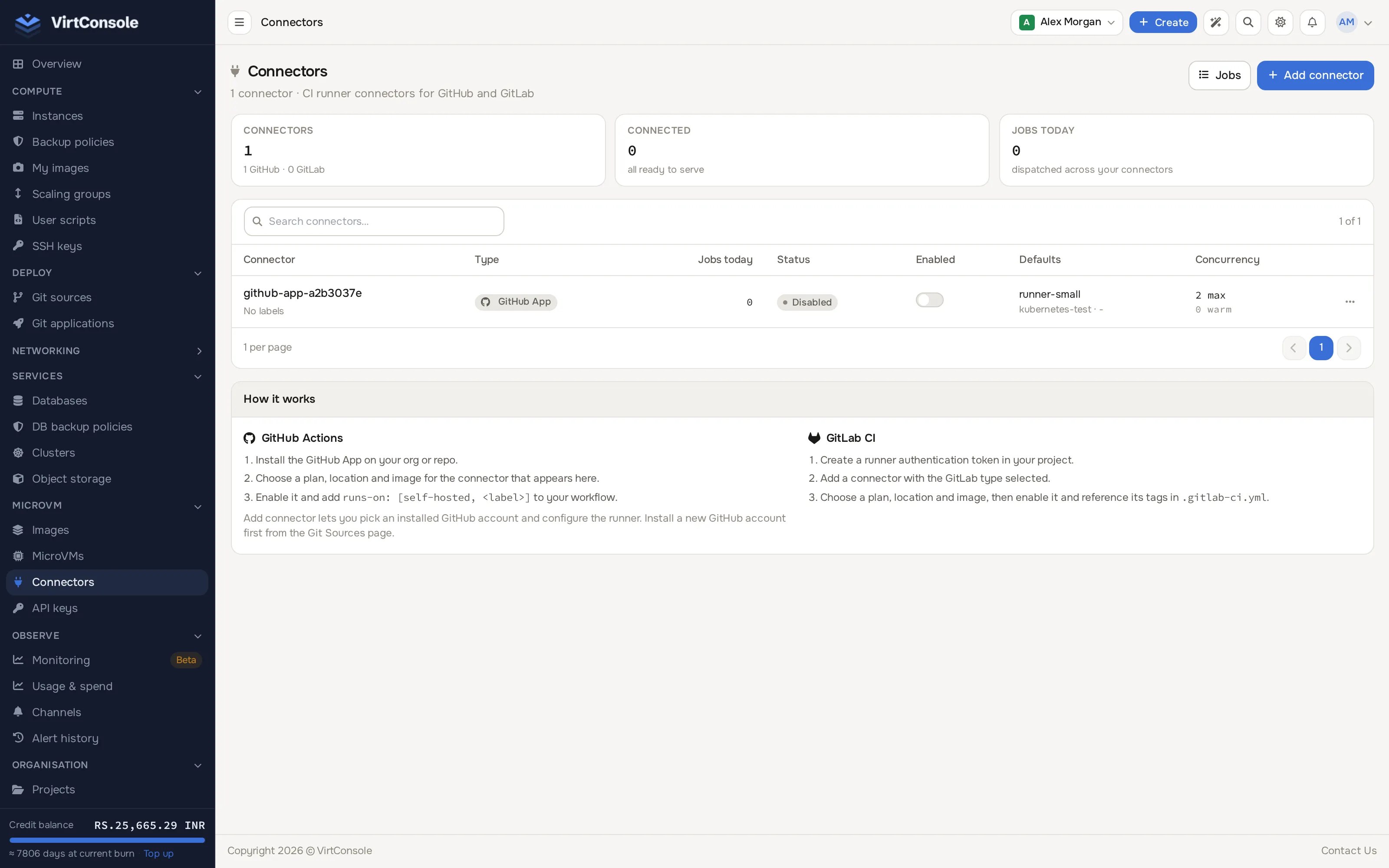
A connector launches MicroVMs automatically as CI runners when your GitHub or GitLab pipelines need one, instead of you creating and destroying MicroVMs by hand for every job.
Where to find it
Section titled “Where to find it”In the user panel go to MicroVM > Connectors.
Add a connector
Section titled “Add a connector”Click Add connector to open the modal, then choose the type card:
GitHub App
Section titled “GitHub App”- Install the GitHub App on your organization or repository first, from the Git sources page, if you have not already.
- Click Add connector, choose the GitHub App card.
- Pick the installed GitHub account, give the connector a Name, and optionally Labels (comma-separated, used to target it from a workflow).
- Pick a Location, Plan and Image for the runner MicroVMs, and set Max concurrent and Warm pool size.
- Click Add connector, then enable the connector from the list.
- In your workflow, target it with
runs-on: [self-hosted, <label>].
GitLab runner
Section titled “GitLab runner”- Create a runner authentication token in your GitLab project or group.
- Click Add connector, choose the GitLab runner card, and enter the GitLab URL and the Runner authentication token.
- Add optional Tags, then pick a Location, Plan and Image, and set Warm pool size.
- Click Add connector, then enable the connector from the list, and reference its tags in
.gitlab-ci.yml.
Fields
Section titled “Fields”| Field | What it does |
|---|---|
| Labels / Tags | What a workflow or pipeline uses to target this connector. |
| Location, Plan, Image | Where and how the runner MicroVMs are placed and sized. Leave the image unset to use the platform’s own CI runner image. |
| Max concurrent | The most runner MicroVMs this connector keeps running at once. GitHub App connectors only. |
| Warm pool size | How many runner MicroVMs are kept booted and idle, ready to pick up a job instantly instead of booting one from scratch (0-5). |
| Enabled | Turns the connector on or off without deleting it, from the list’s toggle. |
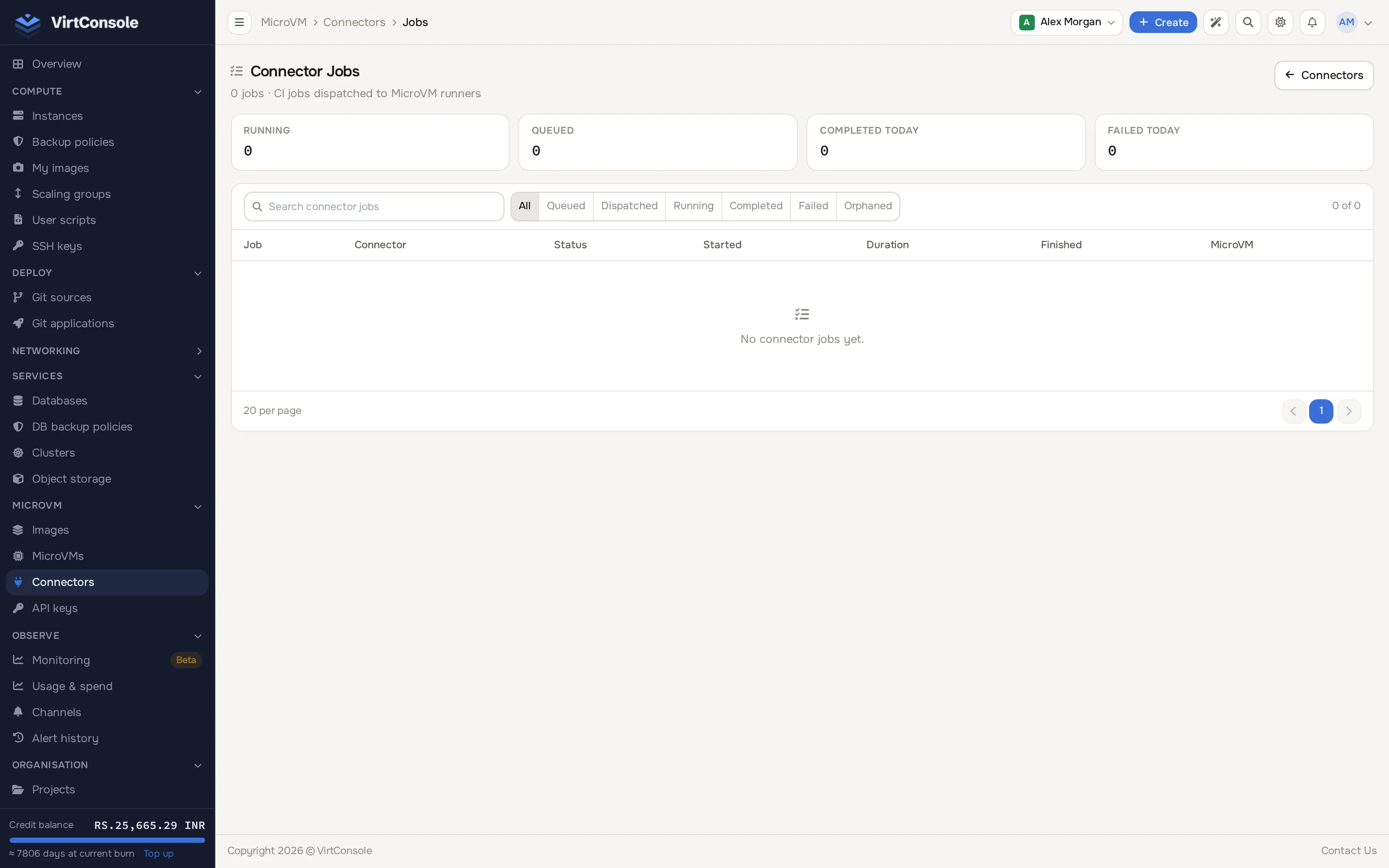
Click Jobs from the Connectors page to see the history of runner MicroVMs launched by your connectors: the connector, the provider’s job ID, the repository, status (queued, dispatched, running, completed, failed, orphaned), which MicroVM ran it, minutes used, and when it started and finished.
Common problems
Section titled “Common problems”- A workflow never picks up the self-hosted runner. The label in
runs-ondoes not match one of the connector’s labels, or the connector is disabled. - Jobs pile up as “queued”. Max concurrent is capping how many runner MicroVMs can run at once; raise it or wait for jobs to finish.
- The connector shows suspended. Your account balance went negative while MicroVM billing is enabled; top up your account.