

Support tickets
VirtConsole ships a full helpdesk. Customers open tickets from the user panel, your team works them from the admin panel, and everything (departments, priorities, SLA timers, notifications, attachments) is configured inside the platform. No external ticketing tool or separate login is required.
Terms used on this page
Section titled “Terms used on this page”| Term | Meaning |
|---|---|
| Department | A named queue a ticket is opened against, for example “Billing” or “Technical”. Department membership routes notifications and filters the queue; it is not an access boundary. |
| Priority | Low, Normal, High or Urgent. Drives which SLA policy applies. |
| SLA policy | A first-response and resolution time target for a department and priority pair, or a global default. |
| Internal note | A staff-only message on the thread that a customer can never see. |
| Linked resource | An instance, volume, cluster, database, load balancer, bucket or VPC the customer attached to the ticket, picked only from resources the account owns. |
| AI triage | An AI pass over a ticket that files an internal note with an assessment, a suggested reply and suggested actions. |
The whole support area is one section with five tabs across the top of every page in it: Tickets, Reports, Departments, SLA Policies and Channels. You can jump between them either from those tabs or from their own entries in the Support group of the sidebar, and a Support settings button in the top right of every one of them opens the ticket settings on System > Settings.
The ticket queue
Section titled “The ticket queue”In the admin panel go to Support > Tickets. A one-line summary at the top shows how many tickets are open, unassigned and SLA-breached, then four stat cards: Open, Awaiting customer, SLA at risk and Closed · 30 d. Below that, All / Unassigned / Mine tabs (each with a badge count) narrow the queue to what matters to you right now.
The queue lists every ticket with its number, Subject, Department, Priority, Agent, Status, SLA timers, Updated and Created date. Filter by search text, status, priority, department or agent. Open and unassigned counts also show as badges on the Tickets entry in the sidebar.
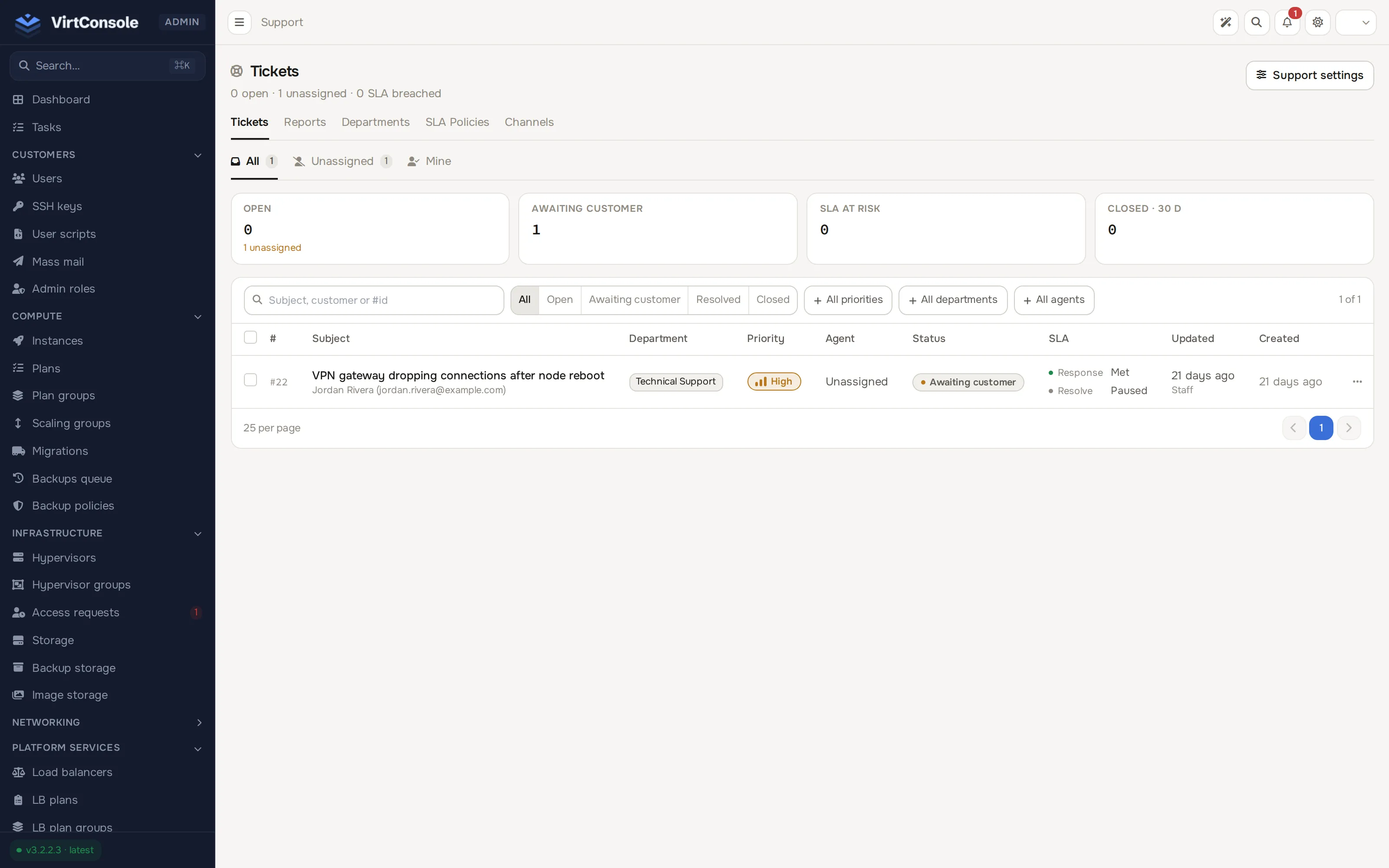
A ticket moves through: open, pending (shown to the customer as awaiting customer), resolved, closed.
- A resolved ticket auto-closes after a configurable window with no customer reply.
- After resolving, a new customer reply reopens the ticket within the configured reopen window.
- Both windows are set under System > Settings on the Support tab (Auto-close after resolved (hours), Reopen window after resolve (days)).
On a ticket page you can reply on the shared thread, post an internal note, change status, priority and department, and assign the ticket. When the customer linked a resource, a resource context card shows its live status, recent metrics, recent tasks and events, so you do not need a second tab open.
Departments
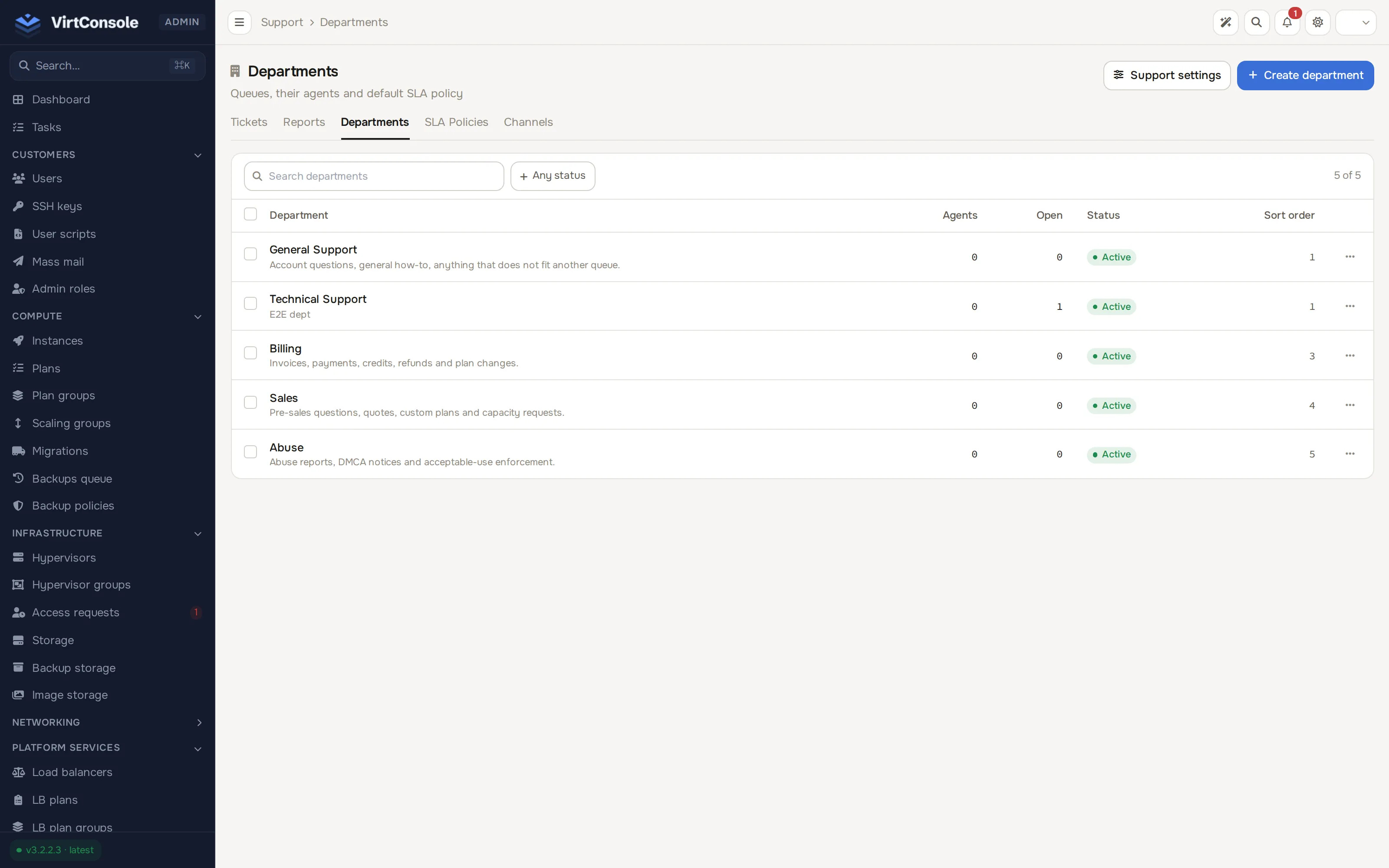
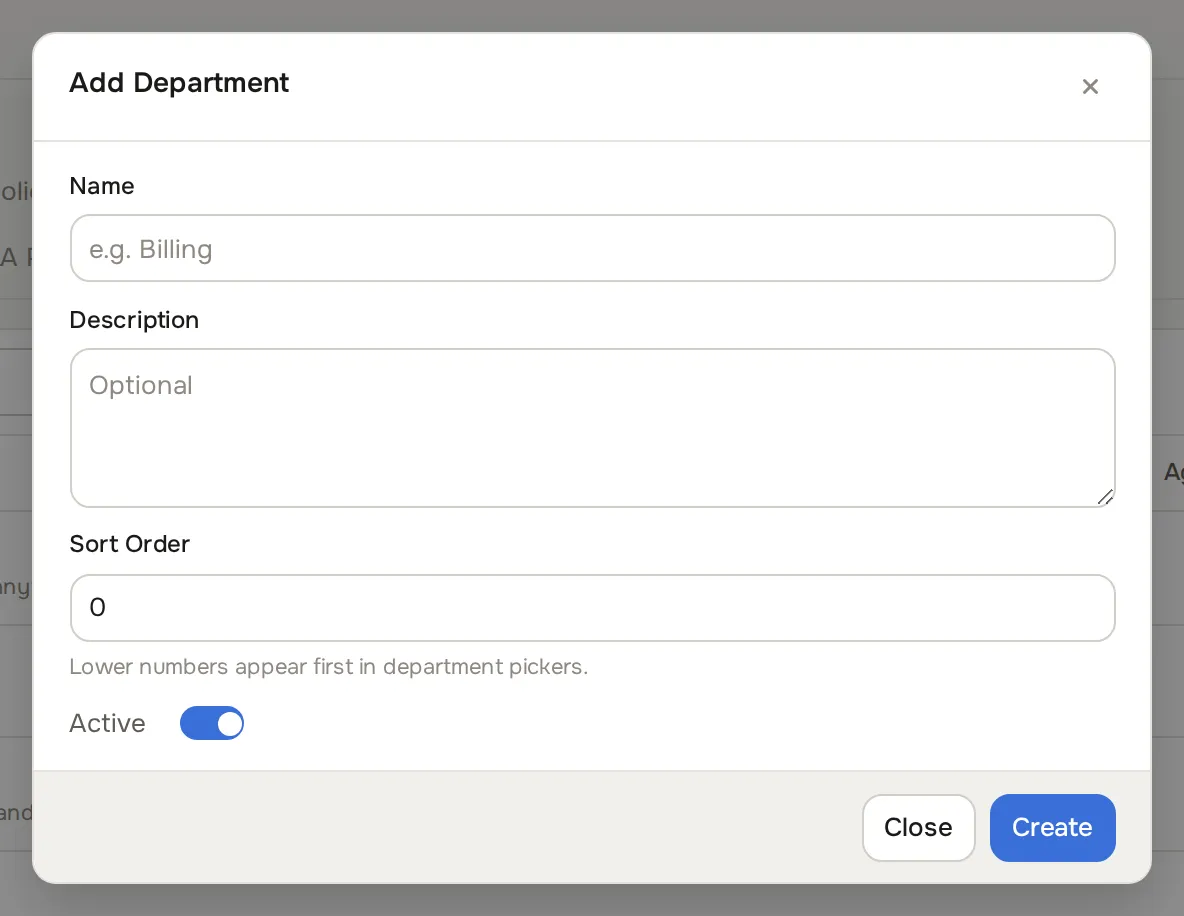
Section titled “Departments”Go to Support > Departments. Each department has a name, description, sort order and active state.
Click Create department to create one. The Add Department dialog opens.
Use Members on a row to pick the admins who receive that department’s notifications.
SLA policies
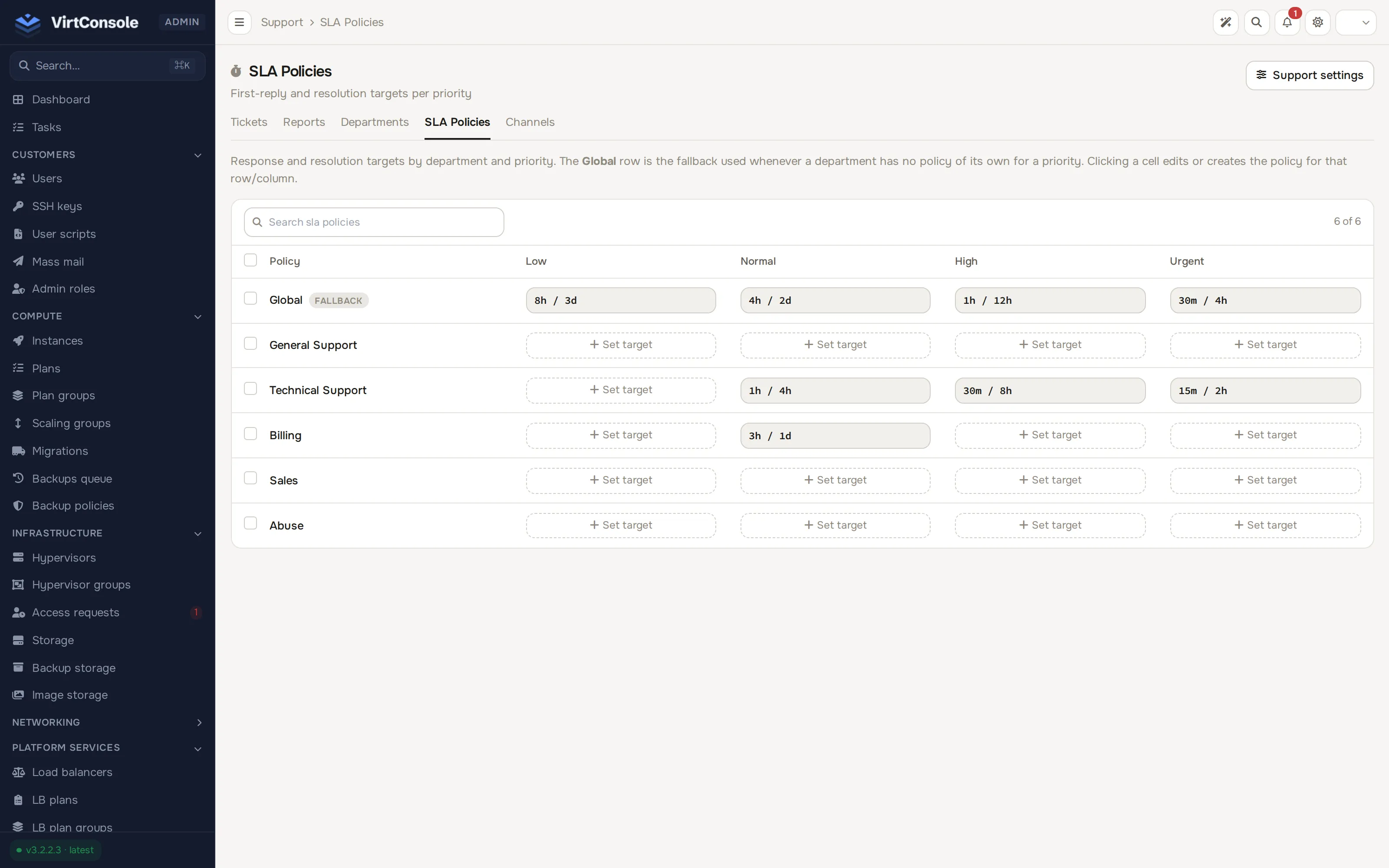
Section titled “SLA policies”Go to Support > SLA Policies. The page is a matrix of departments (rows) by priority (columns: Low, Normal, High, Urgent); click a cell to set its first-response and resolution targets, shown together as response / resolution (for example 1h / 4h). An empty cell shows + Set target. The Global row, marked FALLBACK, is the default used whenever a department has no policy of its own for a priority.
The timers are honest about waiting time:
- First response is stamped and evaluated against the due time computed when the ticket was created.
- Resolution is pause-aware: moving a ticket to
pendingpauses its clock, and the next reply resumes it. Time spent waiting on the customer never counts against your team. - SLA due times are stamped once, at ticket creation. Changing a ticket’s priority or department afterwards does not re-stamp them.
Notification channels
Section titled “Notification channels”Go to Support > Channels and click Add channel. Each channel delivers ticket events to one destination:
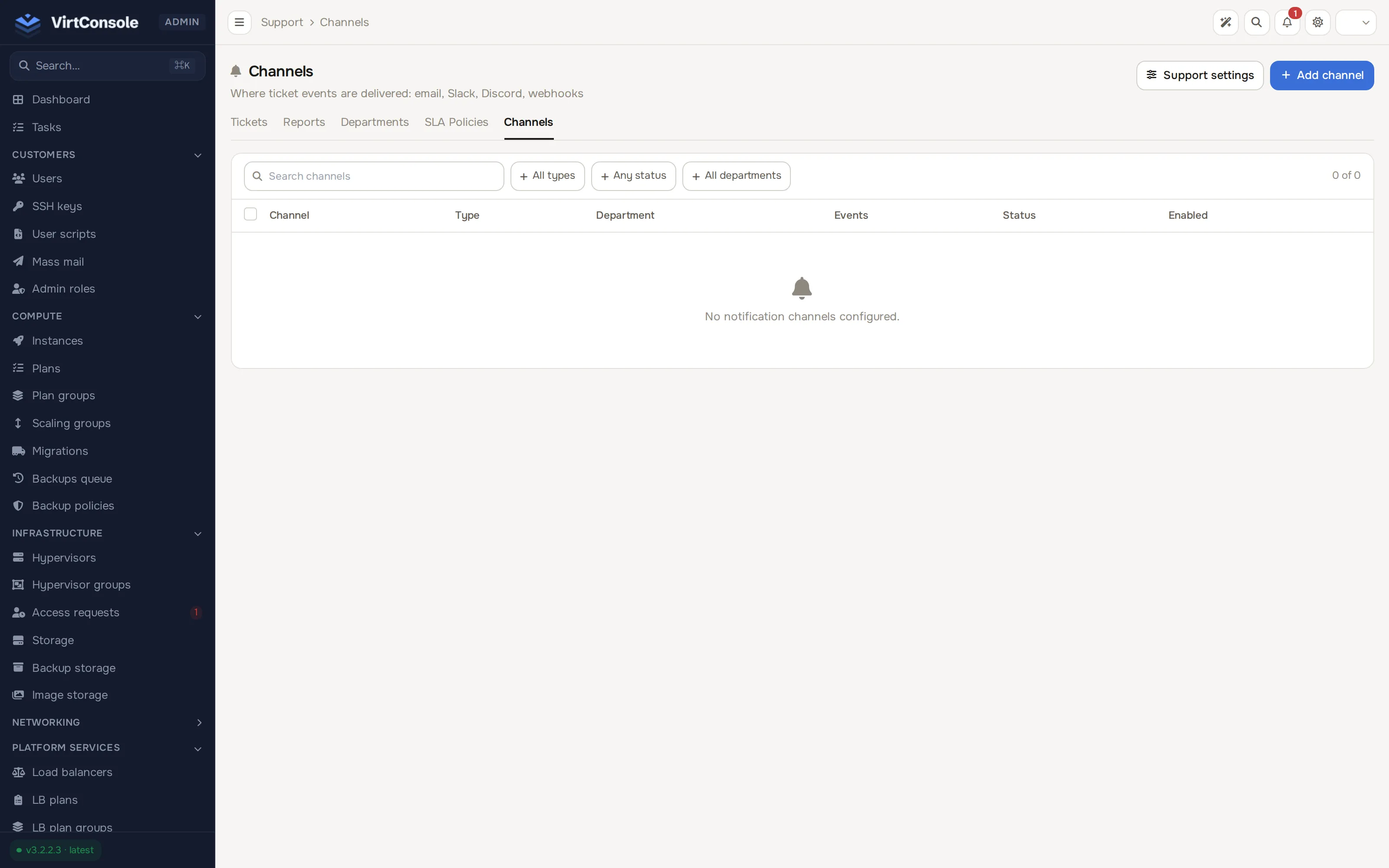
| Field | What to enter |
|---|---|
| Name | A label for the channel. |
| Type | Slack, Discord, Telegram or Webhook. Each type then asks for its credential (webhook URL, bot token, or headers for a generic webhook). |
| Department | One department, or leave global to fire for every department. |
| Events | One switch per event: ticket created, ticket resolved, staff reply, customer reply, SLA breach. |
Use the test action on a channel row to verify the credential. Delivery is best-effort per channel: a broken webhook never blocks email or another channel, and a channel that fails repeatedly is disabled automatically with the reason recorded. Re-enable it from the list once the credential is fixed.
AI triage
Section titled “AI triage”When the AI Assistant is configured, triage can pre-analyse tickets. The switches live under System > Settings on the Support tab:
- Triage new tickets: on every new ticket the assistant inspects the linked resources with read-only tools and adds an internal note with an assessment, a suggested reply you can load into the composer, and suggested actions.
- Re-triage on customer reply: runs the assistant again whenever the customer replies, so the assessment stays current.
On any ticket you can also trigger a fresh run with the AI analysis button on the ticket page. Triage never blocks ticket handling, and its notes are internal: the customer never sees an AI-authored message. See AI Assistant.
Attachments and settings
Section titled “Attachments and settings”Ticket settings live under System > Settings on the Support tab:
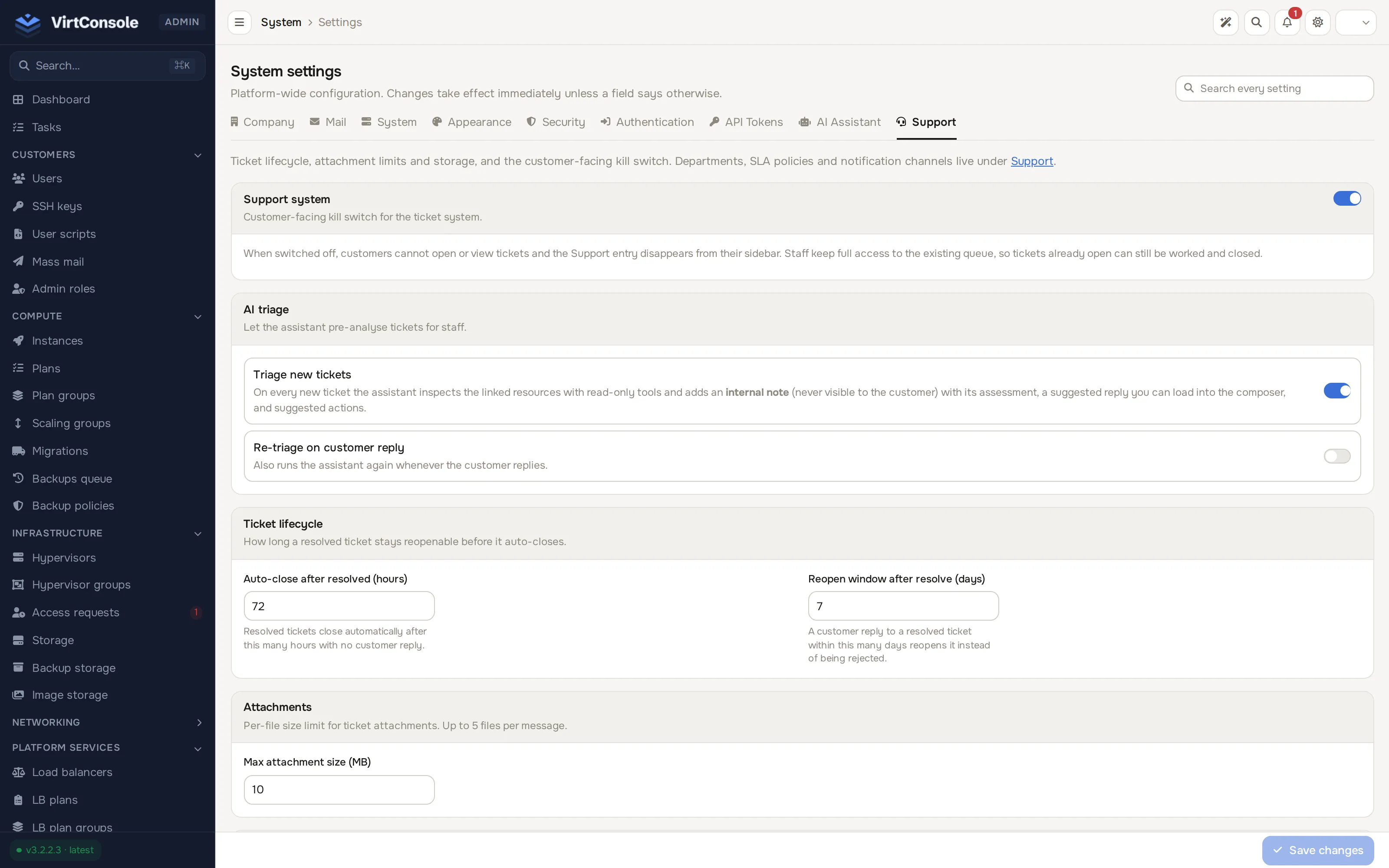
| Setting | What it does |
|---|---|
| Support system switch | The customer-facing kill switch. Off, customers cannot open or view tickets and Support disappears from their sidebar; your team keeps full access to the existing queue. |
| Auto-close after resolved (hours) | When a resolved ticket closes by itself. |
| Reopen window after resolve (days) | How long a reply can reopen a resolved ticket. |
| Max attachment size (MB) | The upload limit for customers and staff. |
| Storage backend | Local disk or S3-compatible (with endpoint, region, bucket, keys) for attachment storage. |
| clamd socket | The ClamAV socket used to virus-scan every upload. |
| Accept uploads when the scanner is unreachable | Whether a scanner outage fails open (accept) or closed (reject uploads). |
Images and PDFs preview in the browser instead of forcing a download. Switching the storage backend only changes where the next upload lands; existing attachments keep resolving from where they were written.
Reports
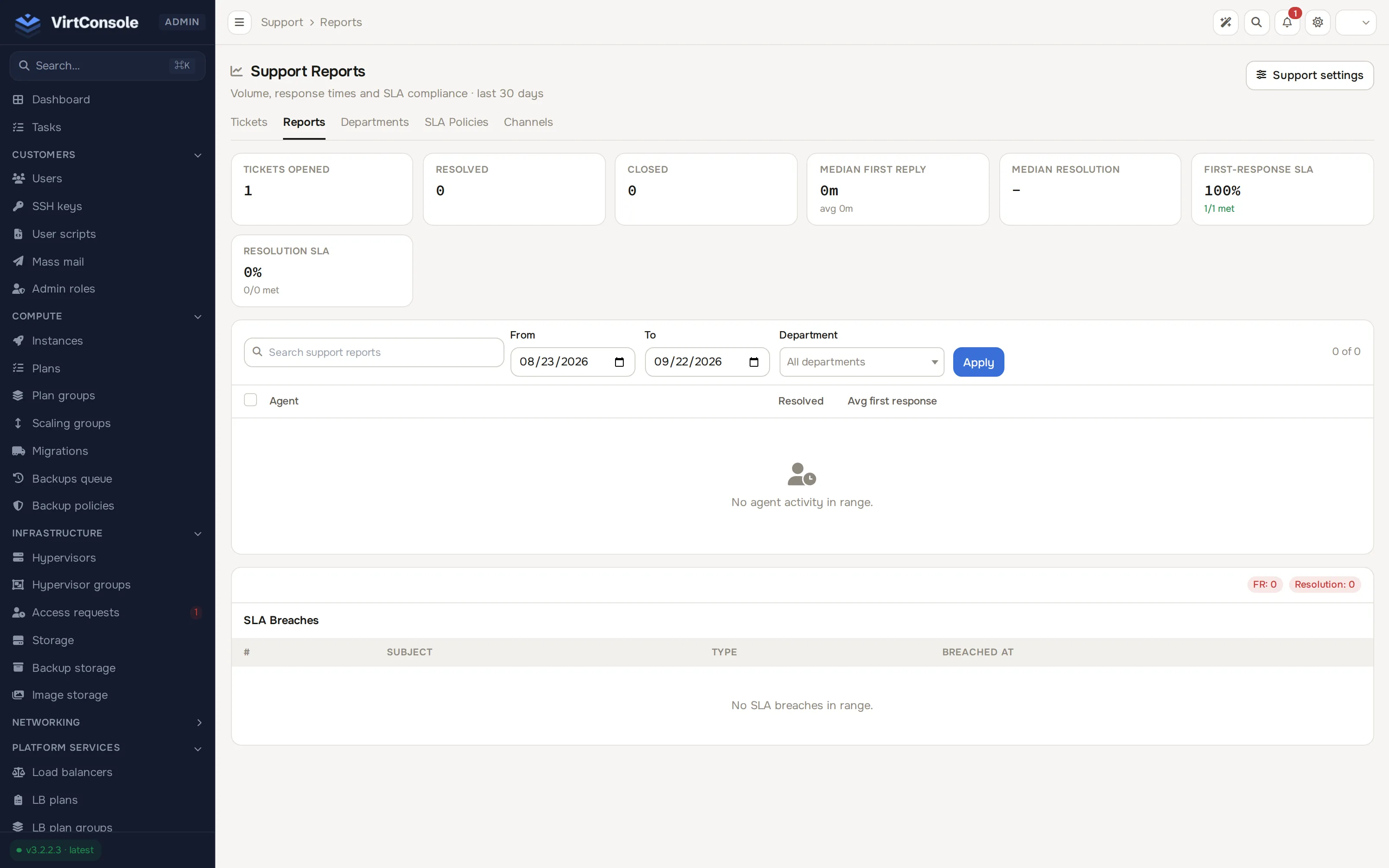
Section titled “Reports”Go to Support > Reports. Stat cards across the top show Tickets Opened, Resolved, Closed, Median First Reply, Median Resolution, First-Response SLA and Resolution SLA for the selected window. Pick a From and To date (and optionally one department), then click Apply. Below that, a per-agent table (resolved count and average first response) and an SLA Breaches table list the tickets that missed their target. Attainment is computed from each ticket’s actual due dates, so the numbers hold up even when a ticket resolved moments after a breach would have been flagged.
Team permissions
Section titled “Team permissions”Staff admin roles gate the support area:
| Permission | Grants |
|---|---|
support.tickets.view |
View the queue, tickets and resource context. |
support.tickets.manage |
Reply, change status, priority, department and assignment, trigger AI analysis. |
support.settings.manage |
Configure departments, SLA policies, channels and the support settings tab. |
support.reports.view |
View the reports page. |
See Admin roles for assigning them.
Common problems
Section titled “Common problems”- A customer says they cannot see support anywhere. The kill switch is off under System > Settings > Support. Turn it back on.
- Attachments are rejected. The ClamAV socket is unreachable and the scanner is set to fail closed. Check the socket path, or change the failure behaviour.
- A notification channel stopped sending. It auto-disabled after repeated failures. Fix the credential (an expired webhook URL or revoked bot token is usual) and re-enable it under Support > Channels.
- Triage notes never appear. The AI Assistant is not configured, or the triage switches are off. Triage failures are logged rather than shown on the ticket. See AI Assistant.