

Tasks
Every long-running operation on the platform runs as a tracked task. This page explains what a task is, how to follow one, and what to do when one fails.
What it is
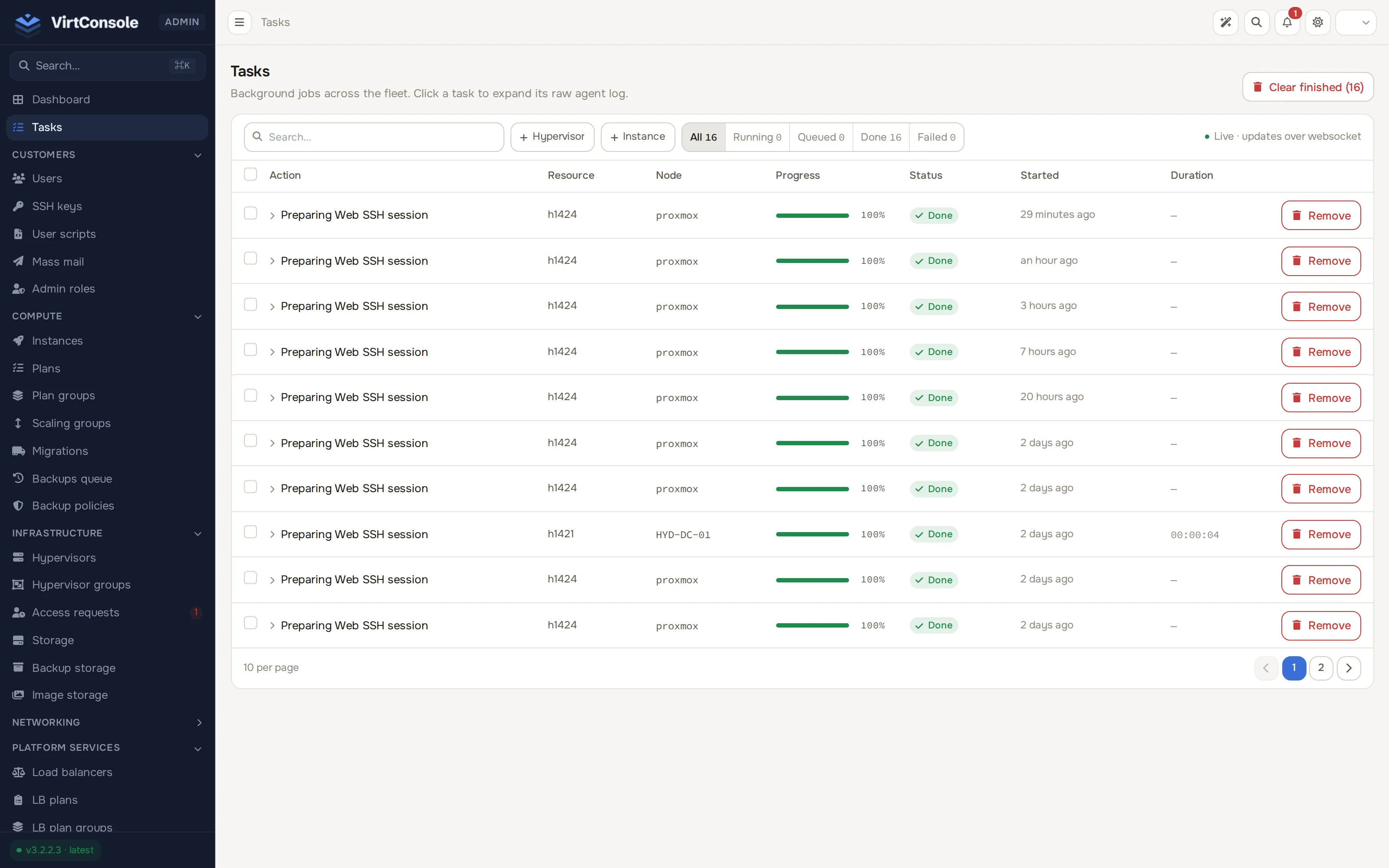
Section titled “What it is”A task is the panel’s record of one long-running operation: an instance deploy, a backup, a migration, an image download, and so on. Anything that takes more than a few seconds runs as a task, and the task is how the panel reports progress on it. The list at Tasks (the second item in the sidebar, above the grouped sections) is the single place to watch every operation on the platform.
How it works
Section titled “How it works”- An action in the panel (yours or a customer’s) creates a task and queues it.
- The task is dispatched to the agent on the hypervisor that does the work.
- The agent reports progress back step by step. The task row updates in real time, so you can watch a deploy run without refreshing.
- The task ends in a final status with its total duration.
Each task row shows the Action (the operation type), the Resource and Node it targets, a Progress bar, the Status, when it Started, and its Duration. Statuses are Queued, Running, Done and Failed. Click a task to expand its raw agent log inline.
Customers see the same mechanism scoped to their own resources: every task they trigger appears in their user panel with live progress.
Follow a task
Section titled “Follow a task”On the Tasks page, filter the list by free-text Search, by Hypervisor, by Instance, or by status (All, Running, Queued, Done, Failed). Click a task to expand its log: each step the worker emitted, most recent last. The log is the first thing to read when an operation fails, because it says where the operation stopped.
Housekeeping actions
Section titled “Housekeeping actions”The task list offers management actions:
- Clear finished (N): deletes completed and failed tasks in bulk. The button shows how many tasks are prunable.
- Mark as failed: closes a stuck task by hand. Use it for tasks that can no longer finish, so they stop counting as in-flight.
- Remove on a row deletes a single task record.
Key rules
Section titled “Key rules”- A task is a record, not the work itself. Deleting or pruning tasks never undoes the operation.
- Tasks pile up in Running or Queued when the management server’s task queue is not being processed, and they stay stuck when the target hypervisor’s agent is unreachable. Check the hypervisor’s status under Infrastructure > Hypervisors before blaming the task.
- Customers cannot see tasks outside their own resources.
Common problems
Section titled “Common problems”- Many tasks are stuck in Running or Queued. The task queue on the management server is not being processed. Check the panel’s service health on the management server. See Updating VirtConsole if you recently updated.
- One deploy task is stuck for hours. Open the task and read the last log line. If it is waiting on the hypervisor, the agent is unreachable; check the hypervisor under Infrastructure > Hypervisors and port 2443 from the management server.
- A failed task left a half-created instance. The instance appears under Compute > Instances. Destroy it there, then retry the operation.