

Static IPs
A static IP is a public IPv4 address reserved to your account. Unlike a normal instance IP, it stays yours even when the instance it was used with is destroyed, and you can hand it to a new instance later.
Before you begin
Section titled “Before you begin”- Your provider has enabled static IPs and set IPv4 pricing in at least one location. If Networking > Static IPs is missing, contact your provider.
- Enough credit balance to cover at least one hour of the IP’s price. See Billing and credits.
Where to find it
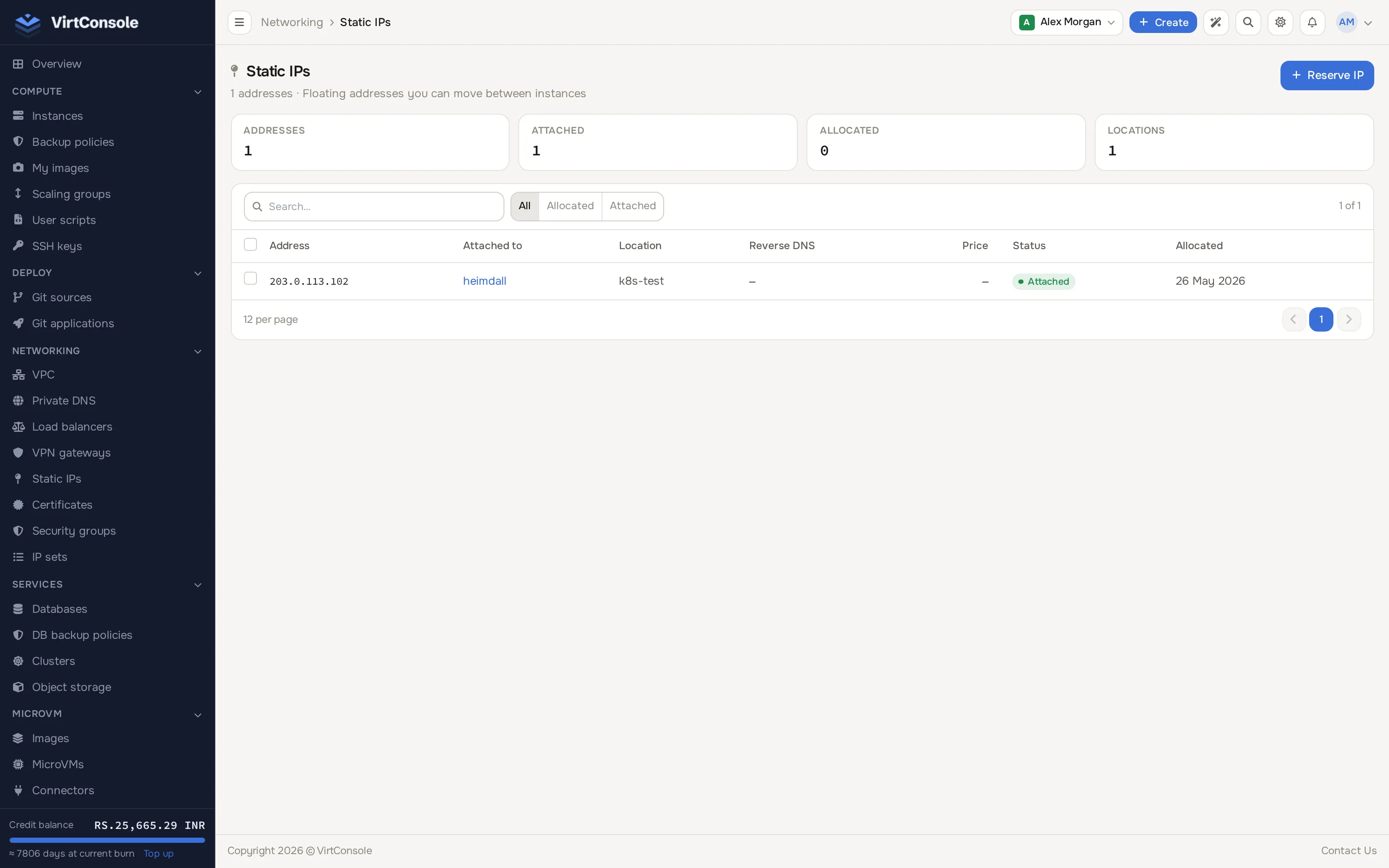
Section titled “Where to find it”In the user panel go to Networking > Static IPs.
The static IPs list.
Allocate an IP
Section titled “Allocate an IP”-
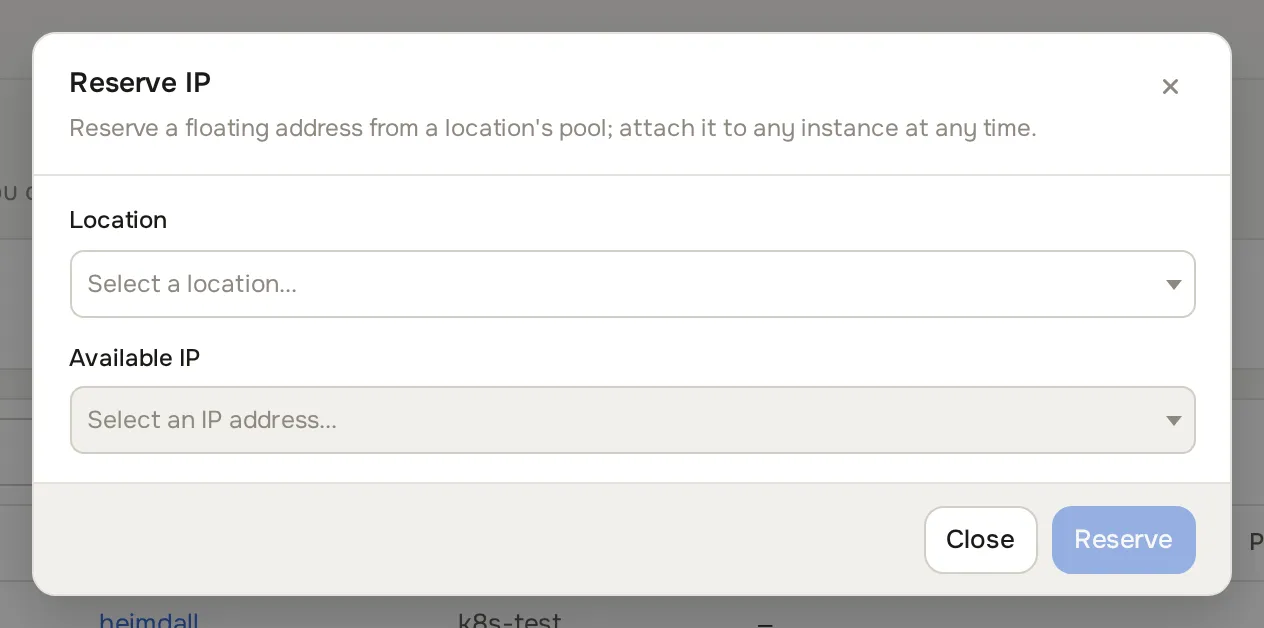
Click Reserve IP. The Reserve IP dialog opens.
-
Pick a Location.
-
Pick an Available IP from the unassigned addresses in that location.
-
Review the monthly and hourly cost, then click Reserve.
The address is reserved immediately and billing begins; the first hour is billed at allocation time.
The list shows each reserved address with its location, status (Allocated when reserved but unused, Attached when in use on an instance), the instance it is attached to (if any), its monthly and hourly cost, and how long ago you reserved it. The list updates live; no refresh needed.
Use the IP on an instance
Section titled “Use the IP on an instance”You assign static IPs when you create the instance. If the plan includes IPv4 addresses, the create flow shows a Static IPs section with one slot per included IPv4; pick your reserved IP in a slot, or leave it on Auto-assign to get a fresh address. See Create an instance. There is no attach/detach control on an existing instance; a static IP is bound at creation only.
Release an IP
Section titled “Release an IP”- Confirm the IP’s status is Allocated (not in use on an instance).
- Click Release next to it and confirm.
Charges appear in your usage report under a Static IPs section. Any remaining current-hour charge is billed when you release it.
Common problems
Section titled “Common problems”- “Insufficient credits to allocate a static IP.” Your balance is below one hour’s cost. Top up under Billing > Add Credits and retry.
- “No available IPs in this location.” Every public IP in the location is in use. Contact your provider.
- “This IP is not available for allocation.” Another customer claimed the address between page load and your click. Refresh and pick a different one.
- The Release button is not there. The IP is still attached to an instance. An IP in use cannot be released.