

Sessions
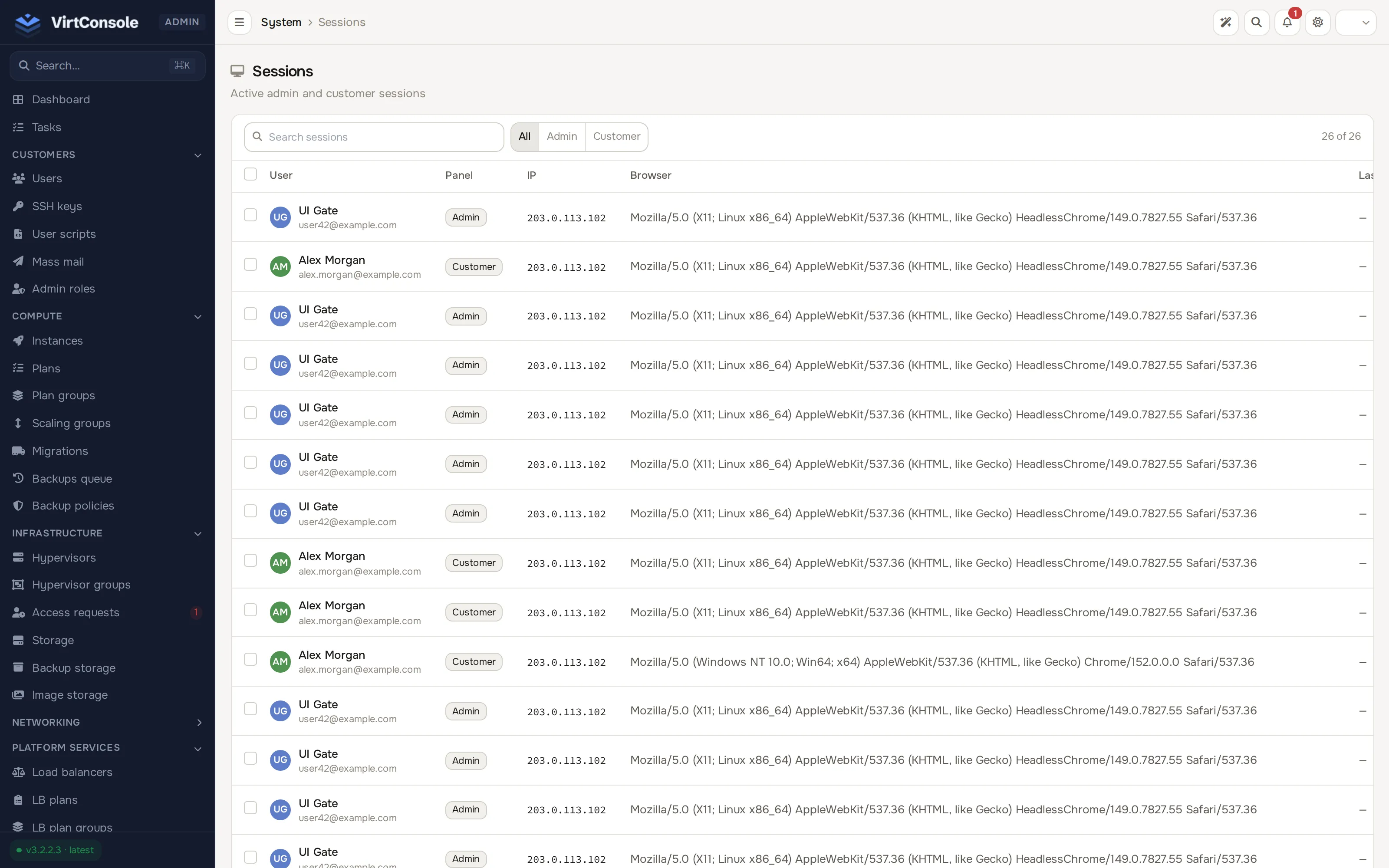
The Sessions page lists every device currently signed in to the panel, admin accounts included. Use it to see who is connected right now, to confirm which IPs your team actually works from before you enable an admin IP restriction, and to cut off a session that should not be there.
Where to find it
Section titled “Where to find it”In the admin panel go to System > Sessions.
Each row shows:
| Column | What it means |
|---|---|
| User | The account signed in. |
| Panel | Whether the session is in the Admin panel or the Customer panel. |
| IP | The source address of the session. |
| Browser | The browser or client that created the session. |
| Last Activity | When the session was last used. |
Click a row to open that user’s admin profile. Use the row’s … menu for View user or Revoke.
Terminate a session
Section titled “Terminate a session”Open the row’s … menu and click Revoke, then confirm. The device is signed out immediately; its next request sends it back to the login screen. Terminating a session does not disable the account or change any password. If you do not recognise the session, treat it as a possible compromise: reset that account’s password after terminating it, and check what it did in the Logs > Audit log.
Plan an IP restriction with sessions
Section titled “Plan an IP restriction with sessions”Before enabling the admin IP allow-list, use this page to list the IPs your admins actually sign in from. Whitelist those first, then enable the restriction, so nobody locks themselves out. See Admin IP restriction.
Common problems
Section titled “Common problems”- Every session shows the same internal IP. A reverse proxy in front of the panel is not forwarding the real client IP. Fix the proxy configuration on the management server; until then the IP column is not useful for auditing.
- Your own session keeps disappearing. Another admin is terminating it, or the session lifetime expired. Check Logs > Audit log for session actions before assuming an incident.