Static IPs
Overview
A Static IP is a public IPv4 address you reserve to your account. Unlike a normal VM IP, it stays with you even when the VM it was attached to is destroyed. You can move it between VMs in the same location.
This is the same idea as AWS Elastic IPs or DigitalOcean Floating IPs.
If you are new to the terms:
- Public IPv4. An IP address that is routable on the public internet.
- Location / Hypervisor group. A data center grouping. A static IP lives in one location and can only be attached to VMs in that location.
- Allocated. The IP belongs to your account.
- Attached. The IP is currently assigned to a VM.
Concepts
| Term | Plain English |
|---|---|
| Allocate | Reserve an IP to your account. Billing starts. |
| Attach | Bind the reserved IP to a VM. It becomes the VM's public address. |
| Detach | Remove the IP from a VM. It stays allocated to your account. |
| Deallocate | Release the IP back to the pool. Billing stops. |
| Credit Value | The monthly base price in platform credits for one IP. |
Admin: how to configure
Set IP pricing on a location
Static IPs are available in any location where the operator has set IPv4 pricing.
- Open the Hypervisor Group settings.
- Set the IPv4 Credit Value: monthly cost in credits per reserved IP.
- Save.
The hourly rate is computed automatically from credit_value / hours_per_month.
View all static IPs
Go to Networking > Static IPs to see every static IP across all users.
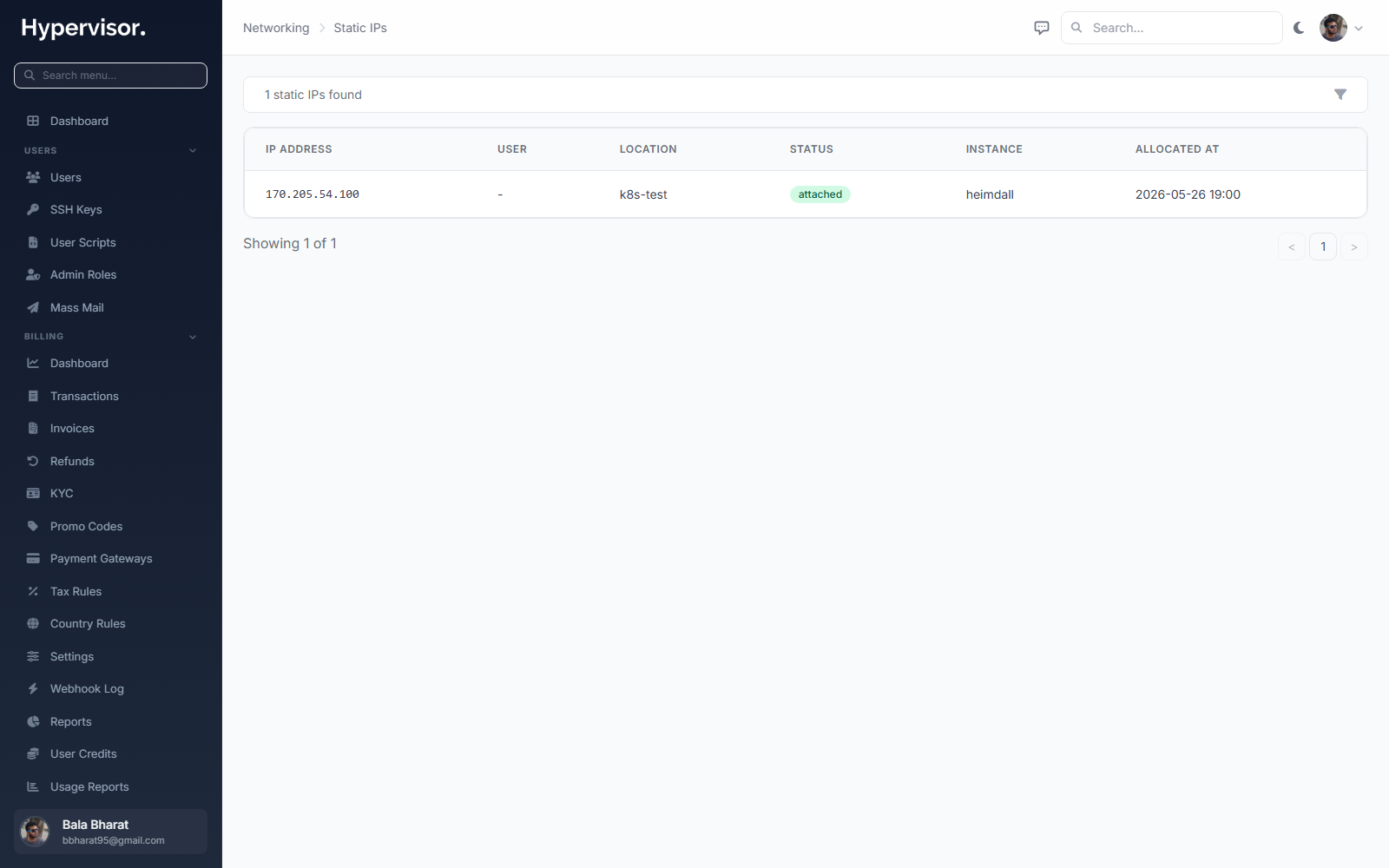
Click Allocate Static IP to open the create form.
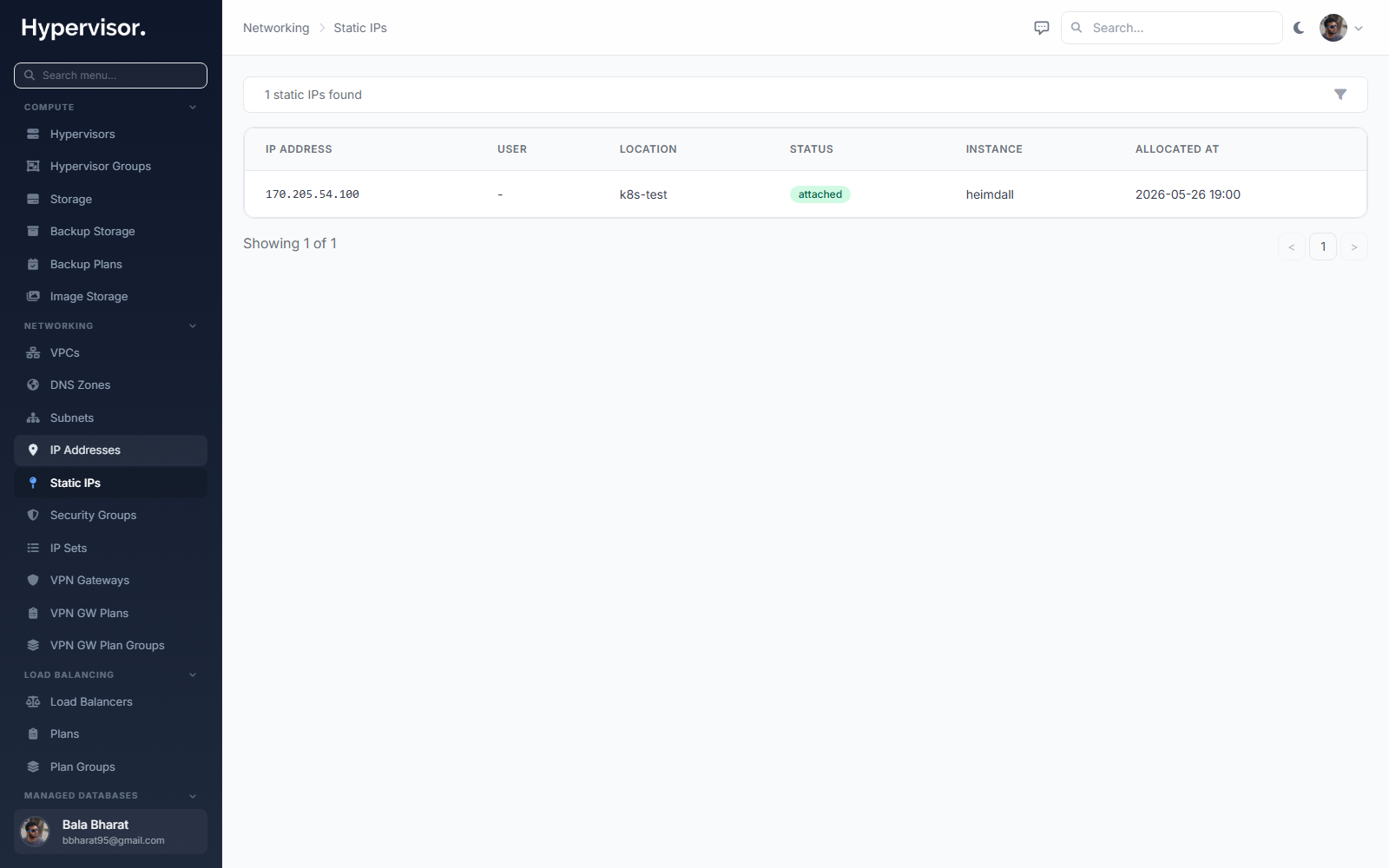
The list supports search by IP address, user name, or VM hostname, and shows owner, location, status, and (if attached) the target VM.
What end users see
Allocate a static IP
- Go to Networking > Static IPs in the user sidebar.
- Click Allocate IP.
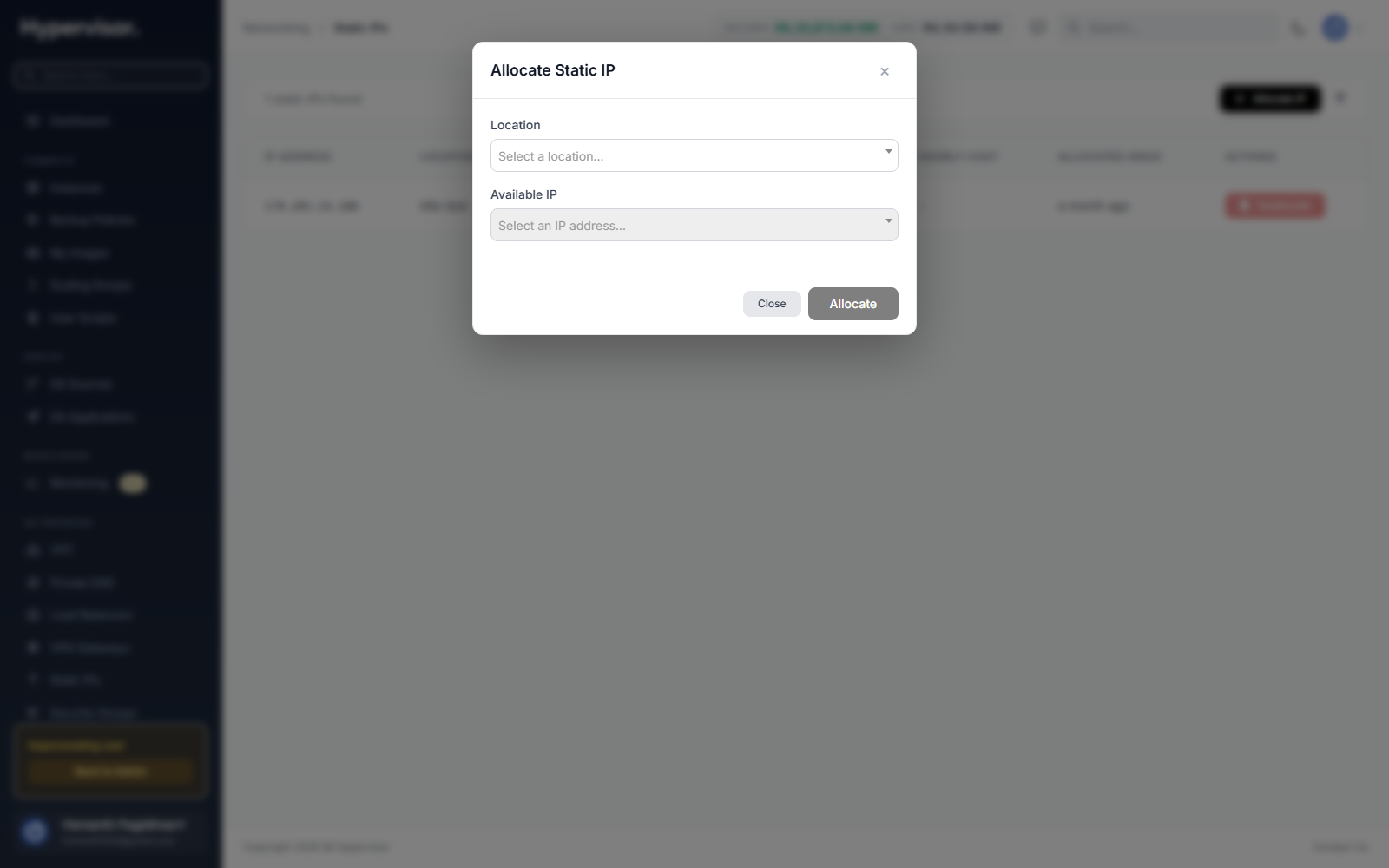
- Pick a Location from the dropdown.
- Pick an Available IP from the list of unassigned IPs in that location.
- Review the cost (monthly and hourly).
- Click Allocate.
The IP is reserved immediately and billing begins. The first hour is billed at allocation time.
The account must have enough credit balance to cover at least one hour. Below that, the allocation is rejected.
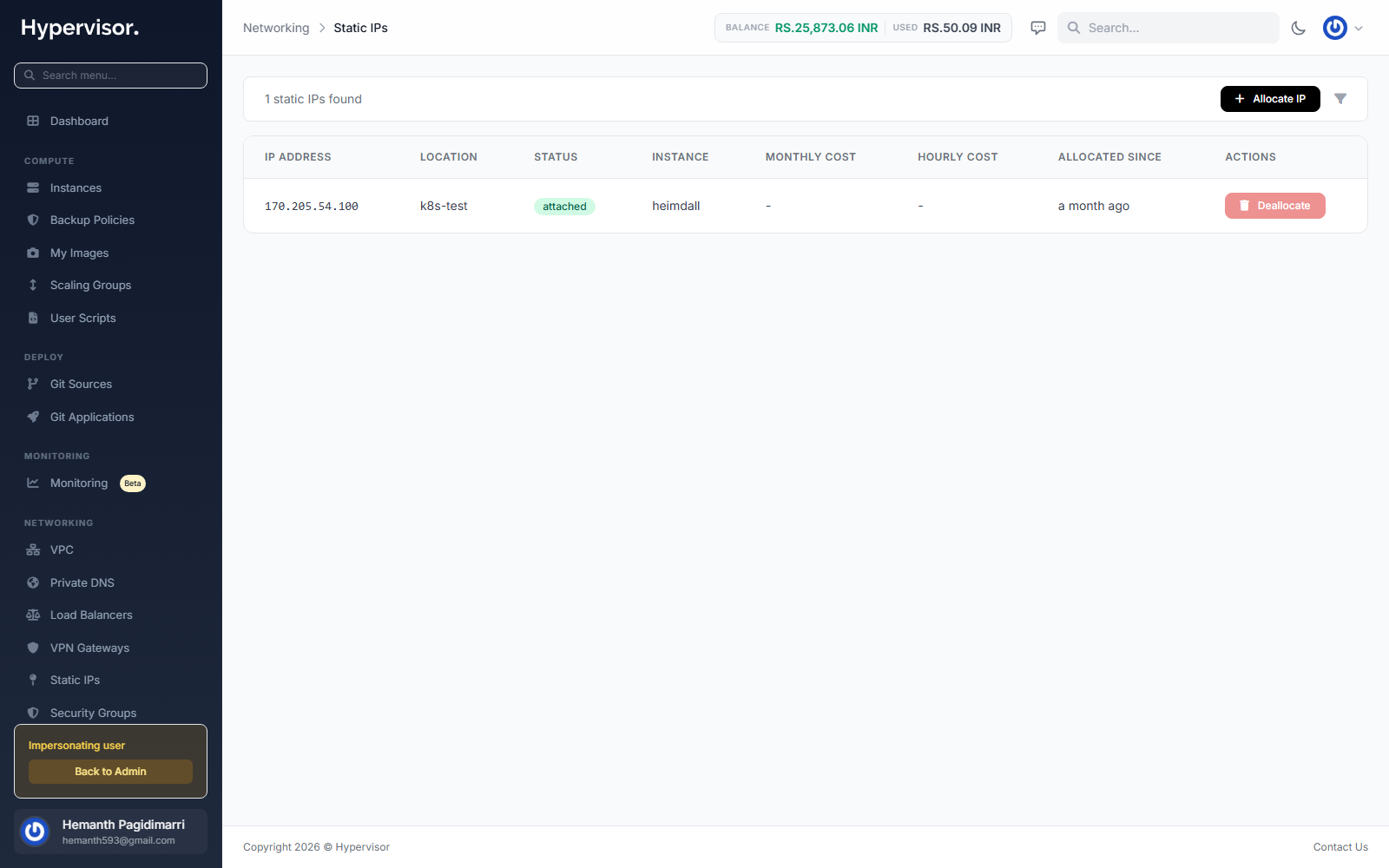
The Static IPs table
| Column | Meaning |
|---|---|
| IP Address | The reserved IPv4. |
| Location | Hypervisor group where the IP lives. |
| Status | Allocated (reserved but not attached) or Attached (in use on a VM). |
| Instance | The VM the IP is attached to, if any. Clickable. |
| Monthly Cost | Monthly charge. |
| Hourly Cost | Per-hour charge. |
| Allocated Since | How long ago the IP was reserved. |
Attach to a VM
Attach a static IP to a VM from the VM's network settings. Once attached the IP becomes the VM's public address and the status changes from Allocated to Attached.
Detach
Detaching removes the IP from the VM but keeps it allocated to the account. The IP returns to Allocated status and can be attached to a different VM.
Deallocate
To release a static IP and stop billing:
- Confirm the status is Allocated (not attached to any VM).
- Click Deallocate next to the IP.
- Confirm.
Deallocation is permanent. The IP goes back to the shared pool and may be reassigned to another user. You cannot get it back.
An IP that is attached to a VM cannot be deallocated. Detach it first.
Billing
- Billing starts the moment an IP is allocated. The first hour is pre-billed.
- Hourly charges continue for as long as the IP is allocated, attached or not.
- On deallocation, any remaining current-hour charges are billed.
Costs are shown in monthly and hourly form in your account's currency, derived from the location's IPv4 credit value.
Static IP charges appear in Cloud Service > Usage Report under a Static IPs section, with IP address and location, total hours allocated in the period, and total charges.
Real-time updates
The Static IPs page updates over WebSocket. When an IP is allocated, deallocated, attached, or detached, including changes made by an admin, the table refreshes without a page reload.
Troubleshooting
"Insufficient credits to allocate a static IP"
The account balance is below one hour's cost. Top up and try again.
"No available IPs in this location"
All public IPs in the location are in use. Ask your admin to add more IPs to the location's subnets.
"This IP is not available for allocation"
Another user claimed the IP between the time the page loaded and the click. Refresh and try a different IP.
Cannot deallocate an attached IP
Detach the IP from the VM first, then deallocate.
What end users see
Customers manage their reserved static IPs from Networking > Static IPs in the user panel. The list shows each reserved address, the location it was allocated in, and the instance it is currently attached to (if any).
Reserving a new address opens the reservation form. The customer picks a location and optional name, then saves.
After reservation the customer attaches the IP to an instance from the instance Networking tab. The detach flow reverses it: the address stays reserved on the account until the customer either reattaches or releases it.