VPN Gateway
Overview
A VPN Gateway is a small VM the platform deploys inside a VPC. It runs WireGuard, a modern encrypted VPN. It gives you two kinds of secure access into the VPC:
- Road-warrior (remote access). Individual devices (a laptop, a phone) dial in over the internet and reach private resources in the VPC.
- Site-to-site. A permanent tunnel between a VPC and another network, such as an on-premises data center or another cloud.
If you are new to the terms:
- VPC. A private virtual network you defined on the platform. See VPC Networking.
- WireGuard. A modern, fast, encrypted VPN protocol.
- Peer. Either end of a VPN tunnel.
- Public key / Private key. Each side has a keypair. The public key is shared with the peer; the private key is kept secret on each device.
- Endpoint. The public IP and port the remote side dials in to.
- AllowedIPs. WireGuard's term for which CIDRs are routed into a peer.
- Tunnel subnet. A small internal CIDR used for the WireGuard interface itself, default
10.100.0.0/24.
A VPN gateway is also the building block for VPC Peering, which connects two VPCs together.
Key facts:
- One VPN gateway per VPC, at most.
- Peer changes take effect immediately, without dropping other active connections.
- Billed hourly, with optional per-GB bandwidth charges.
Concepts
| Term | Plain English |
|---|---|
| Road-warrior peer | A single remote device (e.g. a laptop) connecting in. |
| Site-to-site peer | A persistent tunnel to another network's WireGuard endpoint. |
| Plan / Plan group | Sizing tier for the gateway VM. Customers select from a plan group. |
| Bandwidth Overage | What happens when the bandwidth allowance is exceeded. |
Admin: how to configure
Prerequisites
Before users can create a VPN gateway:
- Prepare a VPN gateway image. Upload or build an OS image that has WireGuard and
qemu-guest-agentinstalled, and set its purpose tovpn_gatewayunder Images. - Create VPN gateway plans under Connectivity > VPN Gateway Plans with the CPU, RAM, and storage you want to offer.
- Create a plan group and assign the VPN gateway plans to it.
- Enable VPN Gateway on a hypervisor group, link the plan group, and configure pricing.
Plans
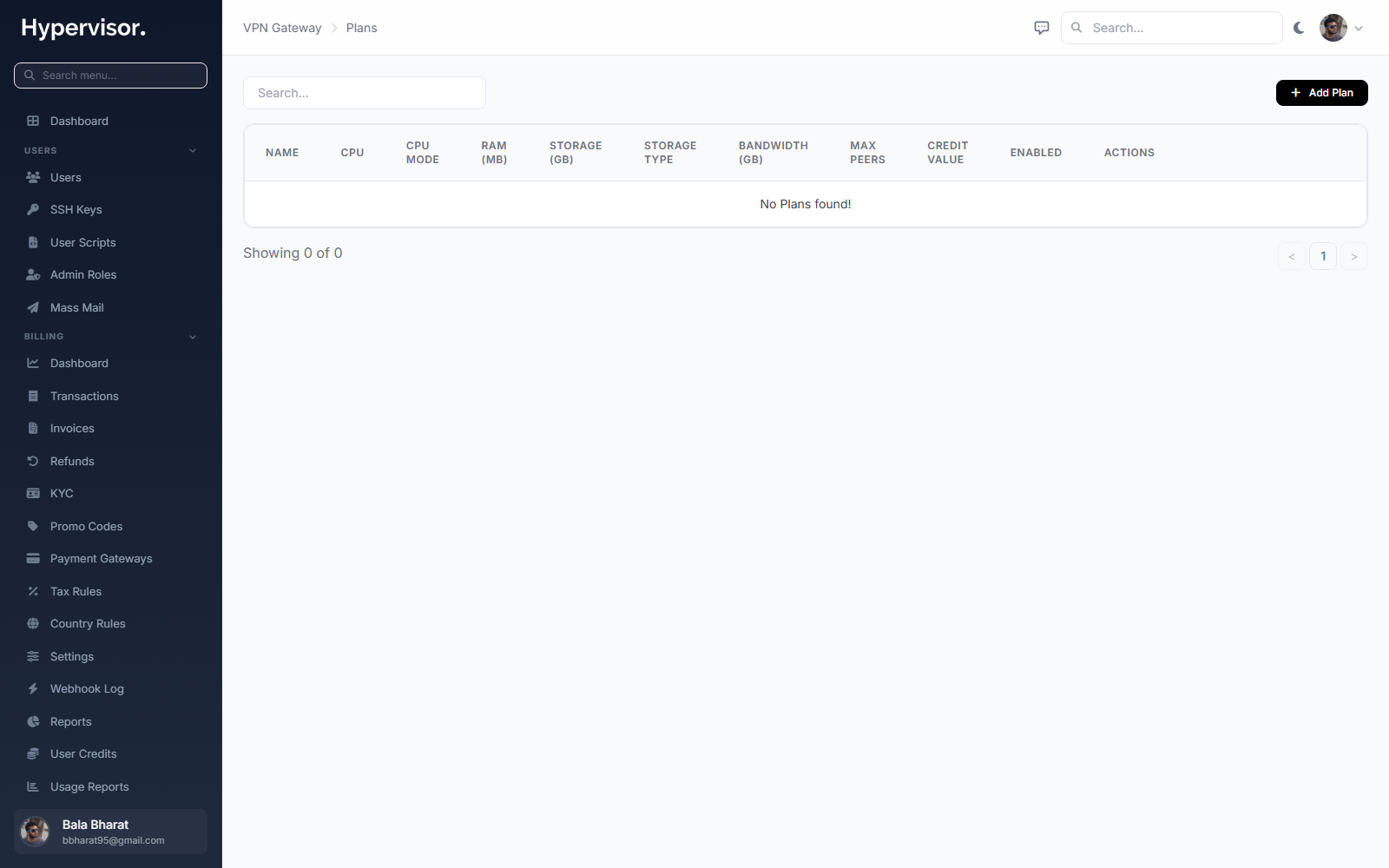
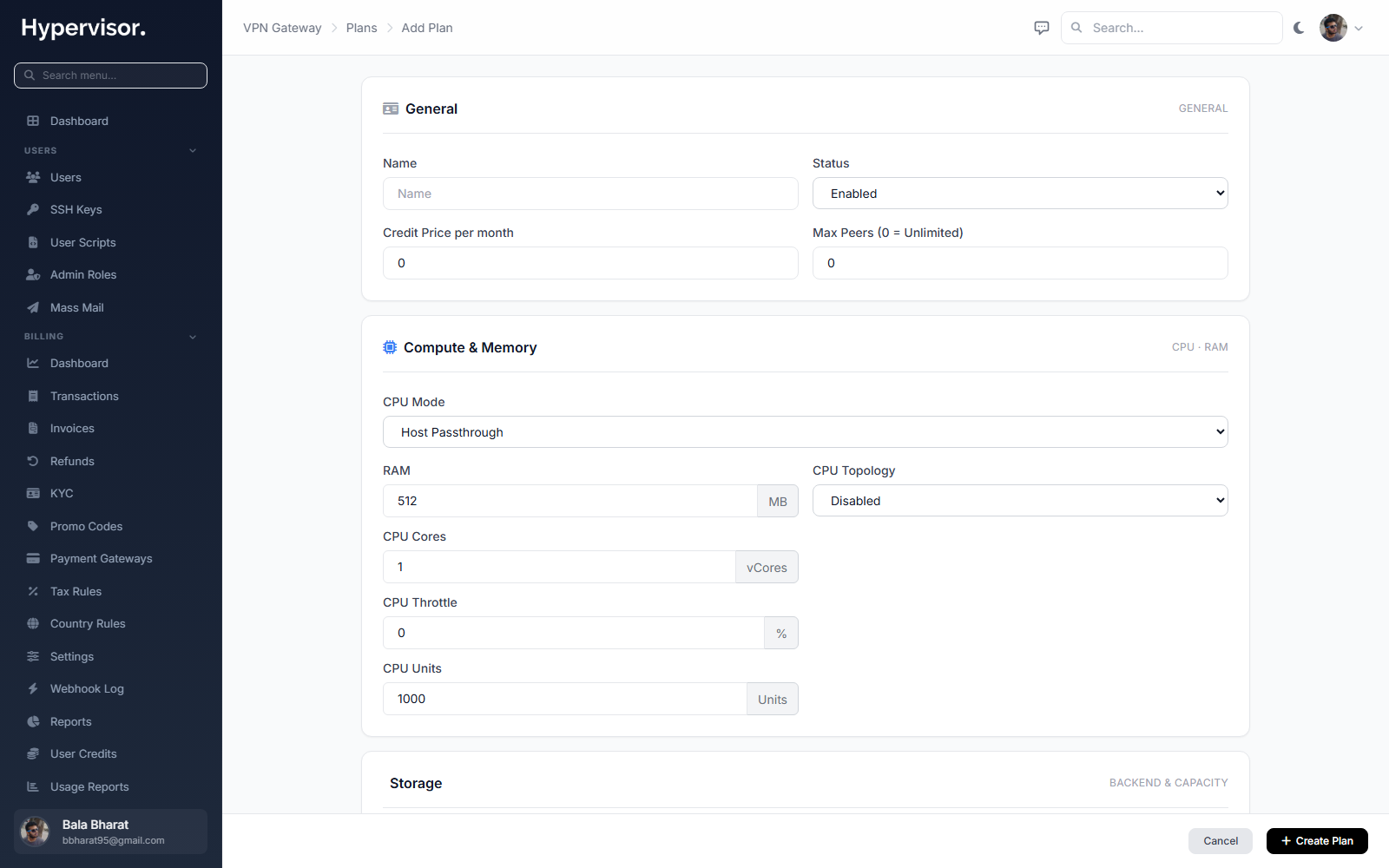
Click Add VPN Gateway Plan to open the create form.
Plan groups
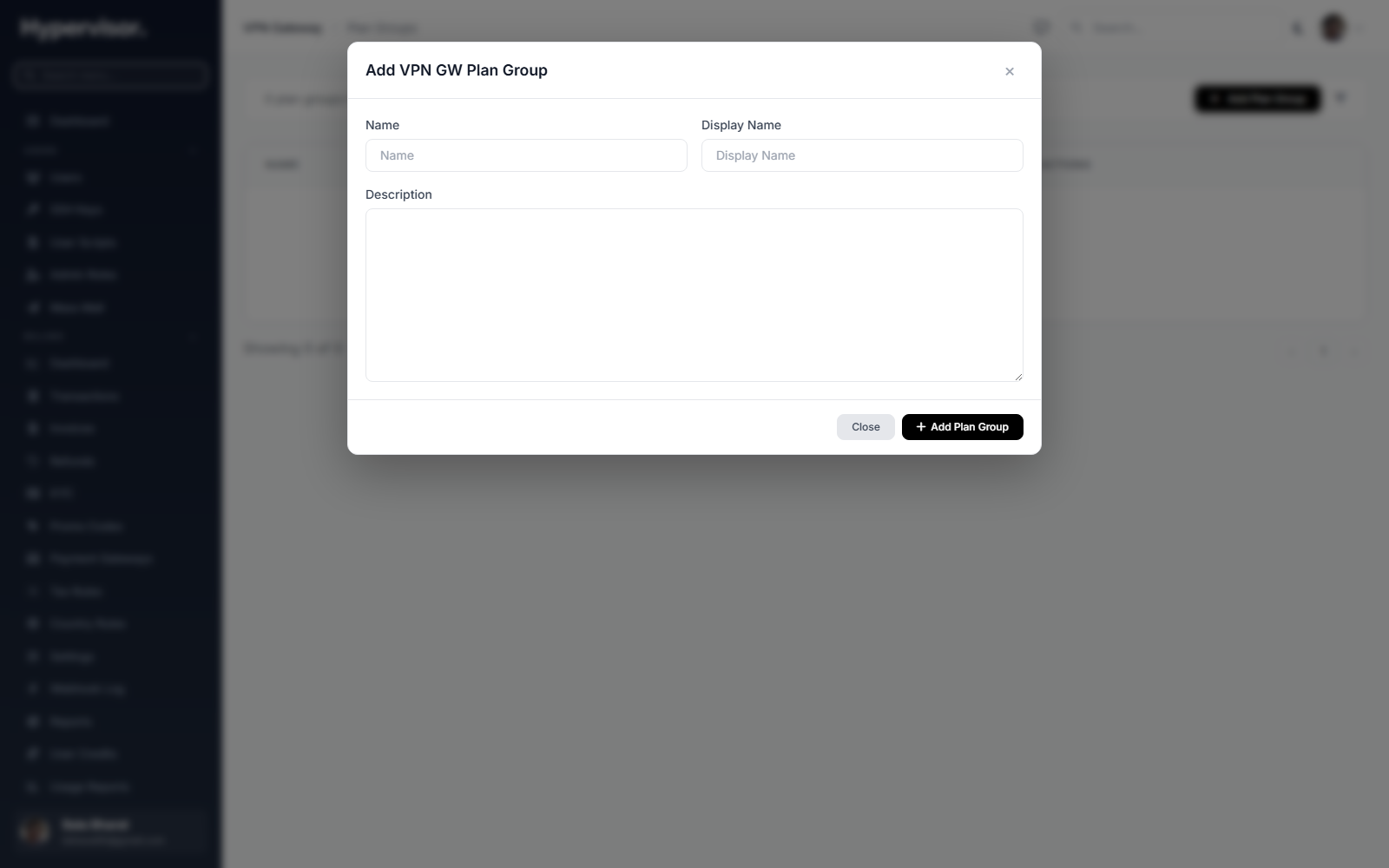
Plan Groups bundle plans together. Customers pick from a plan group, so you can offer different plan menus in different locations.
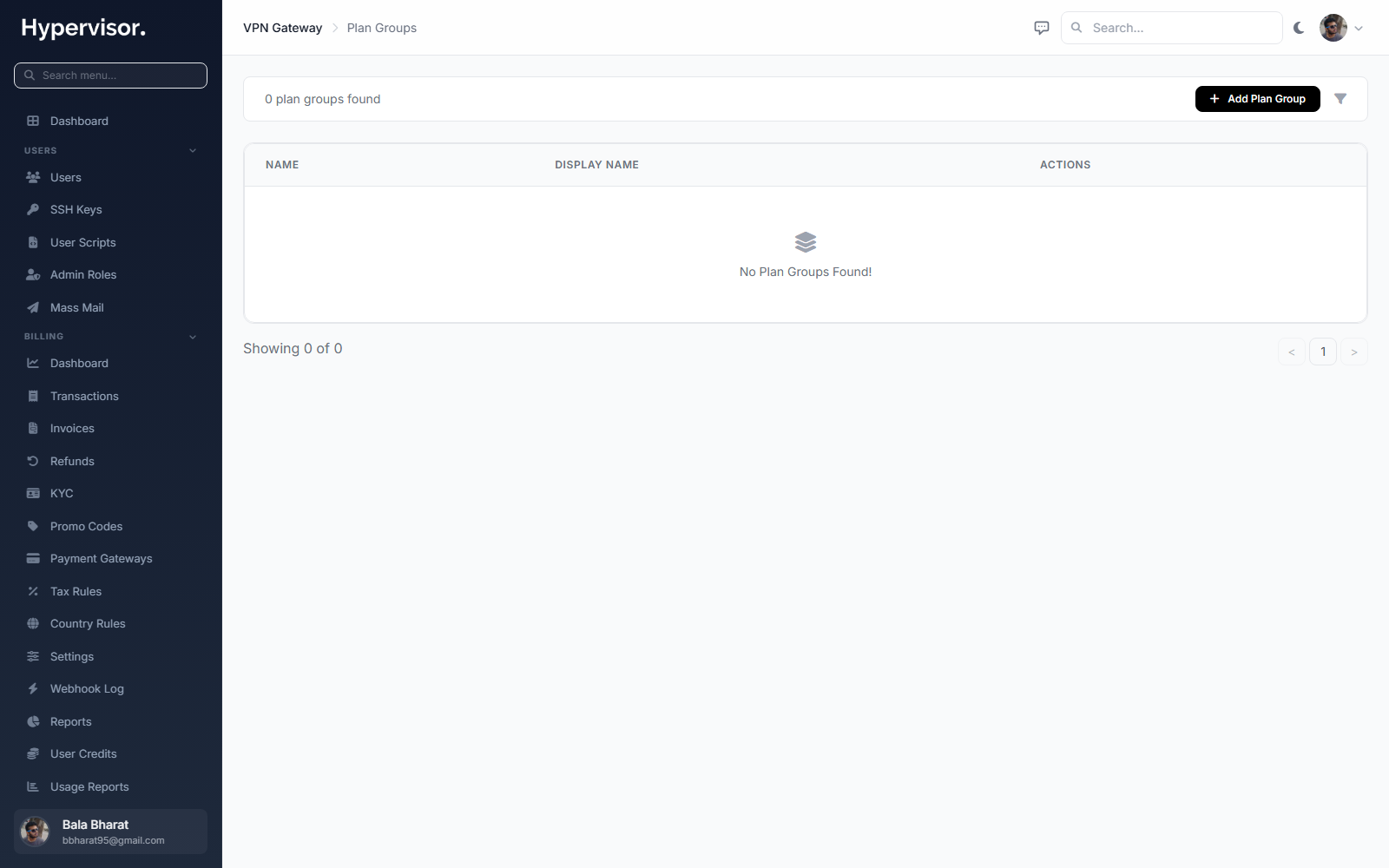
Click Add Plan Group to open the create form.
Enable VPN Gateway on a hypervisor group
- Open Hypervisor Group settings.
- Turn on the VPN Gateway toggle.
- Configure pricing:
- Credit Value. Monthly base cost in credits. Hourly =
credit_value / hours_per_month. - Bandwidth Rate. Per-GB cost in credits.
- Bandwidth Accounting.
uploads,downloads, orboth. - Bandwidth Overage.
none: no limit enforced.charge_overage: bill per GB above the allowance.revoke_access: suspend the gateway until bandwidth resets.
- Credit Value. Monthly base cost in credits. Hourly =
- Optionally pick a specific VPN Gateway Image. If left blank, any enabled image with purpose
vpn_gatewaymay be used. - Link a VPN Gateway Plan Group.
- Save.
Manage gateways (admin view)
Go to Connectivity > VPN Gateways to list all VPN gateways across users.
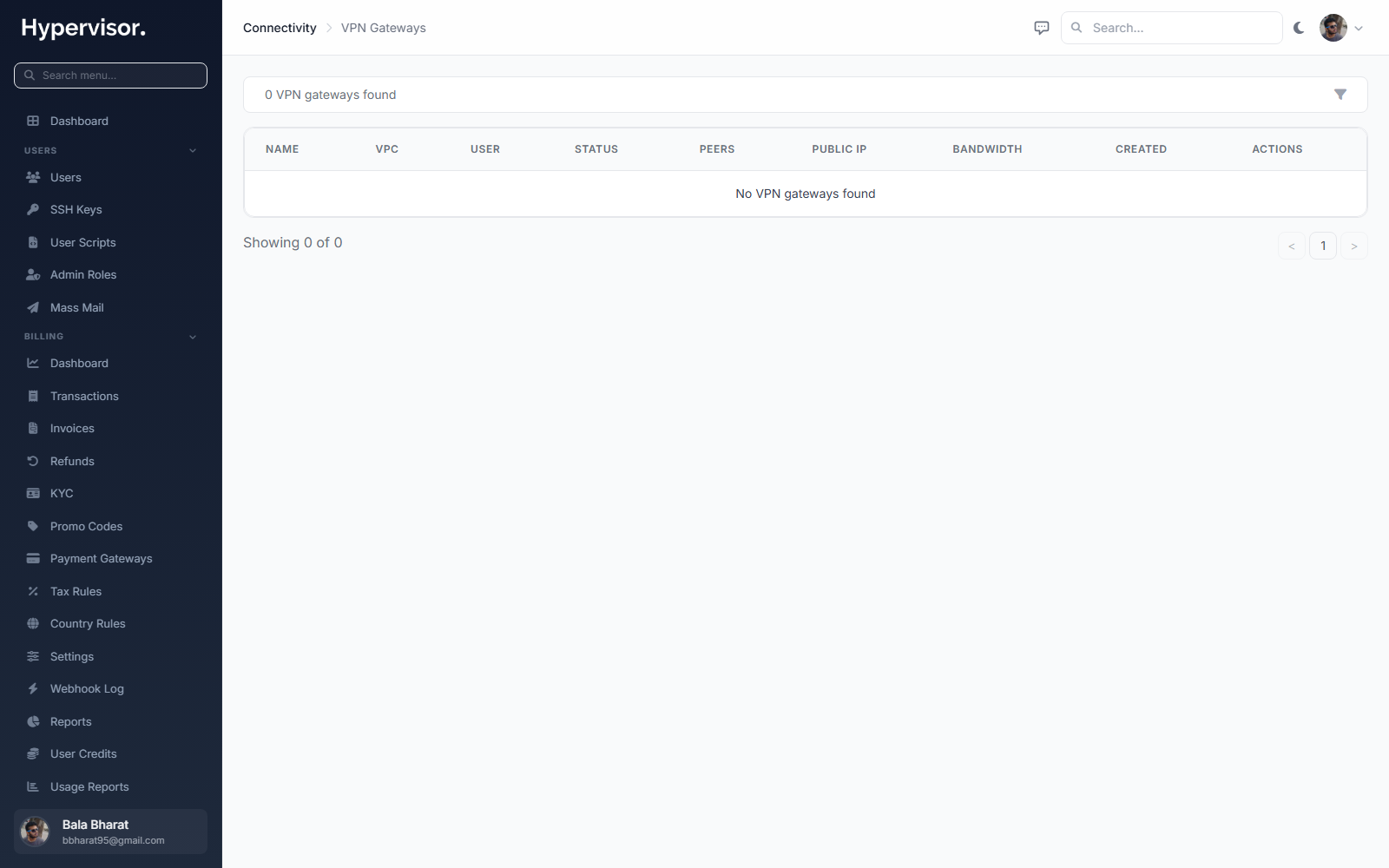
You can search by gateway name, VPC name, or user name/email, filter by status, and open any gateway's detail page. VPN gateways are created by end users from their own panel (see below); admins do not create them.
User limits
The maximum number of VPN gateways a single user may own is set on their profile.
- Go to Users > [user] > Edit.
- Set Max VPN Gateways. Default is 5. Set to 0 for unlimited.
What end users see
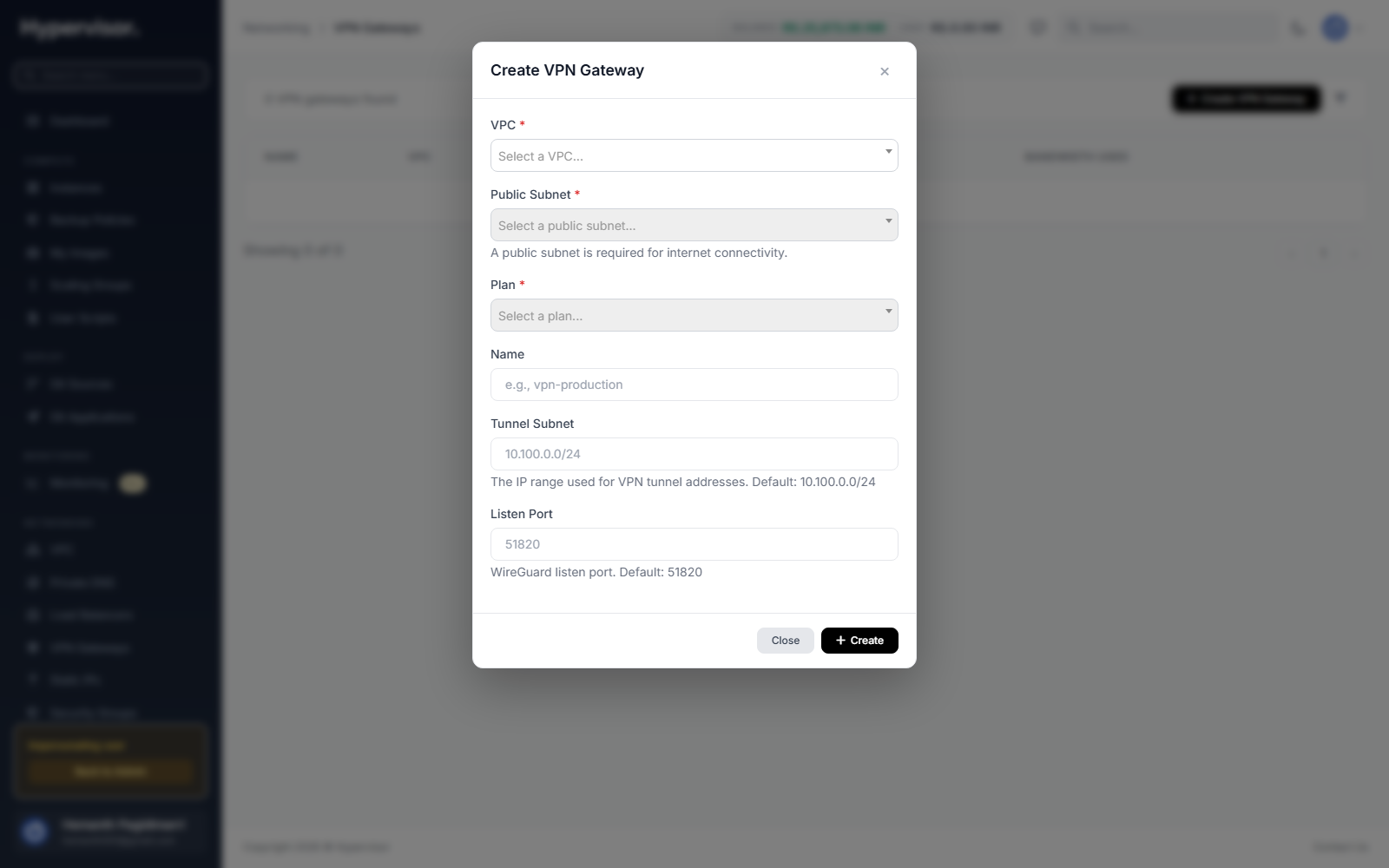
Create a VPN gateway
- Go to Networking > VPN Gateways.
- Click Create VPN Gateway.
- Pick a VPC.
- Pick a VPC Subnet (must be a public subnet with available IPs).
- Pick a Plan.
- Optionally set a Name (auto-generated if blank).
- Optionally customise the Tunnel Subnet (default
10.100.0.0/24) and Listen Port (default51820). - Click Create.
Deployment takes 1 to 2 minutes. When done, the status changes to Active and the gateway has a dedicated public IP.
The VPC dropdown only shows VPCs in locations where VPN Gateway is enabled. If the list is empty, ask your admin to enable it.
Gateway details
| Field | Meaning |
|---|---|
| Name | Gateway name. |
| Status | Deploying, Active, Error, or Suspended. |
| VPC | The VPC this gateway belongs to. |
| Public IP | Use this as the WireGuard endpoint from your clients. |
| Tunnel Subnet | CIDR of the internal WireGuard interface, default 10.100.0.0/24. |
| Listen Port | UDP port WireGuard listens on. Default 51820. |
| Public Key | The gateway's WireGuard public key. Copy with the icon. |
| Bandwidth Used | Bandwidth consumed in the current billing cycle. |
Road-warrior peers (remote access)
A road-warrior peer is one device connecting in.
Add a peer
- On the gateway detail page click Add Road-Warrior Peer.
- Enter a Name (e.g. "My Laptop").
- Enter the device's WireGuard Public Key.
- Optionally specify a Tunnel IP. Otherwise auto-allocated.
- Optionally set DNS servers and a Keepalive interval.
- Click Add Peer.
Generating a WireGuard key pair
On the client device, run:
wg genkey | tee privatekey | wg pubkey > publickey
Paste the contents of publickey when adding the peer. Keep privatekey safe; it goes into the client config.
Download the client config
After adding a peer, click Download Config to get a ready-made .conf file. Import it into any WireGuard client:
- Windows, macOS, Linux: WireGuard desktop app.
- iOS, Android: WireGuard mobile app.
Private keys are never stored on the server. The downloaded config contains a placeholder. Replace [YOUR_PRIVATE_KEY] with the private key that pairs with the public key you provided when adding the peer.
Example: connecting from a laptop
- Install the WireGuard client from
https://www.wireguard.com/install/. - Add a road-warrior peer on the gateway and click Download Config.
- Open the config file and replace
[YOUR_PRIVATE_KEY]with the device's private key. - Import the config into the WireGuard client.
- Activate the tunnel. VPC VMs are reachable by their private IPs.
Site-to-site peers
A site-to-site peer is a permanent tunnel between the VPC and another network.
Add a peer
- Click Add Site-to-Site Peer.
- Enter a Name (e.g. "Office Network").
- Enter the remote side's Public Key.
- Enter the Endpoint: the remote side's public IP and port, e.g.
203.0.113.1:51820. - Set Allowed IPs: the CIDR(s) on the remote side that should route through the tunnel, e.g.
192.168.0.0/16. - Optionally set a Preshared Key for extra security.
- Click Add Peer.
Configure the remote side
On the remote WireGuard endpoint, add a peer with:
- Public Key. The gateway's public key (from the detail page).
- Endpoint. The gateway's public IP and listen port.
- Allowed IPs. The VPC subnet CIDRs.
Once both sides are configured the tunnel comes up automatically.
Managing peers
- Enable / Disable. Each peer has a toggle. Disabled peers cannot connect; their config is preserved.
- Edit. Click the edit button to change settings. Changes apply immediately, other peers are not interrupted.
- Remove. Click delete and confirm.
Bandwidth and billing
VPN gateways are billed hourly through Cloud Service billing.
- Hourly cost. A base hourly rate for every hour the gateway is active. Rate depends on plan and location.
- Bandwidth. Depending on the plan and location either Unlimited or an Included Allowance with overage charges (or access suspension) when exceeded.
The detail page shows current bandwidth use. When there is a cap, it is shown as a fraction (e.g. "1.5 GB / 10 GB"). With no cap, an infinity symbol is shown.
Charges appear in Cloud Service > Usage Report under a VPN Gateways section, with hours active, base charges, and bandwidth charges.
Retry a failed deployment
If a gateway shows status Error, a Retry Deploy button appears. Retrying tears down the failed deployment and starts again, keeping the gateway name and settings.
Deleting a VPN gateway
Click Delete Gateway on the detail page (or the delete action on the list).
Deleting:
- Bills any remaining hours for the current period.
- Removes all peers, including any VPC peering connections on both sides.
- Permanently removes all configuration.
Troubleshooting
Gateway stuck in "Deploying"
If the gateway does not become active in a few minutes:
- Check the deployment task in the admin panel for errors.
- Try Retry Deploy.
- Confirm the hypervisor has enough RAM, storage, and free public IPs.
- Confirm an image with purpose
vpn_gatewayexists and is enabled.
Peers cannot connect
- Confirm the gateway is Active.
- Confirm the client config has the right values:
- Gateway public key (copy from the detail page).
- Endpoint (gateway's public IP and listen port).
- Private key (replaced the placeholder in the downloaded config).
- Confirm UDP traffic on the listen port (default
51820) is not blocked by firewalls or ISP. - For site-to-site: confirm the remote endpoint is reachable and its public key matches.
"No VPCs available" when creating a gateway
VPN Gateway has not been enabled on the hypervisor group for the VPC's location. Ask your admin to enable it and link a VPN gateway plan group.
"This VPC already has a VPN gateway"
Each VPC supports exactly one VPN gateway. Use the existing one, or delete it before creating a new one.
What end users see
Customers manage VPN gateways from Networking > VPN Gateway in the user panel. The list page shows each gateway with its endpoint, plan, and the VPC it belongs to.
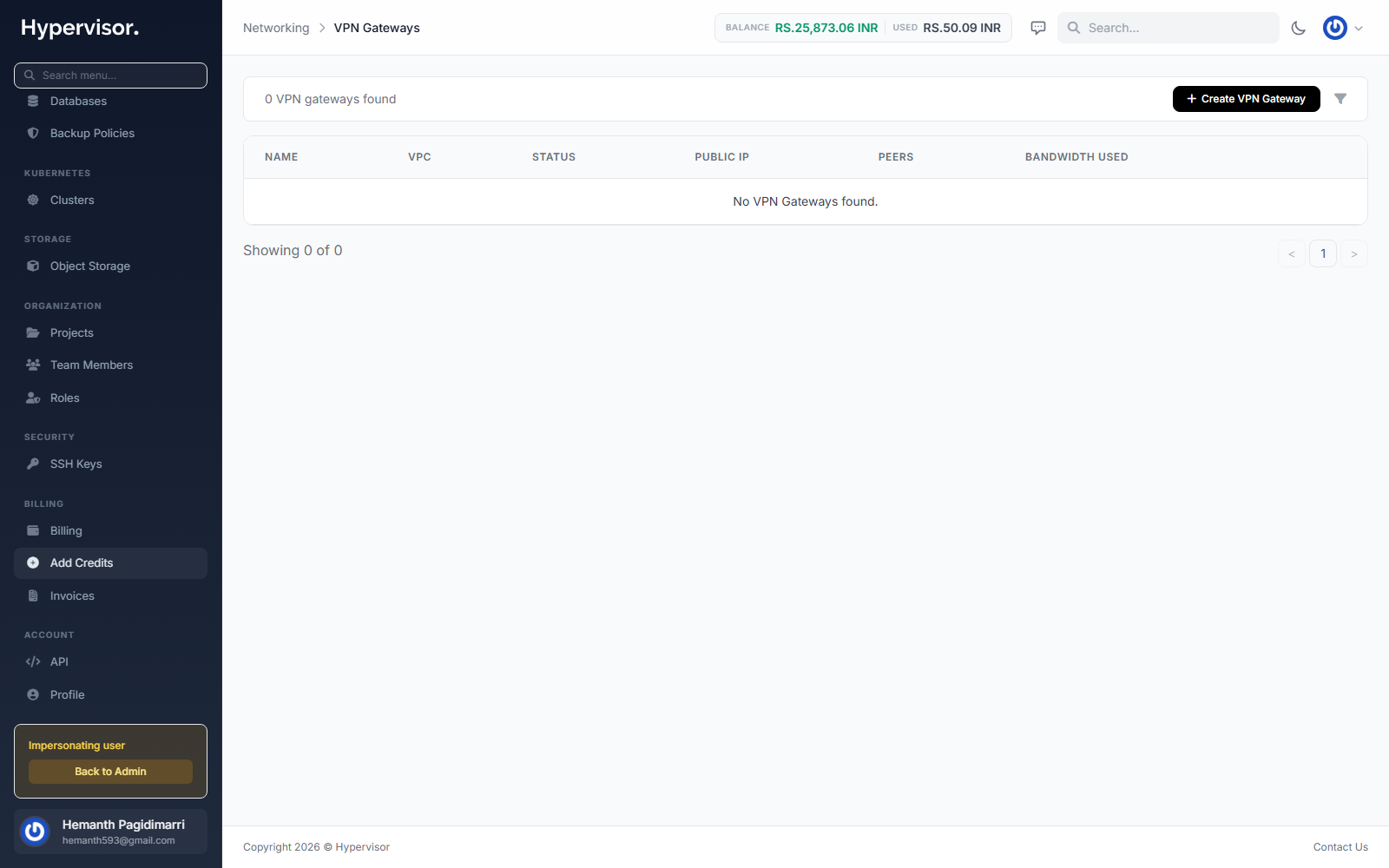
Creating a gateway opens a form where the customer picks a plan, a VPC, and a name. After save, the gateway provisions, and the customer opens its detail page to add peers (each peer is one remote site or one client device) and download the per-peer client configuration.