Security Groups
Overview
A Security Group is a named set of firewall rules. You attach it to a virtual machine (VM), a load balancer, or a managed database, and the platform enforces those rules on the hypervisor before the VM ever sees the traffic.
If you are new to the terms:
- Firewall. Allows or blocks network packets based on rules.
- Stateful. The firewall remembers existing connections. If outbound traffic is allowed, the matching return traffic is automatically allowed back, without needing a separate rule.
- Ingress. Inbound traffic, into the VM.
- Egress. Outbound traffic, from the VM.
- Protocol. TCP, UDP, ICMP (ping), ICMPv6.
- CIDR. IP block notation, e.g.
0.0.0.0/0(everywhere) or10.0.0.5/32(one IP). - IP Set. A reusable named list of CIDRs you can reference from many rules.
Key properties:
- Stateful. You only define rules for new connections; replies are auto-allowed.
- Deny by default once you add ingress rules. A security group that contains at least one ingress rule drops anything not explicitly allowed inbound. The same logic applies to egress.
- Additive across groups. If a VM has several groups attached, the union of all rules applies. Anything allowed by any group is allowed.
- Near real-time sync. Rule changes reach hypervisors within about one minute.
Default behaviour
When a VM has no security groups attached, all traffic is allowed in both directions. The one exception is outbound SMTP (TCP port 25), which is blocked unless the user has SMTP enabled.
When one or more groups are attached:
- If any attached group has at least one ingress rule, all inbound traffic that does not match any rule is dropped.
- If no attached group has any ingress rules, all inbound traffic is allowed.
- The same logic applies independently to egress.
- Outbound SMTP (TCP 25) stays blocked unless SMTP is enabled for the user, regardless of any rule.
Concepts: scopes
Security groups have two scopes:
| Scope | Created by | Editable by | Visible to |
|---|---|---|---|
| Global | Admin | Admin only | All users |
| User | Admin or user | Owner or admin | Owner only |
Use Global groups for platform-wide presets like "Allow SSH" or "Allow Web Traffic". Use User groups for customer-specific policies.
Users cannot edit rules on Global groups. They can only attach or detach them from their VMs.
Admin: how to configure
Create a security group
- Go to Connectivity > Security Groups.
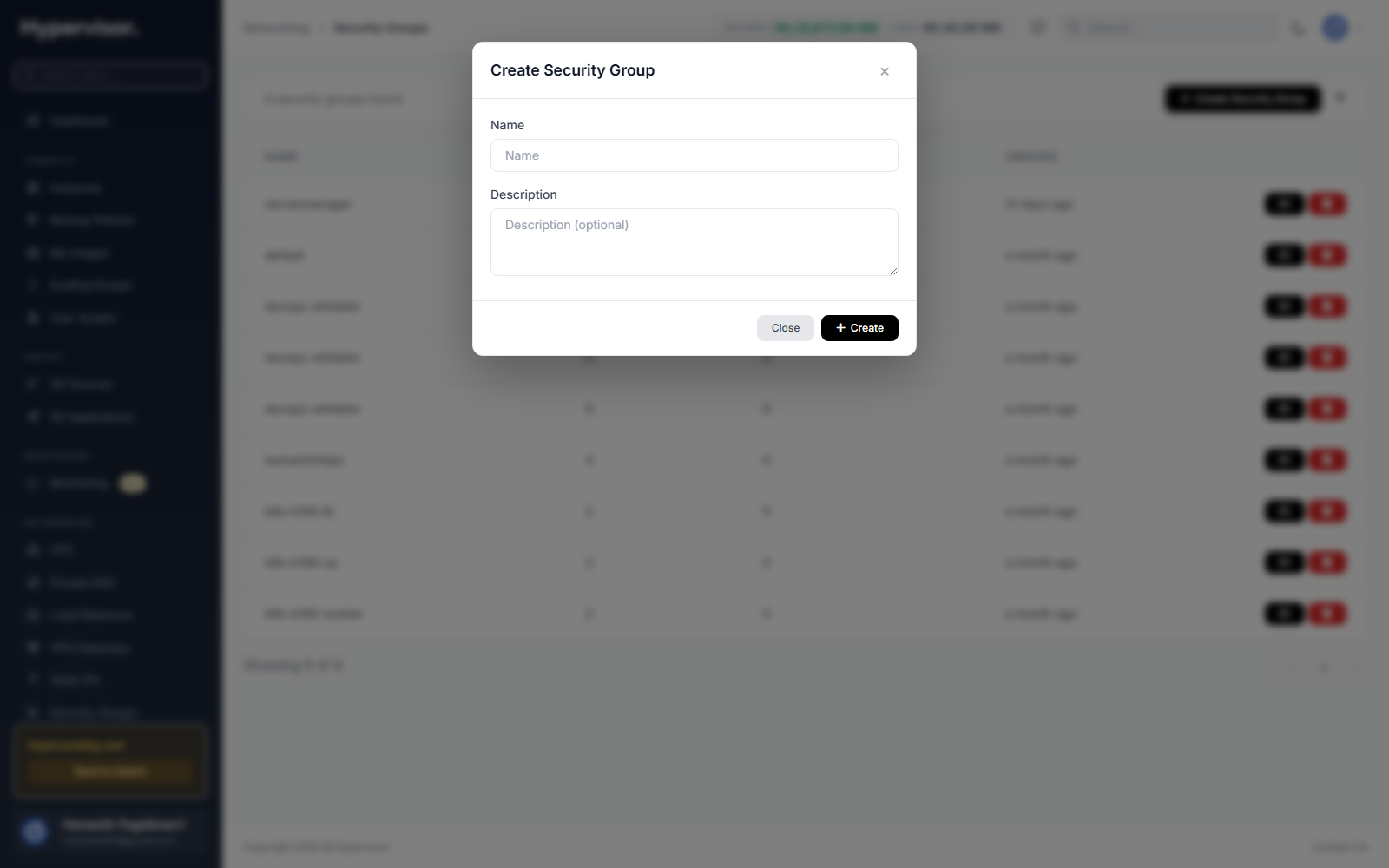
- Click Create Security Group.
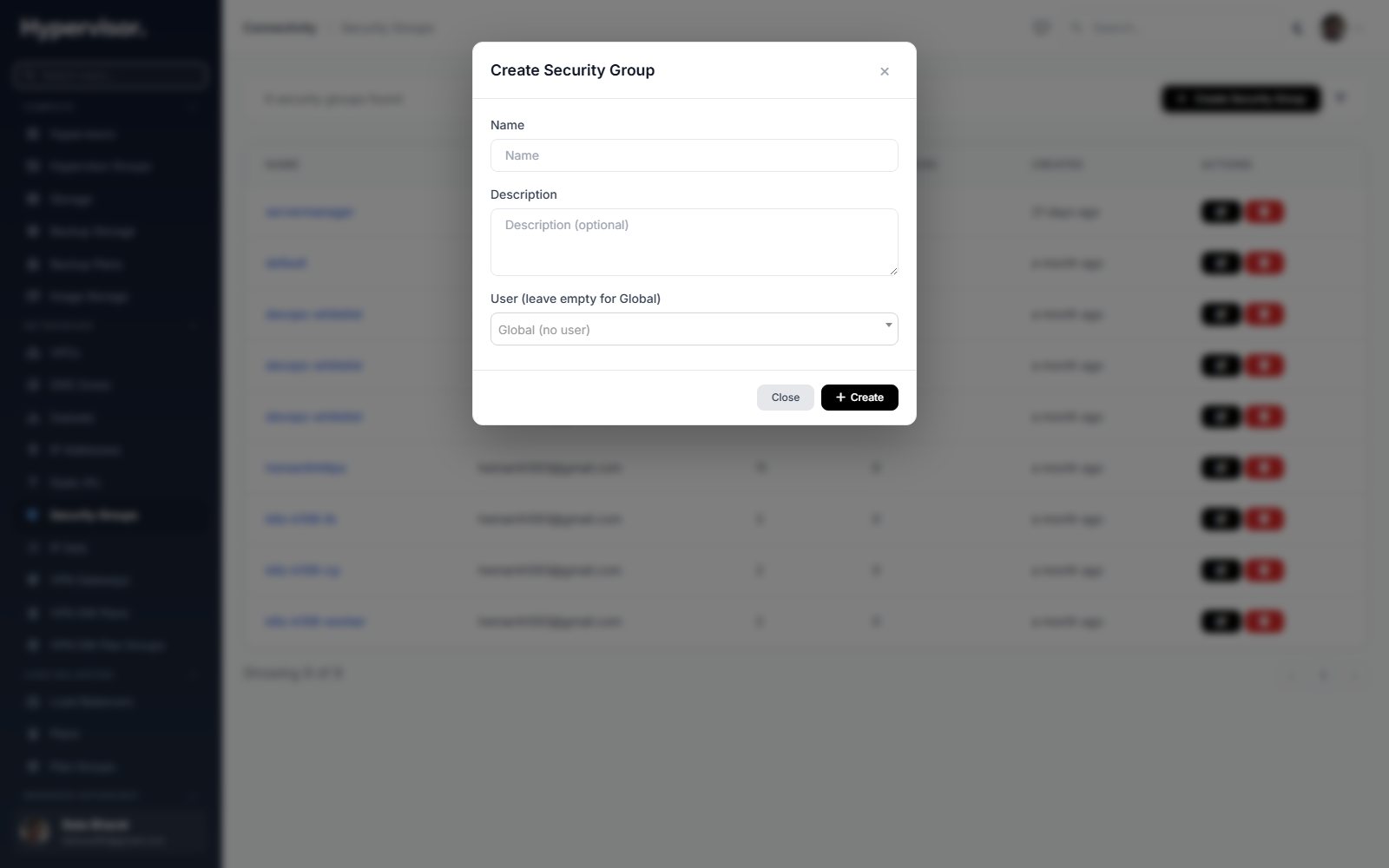
- Enter a Name and optional Description.
- Optionally select a User. Leave blank to create a Global group.
- Click Create.
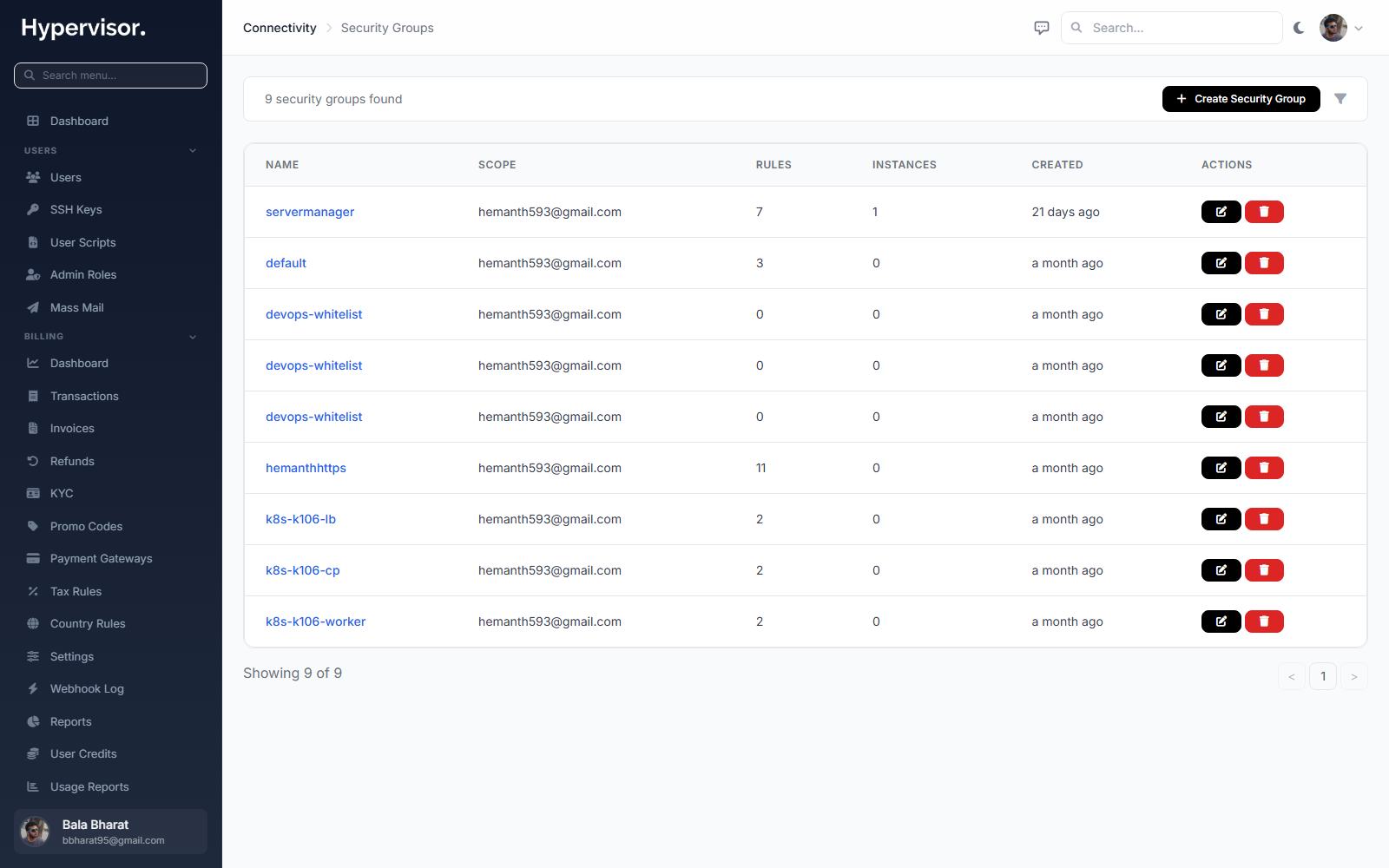
Click Add Security Group to open the create form.
Create an IP Set
An IP Set is a named, reusable list of CIDRs. Use it for things like "office IPs" or "monitoring IPs" so you can reference one set from many rules.
- Go to Connectivity > IP Sets.
- Click Create IP Set.
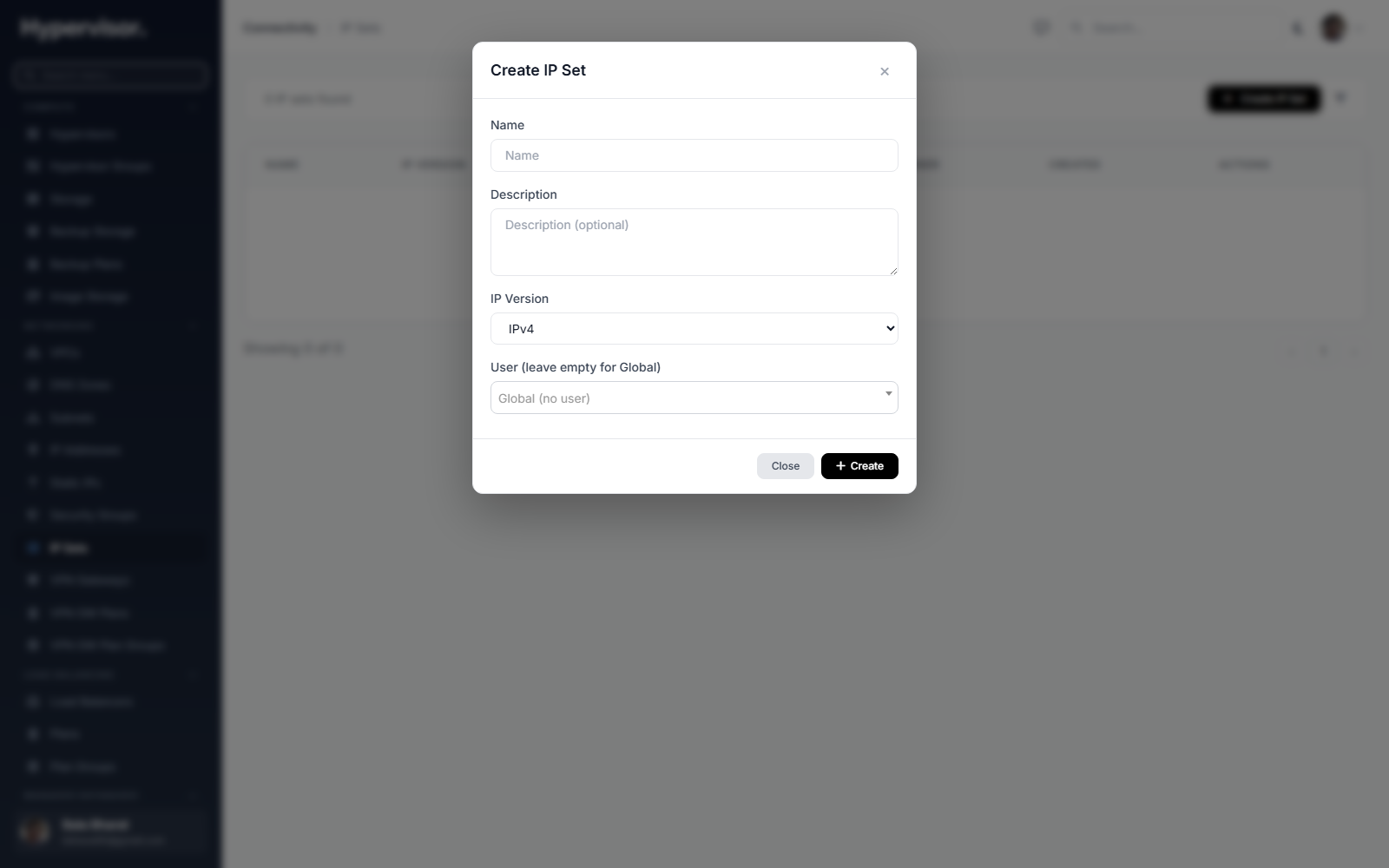
- Enter a Name, optional Description, and pick IP Version (IPv4 or IPv6).
- Optionally select a User. Leave blank for a Global IP Set.
- Click Create.
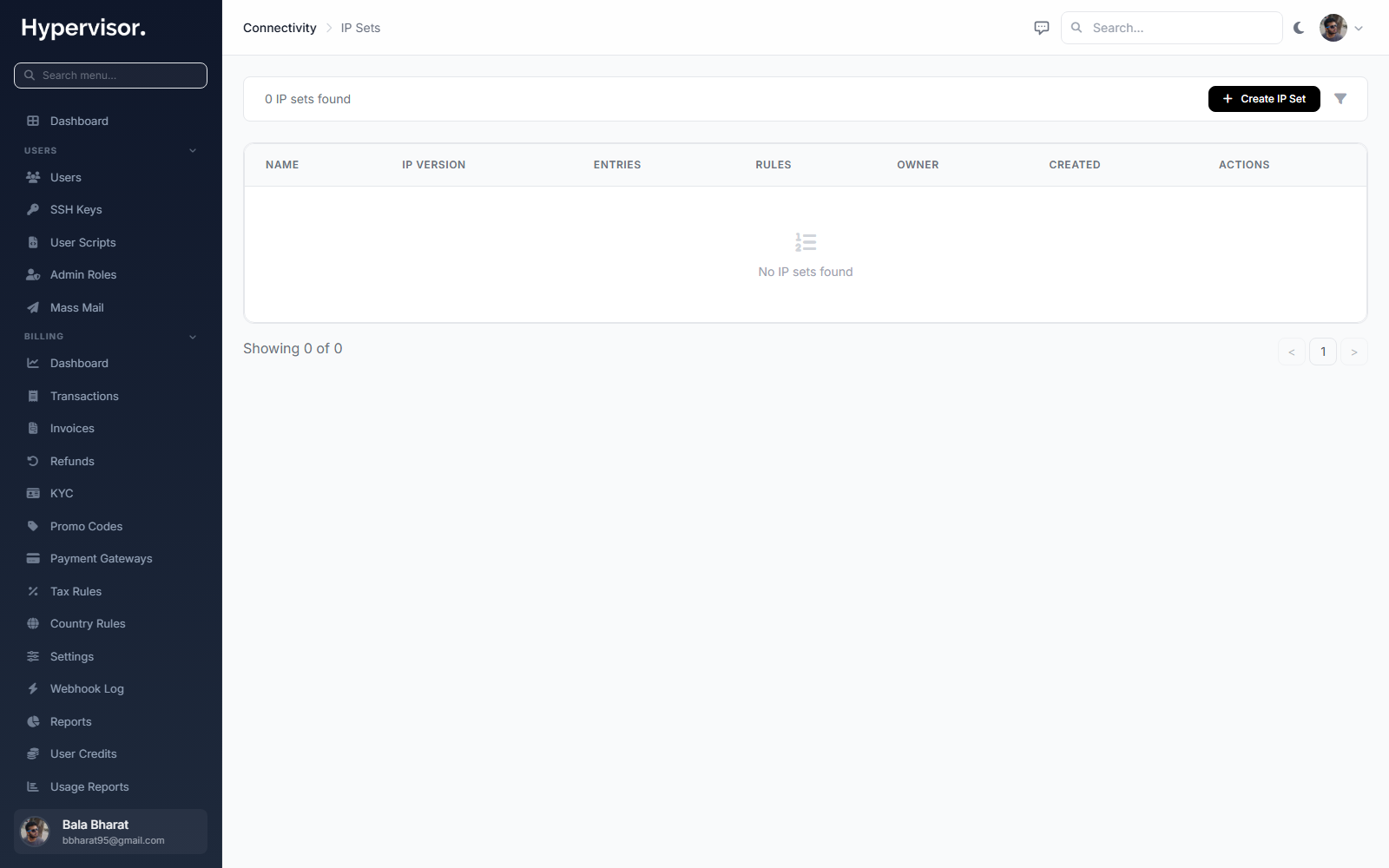
Click Add IP Set to open the create form.
What end users see
Create a security group
- Go to Security Groups in the user sidebar.
- Click Create Security Group.
- Enter a Name and optional Description.
- Click Create.
User-created groups are always scoped to that user.
Rule parameters
Each rule has these fields:
| Field | Values | Meaning |
|---|---|---|
| Direction | Ingress, Egress | Inbound or outbound. |
| Protocol | TCP, UDP, ICMP, ICMPv6, All | Network protocol to match. |
| Port Range Min | 1 to 65535 | Start of port range (TCP/UDP only). |
| Port Range Max | 1 to 65535 | End of port range (TCP/UDP only). |
| IP Version | IPv4, IPv6 | Which IP version the rule applies to. |
| Source Type | CIDR, Remote Group, or IP Set | How to match the other end. |
| Description | Free text | Optional. |
For a single port, set both min and max to the same number. For ICMP, ICMPv6, or All, the port fields are not used.
Source types
Each rule uses exactly one of three mutually exclusive source/destination types.
1. CIDR. A specific IP or network range:
0.0.0.0/0: all IPv4.192.168.1.0/24: a /24 subnet.10.0.0.5/32: a single IPv4.::/0: all IPv6.
The CIDR must match the rule's IP version.
2. Remote Security Group. Reference another security group. The rule matches the IPs of every VM that has that group attached, automatically. When VMs join or leave the referenced group, rules update on the next sync.
Example: an ingress rule on a "Database Servers" group that references a "Web Servers" group means every VM in the Web Servers group can reach the databases. You do not have to hardcode IPs.
3. IP Set. Reference a named list of CIDRs. Useful for "office IPs" or "approved partner IPs" that you want to reuse across many rules.
Add a rule
On the security group detail page:
- Click Add Rule.
- Pick Direction.
- Pick Protocol.
- For TCP/UDP, set the Port Range (min and max).
- Pick IP Version.
- Pick the Source Type and fill in the value.
- Optionally add a Description.
- Click Add Rule.
Duplicate rules (same direction, protocol, port range, IP version, and source) are rejected.
Remove a rule
Click the delete button next to the rule. It is removed immediately and propagates to hypervisors on the next sync.
Common examples
Allow SSH from anywhere (IPv4):
| Direction | Protocol | Port Min | Port Max | Source |
|---|---|---|---|---|
| Ingress | TCP | 22 | 22 | 0.0.0.0/0 |
Allow HTTP and HTTPS:
| Direction | Protocol | Port Min | Port Max | Source |
|---|---|---|---|---|
| Ingress | TCP | 80 | 80 | 0.0.0.0/0 |
| Ingress | TCP | 443 | 443 | 0.0.0.0/0 |
Allow all traffic from a private subnet:
| Direction | Protocol | Port Min | Port Max | Source |
|---|---|---|---|---|
| Ingress | All | - | - | 10.0.0.0/8 |
Allow ping (ICMP):
| Direction | Protocol | Port Min | Port Max | Source |
|---|---|---|---|---|
| Ingress | ICMP | - | - | 0.0.0.0/0 |
Allow database access only from web servers:
| Direction | Protocol | Port Min | Port Max | Source |
|---|---|---|---|---|
| Ingress | TCP | 3306 | 3306 | Remote Group: "Web Servers" |
Attaching security groups to VMs
Each VM can have up to 10 security groups attached at once.
From the VM manage page
- Open the VM manage page (admin or user panel).
- Click the Security Groups tab.
- Click Attach Security Group.
- Pick a group from the dropdown.
- Click Attach.
Click the unlink button next to a group to detach it.
From the security group detail page
In the Instances section on the group's detail page, you can attach or detach VMs directly.
Notes
- Attach/detach takes effect within one minute.
- With zero groups attached the firewall is wide open.
- The cap of 10 groups per VM is enforced.
- When a VM is started, resumed, or migrated, security group rules are applied before it gains network access.
VPC support
Security Groups work on both public NICs and VPC NICs.
For VPC VMs, security groups control traffic between VMs inside the VPC. By default, every VM in a VPC can talk to every other VM in the VPC. Attach a security group with ingress rules to restrict that.
Example: web servers on 10.0.1.0/24 and databases on 10.0.2.0/24. Add an ingress rule on the database group that allows TCP 3306 only from the web subnet (CIDR 10.0.1.0/24) or from the web servers' security group (Remote Group).
Security groups are the recommended way to control traffic between VMs in a VPC.
IP Sets in depth
IP Sets are named collections of CIDRs you reference from security group rules. They are great for lists that show up in many rules, or that change often.
Create
User panel:
- Go to IP Sets in the sidebar.
- Click Create IP Set.
- Enter a Name, optional Description, and pick IP Version.
- Click Create.
Add entries
Single entry:
- Enter an IP or CIDR, e.g.
192.168.1.0/24or10.0.0.1. - Optionally add a description.
- Click Add Entry.
Bare IPs are normalised to CIDR (/32 for IPv4, /128 for IPv6).
Bulk:
- Click Bulk Add.
- Paste CIDRs, one per line.
- Click Add All.
Duplicates are skipped. Invalid lines are reported.
To remove an entry, click the delete button next to it.
Use in rules
When adding a rule, choose IP Set as the source type. Only IP Sets whose IP version matches the rule's IP version appear in the dropdown.
Constraints
- An IP Set's IP version cannot be changed after entries are added.
- An IP Set cannot be deleted while any security group rule references it. Remove the referencing rules first.
- Global IP Sets (no user) are visible to everyone but only admins can edit them.
Troubleshooting
Rules not taking effect
Changes propagate within about a minute.
- Confirm the group is attached to the VM (Security Groups tab on the VM).
- Confirm the group actually has at least one ingress rule. Zero ingress rules means "allow all inbound".
- Check that the rule's IP version matches the traffic you are testing. An IPv4 rule does not affect IPv6 traffic.
- Check the port range for TCP/UDP rules.
VM allows everything despite having groups attached
The attached groups have no ingress (or no egress) rules. The system treats "no rules in a direction" as "allow all in that direction". Add at least one ingress rule to start filtering ingress.
Cannot delete a security group
A security group is automatically detached from all VMs when deleted. If the delete still fails, check the application logs.
Cannot delete an IP Set
The IP Set is still referenced by at least one rule. Find and remove (or change) the referencing rules first, then delete the IP Set.
What end users see
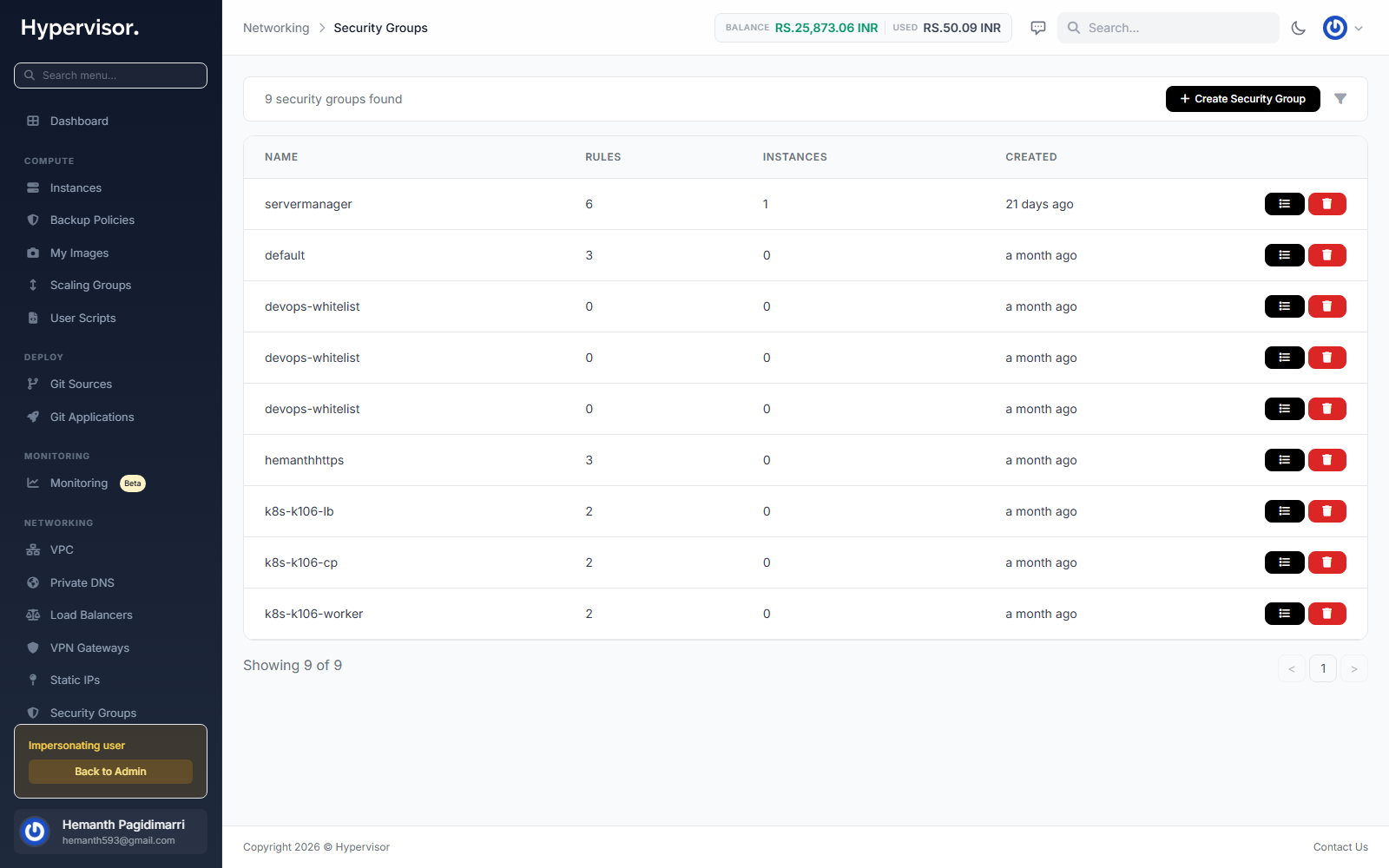
Customers manage security groups from Security > Security Groups in the user panel. Each group lists the inbound and outbound rules it applies, plus which instances the group is attached to.
Creating a new security group opens a form with name, description, and a rule editor. Each rule specifies a protocol (TCP/UDP/ICMP), a port range, and a source (CIDR, named IP set, or another security group). Customers can save the group with zero rules and add rules later.
After save, the customer attaches the group to one or more instances from the instance Networking tab.