Git Deploy
Overview
Git Deploy turns any Docker-enabled customer instance (a virtual machine with Docker installed and running on it) into a deployment target for source code stored in a Git repository.
A customer connects their Git provider (GitHub, GitLab, Bitbucket, or Gitea) once, points an application at a repository and branch, and from then on every push to that branch is built and deployed automatically. Pull requests can also each get their own throw-away preview environment with a unique URL, posted back to the pull request as a comment.
This page covers what an admin must set up for the feature to work, what a customer sees, and the key idea of preview environments.
Concepts
Git provider: a hosted service that stores Git repositories, for example GitHub, GitLab, Bitbucket, or Gitea (the last one is also self-hostable).
Repository (repo): a single project's source code in Git.
Branch: a named line of development inside a repository, for example main, develop, feature/login. A Git Deploy application is tied to one branch.
Push: when a developer uploads new commits to the repo, the provider notifies the platform via a webhook (an HTTP callback the platform listens for). The webhook triggers a build.
Build pack: the recipe used to turn source code into a runnable container image. The platform supports:
- Nixpacks: auto-detects the language and framework. No Dockerfile required.
- Railpack: a newer auto-detecting builder, also no Dockerfile required.
- Dockerfile: build the repo's own Dockerfile.
- Compose: bring the repo up with its own Docker Compose file.
- Static: just serve the files with a static web server image.
- Image: run a prebuilt image instead of building anything.
Zero-downtime deploy: the new container is started, health-checked, and only then is traffic switched to it and the old container stopped. A failed build leaves the previous running version untouched.
Preview environment: a temporary, separate deployment that goes up when a pull request is opened and comes down when the pull request is closed or merged. Each preview gets its own URL so reviewers can try the change without affecting the main app.
Pull request (PR): a proposal to merge one branch into another. On GitLab it is called a "merge request". For Git Deploy purposes, both behave the same way.
ACME / Let's Encrypt: ACME is the protocol the platform uses to obtain free TLS certificates from Let's Encrypt so deployed apps are served over HTTPS automatically.
Admin steps
The Git Deploy feature is built into the user panel, but two platform-wide prerequisites must be in place before customers can use it.
Prerequisite 1: the git-deploy SSH key
Git Deploy builds run on the customer's instance over SSH (an encrypted shell connection to the VM). The platform generates a dedicated SSH key pair the first time the feature is used, stores the private half encrypted in the database, and installs the public half on each customer instance the customer asks to enable.
This key is separate from the SSH key used to talk to hypervisors. You do not generate it by hand. Verify the keypair exists by opening Settings -> Git Deploy in the admin panel and confirming the Public deploy key is shown. If it is missing, the first customer to use Git Deploy will generate it on demand.
Prerequisite 2: the ACME email
HTTPS for deployed applications is issued from Let's Encrypt, which requires a contact email address per server. The platform stores this address in a panel setting named git_deploy.acme_email.
To set it:
- Open Settings -> Git Deploy in the admin panel.
- Fill in ACME email. Use a mailbox you actually monitor, since Let's Encrypt sends expiry warnings here if renewals ever fail.
- Save.
If you leave this field blank, the platform falls back to the system administrator email from Settings -> General.
Prerequisite 3: outbound network access
Customer instances need outbound internet access to pull the Git Deploy helper container image and any build dependencies the application's build pack needs (for example npm or pip packages). If your default network policy blocks outbound traffic, customer Git Deploy applications will fail at the clone step.
Optional: pin the helper image
Git Deploy builds run inside a helper container shipped by the platform. The default image is ghcr.io/hypervisor-io/git-deploy-helper:latest. For production stability you can pin a specific digest (a content hash that never changes) instead of the rolling latest tag, via the git_deploy_helper_image setting or the GIT_DEPLOY_HELPER_IMAGE environment variable.
Optional: rate limits
Incoming webhooks are throttled per source IP (120 per minute) and per Git source (60 per minute), so one busy repository cannot starve other tenants. These limits are platform-wide and not configurable from the panel.
What end users see
Connecting a Git source
The customer opens Deploy -> Git Sources in their panel and connects a provider:
- GitHub: the panel walks the customer through creating a GitHub App (a GitHub-defined integration the customer installs on their account). The App registers the push and pull-request webhooks automatically, with no manual setup.
- GitLab, Bitbucket, Gitea: the customer pastes a personal access token (a long-lived password-like string the provider issues for API access) and optionally a deploy key for SSH-based clones.
A single Git source can serve many applications.
Enabling Git Deploy on an instance
When the customer creates their first application, the create form checks whether the platform's deploy public key is installed on the target VM. If not, the customer is offered two options:
- Automatic: the platform pushes the key in via the hypervisor's guest agent, then verifies SSH works.
- Manual: the panel shows the public key text and the customer pastes it into
/root/.ssh/authorized_keyson the VM themselves, then clicks Test connection.
The private key never leaves the master server and is stored encrypted.
Creating an application
Under Deploy -> Git Applications -> Create application, the customer picks the target instance, the Git source, the repository and branch, and a build pack. Two toggles control automation:
- Auto deploy on push: every push to the branch triggers a deploy.
- Pull-request previews: every pull request gets its own preview environment.
Environment variables (configuration values injected into the build and the runtime) can be added as key-value pairs. For security, configured values are write-only; they are never displayed back in the panel, so a leaked screenshot of the edit form does not leak credentials.
Deploying
Three things trigger a deploy:
- The customer clicks the Deploy now button.
- A push lands on the configured branch (when Auto deploy on push is on).
- A pull request is opened, updated, reopened, or closed (when Pull-request previews is on).
Only one deploy per application runs at a time. Build logs stream live; tokens and credentials are auto-redacted from the output.
Production deploys are zero-downtime: the new container starts, must pass its health check, traffic switches to it, and only then is the old container stopped.
Including [skip ci] or [skip cd] (case-insensitive) in a commit message skips the auto-deploy.
Preview environments
When Pull-request previews is on, every pull request gets its own disposable deployment:
- PR opened: the PR branch is built and deployed as a separate application with its own URL.
- New commits pushed to the PR: the preview is redeployed.
- PR closed or merged: the preview's containers are stopped and removed.
- PR reopened: the preview comes back.
A status comment is posted on the pull request with the latest result and the preview URL. Previews run as separate containers alongside the production deployment on the same instance, so production traffic is never affected.
Each preview gets a hostname of the form pr<number>-<app-id>.<instance-ip>.sslip.io, which resolves to the instance with no DNS setup (sslip.io is a public DNS service that returns the IP embedded in the hostname). If the application has a custom domain configured, previews instead use pr<number>.<your-domain>.
The Preview environments table on the Git Applications page lists every active preview. The customer can click Tear down on a row to remove a long-running preview manually.
HTTPS and routing
The first deploy on an instance bootstraps a Traefik reverse proxy (Traefik is an open-source HTTP router) as a container. Every deployed app is routed through it and HTTPS certificates are issued automatically via Let's Encrypt using the ACME email an admin configured.
Quick deploy from the Docker tab
For a one-off deploy without creating a managed application, the instance's Docker tab offers Deploy from Source: paste a public repo URL, set the branch and build pack, optionally add environment variables, and deploy. This path supports public repositories only and does not auto-deploy on push.
Troubleshooting
| Symptom | Cause and fix |
|---|---|
| "The git-deploy key is not installed on this instance" | Enable Git Deploy on the instance from the build host panel in the application form, or from the instance's Docker tab. |
| Enable git deploy automatic step fails | The guest agent on the VM is unavailable. Use the manual path: paste the public key into /root/.ssh/authorized_keys, then click Test connection. |
| Test connection fails on a custom SSH port | The VM's SSH daemon is not on port 22. Save the correct VM SSH port in the build host panel before testing. |
| Repository dropdown shows "not installed on any repositories" | The GitHub App exists but has no repository access. The customer clicks Install / Repositories on the source and grants access. |
| Repository browse is unavailable for GitLab/Bitbucket/Gitea | The personal access token is missing or invalid. Update it on the source. |
| Bitbucket pushes never deploy | Bitbucket Cloud does not natively sign webhooks. The webhook must be configured to send a signed X-Hub-Signature: sha256=<hmac> header using the source's webhook secret, or the platform rejects the event. |
| "A deployment is in progress" | Only one deploy per application runs at a time. Wait for it to finish. |
| HTTPS certificates fail to issue | The git_deploy.acme_email setting is missing or invalid, or the instance cannot reach Let's Encrypt on outbound HTTPS. Fix the setting and confirm outbound 443. |
| Builds fail at "pulling image" | The instance has no outbound internet access. Adjust the network policy so the instance can reach the helper image registry and the build pack's package mirrors. |
What end users see
Customers manage Git Deploy from two top-level user pages: Deploy > Git Sources for repository connections, and Deploy > Git Applications for the actual deploy targets.
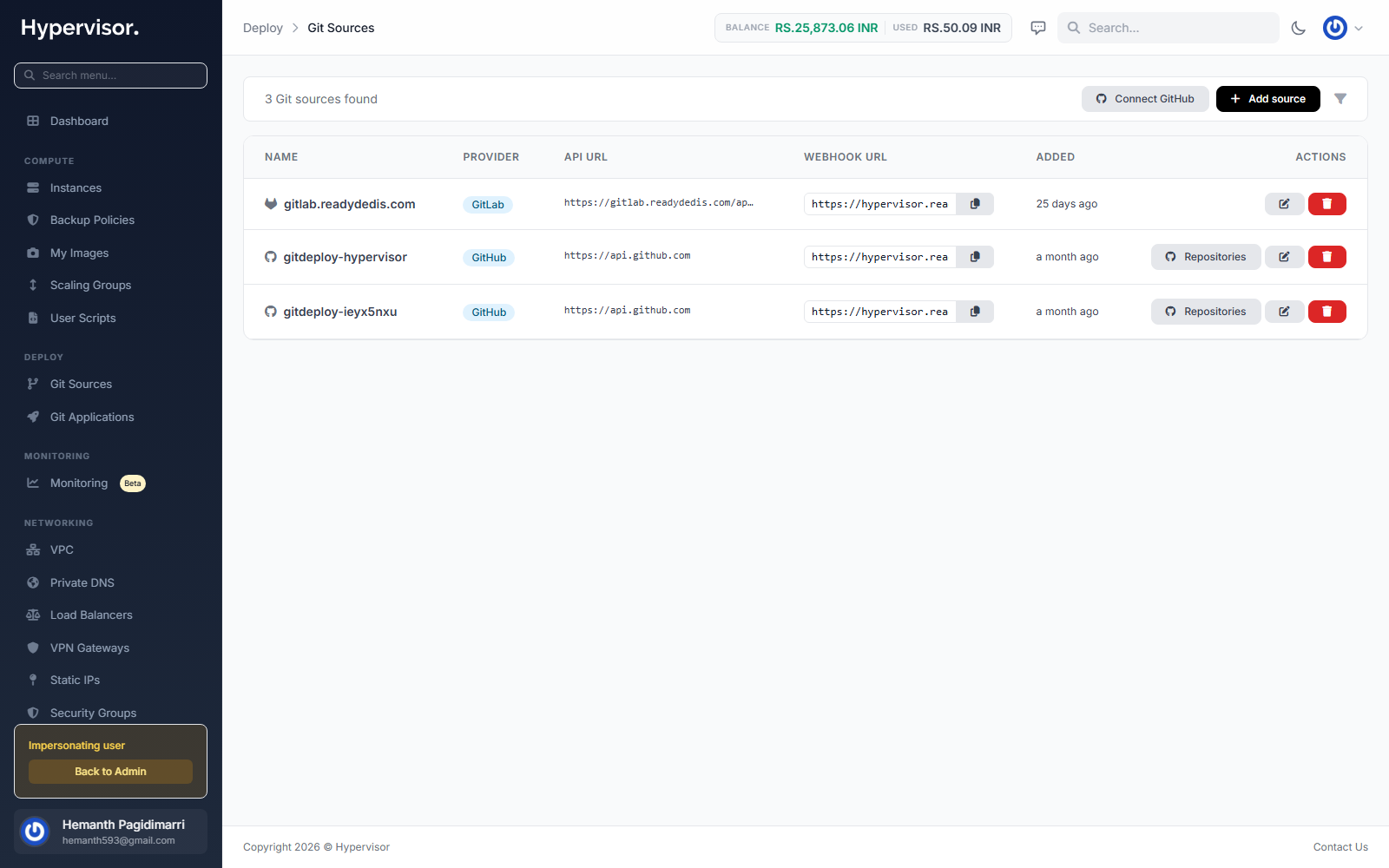
A Git Source is the link to a Git host (GitHub, GitLab, Bitbucket, Gitea). Adding one walks the customer through the host's OAuth or SSH-key flow so the platform can pull from private repositories.
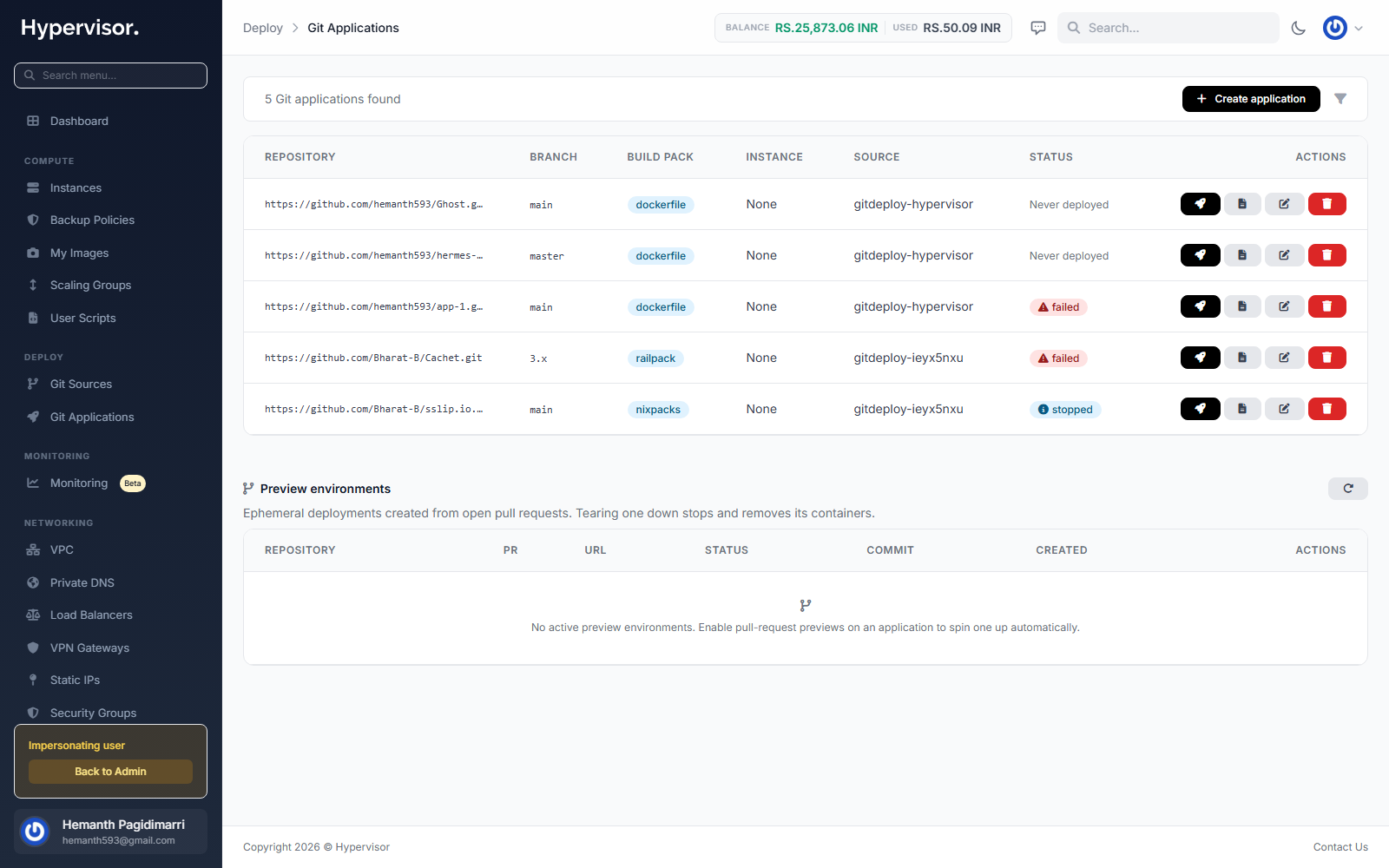
A Git Application is one deploy target. Creating one asks for the source, the repository, the production branch, the target instance, and whether preview environments are enabled. After save, each push to the production branch triggers a deploy; pull requests get their own disposable preview environments. Deploy log output streams onto the application detail page so customers can follow the build and watch for failures.
Related pages
- Self Provisioning for the model that lets customers spin up the target instances themselves.
- Monitoring for the Tasks page where deploy progress and failures appear.