User Scripts
Overview
User Scripts let a user save a script (Bash, Python 3, or PowerShell) once and then run it automatically every time they create or reinstall an instance. The script runs during first-boot setup, which is handled by cloud-init (a Linux subsystem that runs a one-time configuration step the first time a VM boots).
Typical uses: install a web server, configure a firewall, set up monitoring agents, drop SSH keys, write a config file. The script content is encrypted in the database.
Concepts
- Script type: which interpreter runs the script.
bashandpythonfor Linux.powershellfor Windows. - Shebang: the first line of a Linux script that tells the OS which interpreter to use, for example
#!/usr/bin/env bash. Optional; sensible defaults are filled in. - Cloud-init: the Linux first-boot setup system. It is what runs the script. The instance's OS image must support it.
Admin: managing user scripts
Open the admin User Scripts page to view every script across the platform.
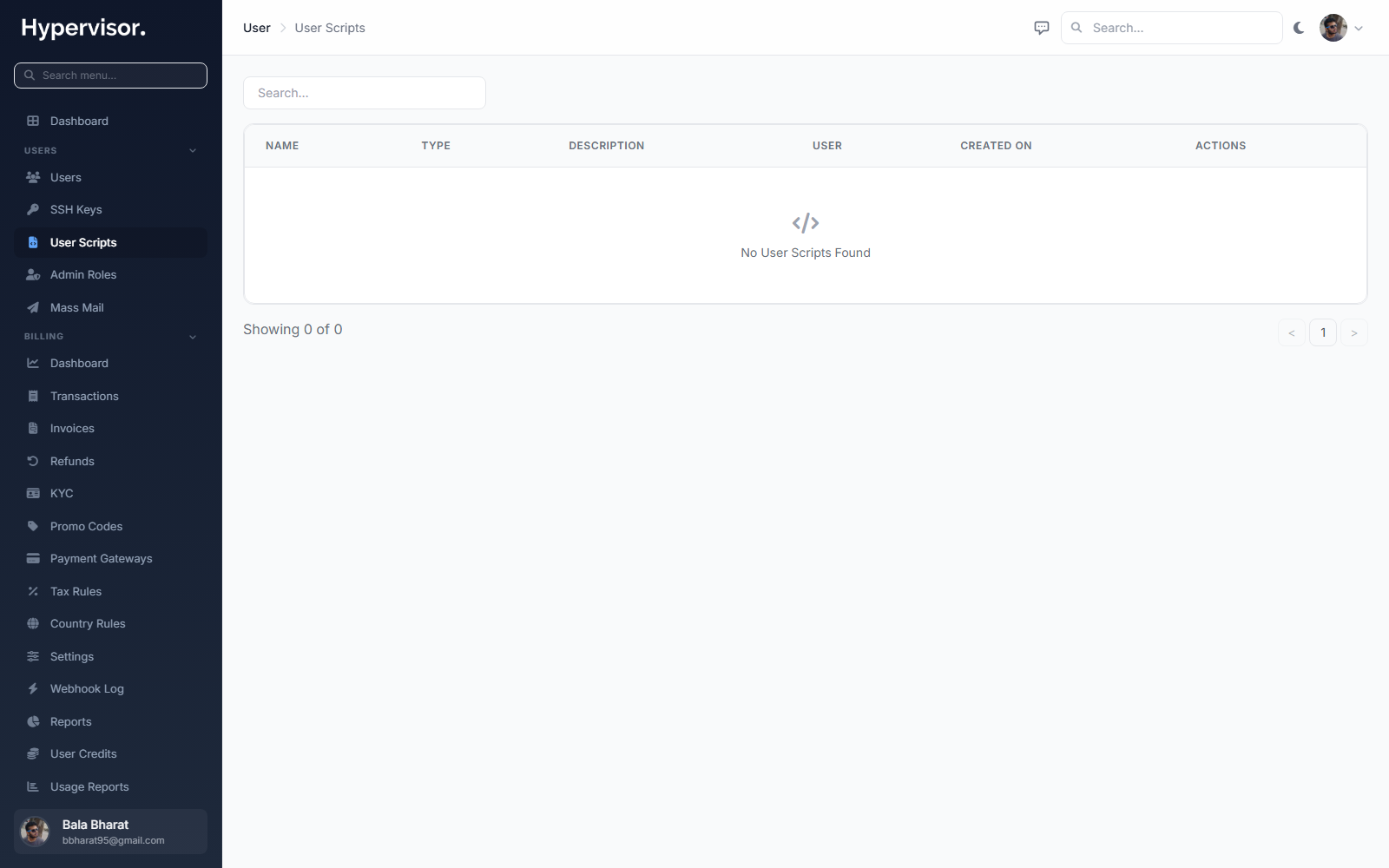
From here you can view, edit, or delete any user's script. There are no platform-wide enable or disable switches; the feature is on for everyone.
What end users see
Creating a script
- Click User Scripts in the sidebar.
- Click Create Script.
- Fill in:
- Name: a label (letters, digits, spaces, dots, dashes, underscores).
- Description (optional).
- Type:
bash,python, orpowershell. - Shebang (optional, Linux only): defaults to
#!/usr/bin/env bashor#!/usr/bin/env python3. - Content: the script body, written in the built-in code editor with syntax highlighting.
Environment variables available at runtime
Every script can read these environment variables; the panel fills them in from the instance:
| Variable | What it holds |
|---|---|
PUBLIC_IP | Primary public IP address |
PRIVATE_IP | Primary private IP address |
VPC_IP | Primary VPC subnet IP address. VPC (Virtual Private Cloud) is a private network only the user's own VMs can see. |
INSTANCE_HOSTNAME | The instance hostname |
INSTANCE_UUID | The instance UUID |
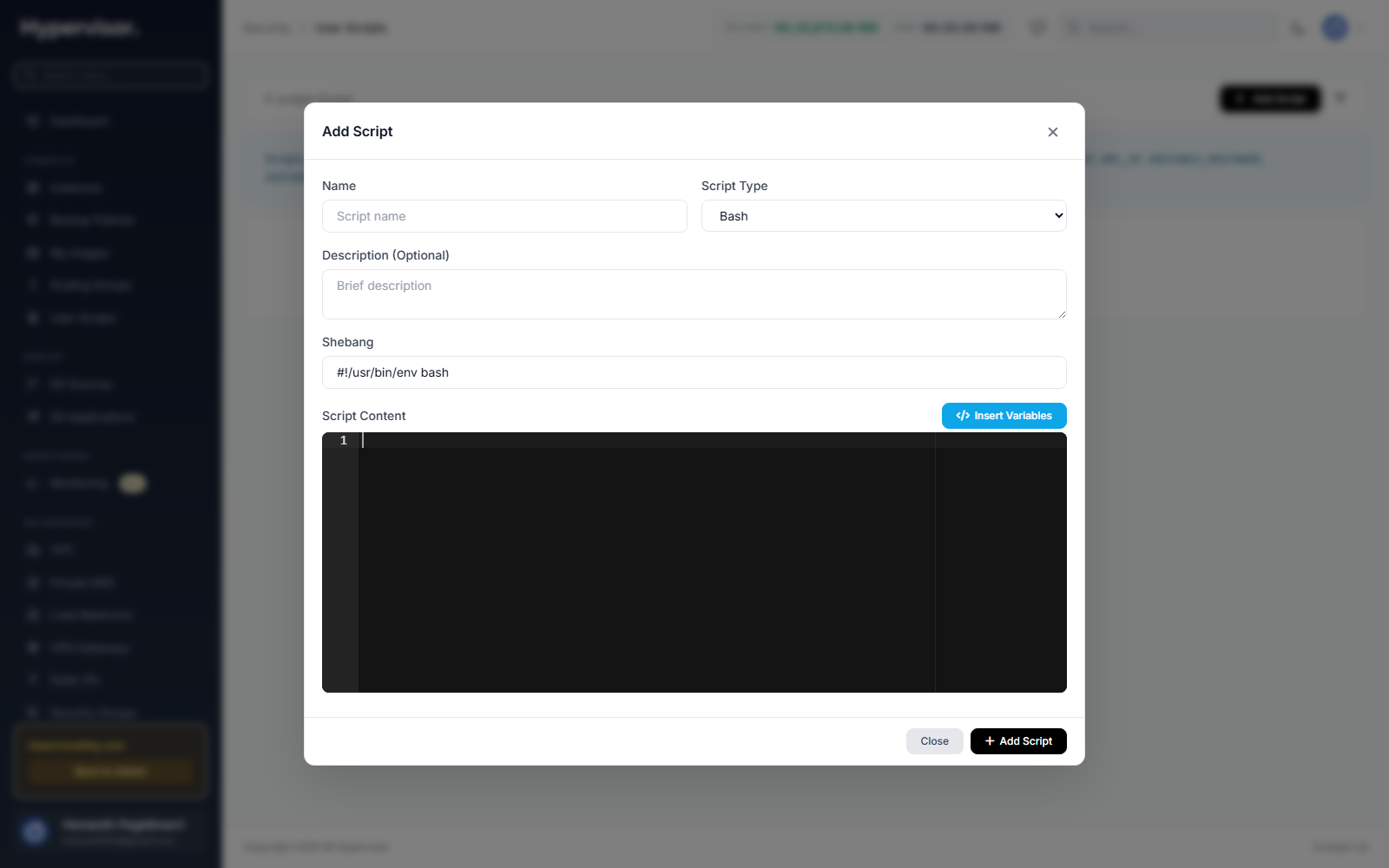
Click Insert Variables in the editor to drop in a ready-to-edit template.
Example Bash:
#!/usr/bin/env bash
apt-get update
apt-get install -y nginx
echo "Server IP: $PUBLIC_IP" > /var/www/html/index.html
systemctl enable nginx
systemctl start nginx
Example PowerShell:
Install-WindowsFeature -Name Web-Server -IncludeManagementTools
Set-Content -Path C:\inetpub\wwwroot\index.html -Value "Server IP: $env:PUBLIC_IP"
Managing scripts
The user's User Scripts page shows each saved script as a card with its name, type badge, description, shebang, and creation date. Each card has Edit and Delete actions.
Running scripts during deployment
When creating or reinstalling an instance:
- In the create / reinstall form, find the User Scripts field.
- Search and pick one or more scripts from the dropdown.
- Multiple scripts run in the order they were selected.
The User Scripts field only appears when the chosen OS image supports cloud-init. If the field is missing, pick a cloud-init enabled image.
Execution order
- Scripts run in the order they were picked.
- Each script must finish before the next one starts.
- Scripts run during the cloud-init phase, with root privileges on Linux or System privileges on Windows.
Troubleshooting
The User Scripts field is missing on the create-instance form
The selected OS image does not support cloud-init. Switch to an image that does (most modern Linux distributions and recent Windows Server cloud-init images).
Script ran but did nothing visible
Check the cloud-init log on the instance:
- Linux:
/var/log/cloud-init-output.log - Windows: cloud-init writes a log under
C:\ProgramData\Amazon\EC2-Windows\Launch\Log\or underC:\Program Files\Cloudbase Solutions\Cloudbase-Init\log\, depending on the cloud-init flavor in use.
Wrong environment variable values
The variables are populated from the instance record at boot. If an IP has not yet been assigned, the corresponding variable is empty.
What end users see
Customers manage their own scripts from Compute > User Scripts in the user panel. The list shows each script with its language and last-update timestamp.
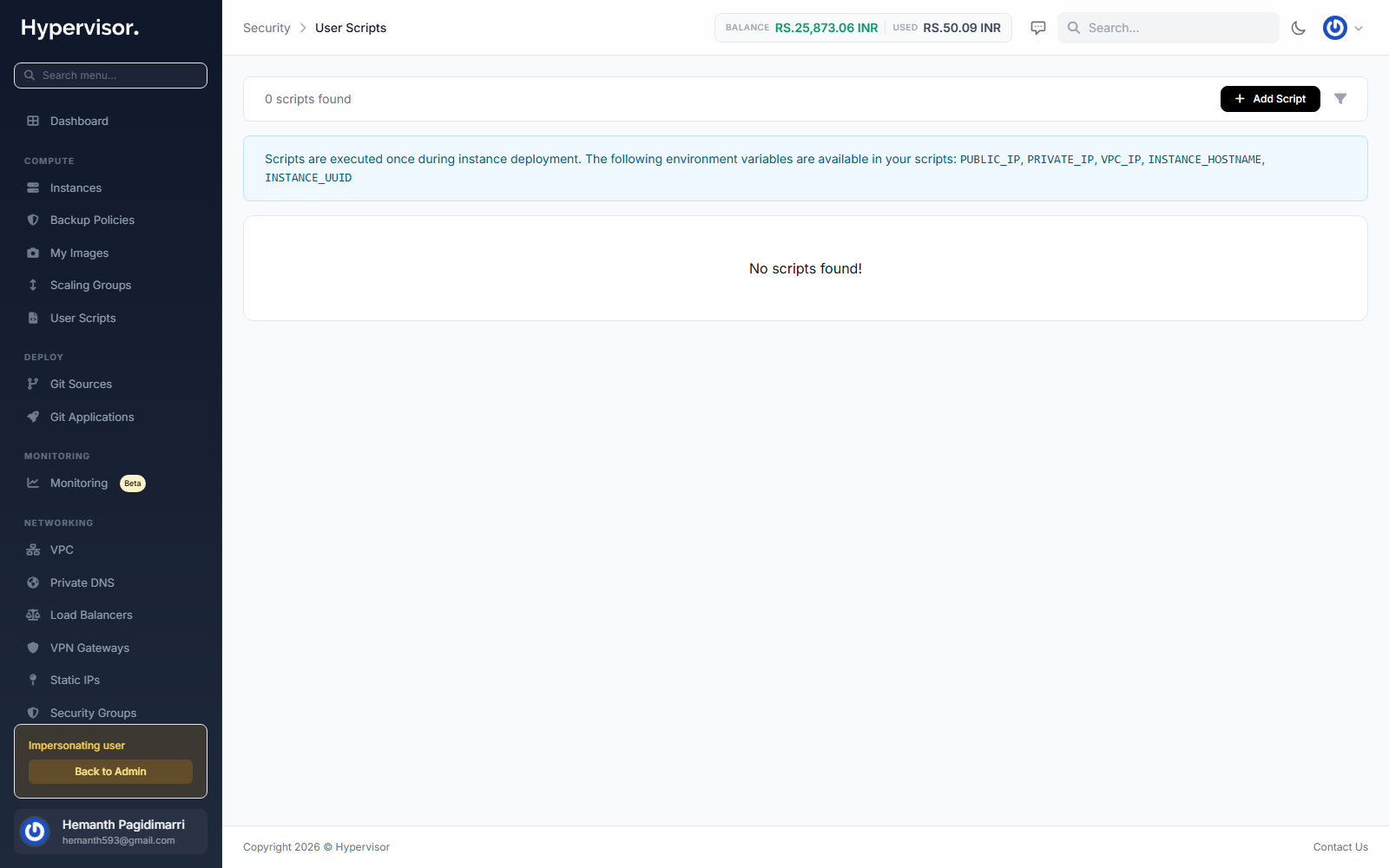
Clicking Add User Script opens the create form. The customer picks a name, language (Bash, Python, or PowerShell), optional shebang line (Linux only), and pastes the script body.
Available environment variables
The platform injects these variables into every User Script before it runs. Use them directly in your script body, no curly-brace placeholders required:
| Variable | Description |
|---|---|
PUBLIC_IP | The instance's primary public IPv4 address. Empty if the instance has no public IP. |
PRIVATE_IP | The instance's primary private (datacenter LAN) IPv4 address. Empty if not configured. |
VPC_IP | The instance's primary VPC IPv4 address. Empty if the instance is not on a VPC. |
INSTANCE_HOSTNAME | The instance's hostname as set on the panel. |
INSTANCE_UUID | The UUID identifying the instance. |
On Linux, use them as $PUBLIC_IP, $INSTANCE_HOSTNAME, and so on. On Windows PowerShell, use them as $env:PUBLIC_IP, $env:INSTANCE_HOSTNAME.
Sample Bash script that uses every available variable:
#!/bin/bash
set -e

echo "Provisioning host: $INSTANCE_HOSTNAME (uuid: $INSTANCE_UUID)"
echo "Public IP : $PUBLIC_IP"
echo "Private IP: $PRIVATE_IP"
echo "VPC IP    : $VPC_IP"

# Register the host with an inventory service
curl -fsSL -X POST https://inventory.example.com/register \
  -H "Content-Type: application/json" \
  -d "{\"hostname\":\"$INSTANCE_HOSTNAME\",\"uuid\":\"$INSTANCE_UUID\",\"public_ip\":\"$PUBLIC_IP\",\"private_ip\":\"$PRIVATE_IP\",\"vpc_ip\":\"$VPC_IP\"}"
Selecting a script at deploy time
When the customer deploys a new instance, the create-instance form has a User Scripts step where they pick one or more saved scripts. The scripts run sequentially during cloud-init's runcmd phase, after the system is on the network but before the instance is reported as ready.
Related pages
- Instance Images - the images that need to support cloud-init for User Scripts to run.
- Docker Manager - install Docker apps without writing a script.
- Web SSH - open a browser terminal to verify what your script did.