Docker Manager
Overview
Docker Manager lets a user install ready-made web apps (Grafana, WordPress, Uptime Kuma, and others) on their own virtual machine through the panel, without ever logging into the VM. It uses Docker, an industry-standard tool that packages an application and everything it needs into a "container" so it runs the same way on any Linux machine.
The user picks an app from a catalog, sets a few options, and clicks Deploy. The panel installs the app on the VM and reports status back in real time.
Docker Manager is bundled with every instance at no extra charge.
Concepts
- Container: a packaged app that runs in isolation on a Linux host.
- Docker Compose: a configuration file (
docker-compose.yml) that describes one or more containers and how they connect. - Cloud-init: a Linux subsystem that runs first-boot setup scripts when a VM starts for the first time. The panel uses it to install Docker automatically.
- App catalog: a folder of pre-built
docker-compose.ymlfiles (one folder per app) published on GitHub.
Admin: prerequisites
Docker Manager is enabled in the product; there is no on/off switch in admin. Two things you can customize:
App catalog source
The catalog is loaded from a public GitHub repository. The default repository, maintained by the community, is at github.com/ReadyDedisLLC/hypervisor.io-docker-manager. To use a different catalog (for example, your own fork with custom apps), change the Docker Apps Repository URL in System Settings.
Every app in the repo has:
app.json- metadata, the list of environment variables the app expects, and the list of ports it exposes.docker-compose.yml- the actual container definition.icon.png- the icon shown in the catalog (128 x 128 pixels).
The panel caches the catalog for 5 minutes to avoid hitting GitHub's rate limit on every page load.
Deployment email template
When a deploy succeeds, the system emails the instance owner the access URL, the port mappings, and any auto-generated passwords. Customize the email under System Settings > Email Templates.
Admin: enabling Docker on a new instance
Docker is installed on the instance during first boot via cloud-init. There is no post-install button. To make Docker available on an instance:
- When creating an instance (admin or user side), pick a Linux image with cloud-init support (Ubuntu 22.04 or 24.04, Debian 12, Rocky 9, or AlmaLinux 9).
- Tick the Install Docker Engine checkbox on the create-instance form.
- Create the instance.
The instance's first boot adds Docker's official APT or YUM repository and installs docker-ce, docker-ce-cli, containerd.io, and docker-compose-plugin.
Reinstall the instance with the Docker checkbox ticked. Reinstall erases all data on the primary disk, so back up first.
To verify Docker is working, SSH into the instance and run:
docker --version
docker compose version
What end users see
A Docker tab appears on the instance management page once Docker is installed. The instance must be in the Running state. If Docker was not installed at create time, the tab shows a notice explaining a reinstall is needed.
App catalog
Clicking Deploy App opens a grid of apps. Each card shows the icon, name, category (CMS, database, monitoring, etc.), short description, and minimum RAM and disk. The user can search by name or filter by category.
Deploying an app
The user picks an app, fills in the form, and clicks Deploy. The form has two sections:
- Environment variables - labeled inputs generated from the app's definition. Password fields have an auto-generate button that creates a strong random value.
- Port mappings - a table of container ports (fixed by the app) and host ports (the port on the VM that maps to the container). The user can change the host port if the default is already taken.
The deploy runs in the background. Status updates stream over WebSocket so the page does not need to refresh. Apps install to /opt/docker-apps/{name}/ on the VM.
Custom Compose
If an app is not in the catalog, the user clicks Custom Compose, pastes the URL of a docker-compose.yml file (for example, a GitHub raw URL), names the app, optionally adds environment variables and port mappings, and deploys.
Managing deployed apps
Each deployed app appears in a table with a status badge:
| Status | Meaning |
|---|---|
| Pending | Deploy queued, not yet started |
| Deploying | Docker is pulling images and starting containers |
| Running | Containers are up |
| Stopped | Containers were stopped |
| Error | Deploy failed - error message is shown |
Action buttons per app: Open App (opens the app URL in a new tab), Check Status, Logs (live log viewer), Start, Stop, Restart, and Remove (deletes containers, networks, volumes, and the panel record).
If a deploy fails, the user sees the error inline and a Retry Deployment button reuses the same values.
Adding apps to the catalog
The catalog is open-source. To add an app, contribute to the upstream repository or maintain your own fork. Each app needs an app.json, a docker-compose.yml, and an icon.png. The app.json should list the Linux distributions the app supports; if a user tries to deploy on an unsupported distro, the form warns them first.
What end users see
Customers reach Docker Manager from inside an instance. From the user instance Manage page, the Docker tab in the sidebar opens the app catalog and the list of currently deployed apps for that instance.
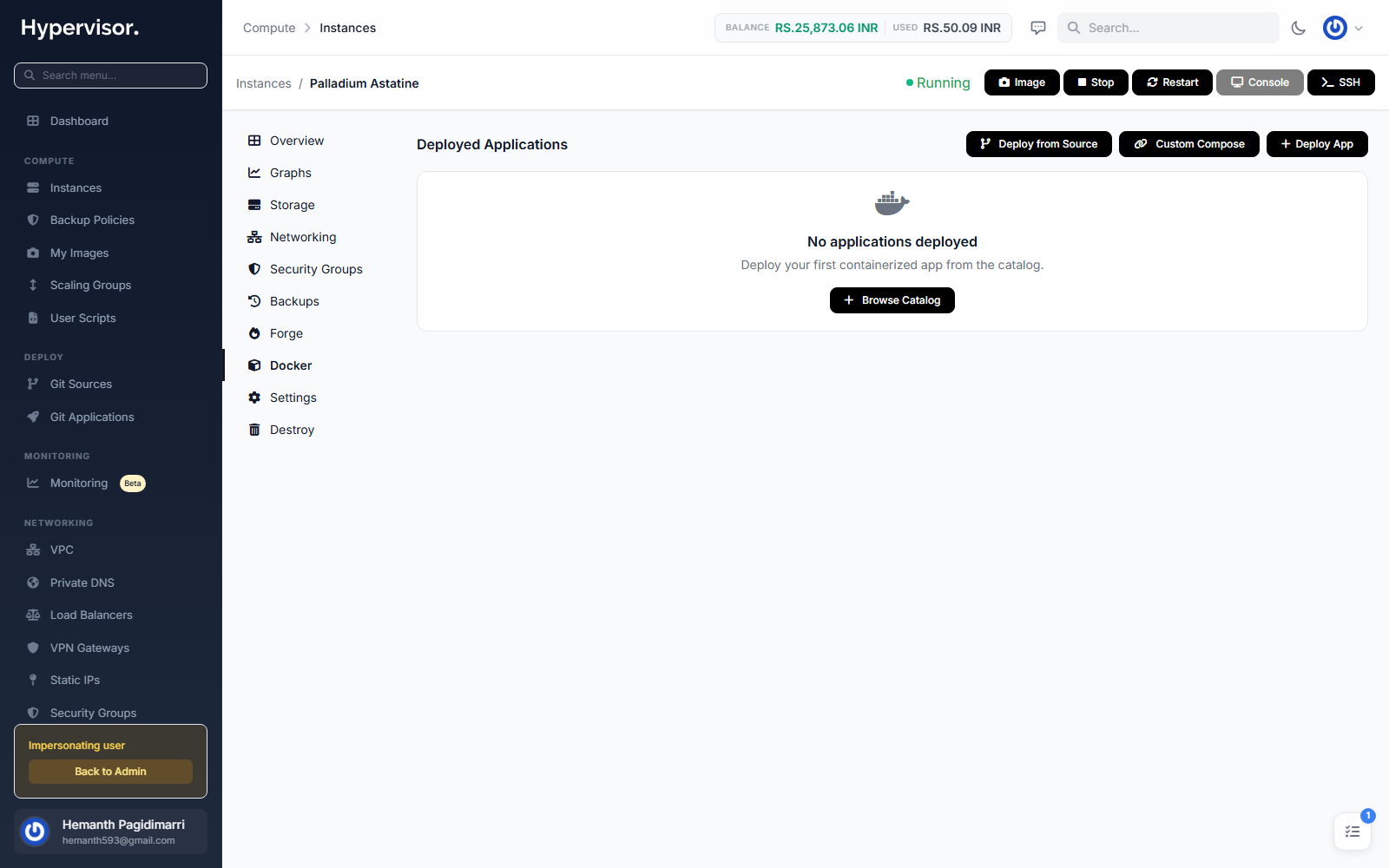
The catalog lists the supported one-click apps. Each card shows the app name, a short description, and a Deploy button.
Picking a catalog app opens a deploy form: environment variables, exposed ports, persistent-volume mounts, and a target tag. The customer fills the fields, then submits. Live deployment progress streams onto the same page; once running, a Logs view shows the container's stdout/stderr.
Related pages
- Forge - the in-VM app deployer for non-containerized apps.
- User Scripts - run custom shell or PowerShell scripts at instance create time.
- Web SSH - open a browser terminal to the instance.