Forge (Live Snapshots)
Overview
Forge lets a user take a snapshot of a running virtual machine without stopping it, make changes, and then either commit those changes (keep them) or discard them (roll back). When discarding, the VM is restored exactly to the moment the snapshot was taken, including the contents of its memory and any processes that were running.
Use Forge before a risky change: an OS upgrade, a kernel update, installing new software, or editing a configuration file.
Concepts
- Snapshot: a saved point-in-time copy of a disk's contents.
- Live snapshot: a snapshot taken while the VM is running, with no shutdown.
- Memory state: the contents of the VM's RAM at the snapshot moment. Saving it lets a discard operation restore not only the files but also the running processes.
- Commit: merge the changes made after the snapshot back into the original disk so they become permanent.
- Discard: throw away the changes and restore the disk and memory to the snapshot moment.
Prerequisites
Forge requires that:
- The instance is in the Running state.
- The instance is not suspended.
- No other long-running task is in progress on the instance.
- There is no existing Forge session already active.
- At least one attached disk is selected for inclusion.
Admin: prerequisites
Forge is a built-in feature; there is no admin enable switch. The instance just needs a hypervisor (KVM compute node) running a recent libvirt or QEMU version that supports live external snapshots. Standard hypervisor installs already meet this.
What end users see
Starting a Forge session
- Open the instance's manage page.
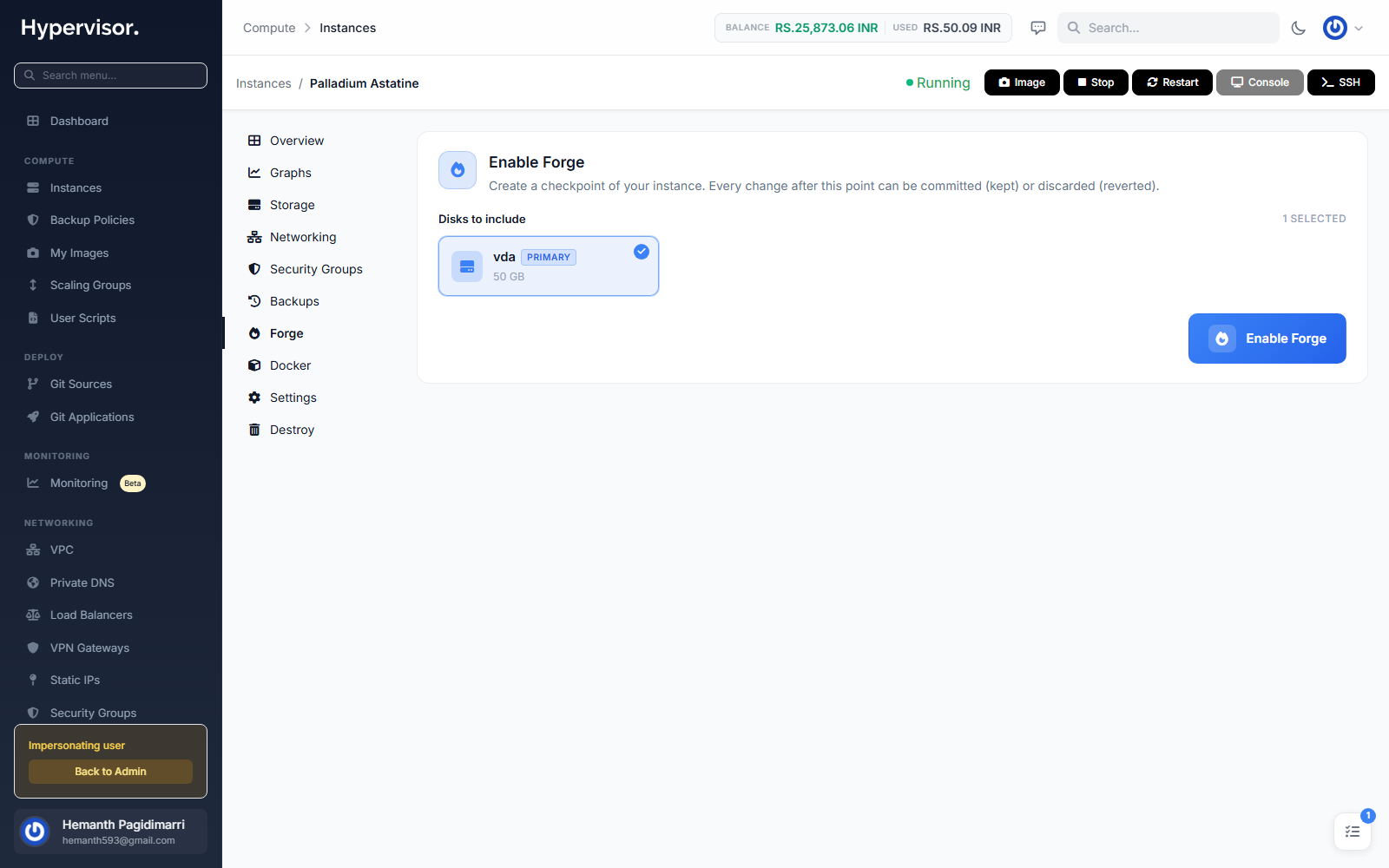
- Click the Forge tab.
- Tick the disks to include. The primary disk is selected by default.
- Click Enable Forge and confirm.
The panel pauses the VM for under a second to create the snapshot, then resumes it. From that moment on, any disk write goes into a separate overlay file; the original disk image is left untouched.
During an active session
The Forge tab shows the activation time, the disks included, and a status badge. Two buttons are available:
- Commit Changes (green): keep everything that has happened since activation.
- Discard Changes (red): roll back to the activation moment.
Both buttons are disabled while another task is running on the instance.
Committing
Committing merges the overlay back into the original disk. The VM keeps running during the merge. For VMs with heavy disk writes and large disks, the merge can take several minutes; progress is reported per disk.
After commit, there is no way to go back to the pre-Forge state.
Discarding
Discarding deletes the overlay (so disk contents go back to the snapshot moment) and restores the VM from the saved memory image (so running processes resume as if no time had passed).
If the memory restore fails for any reason (for example, the configuration changed in the meantime), the system falls back to a cold boot. The disk is still correctly reverted, but the VM boots fresh instead of resuming.
Status badges
| Status | Color | Meaning |
|---|---|---|
| Creating | Blue | The snapshot is being taken |
| Active | Yellow | Forge is active and capturing changes |
| Committing | Blue | Merging changes into the original disk |
| Discarding | Blue | Reverting changes |
| Committed | Green | Done; changes are permanent |
| Discarded | Gray | Done; changes were reverted |
| Failed | Red | The operation failed |
While in Creating, Committing, or Discarding, the UI shows a spinner and hides the action buttons.
Operations blocked during an active session
While Forge is active, these instance actions are not allowed:
- Reinstall
- Resize (upgrade or downgrade)
- Migrate
- Suspend or unsuspend
- Add, remove, or resize disks
- Create backups
- Mount or unmount an ISO (an ISO is a CD-image file used as bootable media)
- Create an image from the instance
- Enable or disable the public network interface
- Destroy the instance
The user must commit or discard first. Power actions (stop, restart, kill) and VNC console (a remote screen for the VM) remain available.
Troubleshooting
Forge enable fails
Confirm the instance is running, not suspended, and has no other task in progress. Confirm at least one disk is selected and attached. Inspect the task log for the exact error.
Commit is taking a long time
The commit must merge every block written since activation. On a busy database VM this can take several minutes. The hard timeout is one hour. Watch progress on the tasks page.
Discard cannot restore memory
The disk is always rolled back correctly. If the memory restore fails, the VM boots cold instead. The in-memory process state is lost, but no data on disk is lost.
Stuck in Creating, Committing, or Discarding
If a Forge task crashes mid-step, the session can stay in a transitional status. Check the task on the admin dashboard. If the task shows Failed, the admin must clear the stuck state.
A blocked operation is needed urgently
There is no override. The active Forge session must be committed or discarded first.
What end users see
Customers reach Forge from inside an instance. The Forge tab in the instance sidebar opens the catalog of installable apps and the management view for whatever is already installed.
Picking a catalog app opens its install form: domain, version, and any required environment variables. After install, the same tab switches to a management view where the customer can stop, restart, view logs, and roll back snapshots.
Related pages
- Instance Images - to save a permanent reusable copy of the VM's disk.
- Live Migration - to move the VM to a different hypervisor.