Database Backup Policies
Overview
A Database Backup Policy automates offsite backups for managed databases. It bundles the S3 destination, schedule, retention, and encryption settings into one reusable object. Attach one or more databases to a policy and the system runs full backups, incremental backups, and (optionally) continuous transaction log archiving on the schedule you set.
It is the same idea as Instance Backup Policies but for the managed database resource instead of a virtual machine.
Concepts
- Managed database - A database (MySQL, MariaDB, or PostgreSQL) the platform runs for the customer. See Managed Databases.
- S3-compatible storage - A storage service that speaks the Amazon S3 API. AWS S3, RustFS, Wasabi, and similar.
- Bucket - The S3 namespace your backups are written into. You point the policy at the bucket plus an access key and secret key that can write to it.
- Full backup - A complete copy of the database at one point in time.
- Incremental backup - A copy of only the changes since the last full backup. Smaller and faster than a full.
- Chain - One full backup plus all the incrementals that depend on it.
- PITR (Point-in-Time Recovery) - The ability to restore the database to any second within a recovery window, not just to the moment a backup was taken. Works by continuously archiving the database's transaction log (binary log for MySQL/MariaDB, WAL for PostgreSQL).
- Transaction log - The running log of every change the database makes. PITR replays it on top of a full backup to roll the database forward to a precise instant.
- Retention - How long to keep old backups before deleting them.
- AES-256 - A symmetric encryption algorithm. Optional client-side encryption before upload so the data is unreadable in the bucket.
- Replica - A read-only copy of the database that follows the primary. If a healthy replica exists, the backup runs against it so the primary's performance is not affected.
Prerequisites
Before you create a policy:
- An S3-compatible bucket already exists, with an access key and secret key that have read/write/delete permission on it.
- At least one managed database is Active.
- The S3 endpoint is reachable from the database server over HTTPS.
The S3 credentials need s3:PutObject, s3:GetObject, s3:DeleteObject, and s3:ListBucket on the target bucket. Missing permissions cause backup failures.
Admin: Configuring Database Backup Policies
Open the admin sidebar and go to Managed Databases then Backup Policies.
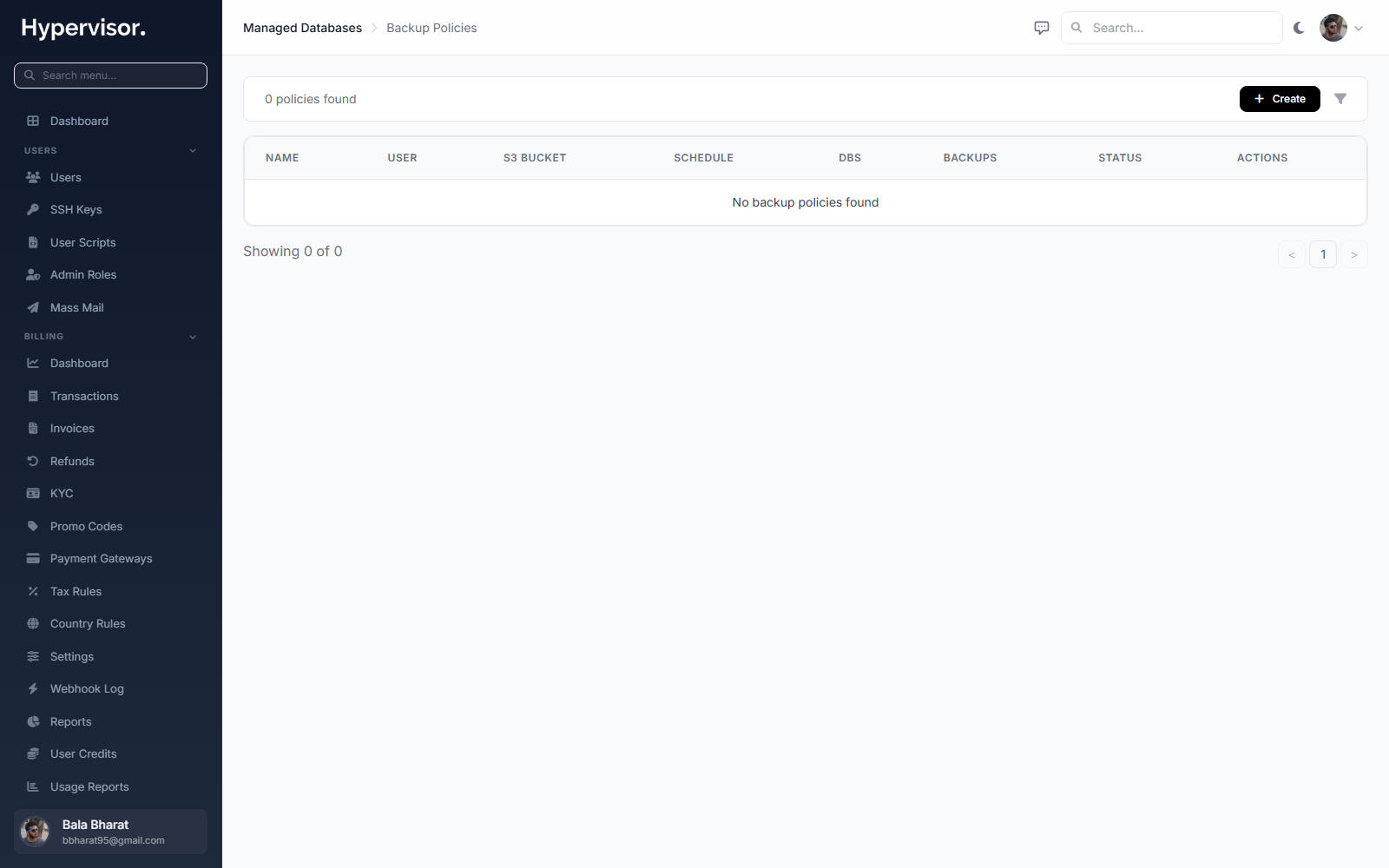
Click Add Policy to open the create form, then fill in the sections below.
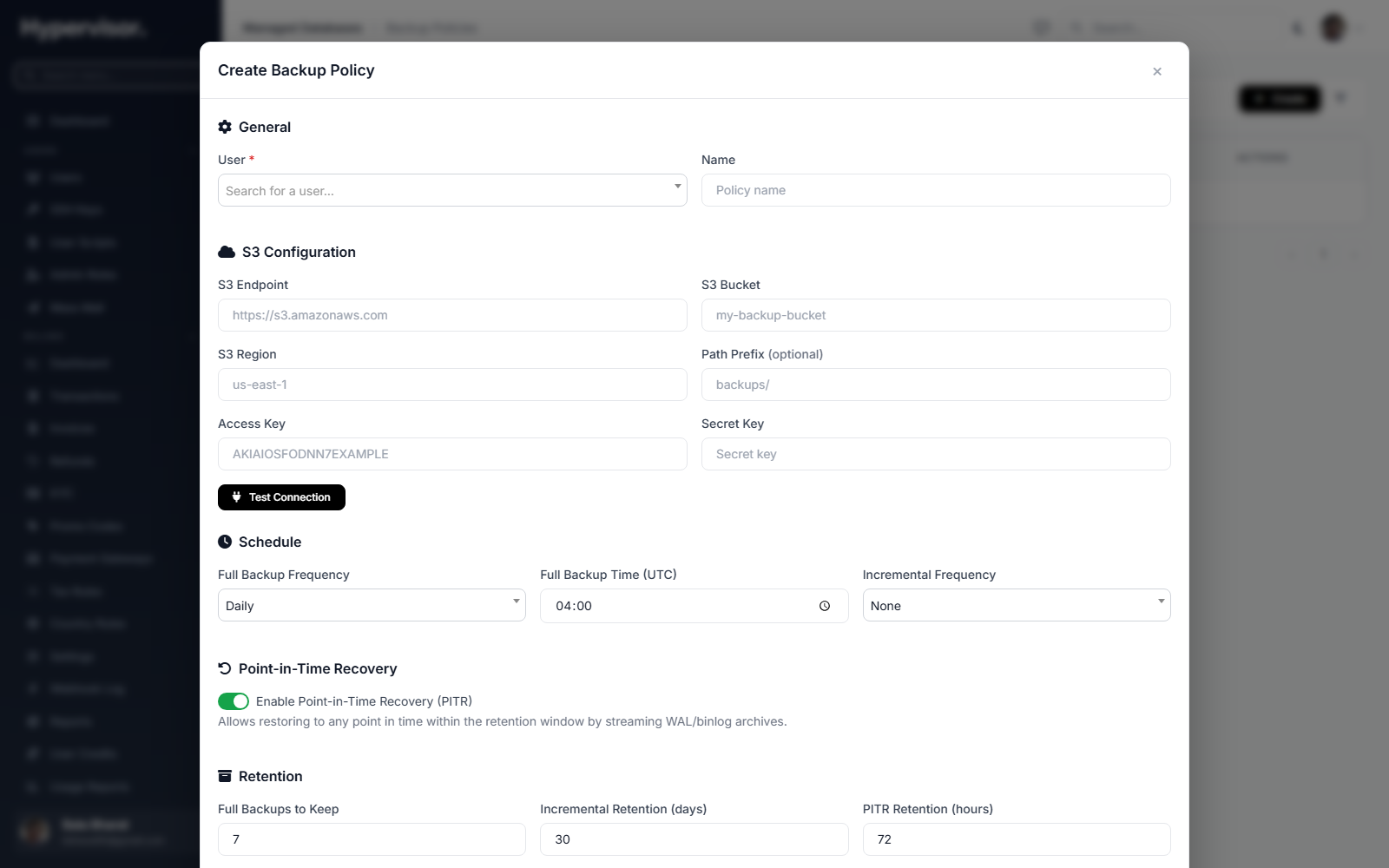
General
| Field | What it means |
|---|---|
| User | The owner of the policy. The databases attached to this policy must belong to the same user. |
| Name | A label, for example "Production Daily". |
S3 Configuration
| Field | What it means |
|---|---|
| S3 Endpoint | Hostname of the S3-compatible endpoint (e.g. s3.us-east-1.amazonaws.com). |
| S3 Bucket | Target bucket name. |
| S3 Region | Bucket region (e.g. us-east-1). |
| S3 Access Key | IAM key with read/write/delete on the bucket. |
| S3 Secret Key | Matching secret. |
| S3 Path Prefix | Optional folder inside the bucket (e.g. backups/production). |
Click Test Connection to verify the credentials before saving.
Schedule
| Field | Values | What it means |
|---|---|---|
| Full Backup Frequency | Daily or Weekly | How often a full backup runs. |
| Full Backup Time | HH:MM (UTC) | Time of day to start full backups. |
| Full Backup Day | Sunday to Saturday | Only used for weekly schedules. |
| Incremental Frequency | None, 1h, 2h, 4h, 6h, 12h | How often incremental backups run between full backups. |
PITR
| Field | What it means |
|---|---|
| PITR Enabled | Turn point-in-time recovery on or off. |
When PITR is on, the system automatically configures transaction log archiving on any database attached to the policy (binary logs for MySQL/MariaDB, WAL for PostgreSQL). That stream lets you restore to any moment inside the retention window.
Retention
| Field | Default | What it means |
|---|---|---|
| Retain Full Backups | 7 | How many full backups to keep. |
| Retain Incrementals | 30 days | How long to keep incrementals. |
| Retain PITR | 72 hours | How long to keep transaction log archives. |
Encryption
| Field | What it means |
|---|---|
| Encryption Enabled | Turn on AES-256 encryption before upload (default on). |
With encryption on, the system generates and stores an encryption key for you. All backups uploaded under this policy are encrypted client-side before they leave the database.
Click Create to save.
User: Creating a Backup Policy
End users see the same form (minus the user picker) at Databases then Backup Policies in their sidebar. They follow steps 1 through 4 the same way.
Policy Detail Page
Policy Summary
- Name and status (Active, Paused, Error, or Validating).
- S3 endpoint, bucket, region, and path prefix.
- Last successful S3 credential check time.
- Schedule (frequency, time, day for weekly, incremental frequency).
- Retention values.
- Encryption on/off.
- Consecutive failure count, if any have happened.
Attached Databases
Table of databases attached to this policy.
| Column | What it shows |
|---|---|
| Database Name | Managed database name. |
| Engine | MySQL, MariaDB, or PostgreSQL. |
| Host | Database hostname. |
| Last Full Backup | Timestamp of the last full backup. |
| Last Incremental | Timestamp of the last incremental. |
| PITR Status | Active, Configuring, Error, or - if disabled. |
| Actions | Detach button. |
Attaching Databases
A database can be attached to exactly one backup policy at a time. Only primary databases in Active status are eligible.
From the Policy Detail Page
- Open the policy.
- In Attached Databases, pick a database from the dropdown.
- Click Attach.
What happens on attach
- Backup tools installed - The right utility for the engine is installed on the database server.
- PITR configured - If the policy has PITR enabled, transaction log archiving is set up on the database.
- Initial full backup - An immediate full backup runs to give the policy a baseline.
Attach can take a few minutes, especially when PITR has to be configured and the first full backup is large.
Detaching a Database
Click Detach next to the database on the policy detail page. PITR is turned off on detach. Existing backups already in the bucket are not deleted.
Backup Types
Full backups
A complete copy of the database. The baseline for incremental chains and PITR.
Incremental backups
Only the changes since the last full backup. Much smaller and faster. If the parent full backup is missing (retention cleaned it up, for example), the system falls back to a full backup automatically.
PITR archives
The continuous stream of transaction logs:
- MySQL / MariaDB: binary logs uploaded during each incremental backup job.
- PostgreSQL: WAL segments uploaded continuously as they are generated.
Backup Source Selection
The system picks the safest source automatically:
- If a healthy replica is available, the backup runs on the replica so the primary is not loaded.
- If no healthy replica is available, the backup runs on the primary.
This is automatic. Set up a replica and your backups will use it without any extra config.
Scheduling
- Full backups run at the configured time and frequency.
- Incremental backups run at the configured interval between fulls.
- If a database already has a pending or running backup, the next slot is skipped to avoid overlap.
Retention and Cleanup
Retention runs daily.
| Rule | What it does |
|---|---|
| Full backup count | Keeps the newest N full backups, deletes the rest. |
| Incremental age | Deletes incrementals older than the retention period. |
| PITR archive age | Deletes PITR archives older than the retention period. |
| Orphaned incrementals | Deletes incrementals whose parent full backup no longer exists. |
When a full backup is deleted, every incremental in its chain and every PITR archive that depends on it is also deleted.
Restore Operations
Restore from a backup
Restore the database from a specific full or incremental backup.
- Open the database detail page, go to the Backups tab.
- Click Restore next to the backup.
- Confirm.
For an incremental restore, the system applies the parent full backup first, then walks the incrementals.
Point-in-Time Recovery (PITR)
Restore to a specific second within the PITR window.
- Open the database detail page, click Restore PITR.
- Pick the target date and time (the available window is shown).
- Click Restore.
The system finds the newest full backup before the target time, applies the incrementals, then replays the transaction logs up to your exact timestamp.
Restore overwrites the current database. The operation cannot be undone. Take a manual backup first if you might want to roll back the restore.
Manual Backup
Trigger an immediate full backup from the policy detail page or the database manage page with Manual Backup. The request is rejected if another backup is already pending or running.
Failure Handling
| Event | What happens |
|---|---|
| Single backup failure | Marked failed, failure counter incremented, email sent. |
| 3 consecutive failures | Policy paused, new backups stop scheduling, email sent. |
| Backup succeeds | Counter resets, paused policies become Active again. |
| PITR gap detected | PITR status set to Error, email sent. |
| Backup source unavailable | Next backup picks a different source, email sent. |
The policy detail page shows a warning banner when failures have occurred, with the counter and the last error. A Reset Failures button clears the counter and brings the policy back to Active.
Email Notifications
| Notification | Trigger |
|---|---|
| Backup Failed | Each individual backup failure. |
| Policy Paused | 3 consecutive failures. |
| PITR Gap Detected | Transaction log continuity broken. |
| Backup Source Changed | Source switched between replica and primary. |
Admin vs. User Capabilities
| Capability | Admin | User |
|---|---|---|
| Create policies | Any user | Own only |
| Edit / delete policies | Any | Own only |
| Attach / detach databases | Any | Own only |
| View all policies | Yes | Own only |
| Delete individual backups | Yes | Own only |
| Reset failure counter | Yes | Own only |
| Trigger manual backup | Yes | Own only |
| Restore from backup | Yes | Own only |
| PITR restore | Yes | Own only |
Troubleshooting
Policy stuck in "Error" status
The policy auto-pauses after 3 consecutive failures.
- Read the error on the policy detail page.
- Click Test Connection to confirm the S3 credentials still work.
- Confirm the database is running and reachable.
- Click Reset Failures to resume the policy.
Backup fails with "S3 upload failed"
- Check that the access key has not been rotated or revoked.
- Confirm the bucket exists and the key has the required permissions.
- For non-AWS endpoints (RustFS, etc.), confirm the endpoint URL and HTTPS work.
PITR status shows "Error"
Means the transaction log continuity is broken. Use Retry PITR Configuration on the database detail page to redeploy PITR.
Incremental fell back to full
The parent full backup was either deleted by retention or had incomplete metadata. The system runs a fresh full backup so the chain is consistent.
Restore fails
- Check the task status on the admin dashboard for the error.
- Confirm the database server has enough disk space for temporary restore files.
- PITR restores can take a while if many transaction log segments need to be replayed.
"Database is already attached to another backup policy"
A database can only be attached to one policy at a time. Detach from the current policy first.
Related pages
- Managed Databases - The managed database service these policies back up.
- Instance Backup Policies - The same idea for virtual machines.
- Object Storage - S3-compatible storage you can point this policy at.