Managed Databases
Overview
The Managed Databases feature lets end users deploy a MySQL, MariaDB, or PostgreSQL database from a single panel page, instead of installing and operating the database engine themselves. The panel provisions the VM, installs the engine, sets up replication if they ask for replicas, runs scheduled backups, and tracks usage for hourly billing.
This page is the admin-side guide. It explains the four things an operator has to set up (images, plans, plan groups, hypervisor-group toggle) before users can create databases, and summarises what users see in their panel.
Concepts
A few terms used throughout:
- Database engine. The software that actually runs the database, e.g. MySQL 8.0 or PostgreSQL 16.
- Database plan. A reusable template: how much CPU, RAM, storage, and bandwidth a database gets, and what it costs per month. Same idea as an instance plan, but tagged for managed databases.
- Plan group. A collection of database plans that gets linked to a hypervisor group (region). End users in that region only see plans from the linked group.
- Hypervisor group. A region in the panel. Each region is a separate location.
- Primary. The main database. Users read and write here.
- Replica. A copy of the primary that the engine keeps in sync. Read-only. Used to scale reads horizontally or as a warm standby.
- Replication. The engine-level mechanism that streams changes from primary to replica. MySQL/MariaDB use binary log replication; PostgreSQL uses streaming replication.
- Replication lag. How far behind the primary a replica is, measured in seconds (MySQL/MariaDB) or bytes (PostgreSQL).
- Promotion. Turning a replica into a standalone primary. Usually done as a planned failover or to retire the original primary.
- Parameter group. A named bundle of engine config overrides (e.g. MySQL
my.cnfsettings). Apply it to a database and the engine restarts with the new config. - Point-in-time recovery (PITR). Restore the database to a specific timestamp, not just the moment a backup was taken. Requires continuous archiving of the engine's transaction log to S3-compatible storage.
- VPC. Virtual Private Cloud. A private isolated network on the platform. A database in a VPC has a private IP only (unless you also give it a public one). Replicas require the primary to be in a VPC because replication runs over the private network.
- Bandwidth accounting. Which direction of traffic counts toward the plan's bandwidth allowance: uploads from the database, downloads to the database, or both.
Capabilities
- Multiple engines: MySQL, MariaDB, PostgreSQL, with configurable engine versions.
- VPC or public networking.
- Read replicas with automated replication, lag monitoring, promotion, resync.
- Health checks every 2 minutes, with auto-recovery from transient errors.
- Metrics dashboard (CPU, memory, disk, network, engine-specific).
- Parameter groups (named config bundles).
- Backup policies with S3-compatible storage and PITR.
- Hourly billing with optional per-GB bandwidth charges.
- Per-user limit on number of databases (default 5).
Admin steps
1. Prepare database images
Upload OS images pre-configured with the database engine under Media > Images.
- Set the image Purpose to Managed Database.
- The image name should match the engine (e.g.
MySQL). - The image version should match the engine version (e.g.
8.0).
You can have several images at the same time for different engine and version combinations. The system picks the most recently created matching image.
2. Create database plans
Plans define the resources each database gets and what it costs.
- Navigate to Databases > Database Plans in the admin sidebar.
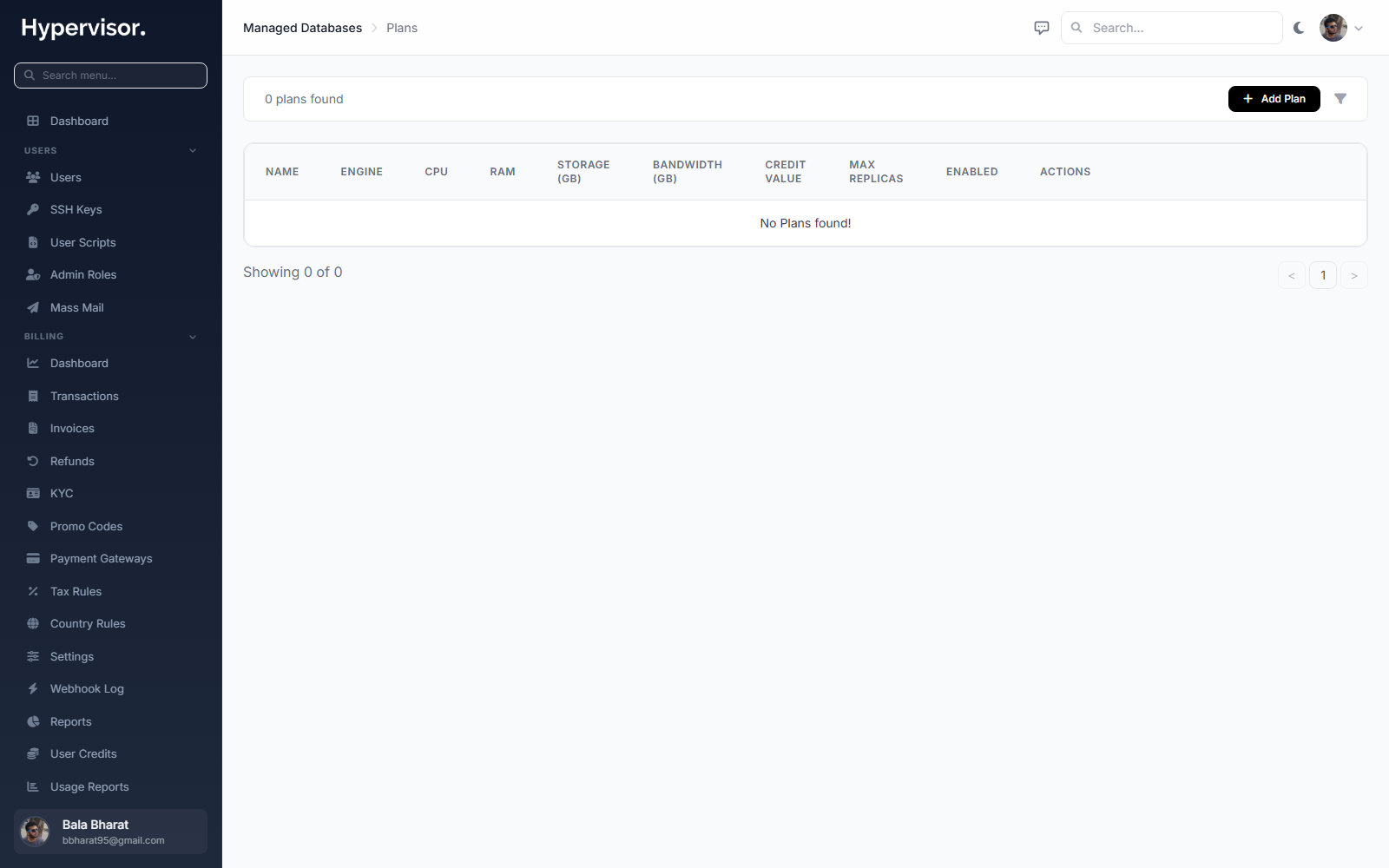
Click Add Plan to open the create form.
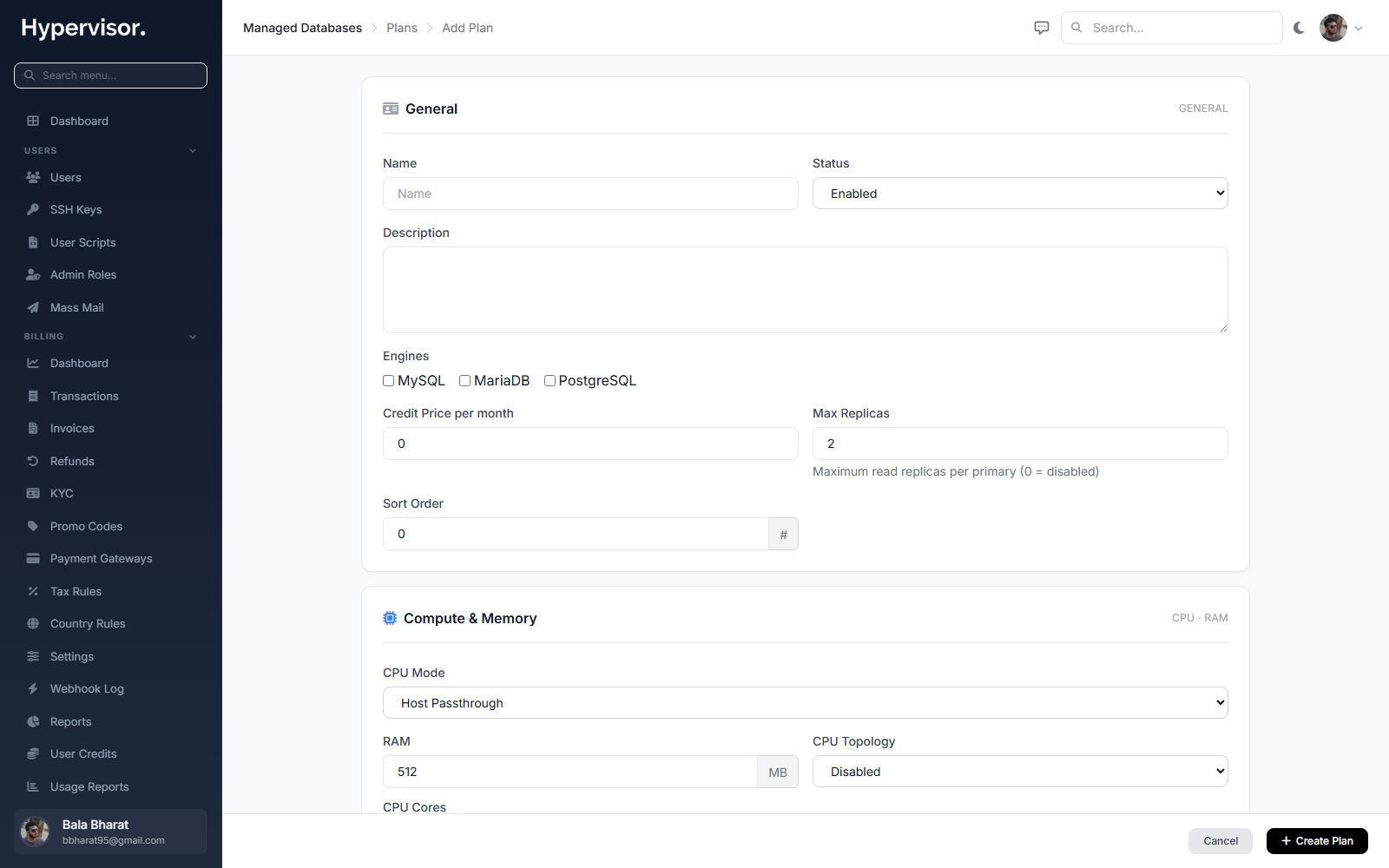
- Click Create Plan and fill in:
| Field | What it means |
|---|---|
| Name | Display name shown to users. |
| Engines | Which engines can use this plan (MySQL, MariaDB, PostgreSQL). |
| CPU Cores, RAM, Storage | Resources allocated to each database on this plan. |
| Bandwidth | Monthly bandwidth allowance in GB. 0 means unlimited. |
| Credit Value | Monthly base cost in credits. The hourly cost is this divided by hours-per-month. |
| Bandwidth Rate | Per-GB cost for bandwidth above the plan allowance, in credits. |
| Max Replicas | Maximum number of read replicas a database on this plan can have. Default 2. |
| Bandwidth Accounting | Which directions count: uploads, downloads, or both. |
| Bandwidth Overage | What happens when the bandwidth allowance is exceeded: no limit, charge per-GB overage, or suspend the database's network. |
Plans also include advanced settings for CPU topology, storage I/O limits, and network rate limits.
3. Create a plan group
A plan group is what you link to a region, not individual plans.
- Navigate to Databases > Plan Groups.
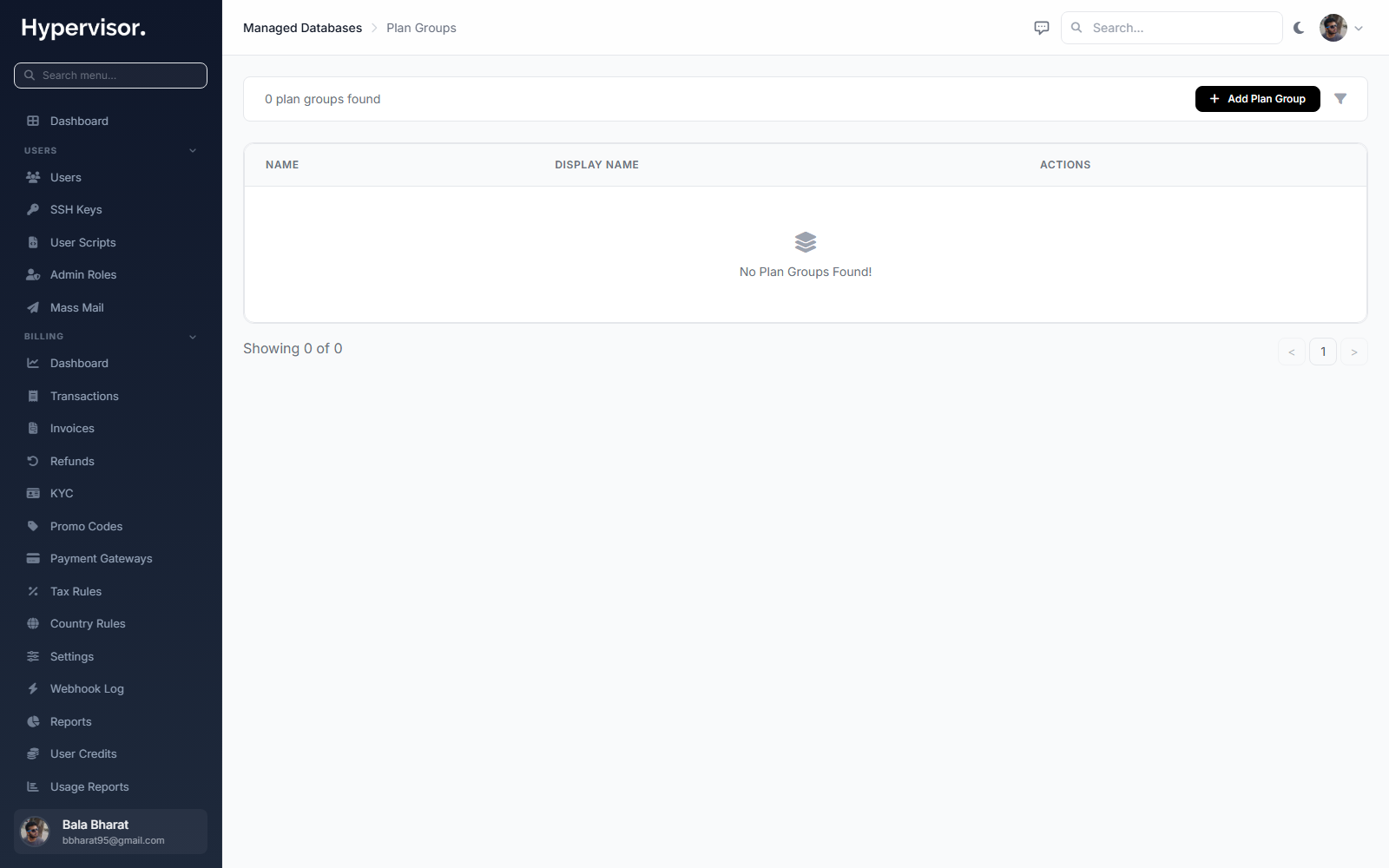
Click Add Plan Group to open the create form.
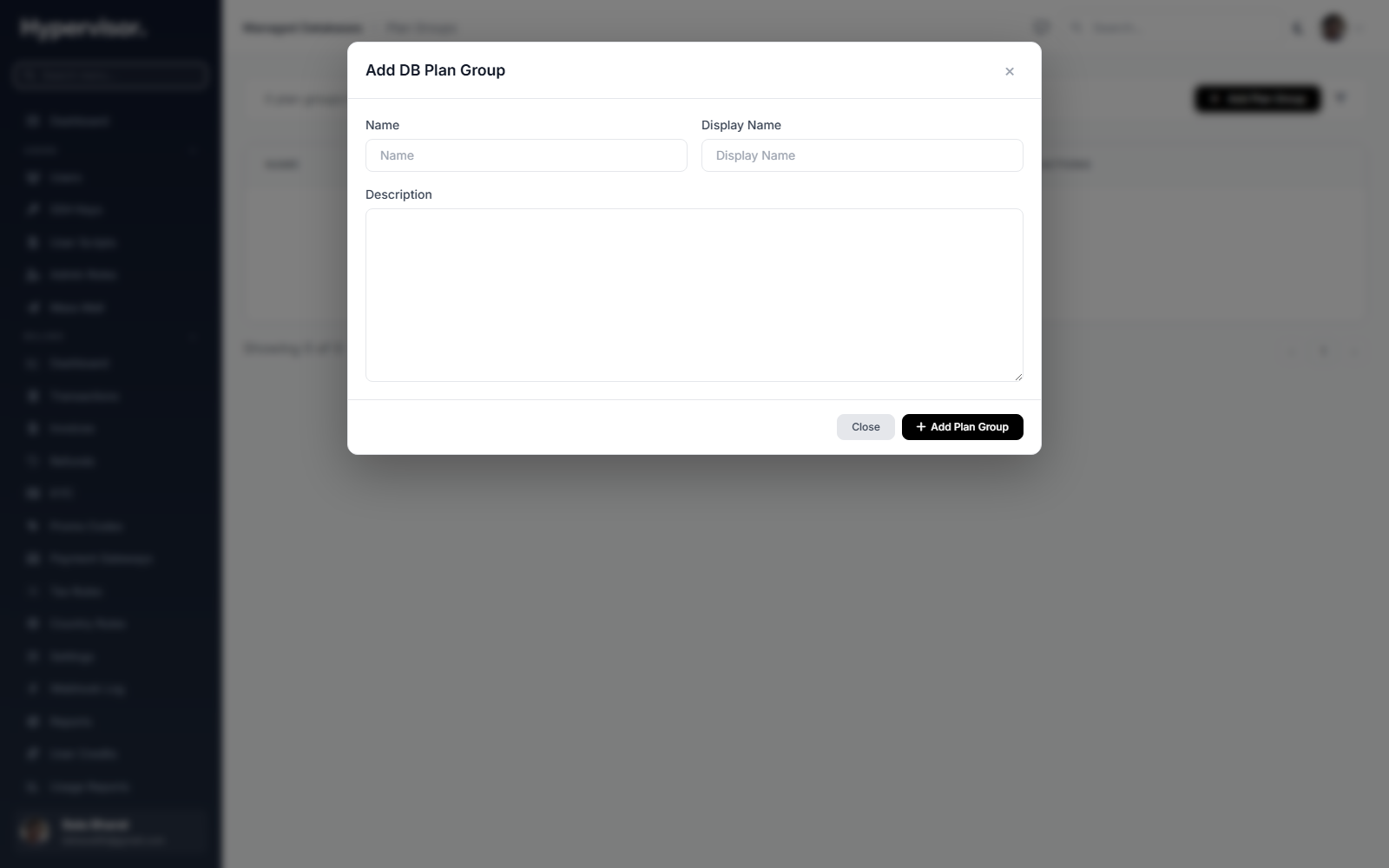
- Click Create Group, give it a name, and assign one or more database plans to it.
You can have separate plan groups per region with different pricing or different plans available.
4. Enable Managed Databases on the hypervisor group
- Navigate to Compute > Hypervisor Groups and edit the group (region) you want to enable.
- Toggle Managed Databases on.
- Configure pricing:
- Bandwidth Rate - per-GB traffic cost in credits.
- Link the DB Plan Group you created in step 3.
- In the shared Monitoring / Metrics card (shared between Managed Databases and Load Balancers), configure:
- Metrics Endpoint - URL of your metrics backend (see VictoriaMetrics setup below).
- Metrics Auth Type - Bearer Token (single token) or Basic Auth (username and password).
- Metrics Auth Credentials - the token or username/password.
- Save.
5. Set up a metrics backend (VictoriaMetrics)
The database detail page shows CPU, memory, connections, QPS and other metrics. Those metrics are pulled from a metrics backend you have to run yourself. The recommended stack is VictoriaMetrics behind vmauth.
Per region (one stack per hypervisor group is recommended):
-
Install VictoriaMetrics on a server reachable from the region's hypervisors:
- Download the latest single-node binary from VictoriaMetrics releases.
- Start it:
./victoria-metrics-prod -storageDataPath=/var/lib/victoria-metrics -retentionPeriod=30d -httpListenAddr=:8428 - It accepts writes on
/api/v1/writeand queries on/api/v1/queryand/api/v1/query_range.
-
Install vmauth (VictoriaMetrics's auth proxy) in front of it:
- Download from the same releases page.
- Config file
/etc/vmauth/config.yml:users:
- bearer_token: "your-secure-token-here"
url_prefix: "http://127.0.0.1:8428" - Start it:
./vmauth -auth.config=/etc/vmauth/config.yml -httpListenAddr=:8427
-
In the panel, set Metrics Endpoint to
http://<vmauth-host>:8427(or HTTPS via a reverse proxy) and the auth credentials to the token from step 2.
6. Set per-user database limits
The maximum number of managed databases per user is set on the user profile.
- Navigate to Users > [User] > Edit.
- Set Max Managed Databases. Default is 5. Set to 0 for unlimited.
7. Operate user databases
Admins can see and act on every database from Databases in the admin sidebar.
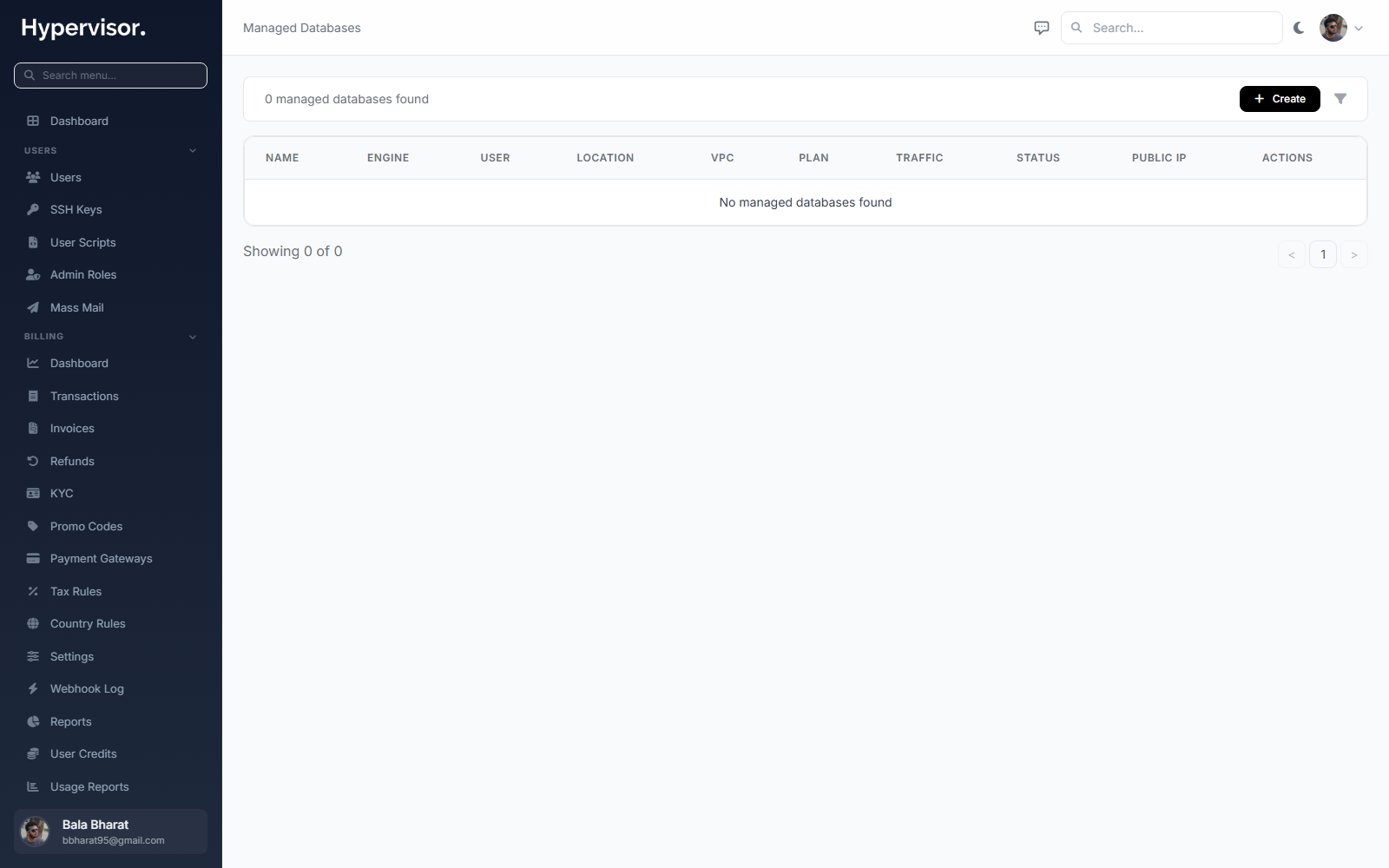
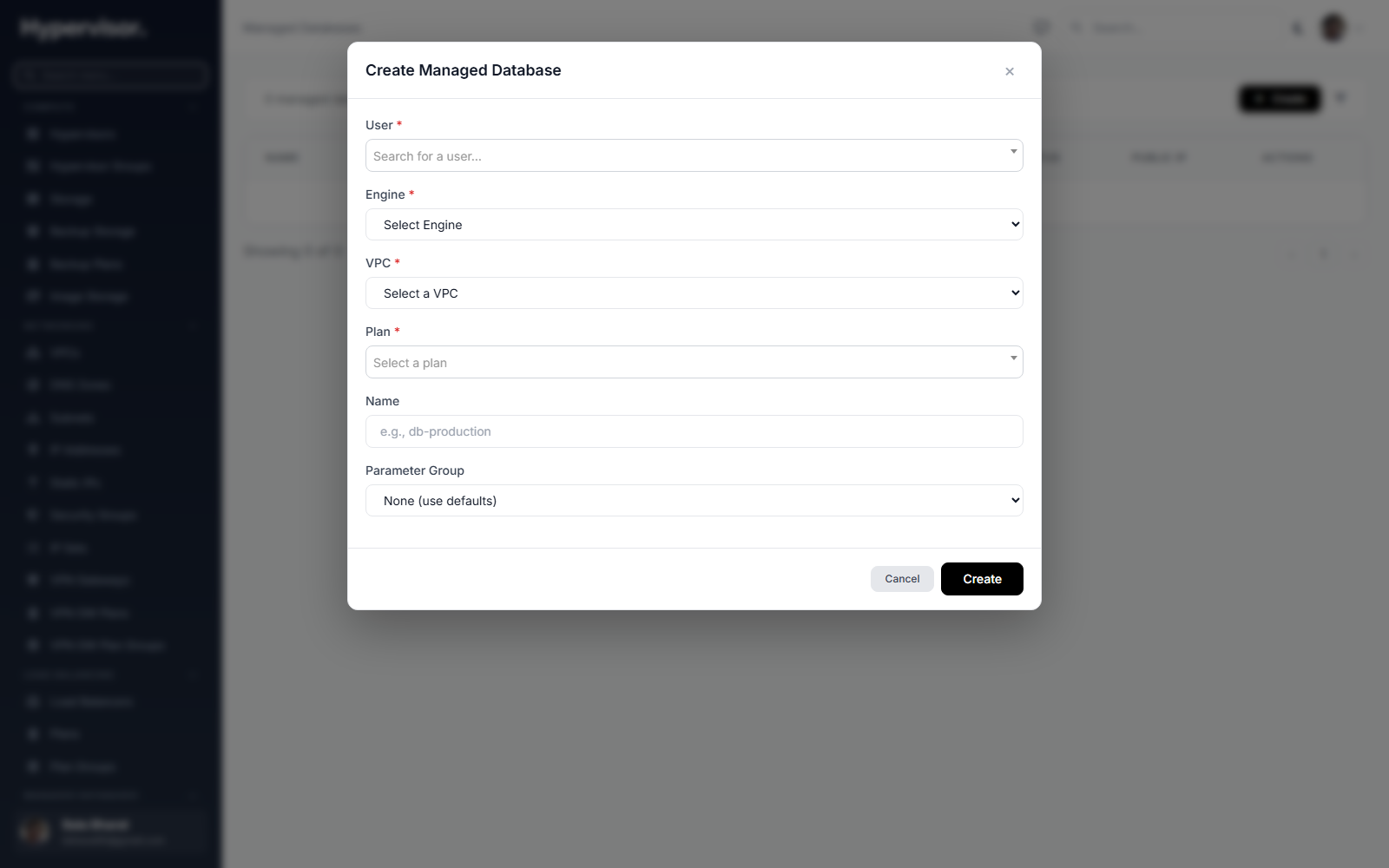
First step of the Create Database wizard.
The admin database page shows the same view a user has, plus admin-only controls: suspend/resume (stops the underlying VM and pauses billing), force destroy, and acknowledge errors on behalf of the user.
Suspension also happens automatically when a user runs out of credit, via the billing engine.
What end users see
End users get a Databases entry in the sidebar with a list of their databases.
Create a database
- Click Create Database.
- Select Database Engine (MySQL, MariaDB, or PostgreSQL).
- Select Engine Version.
- Select Location (a region with Managed Databases enabled).
- Optionally select a VPC and VPC Subnet. Omit for a standalone public database.
- Select a Plan from the plan group linked to that region.
- Optionally set a Name (auto-generated otherwise).
- Click Create.
The database is in Deploying for 2 to 4 minutes, then Active.
If the user wants read replicas later, the primary has to be in a VPC. Replication runs over private networking; a standalone public database cannot have replicas.
Database detail page
| Field | Description |
|---|---|
| Name | User-defined or auto-generated. |
| Status | Deploying, Configuring, Active, Error, Suspended, Destroying. |
| Engine | Engine and version (e.g. MySQL 8.0). |
| Role | Primary or Replica. |
| Host | VPC IP and/or public IP for connecting. |
| Port | 3306 for MySQL/MariaDB, 5432 for PostgreSQL. |
| Admin User | Database admin username. |
| Admin Password | Click to reveal, click to copy. |
| VPC | The VPC if deployed in VPC mode. |
| Plan | Current plan with resources. |
| Parameter Group | Currently applied parameter group, if any. |
| Bandwidth Used | Current billing cycle usage. |
| Replication Status | For replicas: Syncing, Active, Error, Stopped. Tracked separately from database status. |
| Replication Lag | For replicas. Seconds (MySQL/MariaDB) or bytes (PostgreSQL) behind primary. |
The database Status reflects whether the engine is running. The Replication Status independently tracks the replication stream. A replica can be Active (engine up) while replication is still Syncing (initial data transfer not done).
Day-2 actions
Available on the detail page:
- Restart - restart the engine process. Use after applying parameter group changes or to recover from a stuck state.
- Reset Admin Password - generates a new random password, applies it, displays it once.
- Resize (Change Plan) - switch to a different plan to adjust CPU, RAM, storage. Storage cannot go down. Engine tuning parameters (buffer pool size, shared buffers, etc.) auto-adjust to the new resources.
- Upgrade Engine Version - upgrade to a newer version of the same engine (e.g. MySQL 8.0 to 8.4). Pre-upgrade backup runs automatically.
- Apply Parameter Group - pick a parameter group and apply. The engine is restarted with the new config. The parameter group's engine has to match the database's engine.
- Acknowledge Error - dismiss the error banner shown after a failed background operation. Errors auto-clear on the next successful operation.
- Retry Deploy - rebuilds the database from scratch if the initial deploy failed. Preserves name and credentials.
- Delete - destroy the database. Bills any remaining unbilled hours for the current period before removing. A primary with replicas cannot be deleted; destroy or promote the replicas first.
Read replicas
Replica requirements:
- Primary is
Active. - Primary is in a VPC.
- Primary's plan allows another replica (
Max Replicasnot exceeded; default 2). - Replica plan's storage is at least as big as primary plan's storage.
Create:
- On the primary's detail page, find the Replicas section and click Create Replica.
- Pick a VPC Subnet (same VPC as primary).
- Pick a Plan.
- Optionally set a Name.
- Click Create.
Replica progresses Deploying then Active (database engine up), then replication status Syncing then Active (initial data transfer done).
Health checks every 2 minutes measure replication lag and broken replication:
- Under 5 minutes lag: normal.
- Over 5 minutes lag: warning badge.
- Replication broken: status
Errorwith detail.
Operations:
- Resync on a replica or Resync All Replicas on the primary. Avoids disrupting other healthy replicas. After a successful resync, a follow-up health check runs within 10 seconds to refresh lag immediately.
- Promote to Primary on a replica - converts it to a standalone primary. The original primary is demoted to a replica of the new primary (with replication stopped); other replicas are re-pointed at the new primary (with replication stopped). The user has to run Resync All Replicas on the new primary to re-establish replication. Only replicas in
Activestatus with active replication can be promoted.
Parameter groups
Users (and admins) can create parameter groups under Databases > Parameter Groups. Enter a name, pick an engine, and configure parameters from the engine-specific catalogue. Apply to a database from the database's detail page; the engine restarts with the new config.
Backups
- Create Backup on the detail page triggers a one-off backup.
- Scheduled backups and PITR are configured via Backup Policies. See Database Backup Policies for full coverage.
- Restore PITR lets users restore to a specific timestamp within the policy's retention window. This overwrites the current database state.
Metrics
The metrics tab shows real-time data pulled from the metrics backend you wired up.
Common metrics (all engines): CPU usage, memory usage, disk usage, disk read/write IOPS, network RX/TX.
MySQL/MariaDB: connections, threads running, QPS, slow queries, command breakdown (SELECT/INSERT/UPDATE/DELETE), InnoDB buffer pool hit rate, InnoDB buffer pool usage, InnoDB row operations, InnoDB data read/written, aborted connections, table locks waited, replication lag (replicas).
PostgreSQL: connections, transactions committed/rolled back, QPS, tuple operations, cache hit ratio, database size, live/dead tuples, temp bytes written, checkpoints, deadlocks/conflicts, replication lag in bytes (replicas).
Time ranges: 1m, 5m, 10m, 30m, 1h, 6h, 12h, 1d, 3d, 7d, 30d.
Billing
Managed databases use the Cloud Service hourly billing system, the same as instances, NAT gateways, load balancers, and VPN gateways.
- Hourly base cost: plan credit value divided by hours-per-month.
- Bandwidth: tracked per database, billed per GB based on the plan's Bandwidth Accounting and Bandwidth Overage settings.
- Deletion: bills any unbilled hours for the current period before removing.
- Usage Report: appears in Cloud Service > Usage Report under a Managed Databases section.
Troubleshooting
Database stuck in Deploying
- Check the task status on the admin dashboard for the specific error.
- Verify the hypervisor has enough RAM, storage, and public IPs.
- Verify a Managed Database image exists and is enabled for the selected engine and version.
- Use the Retry Deploy button to rebuild from scratch.
Replica stuck in Syncing
- Verify the primary is
Active. - Ensure the VPC subnets allow traffic between primary and replica.
- Use the Resync button on the replica.
Replication lag is high
- Check the primary's CPU and disk I/O - it may be overloaded.
- Verify network connectivity between primary and replica.
- Resize the replica to a higher plan with more CPU and RAM.
Cannot create replica: "Primary database must be in a VPC"
Replicas need VPC networking. A standalone public primary cannot have replicas. Recreate the primary in a VPC.
Cannot delete primary: "Cannot destroy a primary database that has replicas"
Delete all replicas first, or promote one of them to primary and then delete the demoted original.
Metrics not showing
- Verify the hypervisor group has a Metrics Endpoint configured.
- Verify the endpoint is reachable from the region's hypervisors.
- Test the endpoint by hand:
curl -H 'Authorization: Bearer <token>' http://<host>:8427/api/v1/query?query=up.
Parameter group changes not taking effect
- Verify the parameter group's engine matches the database's engine.
- Some parameters need an engine restart - use the Restart action after applying.
Related pages
- Database Backup Policies - schedules, retention, PITR.
- VPC Networking - required for replicas.
- Cloud Service Hourly Billing - how the credits get deducted.