Scaling Groups
Overview
A scaling group is an autoscaling group of identical virtual machines. The end user defines one VM "template" (an instance plan, an image, networking, cloud-init) and one or more scaling policies (rules that say when to add or remove VMs). The panel then watches CPU or memory across the group and adds or removes VMs to keep the metric inside the user's target band.
The classic use case is a stateless web tier behind a load balancer: traffic goes up, the group adds workers, traffic dies down, the group removes them.
This page is the admin-side guide. The only operator-level setup is enabling autoscaling on the hypervisor group (region) that will host the VMs. Most of the page documents what users see, because operators occasionally need to support those users.
Concepts
A few terms used throughout:
- Scaling group. A managed set of identical VMs that automatically grows or shrinks.
- Horizontal scaling. Adding or removing whole VMs (as opposed to growing one VM's CPU/RAM, which is vertical scaling).
- Template. The shared blueprint for every VM in the group: same plan, same image, same cloud-init, same SSH keys, same VPC subnet.
- Cloud-init. A small YAML config that runs on each new VM at first boot. End users use it to install packages, drop in files, or configure their app.
- Scaling policy. A rule that says "if average CPU across the group goes above X%, add Y instances; if it drops below Z%, remove Y". A group can have multiple policies, e.g. one for CPU and one for memory.
- Cooldown. The pause between two scaling events in the same direction. Prevents the autoscaler from over-reacting to short spikes.
- Evaluation interval. How often the system checks the metric. Default 30 seconds.
- Evaluation window. How far back to average the metric. Default 120 seconds. A short window reacts quickly but is noisy; a long window is stable but slow.
- Load balancer (LB). A managed component that fronts a group of backend VMs and distributes traffic across them. Scaling groups can optionally auto-register new VMs as LB targets, and deregister them on scale-down.
- Min / Max instances. Hard floor and hard ceiling on the group size. The autoscaler never goes below
minor abovemax.
Admin steps
Scaling groups don't have a dedicated admin index page. Users create and manage them in their own panel, and the operator-side setup is just turning the feature on at the region level.
Enable autoscaling on the hypervisor group
- Navigate to Compute > Hypervisor Groups and edit the region you want to enable.
- Toggle Autoscaling (or Scaling Groups) on.
- Save.
End users will only see this region in the Location dropdown of the Create Scaling Group wizard if the toggle is on and the region has hypervisor capacity.
Operate user scaling groups
Admins can view and act on any user's scaling group via the user-impersonation flow or by drilling in from the admin user detail page. There is no dedicated admin index for scaling groups themselves.
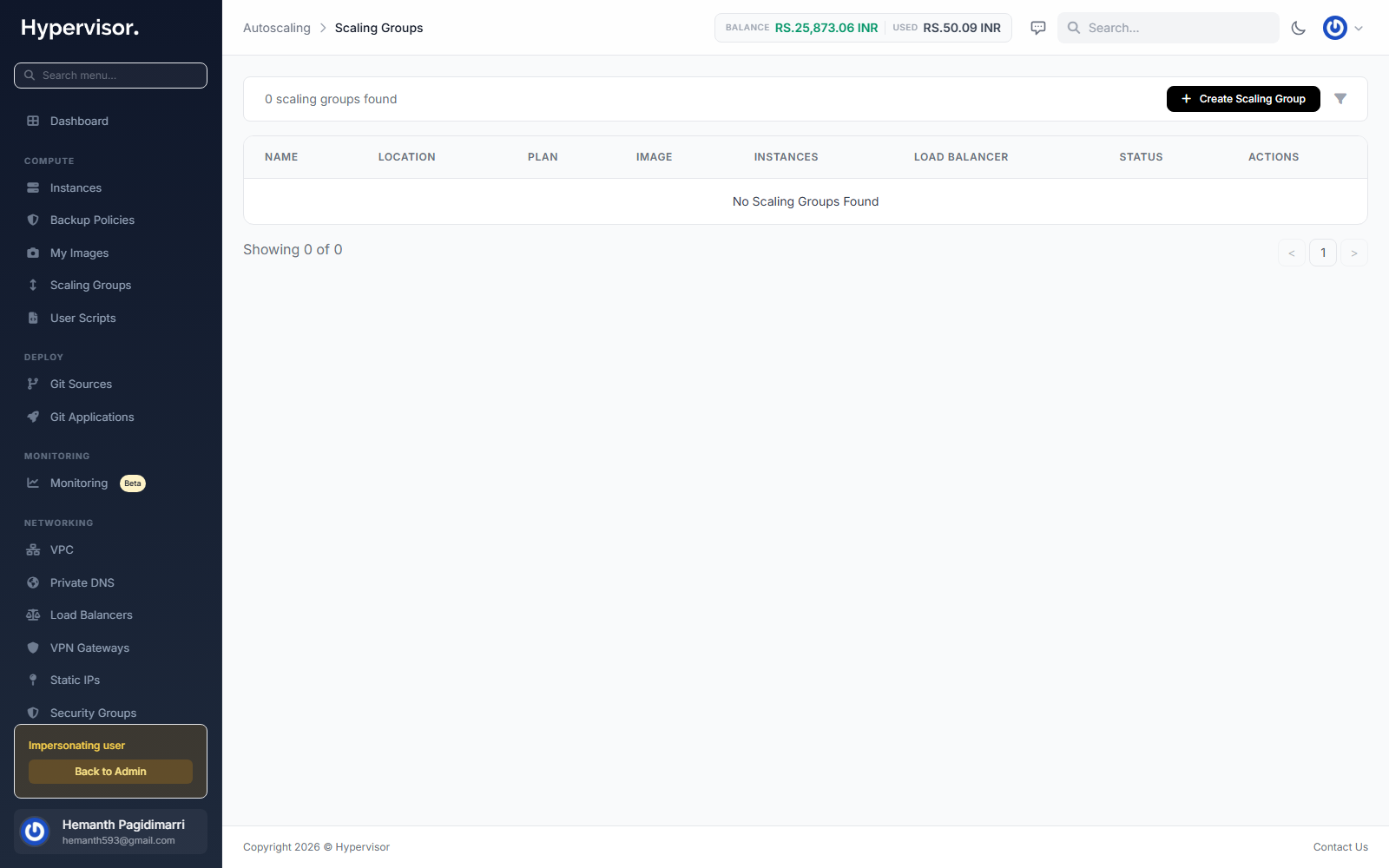
Click Create Scaling Group to open the create form.
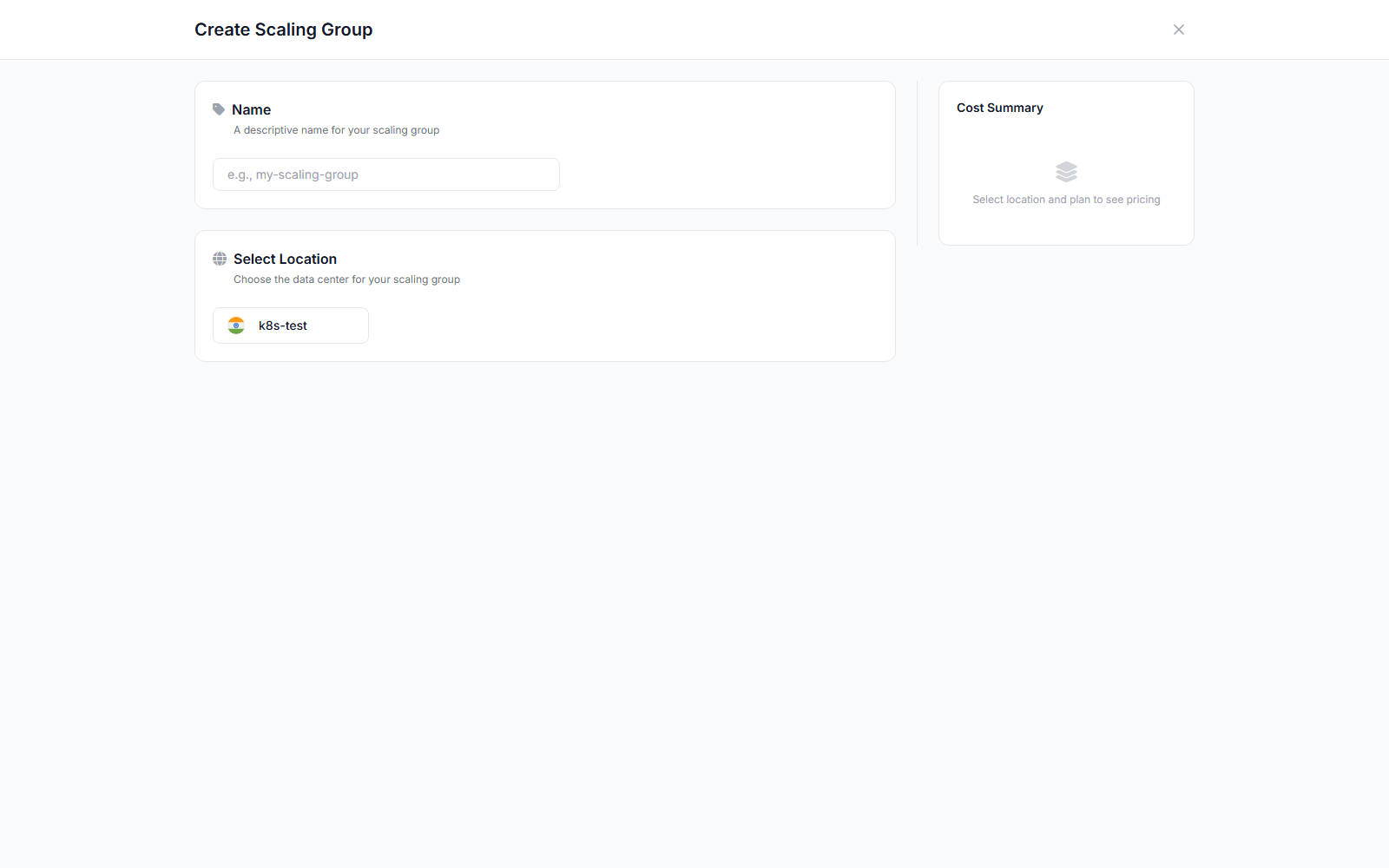
The admin sees the same UI as the end user (impersonation is how operators reach it). The operator-only actions worth knowing about:
- Force destroy - kills the group and every instance under it, even if a normal destroy is stuck on a draining instance.
- Suspend - same as the user's Pause button, plus billing implications: paused groups stop creating VMs but existing VMs keep billing as normal hourly instances.
What end users see
End users get a Scaling Groups entry in their sidebar (under Compute).
Create a scaling group
- Click Create Scaling Group.
- Fill in the form (fields below).
- Click Create.
If Min Instances is greater than 0, the initial instances deploy immediately. Otherwise the group stays empty until a policy triggers a scale-up.
| Field | What it means |
|---|---|
| Name | Display name. |
| Location | The region the VMs are deployed in. Must have autoscaling enabled. |
| Plan Type | Category of plan (varies by deployment). |
| Plan | The instance plan (CPU, RAM, storage) for every VM in the group. All VMs use the same plan. |
| Image | OS or custom image. General = base images; My Images = the user's snapshots. |
| Cloud-Init | Optional YAML applied to every VM at first boot. Usually how users install their app. |
| SSH Keys | Optional SSH public keys injected into every VM. |
| User Scripts | Optional scripts to run on instance creation. |
| VPC + Subnet | Optional. Deploys VMs into a private VPC subnet. |
| Load Balancer | Optional. Pick an LB and a backend; new VMs auto-register as targets, removed VMs deregister. |
| Min Instances | Floor. Default 1. The group will always keep at least this many running. |
| Max Instances | Ceiling. Default 5. The group will never exceed this. |
Manage a scaling group
The management page (cog icon) shows:
- Overview card - location, plan, image, VPC/subnet, LB, current count vs limits, cloud-init config. Editable:
- Plan - "Change" picks a new plan. Only applies to new VMs.
- Min/Max Instances - "Edit" adjusts the bounds. Raising the min above the current count creates VMs immediately; lowering the max below the current count removes the excess.
- Cloud-Init - "Edit" opens a code editor. Changes apply to new VMs only.
- Pause / Resume - Pause stops all scaling evaluation. Existing VMs keep running but no new ones are added or removed. Resume reactivates evaluation; if the count is below
min, VMs are created immediately. - Destroy - removes the group, every VM in it, its policies, and its activity history. Permanent.
Scaling policies
A group can have multiple policies (e.g. one for CPU, one for memory). From the management page click Add Policy and configure:
| Field | What it means |
|---|---|
| Metric | CPU or Memory. The metric to watch. |
| Scale Up Threshold | Percentage (1-100). If the group average goes above this, add instances. |
| Scale Down Threshold | Percentage (0-99). If the group average drops below this, remove instances. |
| Scale Up Step | How many to add per scale-up event. Default 1. |
| Scale Down Step | How many to remove per scale-down event. Default 1. |
| Scale Up Cooldown | Seconds to wait after a scale-up before another scale-up is allowed. Default 300. |
| Scale Down Cooldown | Seconds to wait after a scale-down before another scale-down is allowed. Default 600. |
| Evaluation Interval | How often the metric is checked, in seconds. Default 30. |
| Evaluation Window | How far back to average the metric, in seconds. Default 120. |
How evaluation works
- Every 30 seconds the system walks every active scaling group.
- For each policy whose evaluation interval has elapsed, it averages the metric across all running VMs over the evaluation window.
- If the average is above the scale-up threshold and the scale-up cooldown has expired, it adds Scale Up Step VMs (capped at Max Instances).
- If the average is below the scale-down threshold and the scale-down cooldown has expired, it removes Scale Down Step VMs (capped at Min Instances).
The cooldowns prevent flapping: after a scale-up the group will not scale up again until the cooldown expires, even if the metric stays hot. This gives new VMs time to absorb the load.
Load balancer integration
If the group has an LB and backend selected:
- Scale up. New VMs are auto-registered as targets in the backend. Traffic routes to them as soon as their LB health check passes.
- Scale down. VMs are deregistered from the backend before being destroyed, so in-flight requests can complete.
End-to-end this gives a fully automatic pipeline: traffic hits the LB, the LB spreads it across the group, the group grows and shrinks based on real load.
Activity log
A real-time log of every scaling event:
| Column | Description |
|---|---|
| Time | When it happened. |
| Action | Scale Up (green), Scale Down (yellow), Error (red). |
| Metric | The metric reading that triggered it, e.g. CPU 85%. |
| Instance | The VM created or destroyed (clickable link). |
| Message | One-line description. |
Activity log entries are kept for 30 days and then auto-cleaned.
Instances list
The instances section shows the VMs currently in the group, with status and creation time. Per row:
- Manage (cog icon) - opens the VM's full management page (treats it like any normal VM).
- Destroy (trash icon) - removes that specific VM.
If the user manually destroys a VM and the count drops below the minimum, the system automatically creates a replacement.
Billing
VMs inside a scaling group are billed exactly like any other Cloud Service hourly VM. The plan's hourly rate applies for each VM, for as long as it exists. There is no separate charge for the scaling group itself.
Costs scale linearly with count. A group sitting at 5 VMs costs the same as 5 independent VMs of the same plan. When the group scales back down, billing for the removed VMs stops immediately.
Troubleshooting
Instances not being created
- The scaling group status must be
Active, notPaused. - The account needs enough credit balance for the new VMs.
- The region needs hypervisor capacity. Check Compute > Hypervisors in the admin panel.
- If using a private VPC subnet, the VPC must have a NAT gateway attached so VMs can reach the internet for cloud-init package installs.
Scale-up not triggering
- At least one scaling policy has to be enabled.
- The average metric has to actually exceed the scale-up threshold over the evaluation window.
- The scale-up cooldown may not have elapsed since the last event.
- Check the activity log for
Errorentries that explain a refusal.
Instances created but not accessible
- Brand new VMs take a minute or two to boot and apply cloud-init.
- If using an LB, the VM has to pass health checks before traffic flows to it.
- Verify the VPC subnet has free IPs.
"No hypervisors available"
Every hypervisor in the region is at capacity. Add more compute, or have the user resize the plan down.
Related pages
- Hypervisor Groups - where the Autoscaling toggle lives (configured under Admin Setup).
- Load Balancers - the LB stack that fronts a scaling group.
- VPC Networking - required if you want private subnets and NAT outbound.